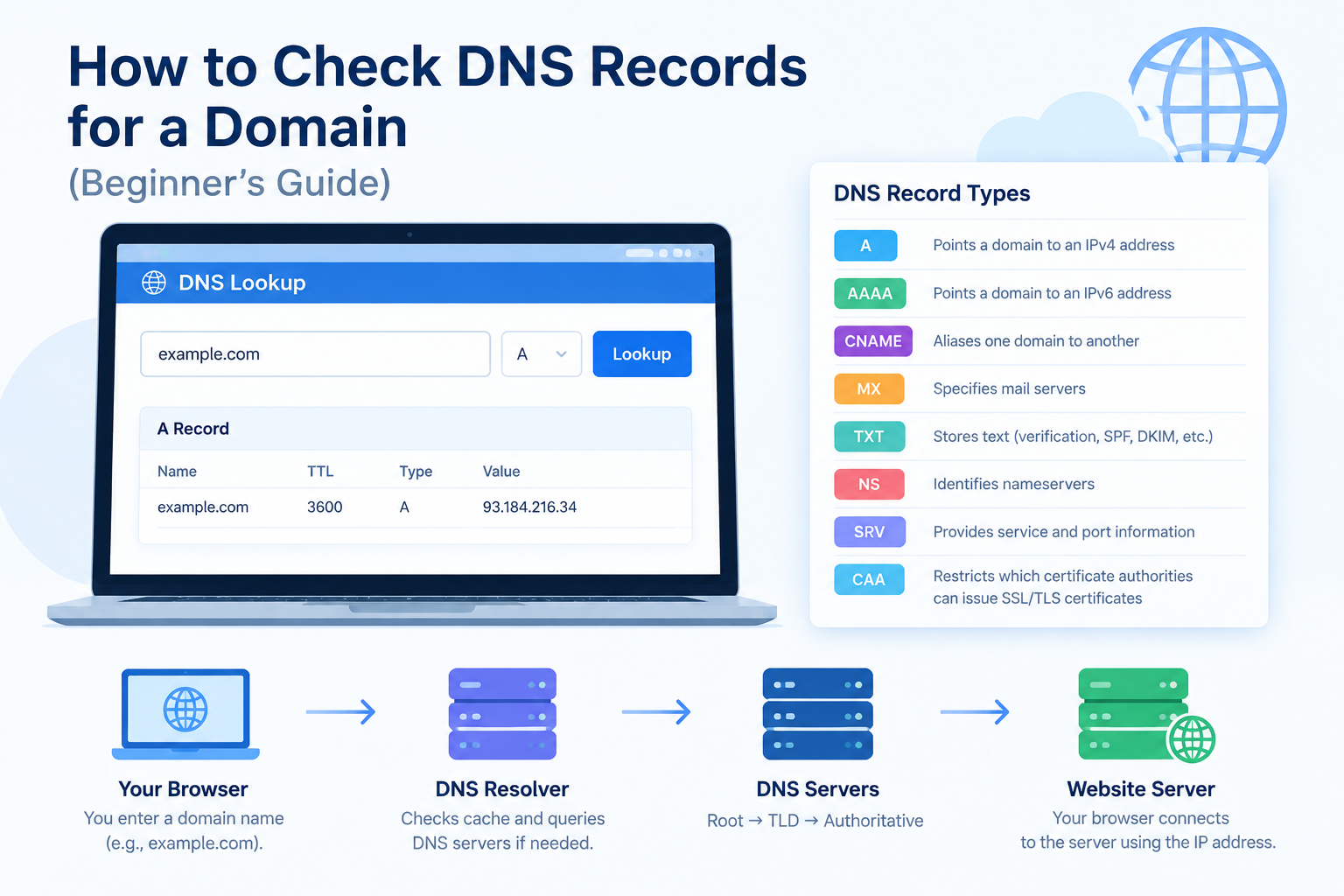
DNS records help connect your domain name to the services that use it, including your website, email, and other online applications.
If your website is not loading, your domain is pointing to the wrong server, or your email is not working correctly, checking your DNS records is a useful troubleshooting step.
But how do you check DNS records for a domain?
You can use a free online DNS lookup tool, run a command on your computer, or check the DNS Zone Editor in your hosting control panel.
In this guide, you will learn how to check common DNS records, understand the results, and troubleshoot common DNS problems. The examples are suitable for beginners and website owners using hosting providers such as HawkHost.
What Are DNS Records?
DNS records are settings stored in the Domain Name System (DNS). They tell computers and other services how to find your website, email server, and other resources associated with your domain.
For example, an A record connects a domain name to an IPv4 address. An MX record identifies the mail servers responsible for receiving email for your domain.
If you want to understand the basics before checking your records, read our guide to What Is DNS? A Beginner’s Guide.
Common Types of DNS Records
Here are the most common DNS records you may need to check.
| Record Type | Purpose | Example |
|---|---|---|
| A | Points a hostname to an IPv4 address | example.com → 192.0.2.10 |
| AAAA | Points a hostname to an IPv6 address | example.com → 2001:db8::10 |
| CNAME | Points one hostname to another hostname | www.example.com → example.com |
| MX | Specifies mail servers for a domain | example.com → mail.example.com |
| TXT | Stores text used for verification, email authentication, and other purposes | SPF or domain verification |
| NS | Identifies the authoritative nameservers for a domain | ns1.example.net |
| SRV | Specifies the host and port for certain services | Service discovery |
| CAA | Specifies which certificate authorities may issue SSL/TLS certificates for a domain | A permitted certificate authority |
The actual values for your domain will be different. The examples above use documentation-style IP addresses and illustrative hostnames.
Method 1: Check DNS Records Using an Online Tool
Using an online DNS lookup tool is one of the easiest ways to check DNS records. You do not need to install software or use command-line tools.
Several free services are available, including DNSChecker and Google Admin Toolbox Dig.
Step 1: Open a DNS Lookup Tool
Choose one of these tools:
- DNSChecker: https://dnschecker.org/
- Google Admin Toolbox Dig: https://toolbox.googleapps.com/apps/dig/
DNSChecker is useful for comparing DNS results from different locations. Google Admin Toolbox Dig lets you query specific record types and inspect the returned DNS information.
Step 2: Enter Your Domain Name
Enter the domain you want to check.
For example:
example.com
Use your actual domain name instead of example.com.
If the tool offers a record-type selector, choose the type you want to inspect, such as A, AAAA, CNAME, MX, TXT, or NS.
Step 3: Select the DNS Record Type
Choose the record you want to look up.
For example, select A to check the IPv4 address associated with your domain.
If you are troubleshooting email, check the MX and TXT records. If you want to verify which nameservers are associated with your domain, check the NS records.
Step 4: Run the Lookup
Click the lookup or search button.
The tool will display the DNS results it receives. Depending on the tool, you may see IP addresses, hostnames, mail server priorities, text values, or responses from different DNS resolvers.
Compare the returned values with the settings expected from your hosting provider or DNS service.
Important: An online lookup shows what the queried DNS resolver can currently see. It does not automatically prove that every DNS server worldwide has the same information.
Method 2: Check DNS Records on Windows
Windows includes the nslookup command, which you can use to check DNS records without installing additional software.
Step 1: Open Command Prompt
Press Windows + R, type:
cmd
Then press Enter.
You can also open Command Prompt from the Windows Start menu.
Step 2: Check the A Record
Enter this command:
nslookup example.comReplace example.com with your domain.
The output may look similar to this:
Server:  resolver.example.net
Address:  192.0.2.53

Non-authoritative answer:
Name:    example.com
Address: 192.0.2.10
The IP addresses and hostnames above are illustrative.
The Address listed under the answer is the IPv4 address returned for the domain. The resolver information at the beginning identifies the DNS server that answered your query.
A non-authoritative answer generally means the response came from a recursive resolver rather than directly from the domain’s authoritative DNS server. This is normal for many lookups.
Step 3: Check Other DNS Records
You can query other record types by using the -type option.
To check MX records:
nslookup -type=MX example.comTo check TXT records:
nslookup -type=TXT example.comTo check NS records:
nslookup -type=NS example.comTo check AAAA records:
nslookup -type=AAAA example.comFor a CNAME record, query the specific hostname you want to investigate:
nslookup -type=CNAME www.example.comA CNAME lookup may return no CNAME record if the hostname does not use one. That is not necessarily an error; the hostname may use an A or AAAA record instead.
Method 3: Check DNS Records on macOS or Linux
If you use macOS or Linux, you can use the dig command if it is available on your system.
Check an A Record
Open Terminal and run:
dig example.com ALook at the ANSWER SECTION in the output. It may contain a line similar to:
example.com. 3600 IN A 192.0.2.10This indicates that the query returned an A record with the illustrated IPv4 address. The number 3600 represents the TTL in seconds in this example.
Check Other Record Types
Use these commands to inspect common records:
AAAA record
dig example.com AAAACNAME record
dig www.example.com CNAMEMX records
dig example.com MXTXT records
dig example.com TXTNS records
dig example.com NSIf you want to see which nameservers are delegated for a domain, you can also run:
dig example.com NSFor more detailed troubleshooting, dig supports querying a specific DNS server and displaying additional response information.
For example:
dig @8.8.8.8 example.com AThis sends the query to Google’s public DNS resolver at 8.8.8.8. It can help you compare results with your computer’s default resolver.
Method 4: Check DNS Records in HawkHost cPanel
If your domain’s DNS zone is managed through HawkHost hosting, you may be able to view and manage DNS records in cPanel.
However, your hosting account does not necessarily control your domain’s active DNS zone. If your domain uses nameservers from another provider, you may need to check or edit the records there instead.
Step 1: Log In to HawkHost
Log in to your HawkHost Client Area and open the hosting service associated with your domain.
Access cPanel using the available login option.
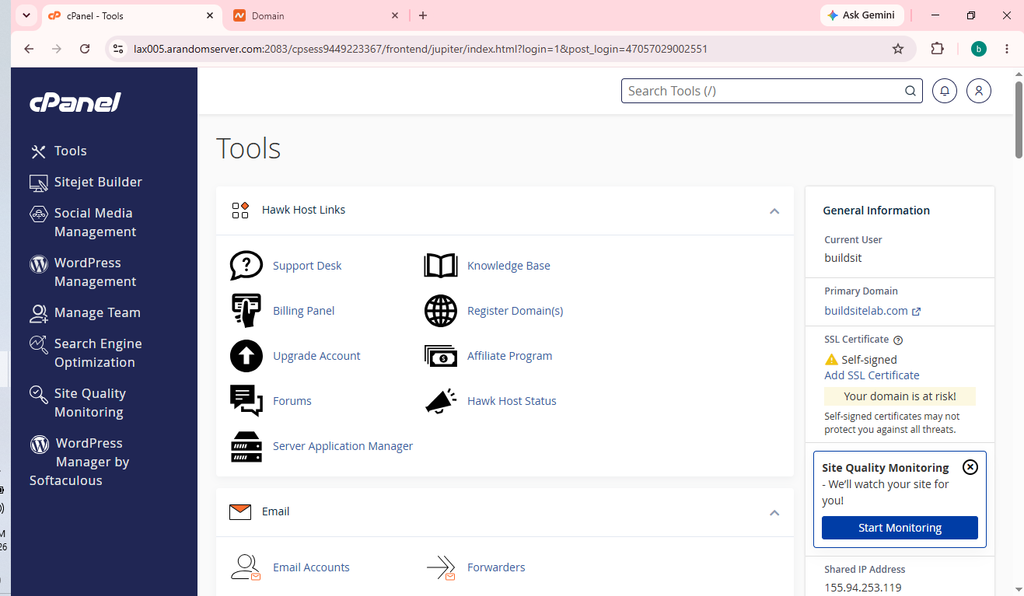
If you need help, read our guide to How to Access HawkHost cPanel.
Step 2: Open the Zone Editor
In cPanel, look for Domains → Zone Editor or search for “Zone Editor” using the cPanel search function.
The exact layout and available options may vary depending on your hosting configuration.
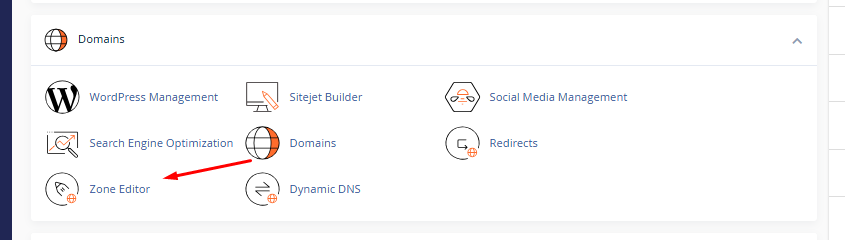
Step 3: Find Your Domain
Locate the domain you want to inspect.
If the Zone Editor provides a Manage option, open it to view the DNS records associated with that zone.
You may see records such as:
- A records for your website or subdomains
- CNAME records for aliases such as
www - MX records for email routing
- TXT records for verification or email authentication
- NS records
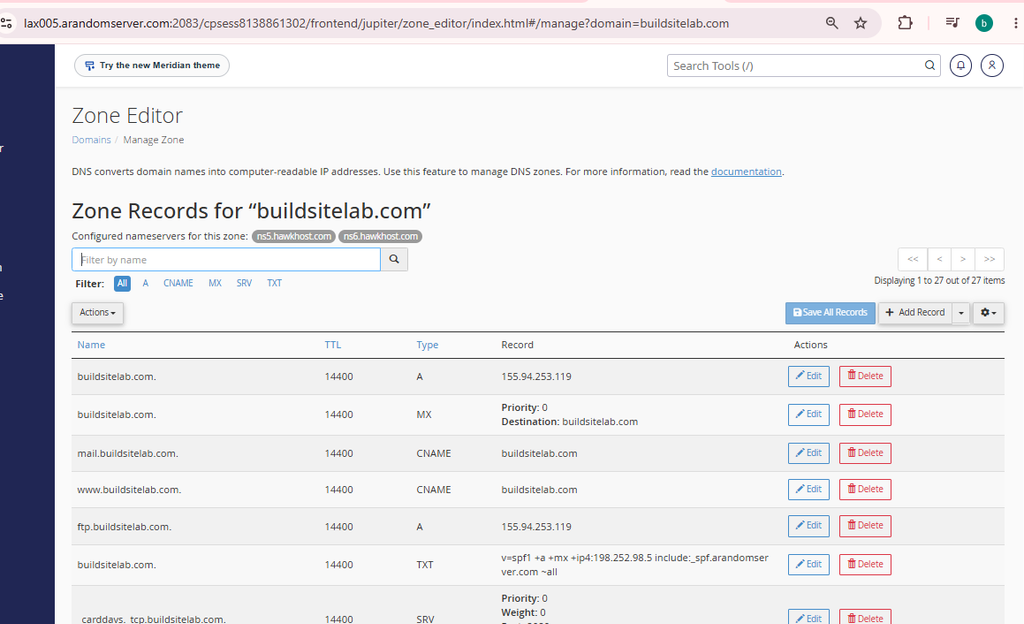
Step 4: Review the Record Values
Compare the records with the values supplied by the service you are configuring.
For example, if your hosting provider tells you to point your domain to a specific IPv4 address, check whether the relevant A record contains that address.
If you use an external email provider, make sure the MX records match that provider’s instructions.
Do not change or delete DNS records just because you do not recognize them. Some records are required for email, website verification, subdomains, security, or other services.
Also remember that the Zone Editor shows the records in that DNS zone. To verify what is publicly active, use an external DNS lookup tool as well.
How to Check Specific DNS Records
Different DNS records serve different purposes. Here is what to look for when troubleshooting common problems.
1. How to Check an A Record
An A record maps a hostname to an IPv4 address.
To check it with nslookup, run:
nslookup -type=A example.comOr use:
dig example.com ACheck whether the returned IP address matches the address specified by your hosting provider.
If your website is hosted on HawkHost, use the correct IP address for your hosting service. Do not copy the example IP address in this article.
If the A record points to an old server, your domain may load the wrong website or fail to connect to the expected server.
2. How to Check a CNAME Record
A CNAME record points one hostname to another hostname.
For example, www.example.com might point to example.com.
Run:
nslookup -type=CNAME www.example.comOr:
dig www.example.com CNAMECheck whether the returned target matches your intended configuration.
A hostname using a CNAME generally cannot have other record types at the same name, apart from certain DNS-specific exceptions. The domain’s root hostname is commonly configured with A and/or AAAA records instead.
3. How to Check MX Records
MX records tell other mail servers where to deliver email for your domain.
Run:
nslookup -type=MX example.comOr:
dig example.com MXThe results may include a priority number and a mail server hostname.
For example:
example.com. 3600 IN MX 10 mail.example.com.This is an illustrative record, not a recommended configuration for every domain.
When checking MX records, verify that:
- The mail server hostname matches your email provider’s instructions.
- The priority values are correct.
- The mail server hostname resolves correctly.
- You have not accidentally removed records required by your email provider.
If you use Google Workspace, Microsoft 365, or another email service, follow that provider’s specific DNS setup instructions rather than using generic example values.
4. How to Check TXT Records
TXT records store text values used for different purposes, including domain verification and email authentication.
Common uses include:
- SPF, which identifies authorized senders for a domain.
- DKIM, which publishes a public key used to verify email signatures.
- DMARC, which specifies how receiving systems should handle messages that fail authentication checks.
- Domain ownership verification for external services.
To check TXT records, run:
nslookup -type=TXT example.comOr:
dig example.com TXTCompare the returned text with the exact value supplied by the relevant service.
Some domains have multiple TXT records. A lookup may also display a long value in multiple quoted sections. This does not necessarily mean the record is incorrect.
Avoid adding multiple conflicting SPF records. If you need to update SPF, follow your email provider’s instructions and consolidate the authorized senders into the appropriate SPF policy.
5. How to Check NS Records
NS records identify the nameservers associated with a DNS zone.
Run:
nslookup -type=NS example.comOr:
dig example.com NSCompare the results with the nameservers configured at your domain registrar.
If you recently changed your nameservers, the results may differ temporarily between DNS resolvers while the change propagates.
Keep in mind that querying NS records is useful, but checking the domain’s actual delegation may require a more detailed DNS trace or a query to the parent DNS zone.
How to Check DNS Propagation
DNS propagation is the process by which changes become visible through DNS resolvers over time.
After updating an A, CNAME, MX, TXT, or NS record, you may not see the new value immediately everywhere.
The delay depends on factors such as the previous record’s TTL, resolver caching, the type of change, and the DNS provider’s configuration.
Use DNSChecker to Compare Results
Follow these steps:
- Open https://dnschecker.org/.
- Enter your domain or hostname.
- Select the record type you changed.
- Run the lookup.
- Compare the returned values from different locations.
If some locations show the new value while others show the old value, caching or incomplete propagation may be involved.
However, differences can also result from different DNS configurations or resolver behavior. A propagation checker is a troubleshooting aid, not proof that every resolver worldwide has updated.
Compare Results from Different DNS Resolvers
You can compare the response from different resolvers with dig.
For example:
dig @8.8.8.8 example.com Adig @1.1.1.1 example.com AThese commands query Google’s and Cloudflare’s public DNS resolvers, respectively.
If the responses differ, check your DNS provider’s authoritative records and the TTL values. Do not repeatedly change your DNS settings simply because one resolver still returns an older result.
For more information about connecting a domain to your hosting account, see How to Connect a Domain to HawkHost.
Common DNS Problems and How to Fix Them
If your DNS lookup returns an unexpected result, use the following table to narrow down the problem.
| Problem | Possible Cause | What to Check |
|---|---|---|
| Website points to the wrong server | Incorrect or outdated A record | Compare the A record with your hosting provider’s IP address |
www does not work | Missing or incorrect A, AAAA, or CNAME configuration | Check the records for www.example.com |
| Email is not being received | Incorrect MX records or email configuration | Verify MX records and the mail provider’s setup instructions |
| Domain verification fails | Missing or incorrect TXT record | Check the exact verification value |
| New DNS settings are not visible | Cached records or incomplete propagation | Compare resolvers and review the TTL |
| Domain uses unexpected nameservers | Nameservers configured at the registrar do not match your intended DNS provider | Check the registrar’s nameserver settings |
| Some visitors see a different website | Different DNS answers, cached data, or inconsistent configuration | Compare authoritative records and public resolver results |
Problem 1: DNS Records Point to the Wrong IP Address
If the A record returns an unexpected IP address, sign in to the provider managing your DNS zone and review the record.
Before changing it, confirm the correct IP address with your hosting provider. If your domain uses external nameservers, changing the record in HawkHost cPanel may not affect the public DNS response.
Problem 2: DNS Records Have Not Updated
If you recently changed a DNS record, wait for the relevant caches to expire and check again.
You can compare results from multiple resolvers and review the record’s TTL. Clearing your local DNS cache may help your own computer resolve a newer value, but it will not clear caches maintained by external DNS resolvers.
Problem 3: Your Website Works Without www but Not With www
Check the records for both the root domain and the www hostname.
For example:
example.comwww.example.com
The root domain may have an A or AAAA record, while www may use a CNAME or its own address record.
Both hostnames must be configured correctly for the behavior you want. Also check your hosting and HTTPS configuration if DNS records look correct but the website still fails to load.
Problem 4: Your Email Is Not Working
Start by checking the MX records. Then review any SPF, DKIM, and DMARC records required by your email provider.
Remember that DNS records are only one part of email delivery. Incorrect mailbox settings, account problems, or provider-side issues can also prevent email from working.
Do not replace your existing email records with generic examples. Use the exact configuration provided by your email service.
DNS Lookup vs. DNS Propagation Checker
These tools are related, but they serve slightly different purposes.
| Tool | Main Purpose | Best Use |
|---|---|---|
| DNS lookup tool | Queries DNS records and displays the response | Checking the current A, CNAME, MX, TXT, or NS values |
| DNS propagation checker | Compares DNS responses across multiple locations or resolvers | Investigating changes that are not visible everywhere |
| cPanel Zone Editor | Displays and manages records in a hosting account’s DNS zone | Reviewing or editing records when that zone is managed in cPanel |
nslookup or dig | Queries DNS from the command line | Troubleshooting specific records and comparing DNS servers |
You may need more than one method to diagnose a problem. For example, use cPanel to inspect the configured zone, then use an external lookup tool to verify the publicly returned records.
Frequently Asked Questions
How can I check DNS records for free?
You can use free online tools such as DNSChecker or Google Admin Toolbox Dig. You can also use nslookup on Windows or dig on macOS and Linux, if available.
How do I check whether my domain points to the correct server?
Look up the domain’s A record and compare the returned IPv4 address with the address supplied by your hosting provider. If your website uses IPv6, check the AAAA record as well.
Can I check DNS records without logging in to my hosting account?
Yes. Public DNS lookup tools and command-line utilities can query publicly available DNS records without requiring access to your hosting account.
However, they generally cannot show every setting stored in a private hosting dashboard or an unpublished DNS zone.
Why do different DNS tools show different results?
Different tools may query different resolvers, use different locations, or display cached responses. DNS configuration differences and propagation delays can also cause variations.
Compare the results with the authoritative DNS records and allow relevant caches to expire before making additional changes.
How long does DNS propagation take?
There is no single time that applies to every change. Some updates become visible quickly, while others take longer because of DNS caching and TTL settings.
Check the relevant records from multiple resolvers rather than assuming that a fixed waiting period guarantees the change is complete.
Can I edit DNS records in HawkHost cPanel?
You may be able to edit records in cPanel’s Zone Editor if your account has access to that feature and the DNS zone is managed there.
If your domain uses nameservers from another DNS provider, make the changes with that provider instead.
Is checking DNS records the same as checking nameservers?
No. DNS records contain information such as IP addresses, mail servers, and verification values. Nameservers identify the DNS servers responsible for a domain’s DNS zone.
Checking NS records is useful when you want to confirm which nameservers are published for a domain, but you may also need to check the registrar’s delegation settings.
Conclusion
Knowing how to check DNS records for a domain can help you troubleshoot website connection problems, email delivery issues, and domain configuration errors.
For beginners, an online DNS lookup tool is usually the simplest starting point. If you need more detailed information, use nslookup on Windows or dig on macOS and Linux. If your DNS zone is managed through HawkHost, cPanel’s Zone Editor can help you review the configured records.
Before changing anything, identify which provider manages your active DNS zone and compare the current values with the correct settings supplied by your hosting or email provider.
If you are setting up a new website, continue with our guide to How to Connect a Domain to HawkHost or learn How to Change HawkHost Nameservers.