Importing a MySQL database is an important step when moving a website to a new hosting provider, restoring a database backup, or transferring a WordPress website to HawkHost.
If you already have a database export file, usually ending in .sql, you can import it into a MySQL database through phpMyAdmin in HawkHost cPanel. After the import is complete, you can check the database tables and update your website’s database connection settings if necessary.
In this guide, you will learn how to import a MySQL database in HawkHost cPanel, prepare your SQL file, verify the imported data, and troubleshoot common database import errors.
What You Need Before Importing a MySQL Database
Before starting the import process, make sure you have the following items.
1. A MySQL Database Export File
You need a database backup or export file containing the SQL statements required to recreate your database structure and data.
Common file formats include:
.sql— a plain-text SQL database export..sql.zip— a compressed SQL export, if supported by the import environment..sql.gz— a gzip-compressed SQL export, if supported by the import environment.
A WordPress database export may contain tables for posts, pages, comments, users, settings, and other website information.
If you do not have a database export yet, you may need to export it from phpMyAdmin on your old hosting account.
2. An Existing MySQL Database in HawkHost
You need a destination database in HawkHost to receive the imported data.
If you have not created one yet, follow our guide on How to Create a Database in HawkHost cPanel.
You also need a database user with sufficient privileges to import the data. If you need help creating the user or assigning permissions, read How to Create a MySQL Database User in HawkHost.
Important: Importing a database does not automatically create the database or configure your website to use it. These are separate steps.
3. Access to HawkHost cPanel
Log in to your HawkHost client area and open cPanel using the access method available for your hosting account.
Once you are inside cPanel, look for phpMyAdmin. This tool lets you manage MySQL databases through your browser.
Step 1: Log In to HawkHost cPanel
First, sign in to your HawkHost account.
Open the hosting service associated with the website you want to manage, then access cPanel.
The exact navigation may vary depending on your account interface.
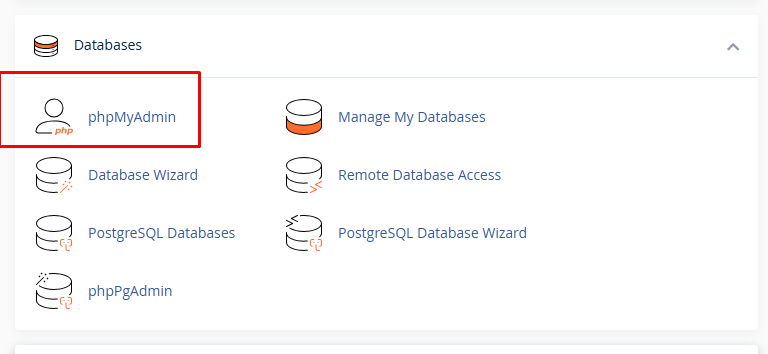
Once cPanel loads, locate the Databases section or use the search function to find phpMyAdmin.

Step 2: Open phpMyAdmin
In cPanel, click phpMyAdmin to open the database management interface.
phpMyAdmin displays the databases available to your hosting account in a navigation panel. The layout may look slightly different depending on the phpMyAdmin version.
Locate the database you want to import your SQL file into.
If you have multiple databases, check the full database name carefully. Hosting providers often add an account-specific prefix to database names.
For example, a database you intended to name mywebsite might appear with a prefix such as account_mywebsite. Use the actual database name displayed in your account.

Step 3: Select the Destination Database
Click the destination database in the left-hand navigation panel.
If the database is new and empty, it may not contain any tables yet. This is normal.
If it already contains tables, review them before continuing. Importing a SQL file may create new tables, insert records, or modify existing data, depending on the SQL statements in the file.
Do not import a database into a live website’s database without checking what the import file contains. Some SQL exports include commands that drop or replace existing tables.
If you are migrating a website, make sure you have a backup of the destination database before making changes.
Step 4: Open the Import Tab
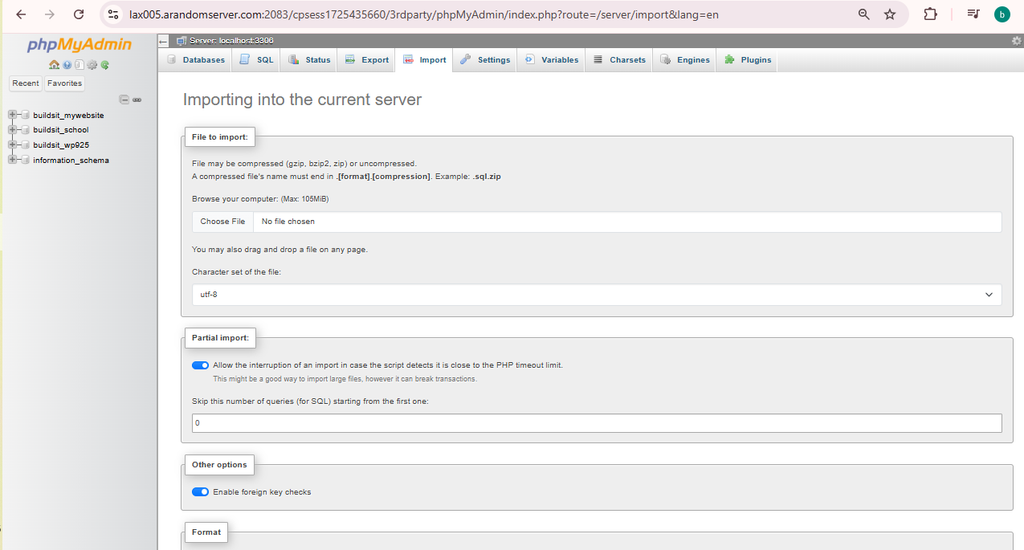
After selecting the correct database, click the Import tab in phpMyAdmin.
The Import page lets you upload a database file and configure import options.
Look for the file selection control, which may be labelled Choose File or use similar wording.
Click it and select your SQL database export from your computer.
For example:
mywebsite-backup.sql
If your file is compressed, check the formats accepted by the Import page before uploading it.
Choose the Correct File
Make sure you select the database export rather than an unrelated file, such as a WordPress theme ZIP, plugin ZIP, or complete website archive.
A database SQL file contains database commands and data. It is different from the website’s WordPress files, which are usually stored separately in directories such as wp-content.
Step 5: Configure the Import Options
For a typical SQL export, the default import settings are often sufficient.
Review the following options before proceeding:
- File to import: Confirm that the correct SQL file is selected.
- Format: Select SQL if phpMyAdmin does not detect it automatically.
- Character set: Keep the file’s appropriate character encoding. UTF-8 is common for WordPress databases.
- Partial import or other advanced settings: Leave these at their defaults unless you have a specific reason to change them.
Available options vary by phpMyAdmin version and hosting configuration.
When everything looks correct, click Import or the equivalent button at the bottom of the page.
Do not close the browser tab while the import is running.
Step 6: Wait for the Import to Finish
phpMyAdmin will process the SQL file and execute its database statements.
The time required depends on the file size, the number of tables and records, and the server’s available resources.
If the import succeeds, phpMyAdmin normally displays a success message.
You may also see a list of SQL statements or other information about the import process.
If an error appears, do not assume that the entire database was imported successfully. Review the message and check which tables or operations were completed before attempting another import.
Repeated imports can create duplicate records or other problems, depending on the SQL file.
Step 7: Verify the Imported Database Tables
After the import finishes, return to the database view in phpMyAdmin.
Check that the expected tables appear.
For a typical WordPress database, table names may include:
wp_postswp_userswp_optionswp_commentswp_postmeta
Your website may use a different table prefix instead of wp_. That is normal.
Click a table to inspect its structure or browse its records. You do not need to modify the data just to verify that it exists.
For a WordPress migration, check that the database contains the expected posts, users, settings, and other website data.
However, seeing tables does not guarantee that the website is fully operational. The WordPress files and database connection settings must also be correct.
Step 8: Update the Database Settings for WordPress
If you are importing a WordPress database as part of a migration, you may need to update the database credentials in your website’s wp-config.php file.
This file is normally located in the root directory of the WordPress installation.
The relevant settings look similar to this:
define( 'DB_NAME', 'account_database' );
define( 'DB_USER', 'account_dbuser' );
define( 'DB_PASSWORD', 'your_database_password' );
define( 'DB_HOST', 'localhost' );
Replace the example values with the actual database name, username, password, and database host supplied or displayed for your HawkHost account.
Do not copy these example values directly into your website. The database name and username may include a hosting-account prefix, and the correct database host should be confirmed from your hosting environment or support documentation.
Important Database Configuration Checks
Before saving any changes, confirm that:
DB_NAMEmatches the destination database.DB_USERmatches the database user assigned to that database.DB_PASSWORDis the correct password for that user.DB_HOSTmatches the database host required by your hosting account.
Keep your database password private. Do not publish it in screenshots, support forum posts, or public code examples.
If you are not migrating WordPress, you may not need to edit wp-config.php at all.
Step 9: Check the Website After Importing
If the import is part of a website migration, open your website and test it carefully.
Check the following:
- The homepage loads without a database connection error.
- Posts and pages display correctly.
- Images and other media load.
- You can log in to the WordPress dashboard.
- Important plugins and website functions work as expected.
- Links and URLs point to the correct website address.
A database import transfers database content, but it does not necessarily transfer WordPress core files, themes, plugins, uploads, or other files stored on the old server.
If you are moving an entire WordPress website, you may need to transfer the website files separately and check the site’s URL settings.
For a broader migration workflow, see our guide on How to Back Up Your Website in HawkHost.
Common MySQL Database Import Errors and How to Fix Them
An import may fail for several reasons. The correct solution depends on the error message and the size and structure of your SQL file.
Error 1: The SQL File Is Too Large
phpMyAdmin may reject an upload that exceeds the file-size limit configured by the hosting environment.
Possible solutions:
- Check the maximum upload size displayed on the Import page.
- Compress the SQL file if the supported formats allow it.
- Export the database in smaller sections if you have access to the original database and understand how to preserve its relationships.
- Ask HawkHost support about the available import methods for a large database.
Do not assume that changing a WordPress PHP memory setting will automatically increase phpMyAdmin’s upload limit. Upload limits may be controlled by different server settings.
Error 2: The Import Times Out
Large SQL files may take longer than the web interface allows.
Possible solutions:
- Try importing a smaller export if you can safely divide it.
- Reduce unnecessary data in a new export, if appropriate.
- Ask HawkHost support which method is recommended for your database size.
Avoid repeatedly submitting the same large import without checking the result. Some statements may already have completed before the timeout occurred.
Error 3: The Database Does Not Exist
This error can occur when you select the wrong database or the database has not been created.
How to fix it:
- Return to phpMyAdmin.
- Check the database list.
- Confirm the full database name, including any prefix.
- Create the destination database first if necessary.
- Select the correct database and retry the import.
For the database creation process, read How to Create a Database in HawkHost cPanel.
Error 4: Access Denied or Insufficient Privileges
The database user may not have sufficient permissions to perform the operations contained in the SQL file.
How to fix it:
- Check which database user is assigned to the destination database.
- Confirm that the user has the required privileges.
- Review the exact error message to identify the operation that failed.
- Contact hosting support if the required privileges cannot be assigned through cPanel.
Some SQL exports contain operations that require privileges beyond those needed for ordinary data insertion. Do not grant unnecessary privileges without understanding why they are required.
See our guide on How to Create a MySQL Database User in HawkHost.
Error 5: A Table Already Exists
This error can appear when you import a database into a destination that already contains some of the same tables.
How to fix it:
- Check whether the destination database contains important data.
- Determine whether the SQL file is intended for an empty database or an existing one.
- Back up the destination database before replacing or removing anything.
- Use an appropriate clean destination database if you are restoring a complete backup and can do so safely.
Do not drop tables simply to make an import succeed. Deleting tables can permanently remove website content and settings.
Error 6: Duplicate Entry or Duplicate Key
A SQL import may fail when a record conflicts with an existing primary key or unique index.
This can happen when importing data into a database that already contains some of the same records.
Review the error and determine whether you are restoring a full database, importing selected tables, or merging data. The correct fix depends on that situation.
Avoid editing SQL statements or deleting records without a backup and a clear understanding of the database structure.
Error 7: The Website Shows “Error Establishing a Database Connection”
If the import succeeds but WordPress cannot connect to the database, the problem may be related to the configuration rather than the import itself.
Check:
- Database name in
wp-config.php. - Database username and password.
- Database host.
- User privileges on the destination database.
- Whether the database and its expected tables exist.
If the credentials are correct and the error persists, check the hosting status or contact HawkHost support.
Should You Import a Database Into an Existing Database?
It depends on your goal.
If you are restoring a complete backup or migrating a website, a clean destination database is often easier to manage because it reduces the chance of conflicts with existing tables.
If you only need to import selected tables into an existing database, inspect the SQL file first and make sure the import will not overwrite or duplicate important data.
Always back up the destination database before importing data that could change existing tables.
Frequently Asked Questions
Can I import a MySQL database without phpMyAdmin?
Possibly. Other methods may be available depending on your hosting plan, database size, and server configuration. For large imports, ask HawkHost support which method is supported for your account.
Can I import a ZIP file into phpMyAdmin?
phpMyAdmin supports certain compressed SQL formats, but accepted formats can vary by version and configuration. Check the Import page before uploading the file. A ZIP archive containing an entire website is not the same as a compressed SQL database export.
Does importing a database transfer my WordPress website?
No. Importing a database transfers database structure and data. You may also need to transfer WordPress files, including themes, plugins, and uploads, and update the database connection settings.
Will importing a database overwrite my existing website?
It can modify or replace existing data depending on the SQL statements in the export. Back up the destination database and inspect the file before importing it into a database that is already in use.
How do I know whether my database import worked?
Look for a success message in phpMyAdmin, then verify that the expected tables and records exist. If the database belongs to WordPress, test the website and confirm that it can connect to the database.
What should I do if my SQL file is too large?
Check the upload limit and error message first. You may need to compress the file, split the export safely, or use an import method recommended by HawkHost support.
Final Thoughts
Importing a MySQL database in HawkHost cPanel is usually straightforward when you have a valid SQL export, an existing destination database, and a user with the necessary privileges.
The essential process is to open phpMyAdmin, select the correct database, upload the SQL file through the Import tab, and verify the imported tables.
If you are migrating WordPress, remember that the database is only one part of the website. You may also need to transfer the website files and confirm the database credentials in wp-config.php.
Before importing a large backup or replacing existing data, make a backup and confirm that you are working with the correct database. This simple precaution can help prevent unnecessary data loss during a website migration.