If your WordPress website displays a “Fatal error: Allowed memory size exhausted” message, a plugin fails to load, or the WordPress dashboard runs out of memory during a task, you may need to increase your PHP memory limit.
HawkHost provides a PHP Selector interface in cPanel that lets you adjust PHP settings without manually editing configuration files. In most cases, this is the best place to start.
In this guide, you will learn how to increase the PHP memory limit in HawkHost, configure the WordPress memory limit when necessary, check whether the change worked, and troubleshoot common problems.
What Is the PHP Memory Limit?
The PHP memory limit is the maximum amount of memory that a single PHP process is allowed to use while executing a script.
WordPress uses PHP to load pages, process plugins, generate images, run scheduled tasks, and perform other website operations. If a PHP process needs more memory than its configured limit, it may stop and produce an error.
For example, you might see a message similar to this:
Fatal error: Allowed memory size of 134217728 bytes exhausted
(tried to allocate additional memory)
This example indicates that the PHP process reached a limit of 128 MB.
Increasing the PHP memory limit can help if your website genuinely needs more memory. However, it will not automatically fix every performance problem. A poorly coded plugin, a memory leak, or excessive resource usage may still need to be addressed.
PHP Memory Limit vs. WordPress Memory Limit
Before changing any settings, it is important to understand the difference between the PHP memory limit and the WordPress memory limit.
| Setting | What it controls |
|---|---|
PHP memory_limit | The maximum memory a PHP process can use |
WordPress WP_MEMORY_LIMIT | The memory amount WordPress requests for normal operations |
WordPress WP_MAX_MEMORY_LIMIT | The memory amount WordPress requests for certain administrative tasks |
WordPress cannot necessarily use more memory than the server permits. Changing a WordPress constant does not guarantee that the server’s PHP memory limit will increase.
For this reason, start by checking the PHP memory limit in HawkHost cPanel. If WordPress still reports a low limit afterward, investigate the WordPress configuration and the settings applied to your domain.
What PHP Memory Limit Should You Use?
The appropriate value depends on your website, installed plugins, theme, and hosting configuration.
Here are some common values you may encounter:
| PHP memory limit | When it may be appropriate |
|---|---|
64M | Small or older applications with modest requirements |
128M | Basic WordPress websites |
256M | Many typical WordPress websites with several plugins |
512M | More demanding websites or tasks that genuinely require additional memory |
These are general reference values, not guaranteed requirements or limits for every HawkHost plan.
For a typical WordPress website, 256 MB can be a reasonable value to try if the current limit is too low. However, use only values that are available and permitted in your HawkHost account.
Increasing the limit to 512 MB will not necessarily make your website faster. It only allows an individual PHP process to request more memory when needed.
How to Increase PHP Memory Limit in HawkHost cPanel
The recommended method is to use the Select PHP Version interface in HawkHost cPanel.
Step 1: Log In to HawkHost cPanel
First, sign in to your HawkHost Client Area.
Open your hosting service and use the available cPanel login option. Depending on your account, you may also be able to access cPanel through its direct login address.
If you need more detailed instructions, read our guide to How to Access HawkHost cPanel.
Once cPanel opens, you should see a dashboard containing tools for managing your website, domains, email accounts, files, and PHP settings.
Image suggestion: Insert a screenshot of your HawkHost cPanel dashboard here.
Suggested filename: hawkhost-cpanel-dashboard.webp
Alt text: HawkHost cPanel dashboard with website management tools
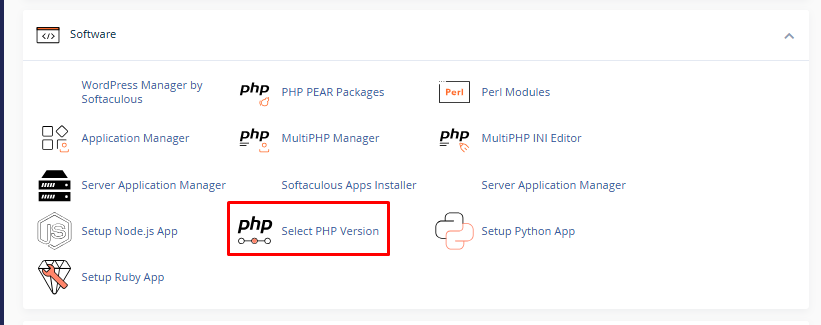
Step 2: Open Select PHP Version
Use the cPanel search bar to search for:
Select PHP Version
Click the matching result to open the PHP Selector interface.
HawkHost documents this interface as the place where shared, semi-dedicated, and reseller hosting customers can manage PHP versions, extensions, and configuration options.
Depending on your hosting environment, the interface may look slightly different.
Step 3: Open the Options Tab
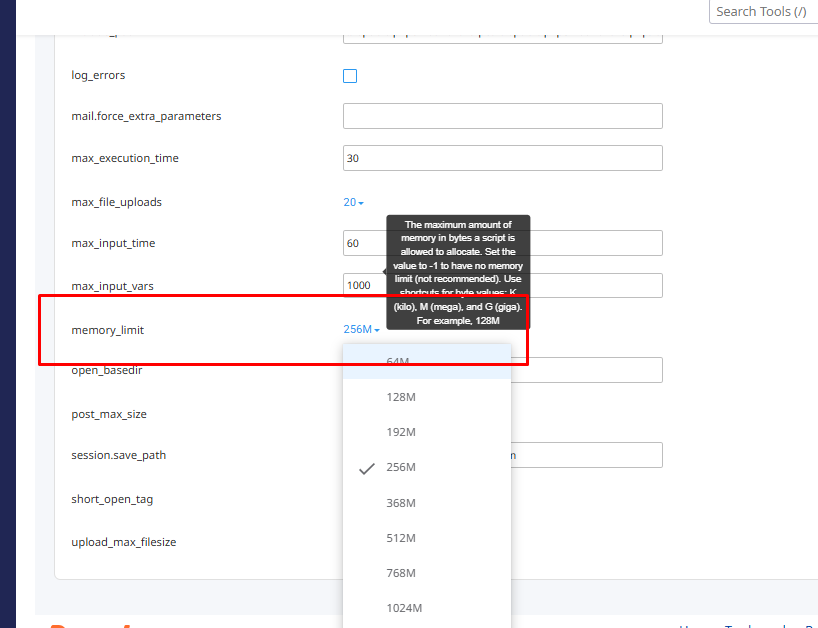
Inside Select PHP Version, look for the Options tab.
This section contains configurable PHP directives, including memory_limit, upload_max_filesize, post_max_size, and max_execution_time.
Find the setting named:
memory_limit
The available controls and values depend on your account’s PHP configuration.

Step 4: Increase the Memory Limit
Click the current value beside memory_limit.
If your current limit is 128M, for example, and the interface permits a higher value, you could select 256M.
Your target might look like this:
memory_limit = 256MChoose a value that is appropriate for your website and available in the interface.
Do not assume that every HawkHost account permits the same maximum value. If the value you need is unavailable, contact HawkHost support before trying alternative configuration methods.
Step 5: Save the Setting
Depending on the version of the PHP Selector interface, your changes may be saved automatically or you may need to click a Save button.
HawkHost’s PHP Selector documentation describes configuration changes as taking effect immediately, with a confirmation message appearing in the interface.
Wait for the confirmation if one is displayed. Then open your website in a new browser tab and check whether the original problem has been resolved.
For more information about the available PHP options, see HawkHost’s official guide: How to Change Your PHP Version in HawkHost
How to Increase the WordPress Memory Limit
Sometimes the PHP memory limit is already sufficient, but WordPress is requesting a lower memory amount for certain operations.
In that situation, you may need to review the WordPress memory settings as well.
Important: The following method changes the amount of memory WordPress requests. It does not override a lower server-enforced PHP limit.
Step 1: Back Up Your Website
Before editing WordPress configuration files, create a backup of your website files and database.
You can use an available backup tool, your hosting backup solution, or a manual backup method.
If you need help, read our guide to How to Backup Your Website in HawkHost (Step-by-Step Guide)
Step 2: Open File Manager
Log in to cPanel and open File Manager.
Navigate to your WordPress installation directory. For a primary domain, this is often public_html, although your installation may use a different document root.
Find the file named:
wp-config.php
This file contains important WordPress configuration settings. Be careful not to delete or overwrite existing content.

Step 3: Edit wp-config.php
Right-click wp-config.php and select Edit, or use the available file editor.
Look for the following comment near the end of the file:
/* That's all, stop editing! Happy publishing. */Before that comment, you can add:
define( 'WP_MEMORY_LIMIT', '256M' );For example:
define( 'WP_MEMORY_LIMIT', '256M' );

/* That's all, stop editing! Happy publishing. */
If the file already contains a WP_MEMORY_LIMIT definition, edit the existing setting rather than adding a duplicate.
Save the file when you finish.
Step 4: Consider the WordPress Admin Memory Limit
WordPress also supports a separate constant for certain administrative operations.
If you have a specific administrative task that requires additional memory, you may see examples such as:
define( 'WP_MAX_MEMORY_LIMIT', '256M' );Only add or change this setting when needed. The value must still be permitted by the server’s PHP configuration.
For more information, consult the official WordPress documentation on Editing wp-config.php.
Step 5: Test Your Website
Open your WordPress dashboard and check whether the error has disappeared.
Test the task that originally failed, such as uploading an image, updating a plugin, or opening a resource-intensive page.
If the error remains, check the actual PHP memory limit applied to the website. WordPress configuration alone may not be enough.
How to Check the Current PHP Memory Limit
After making a change, verify that the new value is actually being applied.
Method 1: Check the PHP Selector
Return to cPanel and open Select PHP Version → Options.
Find memory_limit and check its current value.
This is the simplest first check, although a domain-specific configuration may affect the value used by a particular website.
Method 2: Check WordPress Site Health
You can also inspect the PHP environment from WordPress.
- Log in to your WordPress dashboard.
- Go to Tools → Site Health.
- Open the Info tab.
- Expand the Server section.
- Look for the PHP memory limit or related PHP information displayed by your WordPress version.
The exact labels may vary between WordPress versions.

Method 3: Use a Temporary PHP Information File
If the previous methods do not provide enough information, an experienced user can inspect the effective PHP configuration with a temporary PHP file.
Create a file in the website’s document root named php-memory-check.php and add:
<?php
echo 'PHP memory limit: ' . ini_get('memory_limit');
Visit the file through your browser using your own domain and the filename.
The page should display the effective memory_limit value for that request.
Security warning: Delete this file immediately after checking. Do not leave diagnostic PHP files publicly accessible. Avoid publishing a full phpinfo() page because it can expose sensitive server configuration details.
What If You Cannot Increase the PHP Memory Limit?
If you cannot select a higher value, or the new value does not take effect, work through the following checks.
1. Check Whether the Value Is Restricted
Your hosting environment may limit the PHP settings that can be changed from cPanel.
If the value you need is not available, contact HawkHost support and ask which PHP memory limits apply to your hosting account.
Do not assume that a value shown in an online tutorial is available on every server.
2. Confirm That You Changed the Correct Domain
A cPanel account may contain multiple domains or WordPress installations.
Make sure you changed the PHP settings that apply to the domain experiencing the error. If your account uses separate PHP settings for different domains, one site’s configuration may not automatically apply to another.
3. Check for Other PHP Configuration Files
Some PHP environments use additional configuration files, such as php.ini or .user.ini, depending on the PHP handler and server setup.
However, these files are not universal solutions. A setting may be ignored, overridden, or restricted by the hosting environment.
Use the PHP Selector first. Before creating or editing another configuration file, confirm with HawkHost support which method is supported for your account.
Avoid adding PHP directives to .htaccess unless your hosting environment explicitly supports that approach. Unsupported directives can cause an HTTP 500 error.
4. Check for Plugin or Theme Problems
A PHP memory error may be caused by a plugin or theme consuming excessive memory.
Think about what changed before the error appeared. Did you install a new plugin, activate a complex theme, import a large amount of content, or update WordPress?
If the problem began immediately after a change, investigate that component.
You can temporarily deactivate a suspected plugin from the WordPress dashboard. If the dashboard is inaccessible, a more advanced troubleshooting method is to rename the plugin’s directory through File Manager. Use caution and restore the original directory name after testing.
Do not delete plugins or theme files simply to free up memory.
5. Check Your Hosting Resource Usage
PHP memory limit and account-level server resources are not the same thing.
Raising memory_limit does not increase every resource allocated to your hosting account. If your website is reaching CPU, RAM, process, or other account limits, you may need to optimize the website or review your hosting plan.
Check the resource usage tools available in cPanel and compare the timing of any resource-limit errors with your website activity.
For more guidance, read https://buildsitelab.com/check-disk-usage-hawkhost/ for storage-related checks, and consult HawkHost’s resource and process limits reference for account-level limits.
Common PHP Memory Limit Errors and Their Solutions
| Problem | What to do |
|---|---|
| “Allowed memory size exhausted” | Check the PHP memory limit and investigate the script or plugin using too much memory |
| The new limit does not appear in WordPress | Confirm the correct domain and effective PHP configuration |
The Options tab does not show memory_limit | Contact HawkHost support to confirm which settings are available |
| WordPress still reports a low memory amount | Check both PHP configuration and WordPress memory constants |
| The website displays an HTTP 500 error after editing a file | Restore the previous configuration and check for syntax errors or unsupported directives |
| The website remains slow after increasing memory | Investigate plugins, database queries, caching, and account-level resource usage |
Best Practices for Managing PHP Memory on HawkHost
Follow these practices when changing PHP settings:
- Back up first. Keep a recoverable copy of your WordPress files and database before editing configuration files.
- Increase memory gradually. Try an appropriate value, test the website, and increase it further only if necessary.
- Use the supported cPanel interface. Prefer PHP Selector over unverified configuration-file changes.
- Keep WordPress, plugins, and themes updated. Updates can address bugs and compatibility issues that contribute to memory problems.
- Avoid duplicate configuration constants. Edit an existing
WP_MEMORY_LIMITdefinition rather than adding another one. - Test important website functions. Check the dashboard, forms, media uploads, and the page or operation that previously failed.
- Contact support when limits are enforced. Your hosting provider can clarify which settings can be changed on your account.
Frequently Asked Questions
What is the default PHP memory limit on HawkHost?
There is no single default value that should be assumed for every HawkHost account. The effective limit depends on the PHP configuration applied to your website. Check Select PHP Version in cPanel to see the available setting.
Is 256 MB enough for WordPress?
For many standard WordPress websites, 256 MB can be a reasonable memory limit. More demanding sites may require additional memory, while smaller sites may need less. The correct value depends on the workload and the limits allowed by your hosting environment.
Can I increase PHP memory limit using wp-config.php?
You can use the WP_MEMORY_LIMIT and WP_MAX_MEMORY_LIMIT constants to tell WordPress how much memory to request for certain operations. These constants do not guarantee that PHP will be allowed to exceed the server-enforced memory limit.
Should I edit php.ini or .htaccess?
Start with the PHP Selector interface in HawkHost cPanel. Whether php.ini or .user.ini is appropriate depends on your PHP configuration. Avoid changing .htaccess PHP directives unless HawkHost confirms that your environment supports them.
Will increasing PHP memory limit make my website faster?
Not necessarily. It can prevent errors when a script legitimately needs more memory, but it does not directly improve every page load. If your website is slow, investigate caching, plugins, database queries, images, and hosting resource usage as well.
What should I do if the memory limit cannot be increased?
Contact HawkHost support and provide the current memory limit, the value you want to use, and the exact error message. If the issue is caused by an account-level resource limit or a plugin consuming excessive memory, increasing the PHP limit alone may not solve it.
Final Thoughts
Increasing the PHP memory limit in HawkHost is usually straightforward when the setting is available in cPanel.
Start with Select PHP Version → Options → memory_limit. Choose an appropriate available value, save the setting if required, and verify the result. If WordPress still encounters memory errors, check its memory constants, confirm the configuration applied to your domain, and investigate plugins or resource usage.
The goal is not simply to assign as much memory as possible. It is to give your website the resources it needs while keeping the underlying cause of any memory problem under control.