If you run a WordPress website on HawkHost, you may eventually need to change its PHP version.
You might need to update PHP because WordPress recommends a newer version, a plugin requires a specific PHP version, or your hosting dashboard displays a warning that your current version is outdated.
Fortunately, HawkHost allows customers on its shared, cloud web hosting, semi-dedicated, and reseller hosting plans to manage PHP versions through cPanel’s Select PHP Version interface.
In this guide, you’ll learn how to change your PHP version in HawkHost cPanel, check which version your website is using, and troubleshoot common problems after switching versions.
Quick answer: Log in to HawkHost cPanel, search for Select PHP Version, open the My Domains section, choose an available PHP version, and click Set as Current. Before changing versions, back up your website and confirm that your WordPress installation, theme, and plugins are compatible with the version you want to use.
What Is PHP?
PHP is a server-side programming language used by WordPress and many other website applications.
When someone visits your WordPress website, PHP helps process requests, retrieve information from the database, and generate the pages displayed in the visitor’s browser.
Your website’s PHP version determines which PHP runtime executes your site’s code.
For example, your hosting account might offer versions such as:
- PHP 8.2
- PHP 8.3
- PHP 8.4
- PHP 8.5
The versions available to you depend on your hosting environment and HawkHost’s current configuration.
Why does the PHP version matter?
Using a suitable PHP version can help you:
- Maintain compatibility with current WordPress software.
- Receive security updates from the PHP project.
- Run themes and plugins that require newer PHP features.
- Benefit from performance improvements available in newer releases.
- Avoid compatibility warnings caused by outdated PHP versions.
However, changing PHP versions without checking compatibility can also cause errors.
That’s why you should prepare your website before making the change.
Why Should You Change Your PHP Version in HawkHost?
There are several reasons to consider changing your PHP version.
1. Your current PHP version is outdated
Older PHP versions eventually reach end of life (EOL).
When a version reaches EOL, it no longer receives normal upstream security updates and bug fixes from the PHP project.
HawkHost notes that CloudLinux may apply custom security patches to older PHP versions, but it recommends using a supported version when possible.
2. WordPress recommends updating PHP
Your WordPress Dashboard may display a warning about your PHP version.
You can check this under:
WordPress Dashboard → Tools → Site Health → Info → Server
The exact labels may vary depending on your WordPress version.
If your PHP version is outdated, check your hosting settings and confirm that your website is ready for an upgrade.
3. A plugin or theme requires a newer version
Some WordPress plugins and themes require a minimum PHP version.
If your current version is too old, you might be unable to install or update certain software.
4. You want to improve website compatibility
Keeping PHP reasonably current helps you maintain compatibility with modern WordPress software.
However, changing PHP versions alone does not guarantee that your website will become faster. Actual performance depends on several factors, including your code, plugins, theme, hosting resources, and caching.
Before Changing Your PHP Version
Before opening cPanel, take a few minutes to prepare.
This is particularly important if your website already receives visitors or generates affiliate commissions.
1. Back Up Your Website
Create a backup of your WordPress files and database before changing PHP versions.
If something goes wrong, a backup gives you a way to restore your website.
You can follow our guide:
How to Backup Your Website in HawkHost
Ideally, keep a copy of your backup somewhere outside your hosting account.
2. Update WordPress
Log in to your WordPress Dashboard.
Check whether WordPress has any available updates.
If an update is appropriate, install it before changing PHP, after confirming that your theme and plugins are compatible with the planned changes.
3. Check Your Plugins and Theme
Some older plugins and themes may not work correctly with newer PHP versions.
Review your installed software and check the developers’ compatibility information.
Pay particular attention to:
- Abandoned plugins
- Outdated themes
- Custom PHP code
- Plugins that produce PHP warnings
- Software with explicit PHP version requirements
4. Record Your Current PHP Version
Before changing anything, make a note of your current PHP version.
For example:
Current PHP version: 8.2
Target PHP version: 8.3
These are examples, not a recommendation that every website should use those exact versions.
Recording your current version makes it easier to switch back if your website develops a compatibility problem.
5. Choose a Supported Version
Prefer a PHP version that is actively supported and compatible with your WordPress installation, theme, and plugins.
HawkHost’s documentation currently lists PHP 8.2, 8.3, 8.4, and 8.5 as supported in its PHP version guide. PHP support and availability can change, so check the current options in your own cPanel account before making a decision.
Important: The newest available version is not automatically the best choice for every website. Compatibility should come first.
How to Change Your PHP Version in HawkHost cPanel
Follow these steps to change the PHP version for your hosting account.
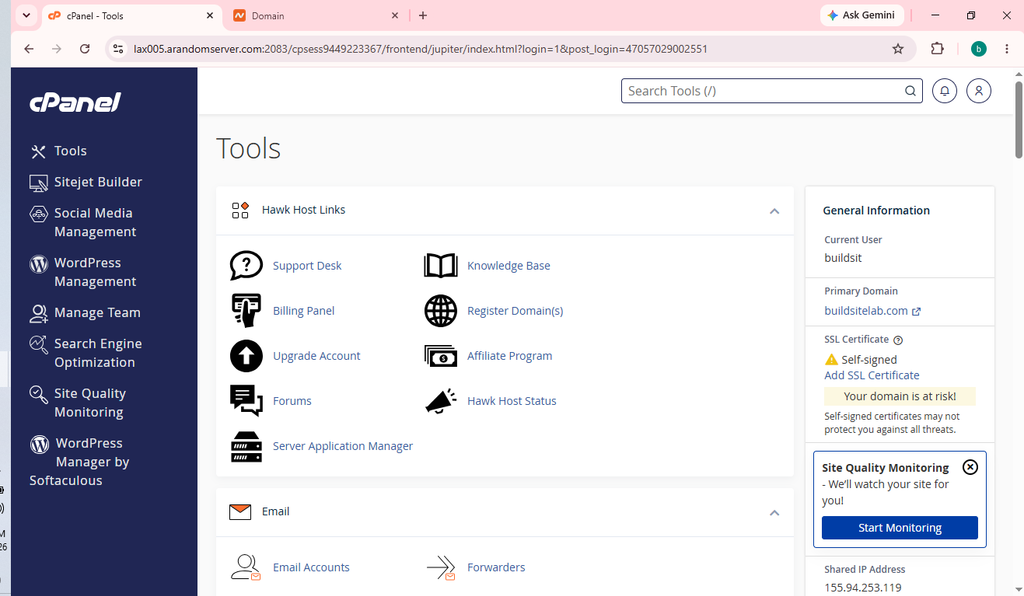
Step 1: Log In to HawkHost cPanel
First, access your HawkHost Client Area.
Open your active hosting service and use the available cPanel login option.
If you need more detailed instructions, read:
Once cPanel opens, you can manage your hosting settings.
Step 2: Find Select PHP Version
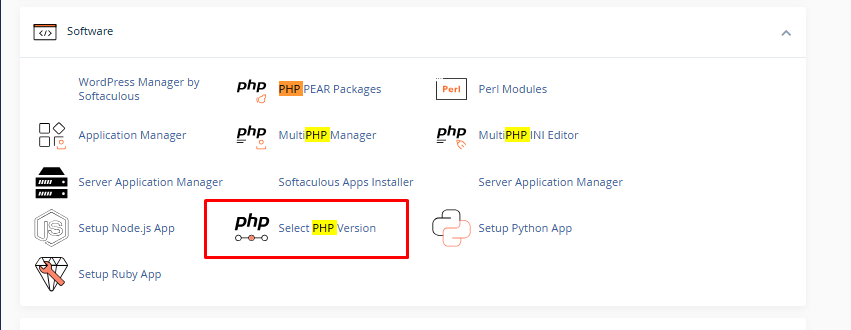
Inside cPanel, look for the search box.
Type:
Select PHP Version
Click the corresponding tool when it appears.
HawkHost uses the PHP Selector interface to let customers change PHP versions and manage PHP extensions and configuration options.
Note: The appearance of your cPanel dashboard may differ slightly from the screenshots in this guide.
Step 3: Open the My Domains Section
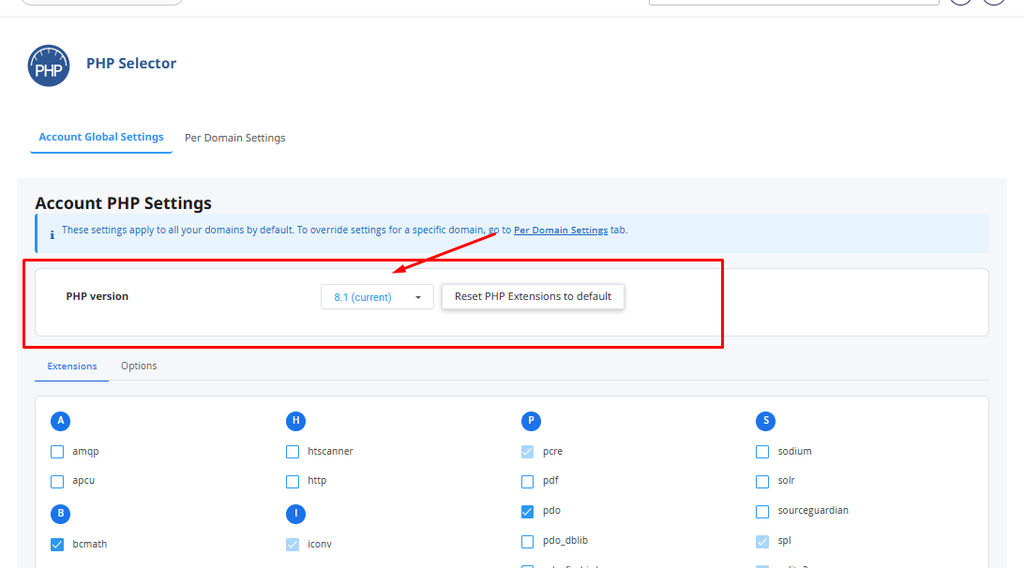
Inside Select PHP Version, open the My Domains section.
This is where HawkHost’s documented procedure allows you to select the PHP version for your domains.
You should see a PHP version selector.
If your account contains multiple domains, check which domains are affected before proceeding.

Step 4: Select Your New PHP Version
Open the PHP version dropdown menu.
Choose the version you want to use.
For example:
PHP Version: 8.3This is an illustrative example. Choose a version that is available in your account and compatible with your website.
HawkHost’s documented process is to select the desired version from the dropdown and then click Set as Current.
Step 5: Click Set as Current
After selecting the version, click:
Set as Current
Wait for the interface to apply the change.
Your hosting account should now use the selected PHP version according to the settings configured for the relevant domains.
Step 6: Test Your Website
Open your website in a new browser tab.
Check the following:
- Does the homepage load?
- Can you open individual posts and pages?
- Do images display correctly?
- Can you access the WordPress Dashboard?
- Do your plugins work?
- Does your contact form function?
- Do affiliate links and buttons work?
If you manage an e-commerce website, also test important checkout and payment functions.
Do not assume that the change was successful simply because cPanel accepted the new setting.
Your website must also work correctly after the change.
What If You Cannot Find Select PHP Version?
Some users may not see the same tools described in this guide.
If Select PHP Version does not appear, try the following.
Search cPanel again
Enter the complete phrase:
Select PHP Version
Make sure you are searching inside cPanel rather than the HawkHost Client Area.
Check MultiPHP Manager
Some cPanel environments provide PHP version controls through MultiPHP Manager instead.
In that interface, the general process is:
- Open MultiPHP Manager.
- Find the domain you want to change.
- Select its checkbox.
- Choose an available PHP version.
- Click Apply.
This is the standard cPanel procedure for changing the PHP version of a domain when MultiPHP Manager is provided.
Important: MultiPHP Manager and HawkHost’s Select PHP Version interface are not identical. Follow the method actually available in your hosting account. Do not change PHP settings in multiple interfaces unnecessarily.
Contact HawkHost support
If neither interface is available, contact HawkHost support and ask which PHP version management method applies to your hosting service.
How to Check Your Current PHP Version in WordPress
After changing the PHP version, you should verify that your website is using the intended version.
There are two useful approaches.
Method 1: Check WordPress Site Health
Log in to your WordPress Dashboard.
Navigate to:
Tools → Site Health → Info → Server
Look for the PHP version information.
This can help you confirm which PHP version WordPress reports for the website.
If the displayed version does not match your intended setting, review the hosting configuration for that domain.
Method 2: Check Your Hosting PHP Selector
Return to HawkHost cPanel.
Open Select PHP Version and check the current version shown in the interface.
This lets you review your hosting-level PHP setting.
For websites with multiple domains, make sure you are checking the correct domain or the setting that applies to it.
How to Change PHP Versions for Multiple Domains
If your HawkHost account hosts more than one website, each domain may need to be checked separately.
For example:
| Domain | Website | PHP consideration |
|---|---|---|
example.com | Main WordPress website | Check theme and plugin compatibility |
blog.example.com | Blog subdomain | Check its configured PHP version |
example.net | Additional website | Check its own software requirements |
These are illustrative domain names.
A setting applied through HawkHost’s PHP Selector may interact with domain inheritance settings in MultiPHP Manager. HawkHost specifically notes that addon domains may need to be configured to inherit the PHP version for PHP Selector changes to apply as expected.
If you host multiple websites, do not assume that changing one setting automatically updates every domain.
After making a change, check each website individually.
If you need different PHP versions for different domains, review the available controls and HawkHost’s documentation before applying the settings.
What to Do If Your Website Breaks After Changing PHP
Sometimes a WordPress website stops working after a PHP upgrade.
Common symptoms include:
- A blank page
- A critical error message
- A plugin that no longer works
- A theme that displays incorrectly
- A warning about incompatible PHP code
- A server error
These problems can occur when a plugin, theme, or custom script is incompatible with the selected PHP version.
Here is how to troubleshoot the issue.
1. Switch Back to the Previous PHP Version
If your website worked before the change and stopped working immediately afterward, the PHP version change may be related.
Return to the HawkHost PHP Selector and select the previous version, if it remains available.
Click Set as Current.
If your account uses MultiPHP Manager instead, use that interface to restore the previous version for the affected domain.
Then test your website again.
Security note: Treat reverting to an older PHP version as a troubleshooting step, not necessarily a permanent solution. If the previous version is no longer supported, investigate the underlying compatibility problem and move to a supported version as soon as practical.
2. Check Your WordPress Plugins
If the problem disappears after reverting PHP, a plugin may be incompatible with the newer version.
Review your plugins and check whether their developers provide compatible updates.
If you cannot access WordPress, you may be able to troubleshoot through cPanel File Manager.
See:
How to Manage Files in HawkHost cPanel
Avoid deleting plugin files randomly. If you need to disable a plugin manually, identify the suspected plugin and follow a controlled troubleshooting process.
3. Check Your WordPress Theme
Your theme may also contain PHP code that does not work correctly with the selected version.
Check for updates and review the theme developer’s compatibility documentation.
If you use a custom theme, you may need help from a developer to identify and fix the issue.
4. Check Error Logs
Your hosting account may provide access to PHP or website error logs.
These logs can help identify the file or plugin causing a problem.
Depending on your configuration, you may be able to investigate through cPanel or WordPress debugging tools.
Be careful when enabling debugging on a live website. Avoid displaying sensitive error details publicly.
5. Contact HawkHost Support
If your website remains broken after restoring the previous version, contact HawkHost support.
Include:
- Your domain name
- The PHP version you changed from
- The PHP version you changed to
- The time the problem started
- The error message, if available
- Any troubleshooting steps you have already tried
This information can make it easier to identify the issue.
Does Changing PHP Version Improve WordPress Speed?
It can help in some situations, but there is no guarantee.
Newer PHP releases may include performance improvements, and compatible software can benefit from them.
However, your website’s speed also depends on:
- Hosting resources
- WordPress theme
- Plugins
- Database queries
- Image sizes
- Caching
- External scripts
- Server configuration
Changing PHP versions should therefore be treated as one part of website maintenance, rather than a complete speed optimization strategy.
After changing versions, compare your website’s performance and verify that all important features continue to work.
PHP Version vs. WordPress Version
These two settings are related but serve different purposes.
| Feature | PHP Version | WordPress Version |
|---|---|---|
| What it is | Server-side programming language runtime | Website content management software |
| Where it is managed | Hosting control panel | WordPress Dashboard or update tools |
| Main compatibility concern | Themes, plugins, and PHP code | PHP requirements, themes, and plugins |
| Can an update cause problems? | Yes | Yes |
| Should you back up first? | Yes | Yes |
You should keep both PHP and WordPress reasonably up to date.
However, update them carefully and verify compatibility instead of changing several major components at once.
Common Mistakes to Avoid
Before changing your PHP version, keep these points in mind.
Choosing a version without checking compatibility
A newer version may expose problems in outdated plugins or custom code.
Check compatibility first.
Skipping the backup
If something goes wrong, a backup can save considerable time.
Changing several settings at once
If you update WordPress, replace your theme, update multiple plugins, and change PHP simultaneously, it becomes harder to determine what caused a problem.
Make changes in a controlled sequence.
Forgetting addon domains
If your account contains multiple domains, check how PHP settings are applied to each one.
Assuming a successful change means the website works
Always visit the website and test its important functions after changing PHP.
Staying on an unsupported version indefinitely
Reverting can help restore a broken website, but it should not become an excuse to leave the site on an outdated PHP version permanently.
Investigate compatibility and plan a safe upgrade.
Frequently Asked Questions
How do I change my PHP version in HawkHost?
Log in to cPanel, search for Select PHP Version, open My Domains, choose the desired version, and click Set as Current. If your account uses MultiPHP Manager instead, select the relevant domain, choose a version, and apply the change.
Which PHP version should I use for WordPress?
Choose a currently supported PHP version that is compatible with your WordPress installation, theme, and plugins. Check the versions available in HawkHost cPanel and review the requirements of your installed software.
Is changing PHP versions safe?
It is generally straightforward, but compatibility problems can occur. Back up your website first, record the current version, and test your site after making the change.
Will changing PHP delete my WordPress files?
Changing the PHP version through the hosting control panel is not intended to delete your WordPress files or database. However, compatibility problems may prevent your website from functioning correctly, so a backup is still important.
Can I change my PHP version without reinstalling WordPress?
Yes. You can change the PHP version through the appropriate cPanel interface without reinstalling WordPress.
What if my desired PHP version is not available?
The version may not be installed or enabled for your hosting account. Check the available options and contact HawkHost support if you need clarification.
Can different domains use different PHP versions?
This depends on the PHP management tools and configuration available to your account. MultiPHP Manager supports assigning PHP versions to individual domains when the hosting environment permits it.
Can I switch back if my website breaks?
Yes, provided the previous version remains available and your hosting configuration allows you to select it. Switch back to restore functionality while investigating the compatibility problem. Avoid keeping your website on an unsupported version longer than necessary.
Does changing PHP version affect my database?
Changing the PHP version does not normally change your WordPress database structure. However, your website’s PHP code may interact with the database differently if there are compatibility problems.
Conclusion
Changing your PHP version in HawkHost is a useful maintenance task that can help keep your WordPress website compatible with modern software.
To change your version:
- Log in to HawkHost cPanel.
- Search for Select PHP Version.
- Open My Domains.
- Select an available PHP version.
- Click Set as Current.
- Test your website carefully.
Before making the change, create a backup and check that your WordPress theme and plugins support the new version.
If your website develops problems, restore the previous version temporarily if possible, investigate the cause, and work toward a compatible, supported version.
Keeping PHP up to date is important, but stability and compatibility should always be part of your upgrade plan.