A website backup is one of the most important things you should have before making major changes to your website.
If you update WordPress, install a new plugin, change theme files, edit .htaccess, modify PHP files, or accidentally delete something, a backup gives you a way to recover your website.
HawkHost currently provides daily backups on its hosting services, and its documentation also describes several ways to create or restore backups, including full account backups, Acronis backups, and WordPress backups through its WordPress Management interface.
In this guide, you’ll learn several ways to back up a HawkHost website and when to use each method.
you can read more information
How to Access HawkHost cPanel (Step-by-Step Guide)
How to Use File Manager in cPanel
How to Install WordPress on HawkHost
How to Install a WordPress Plugin
How to Install Free SSL on HawkHost
How to Create an FTP Account in HawkHost
How to Connect a Domain to HawkHost
How to Change HawkHost Nameservers
Why Should You Backup Your Website?
Your website contains more than just the visible pages you see in a browser.
A typical WordPress website includes:
- WordPress core files
- Themes
- Plugins
- Images and media
.htaccesswp-config.php- Database
- Uploaded files
- Email accounts and other hosting data, depending on the backup method
For example, your WordPress database contains important information such as:
- Posts
- Pages
- Comments
- Users
- Settings
- Plugin data
- Theme settings
Therefore, backing up only your WordPress files isn’t necessarily enough.
A useful website backup should include both files and the database.
Does HawkHost Automatically Backup Websites?
Yes. HawkHost currently advertises daily backups as part of its hosting services.
HawkHost also explains that its WordPress tools provide access to backups and that daily backups can be restored through the Acronis interface in cPanel.
However, it’s still a good idea to understand how to create your own backup.
A practical backup strategy can look like this:
HawkHost Daily Backups
        +
Manual Website Backup
        +
Off-site Copy
        ↓
Better Protection
Important: A hosting provider’s backup system should not be treated as your only copy of important website data.
Different Ways to Backup a HawkHost Website
There are several backup methods you may encounter on HawkHost.
| Method | Best For |
|---|---|
| Full cPanel backup | Complete hosting account |
| WordPress Management backup | Quick WordPress backup |
| Acronis | Restoring available backups |
| Manual File Manager backup | Specific website files |
| Database export | WordPress database |
| WordPress backup plugin | Automated WordPress-specific backups |
For most beginners, WordPress Management or a full cPanel backup is easier than manually backing up individual files and databases.
Method 1: Create a Full Backup in cPanel
A full cPanel backup is useful when you want to create a backup of your hosting account rather than just a few WordPress files.
Depending on your current HawkHost/cPanel interface, the exact location and available options may differ.
Start by logging into cPanel.
Step 1: Log In to HawkHost cPanel
You can access cPanel from your HawkHost Client Area.
Go to:
HawkHost Client Area → My Services → Active Hosting Service → cPanel
HawkHost currently also supports direct cPanel access through your domain when DNS is pointed to HawkHost, including:
https://yourdomain.com:2083or:
https://yourdomain.com/cpanelYou can also use the server hostname supplied by HawkHost.

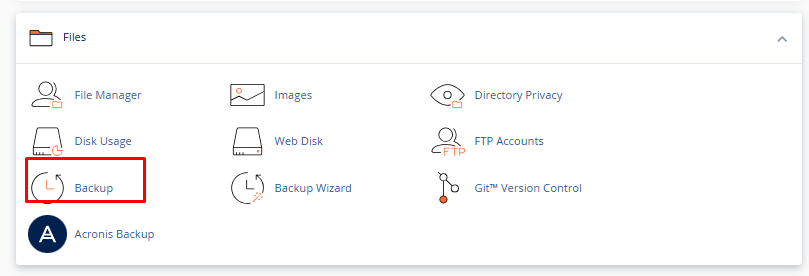
Step 2: Find the Backup Tool
Inside cPanel, use the search box.
Search for:
Backup
Depending on the current cPanel configuration, you may see options such as:
- Backup
- Backup Wizard
- Acronis Backup
The available tools can vary depending on your hosting setup.
Step 3: Open Backup or Backup Wizard
If Backup Wizard is available, open it.
The Backup Wizard provides a simplified interface for creating or restoring backups.
You may see options such as:
Backup
and:
Restore
For creating a backup, select Backup.
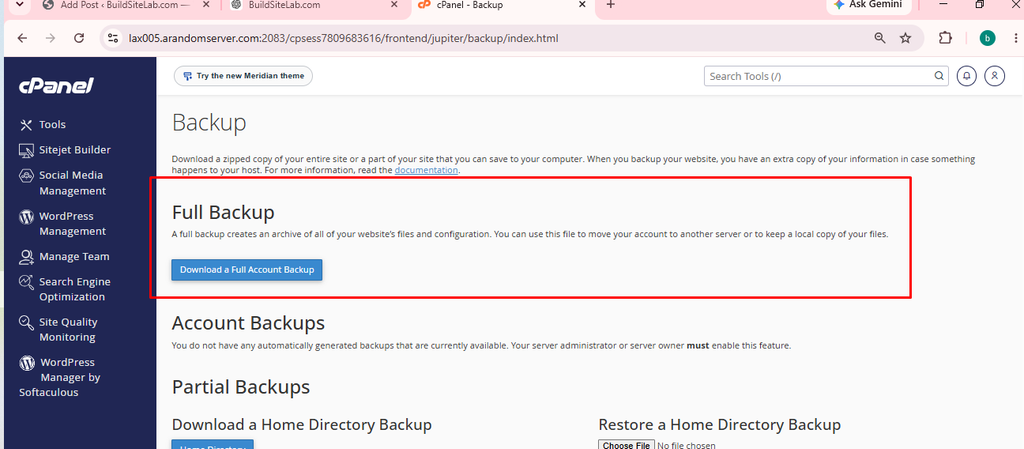
Step 4: Choose a Full Backup
If the interface provides a Full Backup option, select it.
A full backup is designed to include the hosting account’s major data rather than only one part of the website.
This can be useful if you have:
- WordPress files
- Multiple domains
- Email accounts
- Databases
- Other hosting files
Step 5: Choose the Backup Destination
Depending on the cPanel interface, you may be able to select where the backup is stored.
A backup destination might be:
- Home directory
- Remote destination
- Another supported storage location
If you’re simply creating a backup to download later, the home directory may be the easiest option when available.
After starting the backup, wait for cPanel to finish generating the archive.
Step 6: Download the Backup
Once the backup has been generated, download the backup file to your computer if the interface provides that option.
A full account backup can be large, so make sure you have enough free storage on your computer.
You can then keep a copy somewhere separate from your hosting account.
For example:
HawkHost
   ↓
Full Backup
   ↓
Download
   ↓
Your Computer
   ↓
External / Cloud Storage
This gives you an additional copy if something happens to the hosting account.
Method 2: Backup WordPress Using WordPress Management
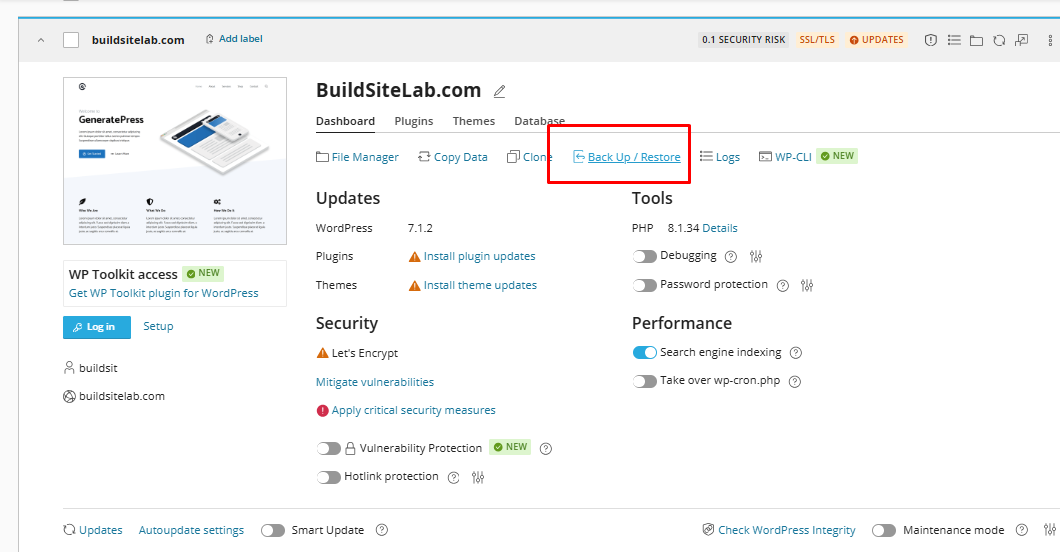
If you’re running WordPress, HawkHost currently provides another convenient option through its WordPress Management interface.
HawkHost’s documentation says its WordPress Management interface allows users to take, restore, and download WordPress backups directly from the interface.
This can be particularly useful before:
- Installing a plugin
- Updating a theme
- Making significant WordPress changes
- Testing a new configuration
- Editing WordPress files
Step 1: Open WordPress Management
Log in to HawkHost cPanel.
Search for:
WordPress Management
Open the WordPress Management interface.
HawkHost has been adding WordPress-specific management tools directly into cPanel, including backup and restore functions.

Step 2: Select Your WordPress Website
If you have multiple WordPress installations, find the website you want to back up.
For example:
buildsitelab.comSelect the appropriate WordPress installation.
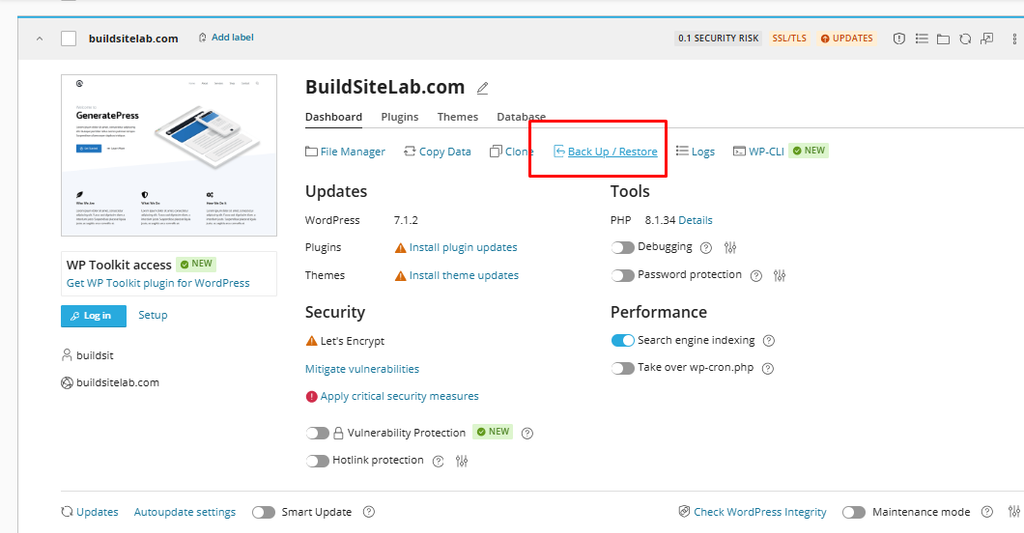
Step 3: Open the Backup Option
Look for the backup section within WordPress Management.
HawkHost states that its WordPress Management tools allow you to create, restore, and download WordPress backups.
Select the option to create a backup.
Step 4: Create the Backup
Follow the prompts shown by the current HawkHost interface.
Allow the backup process to finish before making major changes to your website.
Once completed, the backup should appear in the available backup list.
Step 5: Download the Backup
One useful feature of HawkHost’s WordPress Management tools is that backups can be downloaded.
Downloading a copy means you have an additional backup outside your hosting account.
This is especially useful if the backup is being created before a risky change.
Method 3: Restore a Backup Using Acronis
Backing up your website is only half of the process.
You should also know how restoration works.
HawkHost states that it takes daily backups that can be restored through the Acronis interface in cPanel.
To look for Acronis:
- Log in to cPanel.
- Search for Acronis.
- Open the Acronis backup interface.
- Select the available backup.
- Choose the appropriate restore option.

Be Careful When Restoring a Website
A restore operation can replace current website data with an older version.
Before restoring, understand:
- Which date you’re restoring
- Which files will be replaced
- Whether the database will be restored
- Whether new content will be lost
- Whether recent orders, comments, or posts could be affected
For an active website, a restoration should be planned carefully.
Method 4: Manually Backup WordPress Files
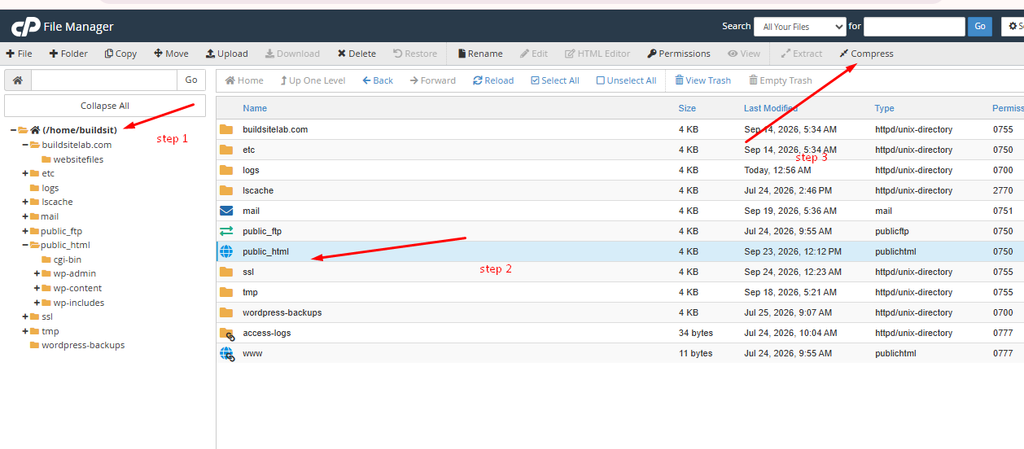
You can also manually back up your WordPress files through cPanel File Manager.
This is useful when you only need a copy of specific files.
For example, you might want to save:
public_html/or:
public_html/wp-content/The wp-content directory contains important WordPress content such as:
- Plugins
- Themes
- Uploaded media
However, a file-only backup is not a complete WordPress backup.
Your database is separate.
How to Download WordPress Files
Open:
cPanel → File Manager
Then navigate to your WordPress document root, commonly:
public_htmlSelect the files and folders you want to back up.
Then choose:
Compress
Create a ZIP archive.
For example:
wordpress-backup-2026-09-26.zipThen download the ZIP file to your computer.
Method 5: Backup the WordPress Database
WordPress files alone are not enough.
You should also back up the database.
The database contains much of the dynamic content and configuration of your WordPress site.
A common method is:
cPanel → phpMyAdmin
Then:
- Open phpMyAdmin.
- Select the WordPress database.
- Choose Export.
- Select the appropriate export method.
- Download the SQL file.
You might save the file as:
buildsitelab-database-2026-09-26.sql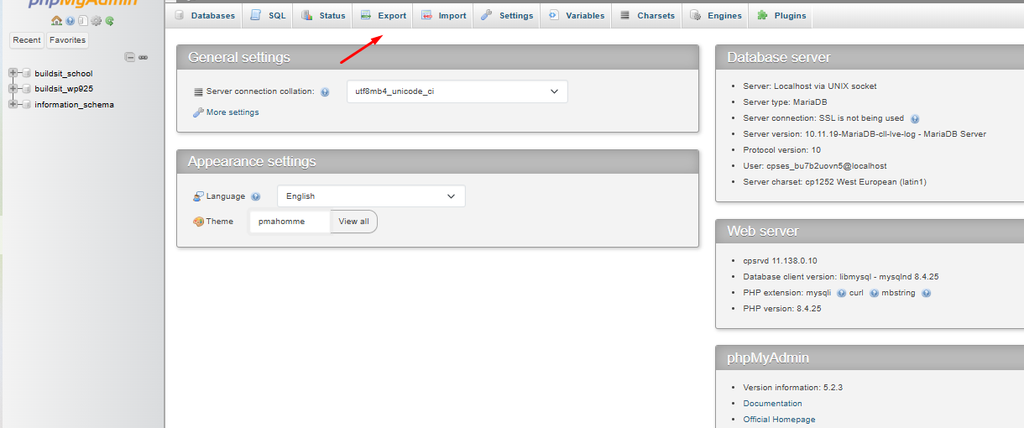
Files + Database = Complete WordPress Backup
A simple way to understand WordPress backups is:
WordPress Backup
       │
       ├── Website Files
       │     ├── Themes
       │     ├── Plugins
       │     ├── Images
       │     └── WordPress Core
       │
       └── Database
             ├── Posts
             ├── Pages
             ├── Settings
             └── Plugin Data
If you only save public_html, you may not have everything required to restore the site exactly as it was.
When Should You Backup Your HawkHost Website?
You don’t have to wait for something to go wrong.
Create a manual backup before making significant changes.
Before Installing a New Plugin
For example:
Backup
  ↓
Install Plugin
  ↓
Test Website
If the plugin causes a problem, you have a recovery point.
Before Updating WordPress
Create a backup before major WordPress updates.
This is especially useful for websites with many plugins or customizations.
Before Changing Your Theme
If you’re changing themes, save a backup first.
Theme changes can affect:
- Layout
- Widgets
- Menus
- Custom code
- Theme settings
Before Editing wp-config.php
The wp-config.php file contains important WordPress configuration.
Always make a backup before manually editing it.
Before Editing .htaccess
Be especially careful with .htaccess.
A small syntax mistake can cause:
- 500 errors
- Redirect loops
- Website access problems
Create a backup before editing it.
How Often Should You Backup?
There is no single schedule that works for every website.
A practical schedule depends on how frequently your website changes.
| Website Type | Suggested Manual Backup |
|---|---|
| New personal website | Before major changes |
| Blog | Weekly or before major updates |
| Active affiliate site | Weekly + before major changes |
| E-commerce site | More frequently |
| Frequently updated website | Daily or based on activity |
HawkHost already advertises daily backups on its hosting services, so your manual backup strategy can be used as an additional layer rather than trying to duplicate every daily backup yourself.
How to Store Your Backups Safely
Don’t keep your only backup in the same place as your website.
For example, this isn’t ideal:
Website
  ↓
Backup
  ↓
Same Hosting Account
If the hosting account becomes inaccessible, you may lose access to both.
A better approach is:
Website
   ↓
Backup
   ├── HawkHost
   ├── Computer
   └── External / Cloud Storage
This is known as maintaining an off-site backup.
How to Name Your Backup Files
Use a consistent naming system.
For example:
buildsitelab-full-backup-2026-09-26.zipor:
buildsitelab-before-plugin-update-2026-09-26.zipThis makes it much easier to identify the correct backup later.
Avoid names such as:
backup.zip
backup-new.zip
backup-final.zip
backup-final-2.zip
After several months, these names become difficult to understand.
How Much Storage Do Backups Use?
Backups consume storage space.
HawkHost specifically notes that each WordPress backup you create consumes storage on your hosting account and recommends making sure sufficient space is available.
For example:
Website = 2 GB
Backup = approximately 2 GB
Another backup = approximately 2 GB
Your actual backup size can be different depending on compression and the data included.
If you create many manual backups, periodically remove old backups that you no longer need.
HawkHost Backup vs WordPress Backup Plugin
You can also use a WordPress backup plugin.
| Method | Advantages | Considerations |
|---|---|---|
| HawkHost daily backups | Automatic hosting-level protection | Managed by hosting environment |
| Full cPanel backup | Broad account backup | Can be large |
| WordPress Management | Convenient for WordPress | Uses hosting storage |
| Acronis | Restore available backups | Interface depends on account |
| Backup plugin | Flexible WordPress backups | Plugin configuration required |
| Manual backup | Full control | More work |
You don’t necessarily have to choose only one.
For an important website, using hosting-level backups + an independent copy provides more separation.
What Should You Do Before a Major Website Change?
Here’s a simple workflow:
1. Create Backup
       ↓
2. Download a Copy
       ↓
3. Confirm Backup Exists
       ↓
4. Make Website Changes
       ↓
5. Test Website
       ↓
6. Restore If Necessary
For example, before installing a major plugin:
Backup
  ↓
Install Plugin
  ↓
Test Homepage
  ↓
Test Admin
  ↓
Test Contact Form
  ↓
Keep Backup
This is much safer than making the change first and thinking about backups afterward.
Common Backup Problems
Backup Is Too Large
If your backup is very large, check what is consuming your hosting storage.
You can use cPanel tools such as File Manager and the available disk usage tools to identify large files and directories.
Don’t randomly delete files just to make a backup smaller.
Backup Takes a Long Time
Large websites can take longer to back up.
The amount of:
- Files
- Images
- Database data
- Other account data
can affect the backup size and processing time.
Backup Download Fails
If a large backup cannot be downloaded through the browser, consider using an appropriate file-transfer method or the storage/download options provided by the hosting interface.
HawkHost notes that cPanel File Manager has a maximum request size of 500 MB for uploads; for files exceeding that size, HawkHost recommends FTP or SFTP.
You Can’t Find an Old Backup
Check which backup system you’re using.
For example:
- Manual cPanel backup
- WordPress Management
- Acronis
- Backup plugin
These are not necessarily the same backup location.
Best Practices for HawkHost Backups
1. Keep More Than One Copy
Don’t rely on a single backup.
2. Keep an Off-Site Copy
Download important backups or store them separately from the hosting account.
3. Backup Before Major Changes
Especially before:
- WordPress updates
- Plugin installation
- Theme changes
- PHP changes
.htaccesschanges- Database changes
4. Keep Backup Dates
Use dates in filenames.
5. Test Your Recovery Process
A backup is only useful if it can actually be restored.
6. Don’t Keep Unlimited Old Backups
Old backups consume storage.
Keep a sensible number of restore points.
Frequently Asked Questions
Does HawkHost automatically backup my website?
HawkHost currently advertises daily backups on its hosting services. Its WordPress documentation also states that daily backups can be restored through Acronis in cPanel.
How do I manually backup my HawkHost website?
You can use the backup tools available in cPanel to create a full account backup. For WordPress, HawkHost also provides backup functionality through WordPress Management.
Can I download my HawkHost backup?
Yes. HawkHost’s WordPress Management tools allow WordPress backups to be downloaded.
Can I restore my website from a HawkHost backup?
Yes. HawkHost states that daily backups can be restored through Acronis in cPanel, and its WordPress Management interface also provides restore functionality for WordPress backups.
Should I use a WordPress backup plugin?
A backup plugin can be useful, particularly if you want automated WordPress-specific backups or an independent storage destination. However, it doesn’t have to replace your hosting-level backup strategy.
Should I backup before installing a plugin?
Yes. Creating a backup before installing an unfamiliar or important plugin gives you a recovery point if the change causes a problem.
Where should I store my website backup?
For important websites, keep at least one copy outside your hosting account. This gives you protection if the hosting account or server becomes unavailable.
Conclusion
Backing up your HawkHost website doesn’t have to be complicated.
For a WordPress website, you have several options:
HawkHost Daily Backups
        +
WordPress Management
        +
Full cPanel Backup
        +
Off-Site Copy
HawkHost currently provides daily backups and offers several backup and restoration options, including Acronis and WordPress Management.
For your own website, a good habit is to create or verify a backup before making major changes, download important backup copies, and keep at least one copy outside the hosting account.
That way, if a plugin update, theme change, configuration mistake, or other problem breaks your site, you have a recovery point available.
2 thoughts on “How to Backup Your Website in HawkHost (Step-by-Step Guide)”