Managing website files can seem complicated if you are new to web hosting. Fortunately, cPanel includes a built-in tool called File Manager that allows you to manage your website files directly from your browser.
With cPanel File Manager, you can upload, download, edit, rename, move, copy, extract, and delete files without using an FTP client.
In this guide, you will learn how to use File Manager in cPanel step by step.
you might also like:
WordPress Installation Guide: How to Install WordPress Step by Step
What Is cPanel File Manager?
cPanel File Manager is a web-based file management tool included with many cPanel hosting accounts.
It provides an easy way to manage files and folders on your hosting server. You can use it to upload website files, edit configuration files, create folders, extract ZIP archives, and manage file permissions.
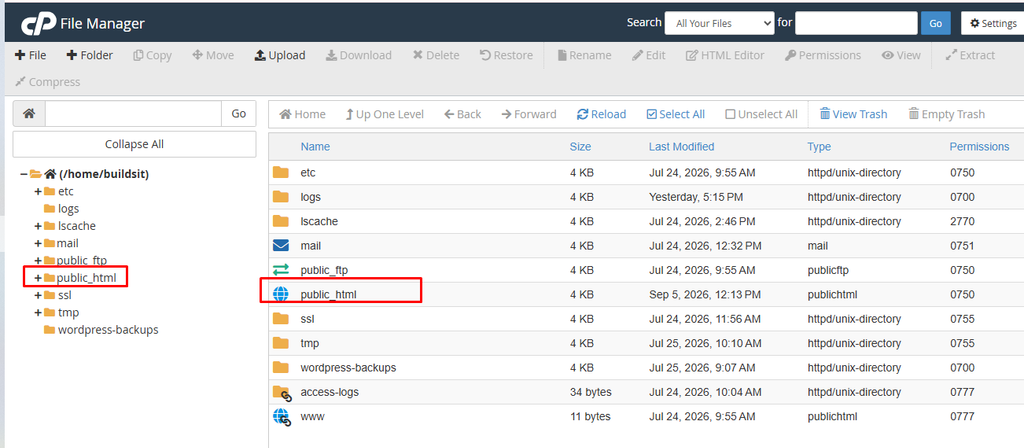
For example, if your website is installed in the public_html directory, you can access its files through:
cPanel → File Manager → public_html
You do not need to install additional software to use File Manager.
How to Access File Manager in cPanel
First, log in to your cPanel hosting account.
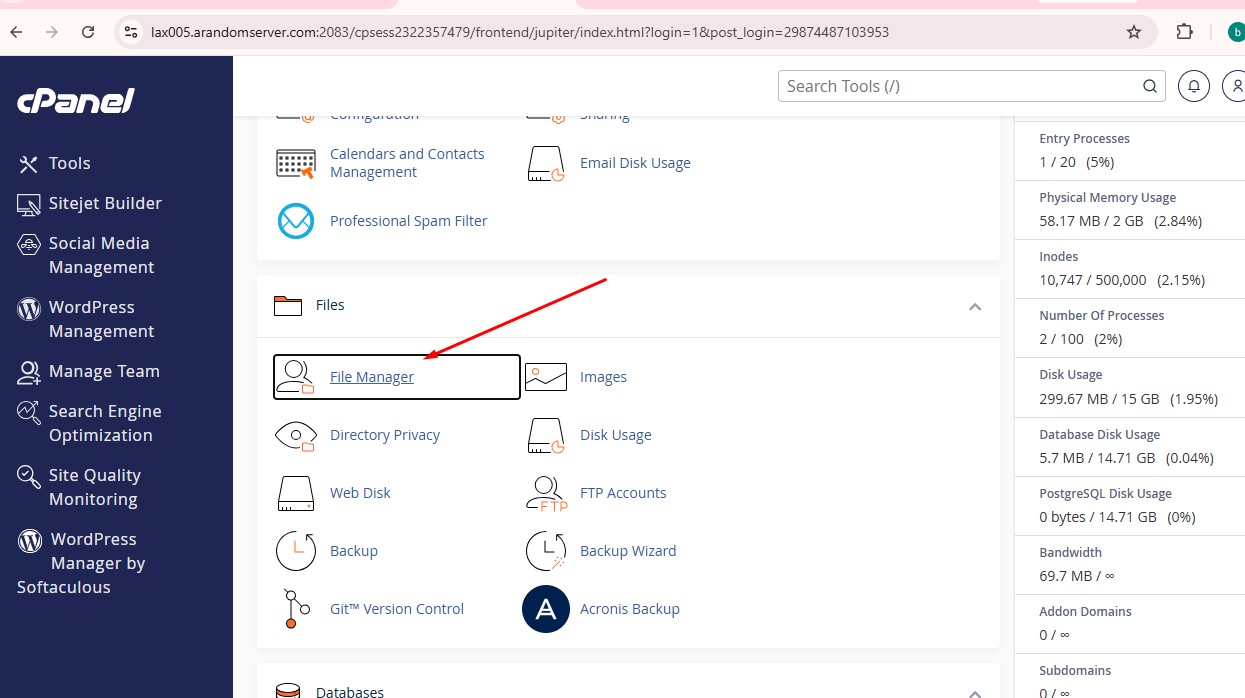
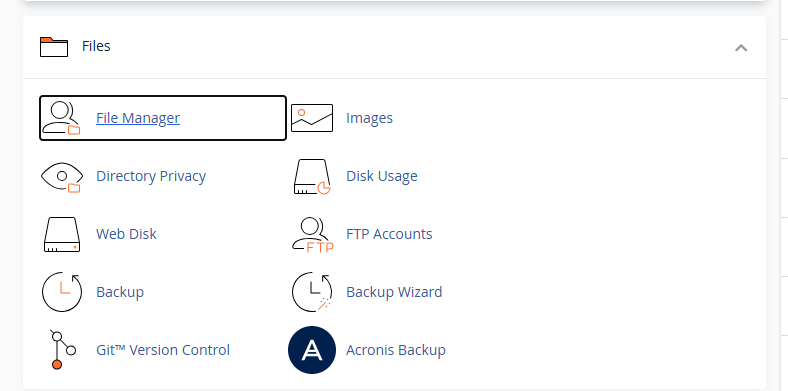
After logging in, look for the Files section and click File Manager.
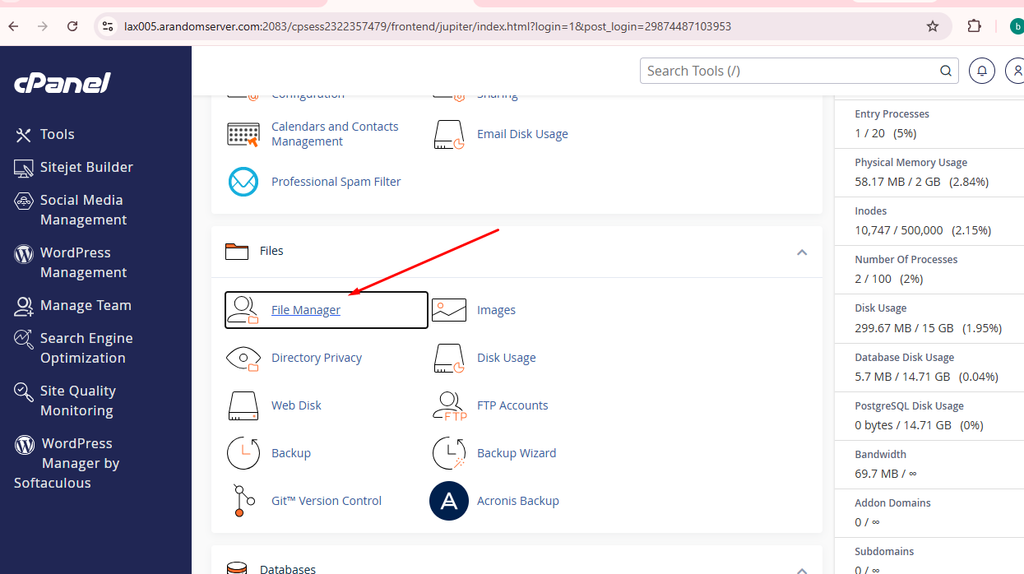
Once you click File Manager, a new page will open showing the files and folders stored on your hosting account.
if you dont know how to find cpanel you can read this post
HawkHost Dashboard Explained: A Complete Beginner’s Guide
How to Access HawkHost cPanel (Step-by-Step Guide)
How to Log in to HawkHost Client Area (Step-by-Step Guide)
Understanding the File Manager Interface
The File Manager interface usually contains several important areas.
On the left side, you may see the folder structure of your hosting account. The main section displays the files and folders inside the currently selected directory.
At the top, you will find tools such as:
- File
- Folder
- Copy
- Move
- Upload
- Download
- Delete
- Rename
- Edit
- Extract
- Compress
- Change Permissions
Understanding these tools will make it much easier to manage your website.
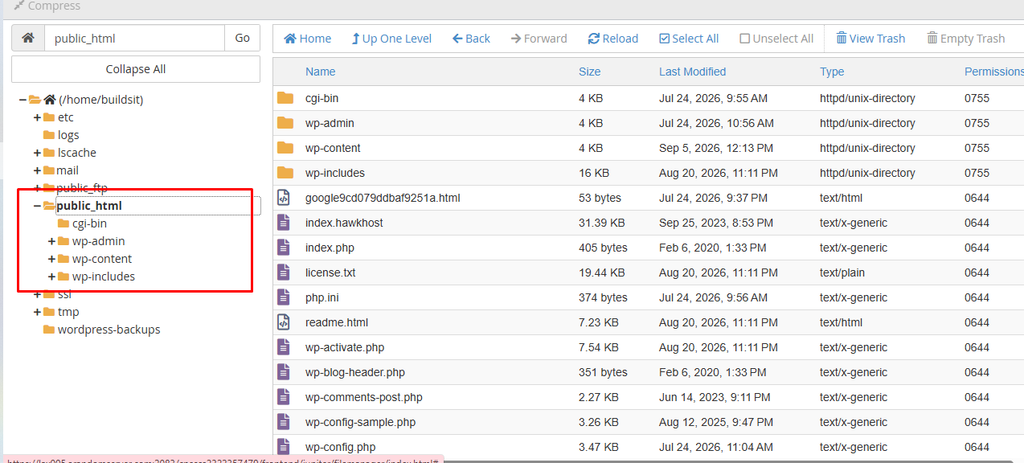
How to Open the public_html Folder
For many websites, the main website files are stored inside the public_html folder.
To open it:
cPanel → File Manager → public_html
Click the public_html folder in the file list.
You may see files such as:
index.phpindex.html.htaccesswp-config.phpwp-contentwp-adminwp-includes
The exact files depend on the software installed on your website.
How to Upload Files in cPanel File Manager
Uploading files is one of the most common tasks in File Manager.
Step 1: Open the destination folder
Go to:
File Manager → public_html
Or open the specific folder where you want to upload the file.
Step 2: Click Upload
Click the Upload button in the File Manager toolbar.

Step 3: Select Your File
A new upload page will appear.
Click Select File and choose the file from your computer.
The upload process will begin automatically.
When the upload reaches 100%, return to File Manager and refresh the directory.
Your new file should now appear in the folder.
Tip: Make sure you upload the file to the correct directory. Uploading a file to the wrong folder can prevent your website from displaying it correctly.
How to Download a File
You can also download files from your hosting account to your computer.
Step 1
Open:
cPanel → File Manager
Step 2
Navigate to the folder containing the file.
Step 3
Select the file you want to download.
Step 4
Click Download in the toolbar.

Your browser will download the file to your computer.
Downloading important files before making changes is a good way to create a backup.
How to Create a New File
File Manager allows you to create a new file directly on your server.
For example, you may want to create an HTML, PHP, CSS, or text file.
Step 1
Open the directory where you want to create the file.
For example:
File Manager → public_html
Step 2
Click + File.
Step 3
Enter the file name.
For example:
test.html
Step 4
Click Create New File.
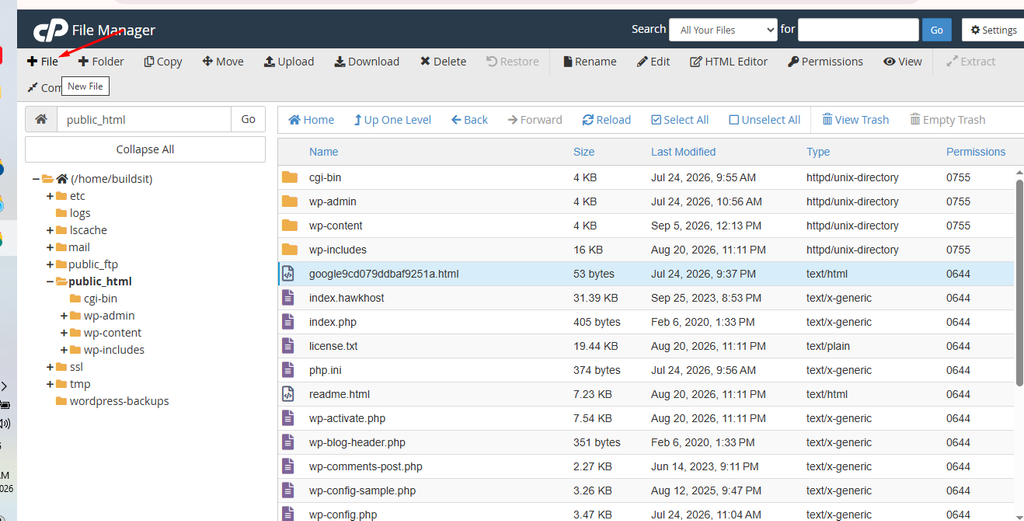
The new file will appear in the selected folder.
How to Create a New Folder
Folders help you organize website files.
To create a folder:
- Open File Manager.
- Navigate to the desired directory.
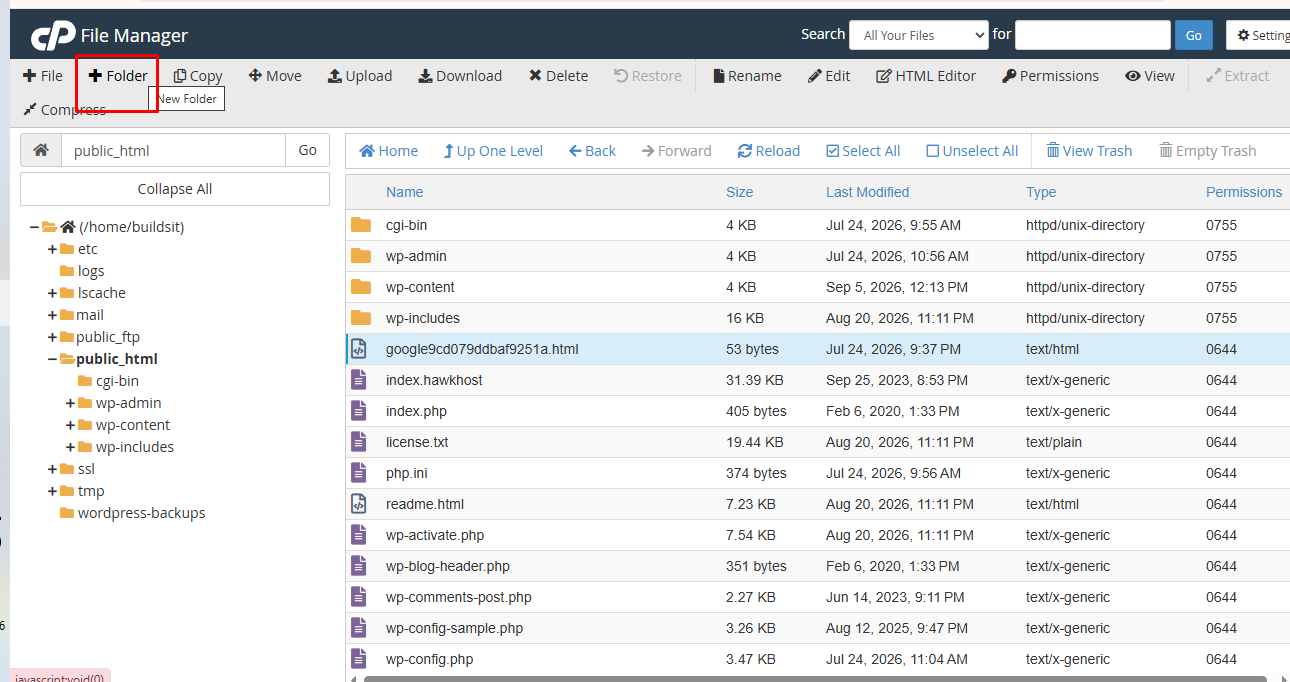
- Click + Folder.
- Enter the folder name.
- Click Create New Folder.
For example, you could create:
images
or
uploads
How to Rename a File or Folder
Renaming files is simple, but you should be careful with important website files.
To rename a file:
- Open File Manager.
- Find the file or folder.
- Right-click it.
- Select Rename.
- Enter the new name.
- Confirm the change.

For example:
old-page.html
can be renamed to:
new-page.html
Be careful when changing the names of system files because your website may depend on their original names.
How to Move Files and Folders
You can move files from one folder to another using the Move option.
Step 1
Select the file or folder.
Step 2
Click Move.
Step 3
Enter the destination path.
For example:
/public_html/images
Step 4
Confirm the move.
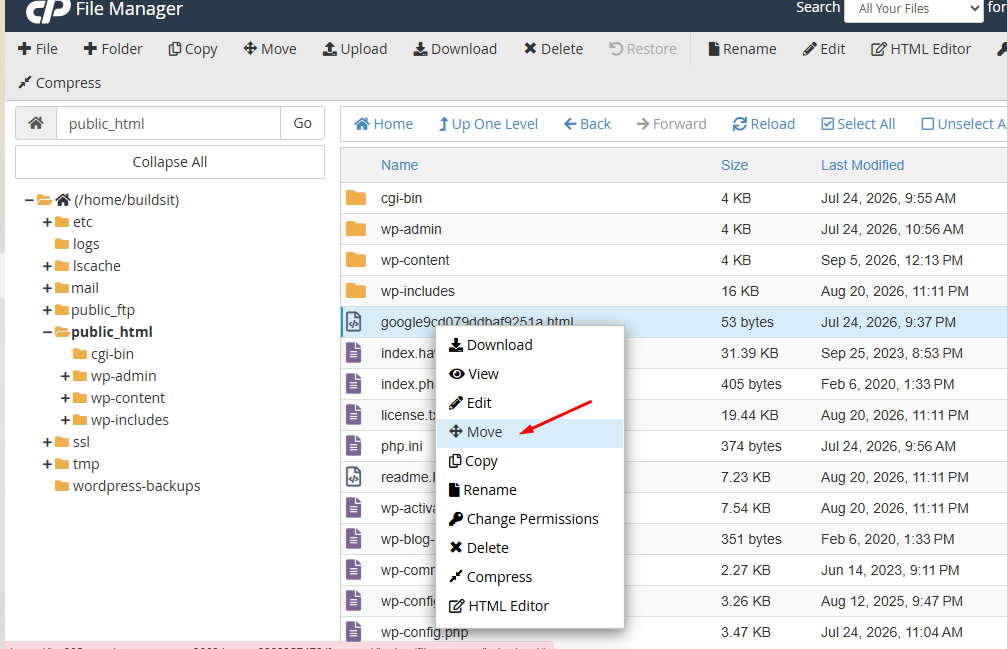
Moving files can affect your website if the file is referenced by a specific URL or script. Always check your website after moving important files.
How to Copy Files
The Copy function creates a duplicate of a file or folder.
To copy a file:
- Select the file.
- Click Copy.
- Enter the destination directory.
- Confirm the action.
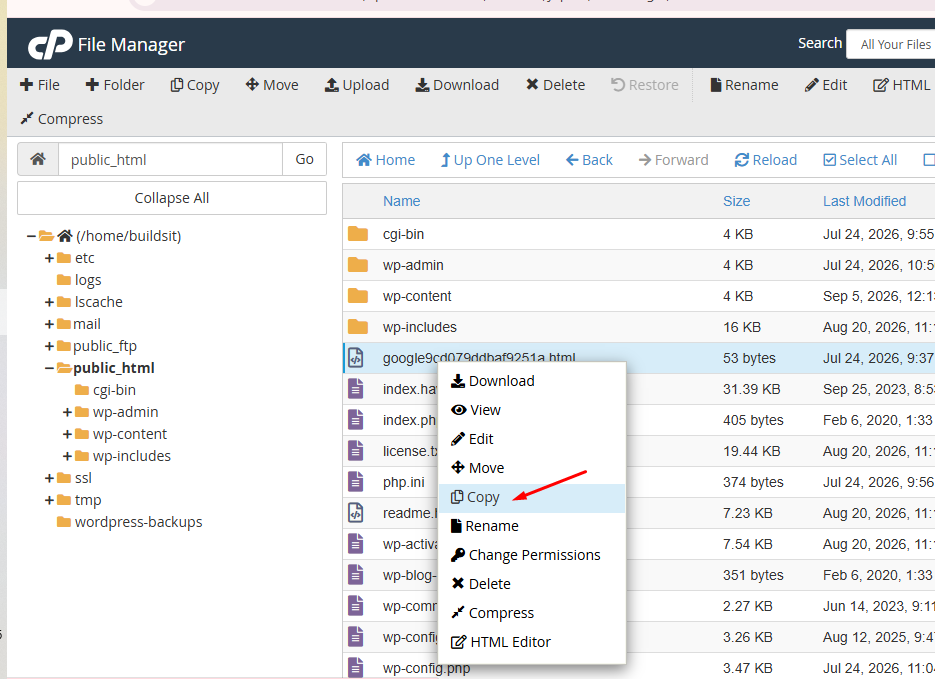
Copying files is useful when you want to create a working copy before making changes.
How to Edit a File
One of the most useful features of File Manager is the ability to edit files directly from your browser.
For example, you can edit:
- HTML files
- CSS files
- PHP files
.htaccess- Configuration files
- Text files
Step 1
Find the file you want to edit.
Step 2
Right-click the file.
Step 3
Select Edit.
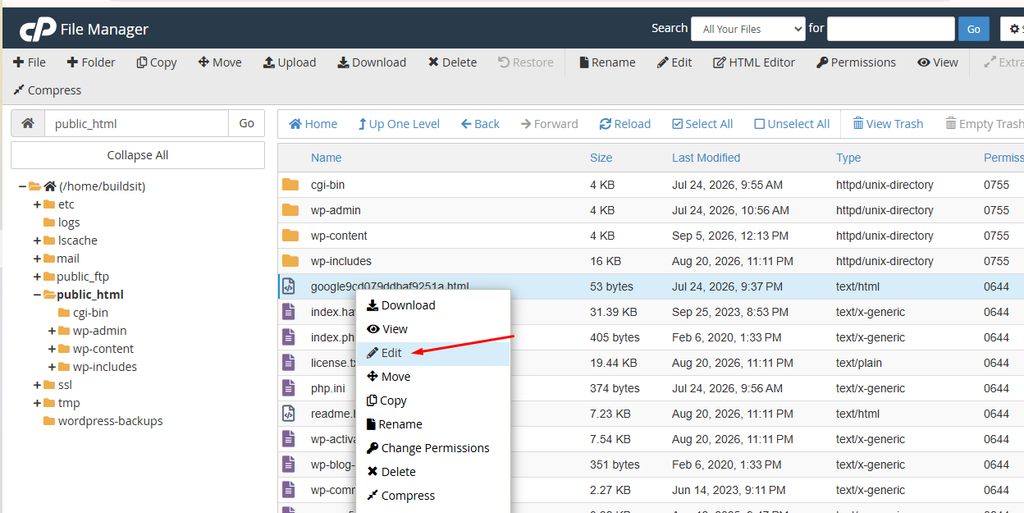
Step 4
Make your changes.
Step 5
Click Save Changes.
Always create a backup before editing important configuration files.
How to Extract a ZIP File
ZIP files are commonly used to upload website themes, plugins, scripts, and other groups of files.
Instead of uploading hundreds of files individually, you can upload one ZIP file and extract it on the server.
Step 1
Upload the ZIP file to the desired directory.
Step 2
Select the ZIP file.
Step 3
Click Extract.
Step 4
Choose the extraction path.
Step 5
Click Extract Files.
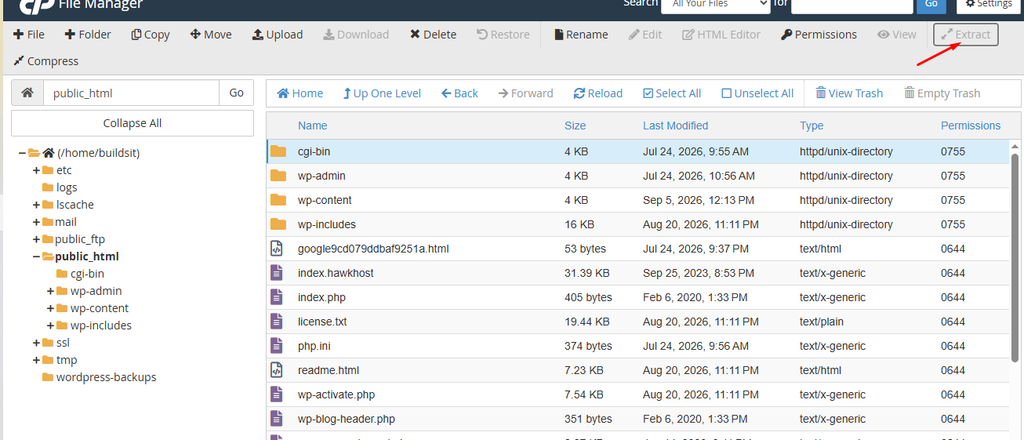
After extraction, refresh the directory to see the extracted files.
Remember to remove the ZIP archive afterward if you no longer need it.
How to Compress Files into a ZIP Archive
You can also compress files and folders into a ZIP archive.
This can be useful when creating backups or preparing files for download.
Step 1
Select the files or folders.
Step 2
Click Compress.
Step 3
Select Zip Archive.
Step 4
Enter the name and location of the ZIP file.
Step 5
Click Compress Files.
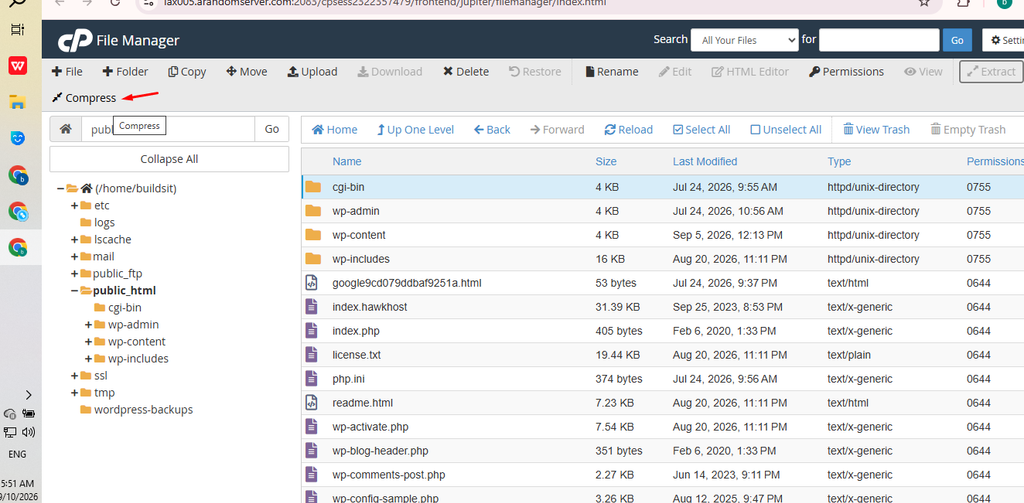
The ZIP file will be created in the selected location.
How to Delete Files and Folders
To delete a file or folder:
- Select the item.
- Click Delete.
- Confirm the deletion.
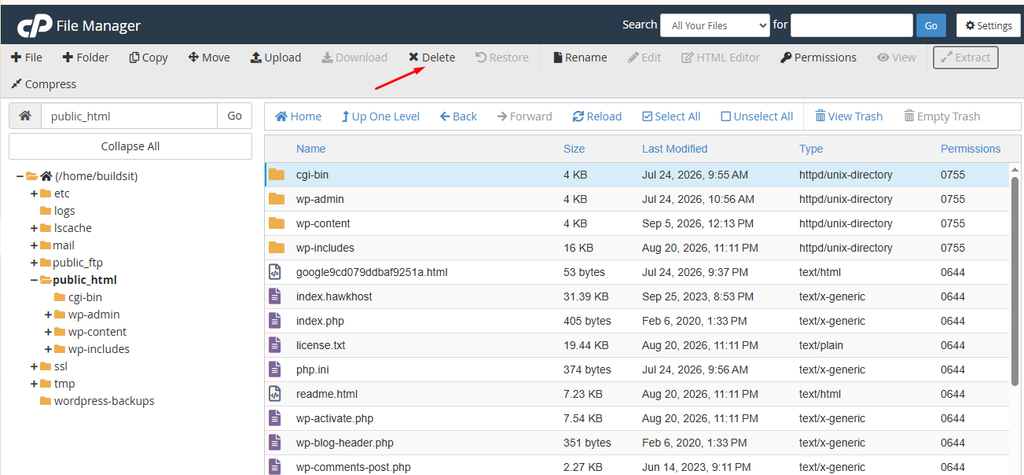
In many cPanel installations, deleted files may be moved to the Trash instead of being permanently deleted immediately.
However, you should still be careful when deleting files because important website files can cause errors if removed.
How to Change File Permissions
File permissions control who can read, write, or execute a file.
To change permissions:
- Select the file or folder.
- Right-click it.
- Select Change Permissions.
- Modify the permission values.
- Click Change Permissions.

A common permission value for regular files is:
644
A common permission value for directories is:
755
However, permissions can vary depending on your hosting environment and application. Avoid changing permissions unless you understand why the change is required.
How to View Hidden Files
Some important website files are hidden by default.
One common example is:
.htaccess
If you cannot see hidden files, you may need to enable the option to show hidden files.
In File Manager, click Settings and look for the option:
Show Hidden Files (dotfiles)
Enable it and save your settings.
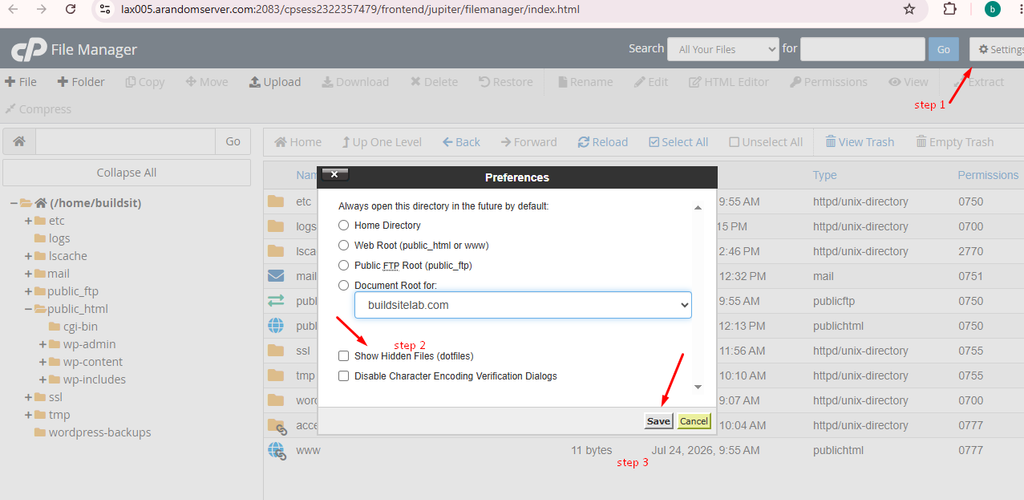
After enabling the option, hidden files such as .htaccess should become visible.
Common Problems When Using File Manager
File Upload Fails
If a file cannot be uploaded, check:
- File size
- Internet connection
- Available hosting storage
- File type restrictions
- Hosting upload limits
You can also try uploading the file as a ZIP archive and extracting it on the server.
Website Shows a 403 Error
A 403 error can sometimes be related to incorrect file or folder permissions.
Check the permissions carefully and make sure you have not accidentally changed them.
Website Shows a 500 Error
A 500 error can be caused by problems with PHP, .htaccess, file permissions, or website configuration.
If the error appeared immediately after editing a file, review your recent changes and restore the backup if necessary.
File Manager Cannot Find a File
Make sure you are looking in the correct directory.
For many websites, the main website directory is:
public_html
However, some hosting accounts use a different document root for addon domains or subdomains.
Best Practices for Using cPanel File Manager
Follow these tips to avoid accidentally damaging your website:
1. Create a Backup Before Making Major Changes
Download important files before editing or deleting them.
2. Be Careful With Configuration Files
Files such as .htaccess and configuration files can affect your entire website.
3. Avoid Random Permission Changes
Incorrect permissions can cause security problems or website errors.
4. Delete Unused ZIP Archives
After extracting a ZIP file, remove the archive if you no longer need it.
5. Keep Your Files Organized
Use folders to keep images, scripts, documents, and other files organized.
6. Check Your Website After Making Changes
After moving, renaming, editing, or deleting important files, open your website and check that everything still works.
cPanel File Manager vs. FTP
For basic file management, cPanel File Manager is often more convenient because it works directly in your browser.
However, FTP clients can be more useful when you need to transfer many files regularly.
cPanel File Manager is a good choice when you need to:
- Upload a few files
- Edit website files
- Extract ZIP archives
- Rename files
- Change permissions
- Quickly manage website folders
FTP is useful when you need to:
- Transfer large numbers of files
- Work with files frequently
- Manage files from your desktop
- Automate certain file-transfer tasks
Frequently Asked Questions
Can I use File Manager without FTP?
Yes. cPanel File Manager allows you to manage website files directly from your browser, so you do not need an FTP client for basic file management.
Where are website files stored in cPanel?
For many websites, the main files are stored in the public_html directory. However, addon domains and subdomains may use different document roots.
Can I edit PHP files using File Manager?
Yes. You can use the Edit function to modify PHP files. However, always create a backup before editing important PHP files.
Can I upload a ZIP file and extract it?
Yes. You can upload a ZIP archive and use the Extract option to unpack its contents on the server.
Is cPanel File Manager safe to use?
Yes, but you should be careful. Deleting, moving, or editing important files can cause website errors. Always back up important files before making major changes.
Final Thoughts
cPanel File Manager is a convenient tool for managing website files without installing additional software. Once you understand the basic functions—uploading, downloading, editing, moving, copying, extracting, and changing permissions—you can handle many common website management tasks directly from your hosting control panel.
If you are new to cPanel, start with simple operations such as uploading and downloading files. Before making major changes to your website, create a backup so you can restore your files if something goes wrong.
3 thoughts on “How to Use File Manager in cPanel”