If you manage a WordPress website, you may eventually need to upload files, download website files, or transfer files between your computer and your hosting account.
One of the easiest ways to manage website files remotely is through FTP (File Transfer Protocol).
Creating an FTP account in cPanel allows you to connect your hosting account to an FTP client such as FileZilla and manage your website files without logging into WordPress.
In this guide, you will learn how to create an FTP account in cPanel, how to choose the correct directory, and how to use the new FTP account with FileZilla. You can read more
How to Log in to HawkHost Client Area (Step-by-Step Guide)
How to Use File Manager in cPanel
How to Install a WordPress Plugin: A Complete Step-by-Step Guide
What Is an FTP Account?
An FTP account is a username and password that allows you to connect to your web hosting account using an FTP client.
FTP can be useful when you need to:
- Upload files to your website
- Download website files
- Upload WordPress themes
- Upload WordPress plugins
- Transfer images and other media
- Edit or replace website files
- Troubleshoot WordPress problems
- Access files when WordPress Admin is unavailable
Instead of giving someone access to your entire hosting account, you can create a separate FTP account with access to a specific directory.
This is useful if you work with a developer or freelancer because you can limit their access to only the files they need.
What Do You Need Before Creating an FTP Account?
Before creating an FTP account, you need access to your hosting control panel.
For HawkHost users, you can usually access cPanel through your HawkHost account.
You will also need:
- Your cPanel login
- Access to the FTP Accounts section
- An FTP client such as FileZilla if you want to connect from your computer
- The directory you want the FTP account to access
For a typical WordPress website, the website files are usually stored inside the site’s document root directory.
How to Create an FTP Account in cPanel
The process is straightforward.
Step 1: Log in to cPanel
First, log in to your hosting account and open cPanel.
If you are using HawkHost, you can access cPanel from your HawkHost Client Area.
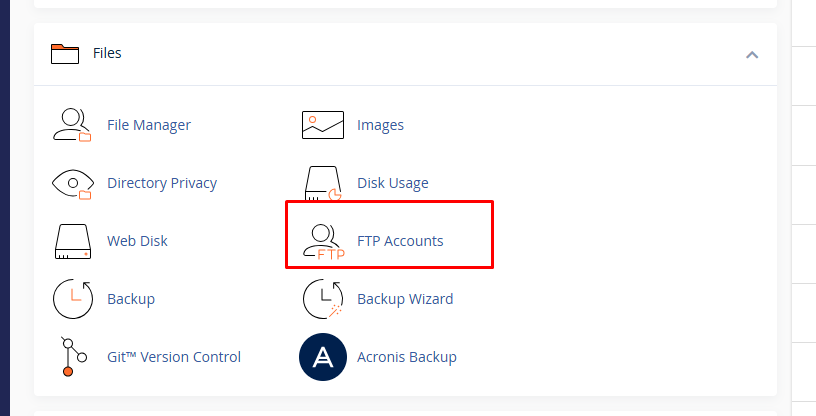
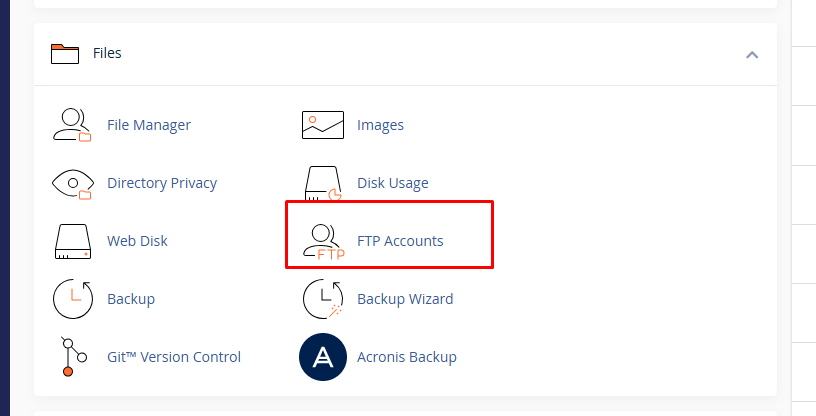
After opening cPanel, look for the Files section.
You should see an option called:
FTP Accounts
Click FTP Accounts.
Step 2: Find the Add FTP Account Section
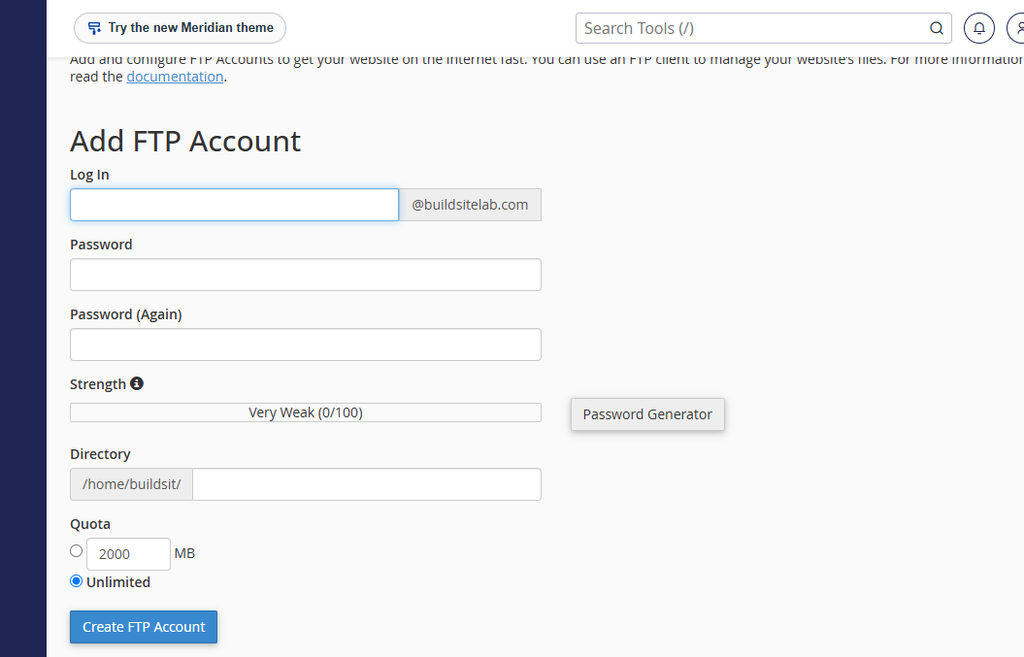
After opening FTP Accounts, you will see a section where you can create a new FTP account.
Depending on your cPanel version and hosting configuration, the interface may look slightly different.
You should see fields such as:
- Log In
- Domain
- Password
- Password (Again)
- Directory
- Quota
These settings determine how the FTP account will work.
Step 3: Enter an FTP Username
In the Log In field, enter the username you want to use for the FTP account.
For example:
websitefiles
If your hosting account has the domain example.com, cPanel may create an FTP username similar to:
websitefiles@example.com
The exact format can vary depending on your hosting configuration.
Choose a Simple Username
Use a username that clearly identifies the purpose of the account.
For example:
websitefilesdeveloperbackupwordpressmedia
Avoid using confusing usernames if you plan to create multiple FTP accounts.

Step 4: Select the Domain
If your cPanel account contains multiple domains, you may see a Domain dropdown.
Select the domain that you want the FTP account to access.
For example:
example.com
If you only have one domain, cPanel may automatically select it.
Step 5: Create a Strong Password
Next, enter a secure password for the FTP account.
FTP credentials can provide access to website files, so you should use a strong and unique password.
A good password should contain:
- Uppercase letters
- Lowercase letters
- Numbers
- Special characters
Avoid using easily guessed information such as:
password123
or:
website2026
If cPanel provides a password generator, you can use it to create a stronger password.
Tip: Store the FTP username and password somewhere secure. Do not publish them in your website content or send them through an insecure channel.
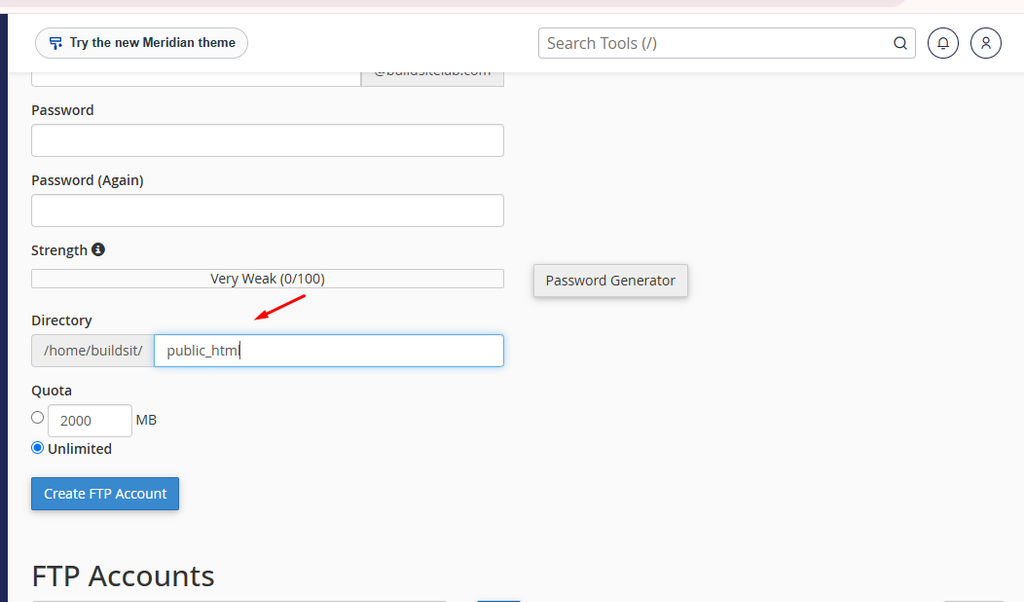
Step 6: Choose the FTP Directory
The Directory field is one of the most important settings when creating an FTP account.
This setting determines which files the FTP account can access.
For example, if your WordPress website is installed in:
public_html
you may want the FTP account to access that directory.
For an additional domain, the website may be stored in a different folder.
Why Does the Directory Matter?
Suppose you create an FTP account for a developer.
If you give the account access to the entire hosting account, the developer may be able to access files belonging to other websites.
Instead, you can restrict the FTP account to one website directory.
For example:
public_html/example.com
This provides a more limited level of access.
Step 7: Set the FTP Quota
cPanel may also allow you to set an FTP Quota.
The quota determines how much disk space the FTP account can use.
You may see options such as:
- Unlimited
- A specific storage limit
For many personal websites, leaving the quota as Unlimited is convenient.
However, if you are creating an FTP account for another person or a specific purpose, setting a storage limit can provide additional control.
Step 8: Click Create FTP Account
After checking all of the settings, click:
Create FTP Account
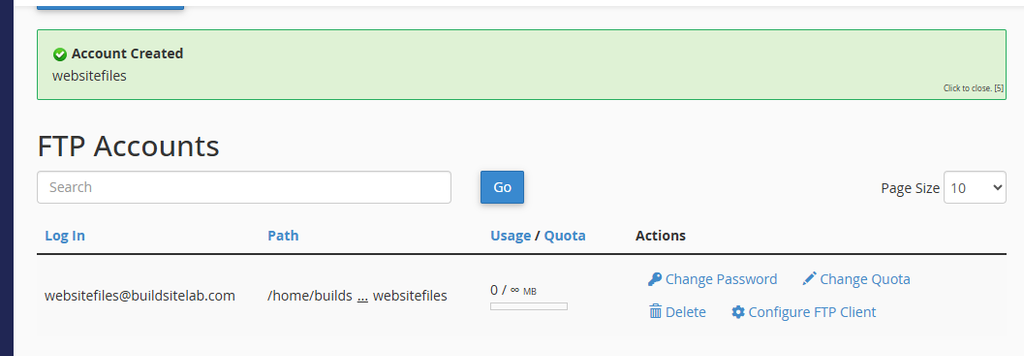
cPanel will create the FTP account.
If everything is successful, the new account should appear in the FTP Accounts list.
You can then use its credentials with an FTP client such as FileZilla.
How to Find Your FTP Connection Information
After creating the account, you need several pieces of information to connect using an FTP client.
Typically, you will need:
| Setting | Example |
|---|---|
| Host | ftp.example.com |
| Username | websitefiles@example.com |
| Password | Your FTP password |
| Port | 21 |
| Protocol | FTP |
The exact hostname and connection settings can vary depending on your hosting provider and security configuration.
For HawkHost, check the FTP account information provided inside cPanel or the hosting documentation if you are unsure which hostname to use.
How to Connect Your FTP Account Using FileZilla
Once your FTP account has been created, you can use FileZilla to connect to your hosting account and manage your website files.
What Is FileZilla?
FileZilla is a free FTP client that allows you to transfer files between your computer and your web hosting server.
In simple terms, FileZilla creates a connection between:
Your Computer → FileZilla → Your Web Hosting
You can use FileZilla to:
- Upload files to your website
- Download files from your hosting account
- Upload WordPress themes
- Upload WordPress plugins
- Transfer images and other website files
- Replace existing website files
- Manage website files remotely
FileZilla is available for Windows, macOS, and Linux.
Where to Download FileZilla
You should download FileZilla from the official FileZilla website.
Download FileZilla from the official website
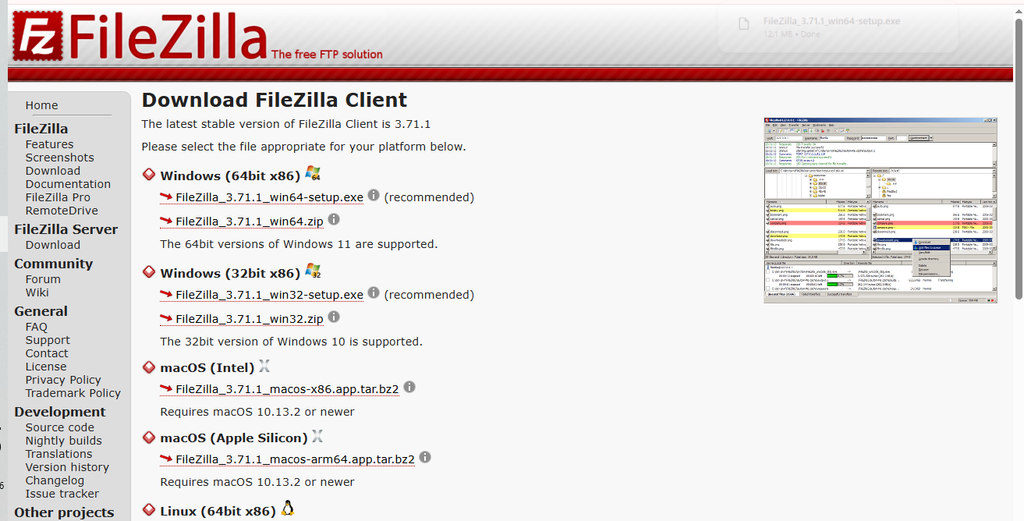
On the download page, choose the version that matches your operating system.
For example:
- Windows → Download the Windows version
- macOS → Download the macOS version
- Linux → Download the Linux version
Important: Download FileZilla from the official website rather than from unknown third-party download sites.
How to Install FileZilla
After downloading FileZilla, install it on your computer.
On Windows
- Open the FileZilla installer.
- Follow the installation instructions.
- Accept the license agreement when prompted.
- Choose the installation options.
- Complete the installation.
- Open FileZilla.
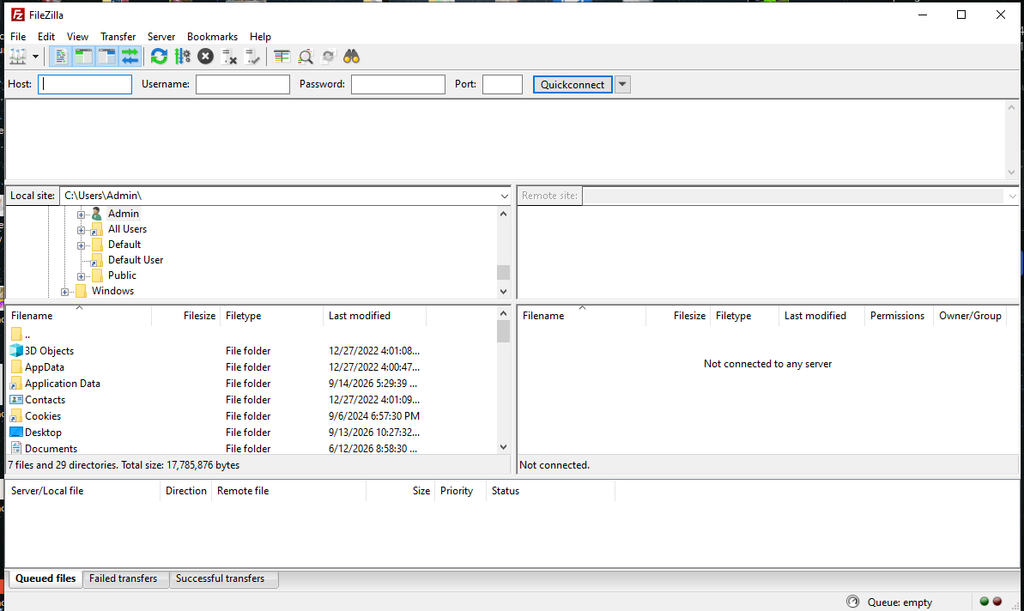
After installation, you should see the main FileZilla interface.
How to Connect Your FTP Account to FileZilla
After opening FileZilla, you need to enter your FTP connection information.
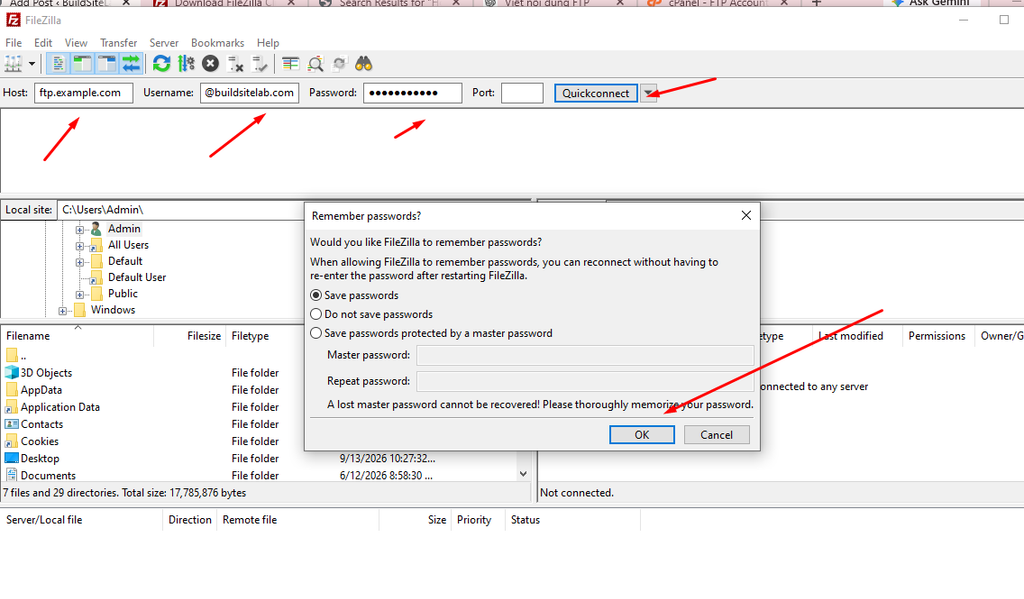
You can use the Quickconnect bar near the top of the FileZilla window.

Enter the following information:
Host: Your FTP hostname
Username: Your FTP username
Password: Your FTP password
Port: 21 for standard FTP
For example:
Host: ftp.buildsitelab.com
Username: websitefiles@buildsitelab.com
Password: Your FTP password
Port: 21
Then click Quickconnect.
If your FTP credentials are correct, FileZilla will connect to your hosting account.
Understanding the FileZilla Interface
After connecting successfully, FileZilla displays two main file areas.
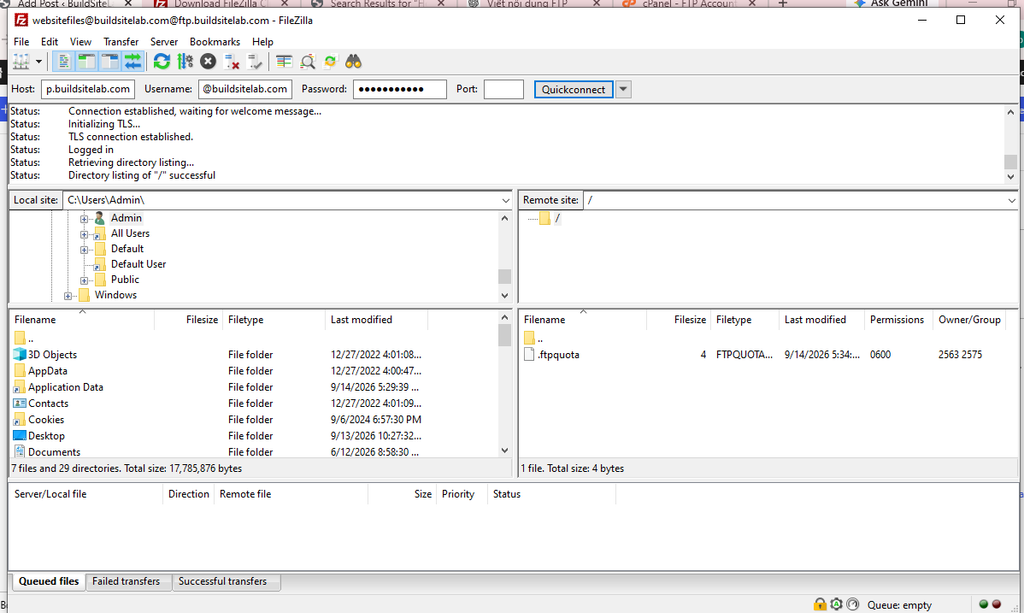
Local Site
The Local site section shows files and folders stored on your computer.
This is where you find the files you want to upload.
Remote Site
The Remote site section shows files and folders stored on your hosting server.
This is where you upload your website files.
The basic layout looks like this:
Left side: Your computer
Right side: Your hosting account
How to Upload a File Using FileZilla
Once you understand the two sides of FileZilla, uploading a file is simple.
Step 1: Find the File on Your Computer
On the Local site side, browse to the folder containing the file you want to upload.
For example, you may have a file on your Desktop.
Step 2: Find the Website Folder
On the Remote site side, open the directory where you want to upload the file.
For a typical cPanel WordPress website, this may be:
public_html
Step 3: Upload the File
Select the file on the left side.
Then you can either:
- Right-click the file and select Upload
- Drag the file from the left side to the right side
FileZilla will begin transferring the file to your hosting account.

How to Download a File Using FileZilla
FileZilla can also download files from your hosting account to your computer.
The process is the opposite of uploading.
- Find the file under Remote site.
- Select the file.
- Choose the destination folder under Local site.
- Right-click the remote file.
- Select Download.
FileZilla will transfer the file from your hosting server to your computer.
How to Upload WordPress Files Using FileZilla
FileZilla is particularly useful for manually managing WordPress files.
For example, if you want to upload a WordPress plugin, navigate to:
public_html/wp-content/plugins
If you want to upload a theme, navigate to:
public_html/wp-content/themes
For other website files, the correct directory depends on where your website is installed.
Always make sure you are working inside the correct website directory before uploading or replacing files.
What If FileZilla Cannot Connect?
If FileZilla cannot connect to your hosting account, check the following:
- FTP hostname
- FTP username
- FTP password
- Port number
- FTP account permissions
- Internet connection
Also make sure that you are using the FTP credentials created in your hosting control panel.
If standard FTP does not work, check whether your hosting provider recommends SFTP or another connection method.
Quick Summary
Using FileZilla to connect to your hosting account involves four basic steps:
1. Download and install FileZilla
2. Enter your FTP hostname, username, password, and port
3. Click Quickconnect
4. Transfer files between your computer and hosting
Once connected, the left side represents your computer and the right side represents your hosting server.
This makes FileZilla a convenient tool for uploading, downloading, and managing website files.
FTP vs SFTP: What’s the Difference?
You may also see the term SFTP when working with hosting accounts.
FTP and SFTP are not the same protocol.
FTP
FTP transfers files using the traditional File Transfer Protocol.
The standard FTP port is:
21
SFTP
SFTP stands for SSH File Transfer Protocol.
It transfers files through an SSH connection and provides encrypted communication.
SFTP commonly uses port:
22
If your hosting provider supports SFTP, it can be preferable when security is important.
However, do not enter SFTP information into an FTP connection unless your hosting provider specifically instructs you to do so.
Common FTP Account Problems
Sometimes an FTP account may be created successfully but fail to connect.
Here are some common problems.
1. Incorrect FTP Username
Make sure you are using the complete FTP username.
Depending on the cPanel configuration, the username may include the domain.
For example:
websitefiles@example.com
rather than simply:
websitefiles
2. Incorrect Password
FTP passwords are case-sensitive.
Check that you entered the correct password and make sure there are no extra spaces.
If you forgot the password, you can usually change it from the FTP Accounts section in cPanel.
3. Incorrect Hostname
The FTP hostname may not always be the same as your website URL.
If:
example.com
does not work as the FTP host, check your hosting account documentation or cPanel connection information.
4. Incorrect Port
Standard FTP normally uses port:
21
SFTP normally uses port:
22
Using the wrong port can prevent the connection from working.
5. Wrong Directory
If you can connect but cannot find your website files, the FTP account may have been created with the wrong directory.
Return to:
cPanel → FTP Accounts
and check the account’s assigned directory.
How to Change an FTP Account Password
If you need to change the password later, you normally do not need to delete the FTP account.
Go to:
cPanel → FTP Accounts
Find the FTP account you want to modify.
Look for the option to change or configure the password.
Enter a new secure password and save the changes.
You will then need to update the saved password in FileZilla or any other FTP client.
How to Delete an FTP Account
If you no longer need an FTP account, it is a good idea to remove it.
Go to:
cPanel → FTP Accounts
Find the account you want to remove and select the delete option.
Before deleting an FTP account, make sure nobody is still using it.
Important
Deleting an FTP account does not necessarily mean deleting the website files associated with that account.
When cPanel gives you deletion options, read them carefully before confirming.
Security Tips for FTP Accounts
FTP accounts provide access to website files, so they should be managed carefully.
Here are some simple security practices.
1. Use a unique password
Never reuse your main hosting password for an FTP account.
2. Give users only the access they need
If someone only needs access to one website, create an account restricted to that website’s directory.
3. Delete unused FTP accounts
Old FTP accounts can create unnecessary security risks.
Remove accounts that are no longer needed.
4. Consider SFTP when available
If your hosting provider supports SFTP, consider using it for encrypted file transfers.
5. Avoid sharing your main cPanel password
If a developer only needs to upload website files, create a separate FTP account instead of giving them your cPanel login.
Frequently Asked Questions
What is an FTP account in cPanel?
An FTP account is a separate username and password that allows you to connect to your hosting account and manage files using an FTP client.
Do I need an FTP account for WordPress?
No. You can manage many WordPress tasks directly from WordPress Admin.
However, FTP can be useful when you need to upload, download, replace, or troubleshoot website files.
Can I create multiple FTP accounts?
Yes. cPanel allows you to create multiple FTP accounts, depending on your hosting plan.
You can give different accounts different usernames and directory access.
Can I delete an FTP account without deleting my website?
Yes. Deleting an FTP account is different from deleting your website files. Always read the deletion options carefully before confirming.
What FTP client should I use?
FileZilla is one of the most popular FTP clients and is suitable for beginners.
Other FTP clients are also available.
What port does FTP use?
Traditional FTP commonly uses port 21.
SFTP commonly uses port 22.
Your hosting provider may recommend a specific connection method, so follow the provider’s instructions when available.
Final Thoughts
Creating an FTP account in cPanel is a simple way to access your website files remotely.
The basic process is:
Log in to cPanel → FTP Accounts → Add FTP Account → Choose username → Create password → Select directory → Create FTP Account → Connect with an FTP client.
For better security, avoid giving other people your main hosting or cPanel credentials. Instead, create a separate FTP account and restrict it to the directory they actually need.
If you use HawkHost, this FTP account can be especially useful when managing WordPress files, uploading themes or plugins, or troubleshooting website problems when WordPress Admin is unavailable.
Once you understand FTP accounts, the next useful skill is learning how to connect to your HawkHost account using FileZilla and safely upload or download website files.
1 thought on “How to Create an FTP Account in cPanel”