A cron job allows you to run a command or script automatically at a scheduled time. Instead of performing the same task manually, you can configure your HawkHost hosting account to execute it every few minutes, every hour, every day, or at another interval.
Cron jobs are useful for WordPress maintenance, scheduled scripts, automated data processing, and other repetitive tasks. WordPress users can also use a real cron job to run scheduled events more reliably than relying only on website visits.
In this guide, you will learn how to create a cron job in HawkHost cPanel, configure its schedule, run a PHP script, troubleshoot common errors, and safely manage existing cron jobs.
What Is a Cron Job?
A cron job is a scheduled task that runs automatically on a server according to a predefined schedule.
For example, you could create a cron job to:
- Run a PHP script every hour.
- Process a file every night.
- Clean up temporary files at a scheduled time.
- Run a custom maintenance script.
- Trigger WordPress scheduled tasks.
- Automate tasks for a website or application.
The task is defined by two main components:
- Schedule: When the task should run.
- Command: The script or program that the server should execute.
On HawkHost, you can configure cron jobs through the Cron Jobs interface in cPanel, provided that the feature is enabled for your hosting account.
Before You Create a Cron Job
Before adding a new cron job, prepare the following information:
- Your cPanel login details.
- The path to the script you want to run.
- The command needed to execute that script.
- The frequency at which the task should run.
- Any required PHP version, environment variables, or script arguments.
For example, if your PHP script is located at /home/username/public_html/cron.php, you may need a command similar to:
/usr/local/bin/php /home/username/public_html/cron.php
Replace username with your actual cPanel username and adjust the path to match your installation.
HawkHost documents /usr/local/bin/php as a PHP interpreter path for cron jobs. If your script requires a particular PHP version, confirm the appropriate interpreter before configuring the task.
How to Create a Cron Job in HawkHost cPanel
Follow these steps to create your first cron job.
Step 1: Log In to HawkHost cPanel
First, sign in to your HawkHost Client Area.
Open your active hosting service and use the cPanel login option. If your domain is already pointed to HawkHost, you may also be able to access cPanel through your domain.
For detailed login instructions, see our guide to How to Access HawkHost cPanel (Step-by-Step Guide).
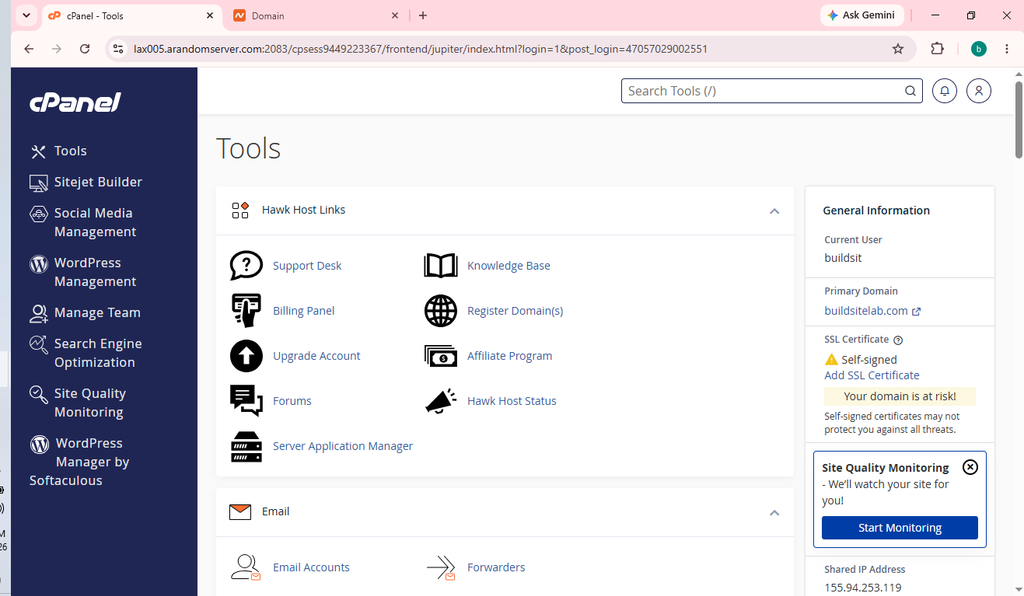
Once inside cPanel, you will see the tools available for managing your hosting account.
Step 2: Find Cron Jobs
Use the cPanel search bar and search for:
Cron Jobs
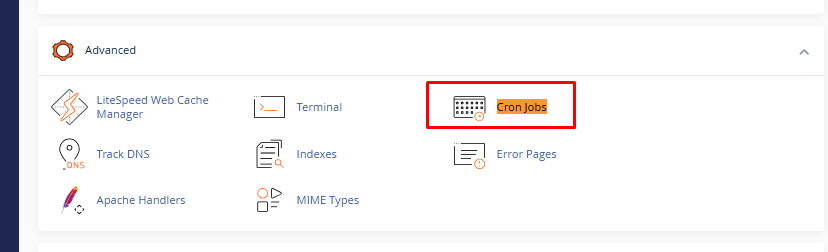
Open the Cron Jobs interface. In many cPanel layouts, it is located in the Advanced section.
If you cannot find the feature, your hosting provider may have disabled it for your account or placed it differently in the interface. Contact HawkHost support if necessary.
Step 3: Configure the Cron Email Address
The Cron Jobs page may include a Cron Email section.
Depending on your settings, cron jobs can send output or error messages to the configured email address. These notifications can help you identify problems when a script fails.
If you want to receive notifications, enter an email address you can access and click the available update button.
Be aware that a script that produces output on every run can generate many emails. For a frequently scheduled task, configure logging or output handling carefully.
If you do not need notifications, you can configure the command to handle its output explicitly. However, avoid discarding error messages while you are still testing a new cron job.
Step 4: Choose a Schedule
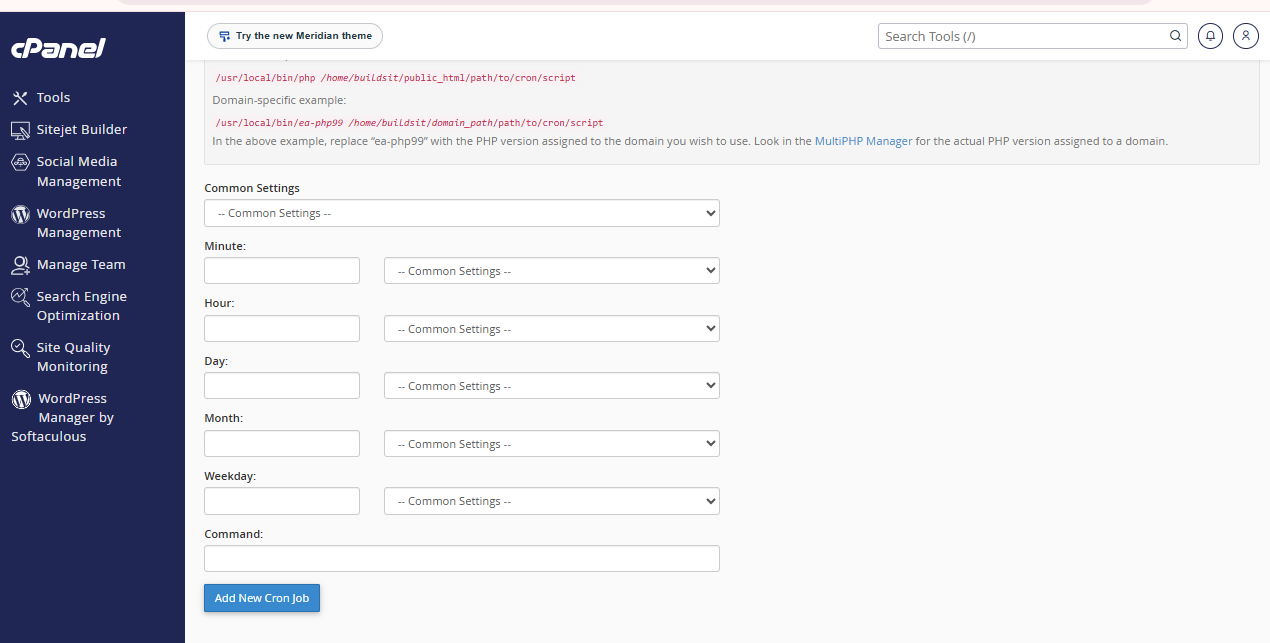
Scroll to the section labeled Add New Cron Job.
You may see a Common Settings dropdown and separate fields for:
- Minute
- Hour
- Day
- Month
- Weekday
The Common Settings dropdown provides predefined schedules. Selecting an option usually fills in the corresponding fields automatically.
Here are some common examples:
| Frequency | Cron expression | Meaning |
|---|---|---|
| Every 5 minutes | */5 * * * * | Runs every five minutes |
| Every 15 minutes | */15 * * * * | Runs every fifteen minutes |
| Every 30 minutes | */30 * * * * | Runs every thirty minutes |
| Every hour | 0 * * * * | Runs at the start of every hour |
| Every day at midnight | 0 0 * * * | Runs daily at 00:00 |
| Every day at 2:00 AM | 0 2 * * * | Runs daily at 02:00 |
| Every Sunday at 3:00 AM | 0 3 * * 0 | Runs weekly on Sunday |
These examples assume the standard five-field cron format. Use the actual schedule fields provided by cPanel rather than entering the expression into the Command field.
Which schedule should you choose?
Choose a schedule based on what the script needs to do. A daily backup script may only need to run once a day, while a time-sensitive task may need to run more frequently.
Do not schedule a resource-intensive script every minute unless there is a specific reason. If one execution takes longer than the interval between runs, multiple executions may overlap and consume unnecessary resources.
Step 5: Enter the Command
In the Command field, enter the command that should run on the schedule you selected.
The correct command depends on the script’s language and location.
For example, a PHP script might use:
/usr/local/bin/php /home/username/public_html/cron.phpReplace the example username and file path with the actual values for your account.
Do not copy the example unchanged unless your script really exists at that location.
If you are running a script that requires a specific PHP version, confirm the correct PHP interpreter with HawkHost. A command that works with one PHP version may not work with another.
Step 6: Add the Cron Job
Review the schedule and command to make sure both are correct.
Click Add New Cron Job.
If the configuration is accepted, the new task should appear under Current Cron Jobs.
This confirms that cPanel has saved the configuration, but it does not necessarily mean the script has run successfully.

How to Create a PHP Cron Job
If you want to execute a custom PHP script, you need the script’s full path and the correct PHP interpreter.
Step 1: Create or Locate Your PHP Script
Open cPanel and launch File Manager.
Navigate to the directory containing your script. For example, your file might be located at:
/home/username/public_html/scripts/daily-task.php
The path shown here is an example. Use the actual path for your account.
If you need help managing files, see How to Manage Files in HawkHost cPanel
Step 2: Find the PHP Interpreter
HawkHost documents the following PHP interpreter path for cron jobs:
/usr/local/bin/php
A basic command would therefore look like this:
/usr/local/bin/php /home/username/public_html/scripts/daily-task.phpReplace the example path with your own script location.
If the task needs a specific PHP version, do not assume the default interpreter will use the same version selected for your website. Check HawkHost’s current PHP interpreter documentation or ask support for the appropriate command.
You can find more information in HawkHost’s guide to PHP Interpreter Locations.
Step 3: Test the Command
Before scheduling a script, test it if you have a supported way to run the command.
For example, if you have access to an appropriate command-line interface, you can execute the PHP command manually and review its output.
If you do not have command-line access, use the diagnostic options available to you or ask HawkHost support for help verifying the command.
Testing is important because a saved cron job may still fail if the script path is wrong, the required PHP version is unavailable, or the script depends on files or settings that are not loaded correctly.
Step 4: Schedule the Script
Return to cPanel → Cron Jobs.
Select the desired schedule, enter the PHP command, and click Add New Cron Job.
After saving, check the Current Cron Jobs list and monitor the script’s behavior at its next scheduled run.
How to Set Up a Real Cron Job for WordPress
WordPress includes a task scheduler called WP-Cron. It handles scheduled activities such as publishing scheduled posts, checking for updates, and running tasks requested by plugins.
However, the default WP-Cron mechanism is triggered by website visits. On a low-traffic site, some scheduled events may run later than expected.
A real server-side cron job can help by triggering WordPress’s scheduled events independently of ordinary page visits.
HawkHost provides a dedicated guide for replacing WP-Cron with a real cron job. If your cPanel account includes the WordPress Management tool, that is a good place to start.
Option 1: Use WordPress Management in cPanel
- Log in to HawkHost cPanel.
- Search for WordPress Management.
- Open the tool and locate your WordPress installation.
- Look for the option labeled Take over wp-cron.php.
- Follow the tool’s instructions to enable the real cron job.
The interface and availability of this option may vary. Use the controls actually shown in your account.
Option 2: Configure the Cron Job Manually
If you are setting up the replacement manually, you must configure the real cron job before disabling the default WP-Cron mechanism.
Important: If you disable WP-Cron without successfully configuring a replacement, scheduled WordPress tasks may stop running as expected.
HawkHost’s documented manual approach uses the following general sequence:
- Back up your website.
- Add
define( 'DISABLE_WP_CRON', true );towp-config.php, above the “That’s all, stop editing!” comment. - Open Cron Jobs in cPanel.
- Choose an appropriate schedule.
- Enter a command that triggers your WordPress installation’s
wp-cron.php. - Save the job and verify that scheduled WordPress tasks still run.
HawkHost documents this example command:
wget -q -O /dev/null https://yourdomain.com/wp-cron.phpReplace https://yourdomain.com with the actual URL of your WordPress site.
The command requests the WordPress cron endpoint and discards the response. The example assumes wget is available and that the site can be reached using that URL.
HawkHost suggests an hourly schedule as a starting point for many sites, although the appropriate interval depends on your site’s scheduling requirements.
How to Edit or Delete a Cron Job
You may need to change a schedule, correct a command, or remove a task that is no longer required.
How to Edit a Cron Job
- Open cPanel.
- Select Cron Jobs.
- Find the task under Current Cron Jobs.
- Click Edit beside the relevant entry.
- Update the schedule or command.
- Save the changes.
After editing the task, check the saved entry to confirm that the schedule and command are correct.
How to Delete a Cron Job
- Open the Cron Jobs interface.
- Locate the task under Current Cron Jobs.
- Click Delete beside the task.
- Confirm the deletion if prompted.
Before removing a cron job, make sure it is not responsible for an important task such as a backup, scheduled WordPress event, or application process.
If you are unsure what a task does, investigate it before deleting it.
How to Troubleshoot Cron Job Problems
A cron job can be saved successfully and still fail to perform its task. The following checks can help you identify the problem.
1. The Cron Job Does Not Run
Check the schedule fields and confirm that the selected interval is correct.
Also verify that the server’s timezone and the schedule’s intended time are aligned. Do not assume that the time shown on your personal computer is the same as the hosting server’s timezone.
If the task is scheduled to run at a particular hour, wait for the next scheduled execution and check the result.
2. The Script Path Is Incorrect
Cron jobs should use the correct path to the script.
For example, this command:
/usr/local/bin/php /home/username/public_html/cron.phpwill not work as intended if the file is actually stored in a different directory.
Check the file location in File Manager and replace the example path with the correct absolute path.
3. The PHP Command Fails
If a PHP script does not run, check the interpreter path and PHP version.
A script may work through the website but fail when run from the command line because the PHP version, configuration, environment, or working directory is different.
Check the error output where available and confirm the correct interpreter with HawkHost if necessary.
4. The Script Does Not Have the Required Permissions
The cron process must be able to read the script and access any files it needs.
Check the file and directory permissions. Avoid setting permissions to 777 as a general troubleshooting measure because that can introduce security risks.
If the script needs to write to a directory, confirm that the appropriate account has permission to do so.
5. You Receive Too Many Cron Emails
Cron jobs may produce output that is sent to the configured cron email address.
For a task that runs frequently, this can generate a large number of messages.
During testing, keep useful error output so that failures can be diagnosed. Once the task is confirmed to work, configure its output handling according to your needs.
For example, the following command sends standard output and error output to /dev/null:
/usr/local/bin/php /home/username/public_html/cron.php > /dev/null 2>&1Use this only when you are comfortable suppressing the command’s output. Otherwise, errors may be harder to diagnose.
6. The Task Runs More Than Once or Overlaps
If a script takes longer to finish than the time between scheduled executions, another run may start before the previous one has completed.
Consider increasing the interval or adjusting the script so that it handles overlapping executions safely.
cPanel also cautions against scheduling tasks so frequently that one execution may still be running when the next one starts.
7. The Cron Jobs Tool Is Missing
If Cron Jobs does not appear in cPanel, the feature may not be enabled for your account.
Contact HawkHost support and ask whether cron job management is available for your hosting plan.
Cron Job Best Practices
Follow these recommendations to keep scheduled tasks reliable and secure:
- Use the correct absolute paths. Do not assume that example paths match your account.
- Choose an appropriate schedule. Run each task only as often as necessary.
- Test commands before scheduling them. This helps identify path and configuration errors early.
- Keep error output during troubleshooting. Do not suppress useful diagnostics until the task works correctly.
- Avoid overlapping runs. Make sure the interval is long enough for the task to complete.
- Protect sensitive scripts. Avoid exposing scripts or credentials publicly.
- Review existing jobs before deleting them. Some tasks may be essential to WordPress or another application.
- Use the correct PHP interpreter. Confirm the required PHP version when a script depends on specific features.
- Back up before changing WordPress scheduling. In particular, do not disable WP-Cron until the replacement is configured and verified.
Frequently Asked Questions
Does HawkHost support cron jobs?
HawkHost documents cron job setup through cPanel and provides instructions for running PHP scripts and replacing WordPress WP-Cron. The exact interface and available options depend on your hosting environment.
How often should a cron job run?
It depends on the task. A maintenance script may only need to run once a day, while some scheduled operations may need to run hourly or every few minutes. Choose the least frequent schedule that meets the task’s requirements.
Can I run a PHP script using a cron job?
Yes. HawkHost documents /usr/local/bin/php as a PHP interpreter path for cron jobs. Use the correct absolute path to your script and verify the PHP version it requires.
What does * * * * * mean?
In the standard five-field cron format, five asterisks mean that the task is scheduled to run every minute. This can be unnecessarily frequent for many scripts, so use it only when the task genuinely requires that interval.
Why does my WordPress scheduled post publish late?
WordPress’s default WP-Cron is triggered by site visits. If your website has low traffic, scheduled events may run later than expected. A correctly configured real cron job can help, but you should verify that the replacement is working before disabling the default mechanism.
Can I delete a cron job after creating it?
Yes. You can remove a task through the Current Cron Jobs section in cPanel. Before deleting it, confirm that it is not required for backups, WordPress scheduling, or another application.
Final Thoughts
Creating a cron job in HawkHost cPanel allows you to automate recurring tasks without running them manually.
To get started, open cPanel, find Cron Jobs, choose a schedule, enter the correct command, and save the task. Then verify that the script runs successfully.
If you manage a WordPress website, consider whether HawkHost’s WordPress Management tool can handle the WP-Cron setup for you. For custom scripts, take extra care with file paths, PHP versions, output handling, and execution intervals.
A well-configured cron job can make routine website maintenance more consistent while reducing unnecessary manual work.