If you have a website hosted with HawkHost, you will eventually need to work with the files stored on your hosting account.
You may need to upload a new file, download a backup, create a folder, edit a configuration file, extract a ZIP archive, or remove an old file.
You can perform many of these tasks directly from cPanel File Manager without installing additional software.
In this guide, you’ll learn how to manage files in HawkHost cPanel, including how to upload, download, move, copy, rename, edit, compress, extract, and delete files.
We’ll also look at the most important WordPress folders and explain which files you should be careful with.
Quick answer: Log in to HawkHost cPanel, open File Manager, and navigate to the directory you want to manage. For a typical website, your main website files are usually located inside
public_html.
What Is cPanel File Manager?
File Manager is a browser-based tool inside cPanel that lets you manage files stored on your hosting account.

Instead of connecting to your server using FTP software, you can perform many common file-management tasks directly inside your browser.
With File Manager, you can:
- Upload files
- Download files
- Create folders
- Create files
- Rename files
- Move files
- Copy files
- Delete files
- Edit text-based files
- Compress files
- Extract ZIP archives
- Change file permissions
- View hidden files
For beginners, File Manager is often one of the most useful tools in cPanel.
Why Use File Manager in HawkHost?
There are several situations where File Manager is useful.
Uploading website files
For example, you may need to upload:
- Images
- HTML files
- ZIP files
- Verification files
- Plugin files
- Theme files
Fixing a WordPress problem
Sometimes a WordPress plugin can cause your website to stop working.
If you cannot access the WordPress Dashboard, File Manager can sometimes be used to rename the problematic plugin folder and disable it.
Managing backups
You can upload, download, compress, or remove backup files.
Editing configuration files
Some advanced WordPress tasks require editing files such as:
wp-config.php
.htaccess
However, these files should only be changed when you know exactly what you’re doing.
How to Open File Manager in HawkHost cPanel
Step 1: Log In to HawkHost
First, log in to your HawkHost account and access cPanel.

If you haven’t used cPanel before, see:
Read more : How to Access HawkHost cPanel (Step-by-Step Guide)
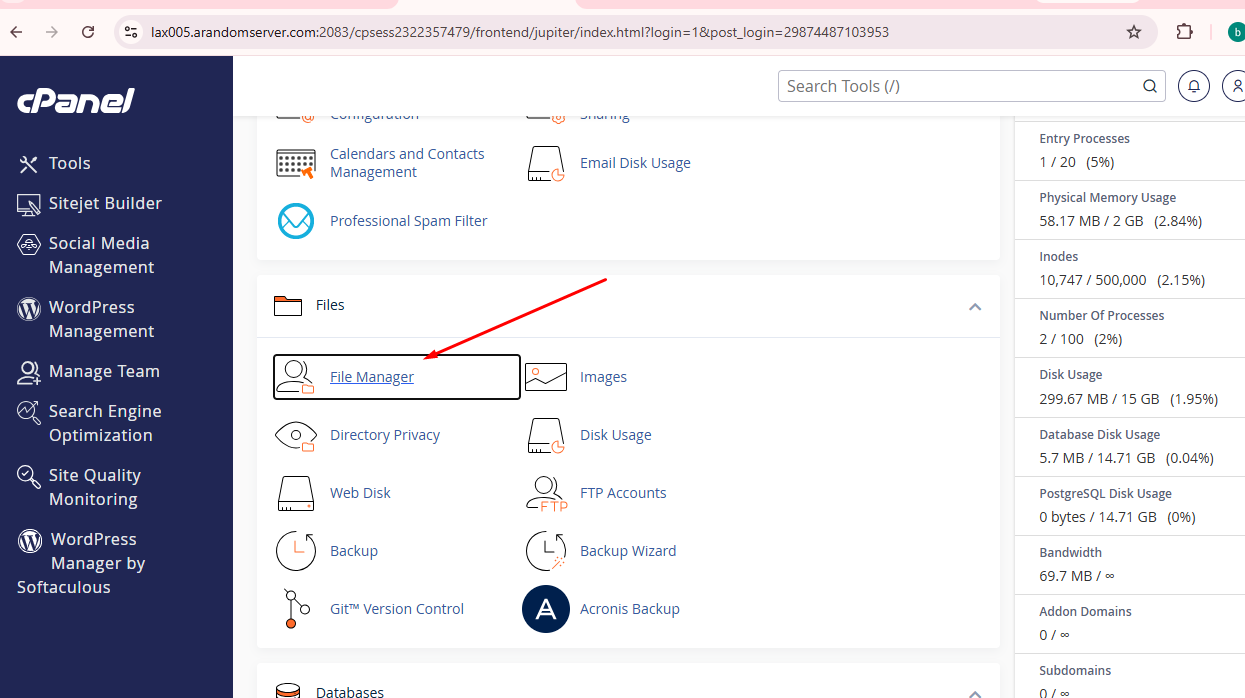
Step 2: Open File Manager
Once inside cPanel:
- Find the Files section.
- Click File Manager.
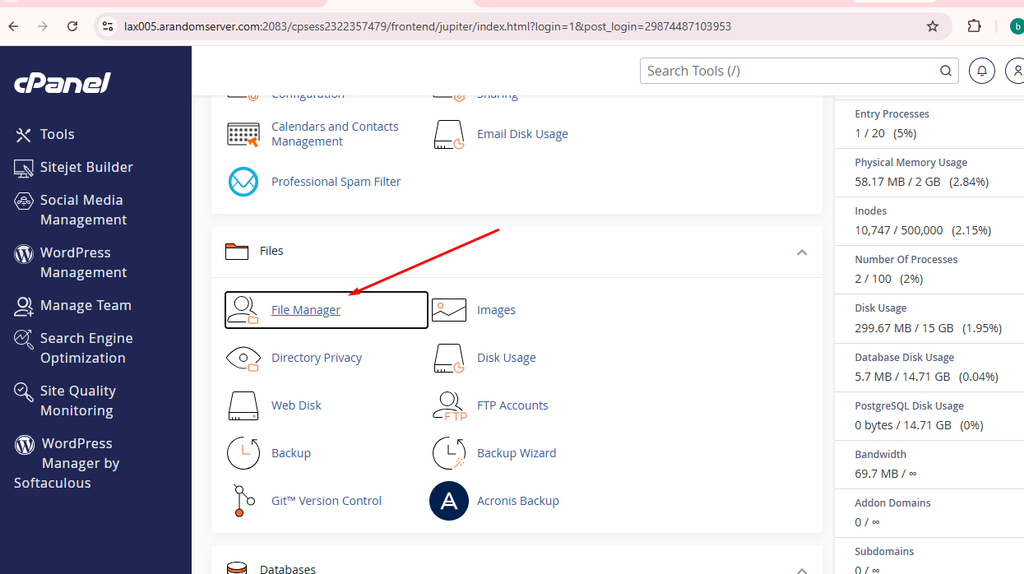
cPanel will open the File Manager interface.
You should see your hosting account’s directories and files.
Understanding the File Manager Interface
The exact appearance of File Manager can vary depending on the cPanel version and theme.
However, the main areas are generally similar.
You will normally see:
- A directory tree or folder navigation area
- A list of files and folders
- A toolbar
- File-management actions
- The current directory path
The toolbar may include actions such as:
File
Folder
Copy
Move
Upload
Download
Delete
Rename
Edit
HTML Editor
Extract
Compress
Some options only appear after you select a file or folder.
What Is the public_html Folder?
For many cPanel hosting accounts, public_html is the main document root for the primary website.

For example:
/home/username/public_html/Files inside this directory can be served by your website.
A typical WordPress installation might look like this:
public_html/
├── wp-admin/
├── wp-content/
├── wp-includes/
├── wp-config.php
├── .htaccess
├── index.php
└── other WordPress files
The exact contents can vary depending on your website and configuration.
Important
Don’t randomly delete files from public_html.
Many of these files are required for WordPress or your website to function correctly.
How to Upload a File in HawkHost File Manager
Uploading is one of the most common File Manager tasks.
Step 1: Open the Destination Folder
For example, if you want to upload a file to your website, open:
public_htmlor the appropriate subdirectory.
Step 2: Click Upload
Click Upload in the File Manager toolbar.
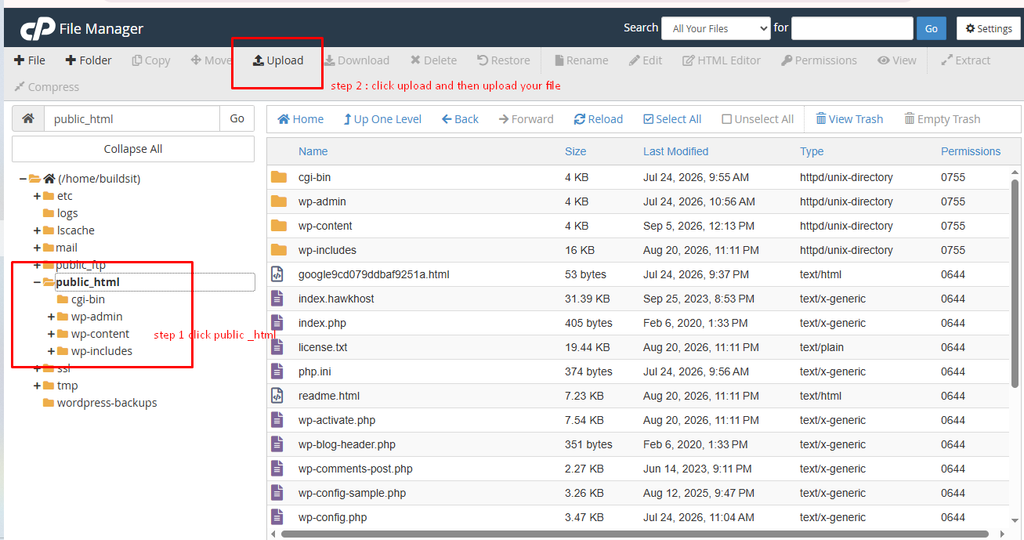
A new upload page will open.
Step 3: Select Your File
Click Select File or the file-selection button.
Choose the file from your computer.
Wait until the upload finishes.
Step 4: Return to File Manager
Return to the directory and confirm that the file is present.
Uploading a ZIP File
ZIP files are particularly useful when transferring multiple files.
For example:
website-files.zipYou can upload the ZIP file and then extract it directly on the server.
This can be much easier than uploading hundreds of individual files.
How to Extract a ZIP File
Suppose you’ve uploaded:
website-files.zipTo extract it:
- Select the ZIP file.
- Click Extract.
- Choose the destination directory.
- Confirm the extraction.
- Check the destination folder.
For example:
public_html/
└── website-files.zip
After extraction:
public_html/
├── website-files.zip
├── index.html
├── images/
└── css/
Important
After confirming that the extracted files work correctly, you can remove the ZIP archive if you no longer need it.
Large ZIP files can unnecessarily consume hosting storage.
How to Download a File
You can also download files from your HawkHost account to your computer.
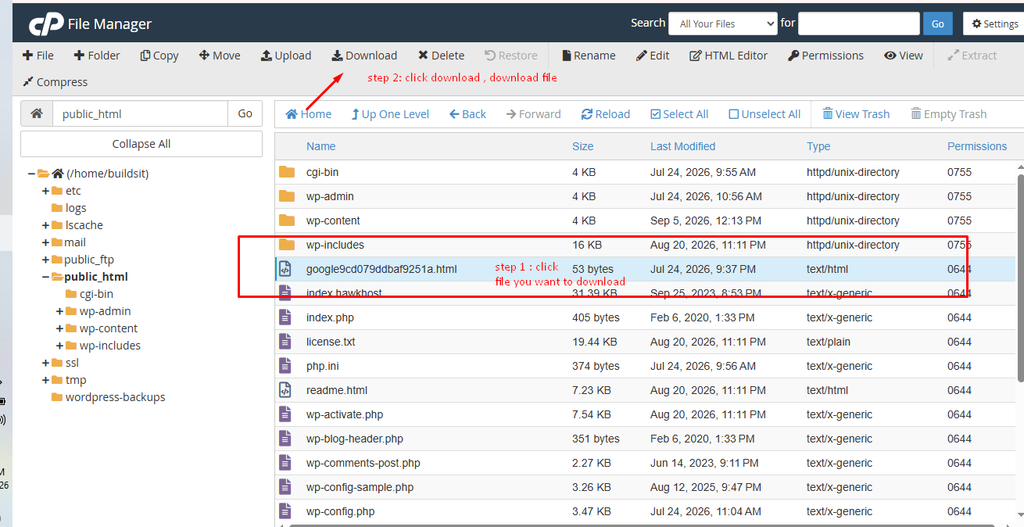
Steps
- Open the directory containing the file.
- Select the file.
- Click Download.
- Save the file to your computer.
This can be useful when creating a manual backup.
For example, you could download a configuration file before making changes to it.
How to Create a New Folder
Folders help keep your files organized.
To create a folder:
- Navigate to the directory where you want the folder.
- Click + Folder or Folder.
- Enter the folder name.
- Confirm.
For example:
public_html/
├── images/
├── downloads/
└── documents/
Use simple folder names and avoid unnecessary spaces or special characters.
How to Create a New File
You can also create certain text-based files directly in File Manager.
For example:
test.html
robots.txt
custom.css
To create a file:
- Open the destination directory.
- Click + File or File.
- Enter the filename.
- Confirm.
- Select the new file.
- Choose Edit if you need to add content.
For advanced users, this can be useful for creating or modifying simple website files.
How to Rename a File
Renaming a file is straightforward.
- Select the file.
- Click Rename.
- Enter the new filename.
- Confirm the change.
For example:
old-image.jpgcould become:
homepage-image.jpgBe careful with WordPress files
Changing the name of an important WordPress file can break your website.
Only rename system files when you understand why you’re doing it.
How to Move a File
You can move a file from one directory to another.
For example:
public_html/
└── image.jpg
could be moved to:
public_html/images/image.jpgSteps
- Select the file.
- Click Move.
- Enter or select the destination path.
- Confirm.
Always check your website afterward if the file was being used by a webpage.
Moving an image, CSS file, JavaScript file, or other asset can cause broken links if the website still expects the file at its old location.
How to Copy a File
Copying creates another version of the file while leaving the original in place.
For example:
original.htmlcan be copied to another directory.
This can be useful when you want to create a backup before editing a file.
A simple workflow is:
Original file
      ↓
Create a copy
      ↓
Edit the copy/original carefully
      ↓
Test website
How to Edit a File
File Manager can be used to edit text-based files.
Select a file and choose Edit or HTML Editor, depending on the file type and available options.
Common examples include:
.htaccess
robots.txt
custom.css
.php
.html
However, editing PHP or server configuration files requires extra caution.
Always Back Up Before Editing Important Files
Before modifying an important file, create a copy.
For example:
wp-config.phpcould be copied to something like:
wp-config-backup.phpBut be careful with backup copies of sensitive files.
For example, wp-config.php contains database credentials. Do not leave publicly accessible copies of it inside your website’s web root.
A safer approach is to download a backup to your computer or another secure location.
How to Show Hidden Files
Some important website files are hidden because their filenames begin with a dot.
A common example is:
.htaccessIf you don’t see .htaccess, File Manager may be configured not to display hidden files.
Look for Settings in File Manager.
Then enable an option similar to:
Show Hidden Files (dotfiles)
Save the setting and return to your directory.
You should then be able to see files such as:
.htaccessBe careful with .htaccess
For an Apache-based WordPress website, .htaccess can contain important rewrite and configuration rules.
An incorrect change can cause errors such as:
500 Internal Server ErrorAlways keep a backup before modifying it.
Understanding WordPress Files in cPanel
If you manage a WordPress website, you will frequently see these directories.
wp-admin
Contains WordPress administration files.
Avoid manually modifying or deleting files here.
wp-includes
Contains important WordPress core files.
Again, don’t manually delete files from this directory.
wp-content
This is one of the most important directories for everyday management.
It normally contains:
wp-content/
├── plugins/
├── themes/
├── uploads/
└── other folders
plugins
Contains installed WordPress plugins.
themes
Contains installed WordPress themes.
uploads
Contains media uploaded through WordPress.
This folder can become quite large over time.
How to Disable a WordPress Plugin Using File Manager
This is one of the most useful emergency techniques.
Suppose a plugin causes a fatal error and you cannot log in to WordPress.
You can sometimes disable the plugin by renaming its folder.
Go to:
public_html/wp-content/plugins/Find the suspected plugin folder.
For example:
example-pluginRename it:
example-plugin-disabledWordPress should no longer be able to load the plugin.
You can then try accessing your WordPress Dashboard again.
Important
This should be used as a troubleshooting technique, not as your normal plugin-management method.
How to Delete a File
To delete a file:
- Select the file.
- Click Delete.
- Confirm the deletion.
Depending on your cPanel configuration, you may see an option to permanently skip the Trash.
Be careful with that option.
For important files, it is safer to keep a backup first.
How to Delete a Folder
Deleting a folder can remove everything inside it.
For example:
old-website/
├── index.html
├── images/
├── css/
└── js/
Deleting old-website may delete all of those files.
Always open and inspect a folder before deleting it if you are not completely sure what it contains.
How to Compress Files
You can compress files or folders into an archive.
For example:
public_html/
└── my-website/
can be compressed into:
my-website.zipThis can be useful for:
- Backups
- Moving files
- Downloading multiple files
- Transferring a website
Select the files or folder, click Compress, choose the archive type, and create the archive.
File Manager vs FTP
You don’t always have to use cPanel File Manager.
Another option is FTP or SFTP.
| Feature | cPanel File Manager | FTP/SFTP |
|---|---|---|
| Browser-based | Yes | Usually requires software |
| Upload files | Yes | Yes |
| Download files | Yes | Yes |
| Rename files | Yes | Yes |
| Move files | Yes | Yes |
| Compress/extract | Yes | Depends on software/server |
| Large file transfers | Can be less convenient | Often better |
| Beginner-friendly | Very easy | Requires setup |
For small changes, File Manager is convenient.
For transferring many files or managing a large website, an FTP/SFTP client can be more practical.
You can also read: How to Upload Files Using FTP
How to Manage Files Safely
File Manager gives you direct access to your website, so it’s important to use it carefully.
1. Don’t delete files you don’t recognize
If you don’t know what a file does, investigate it first.
2. Back up important files
Especially before modifying:
.htaccesswp-config.php- PHP files
- WordPress core files
3. Don’t store unnecessary backups on your hosting account
Large backup archives can quickly consume storage.
4. Be careful with permissions
Don’t change file permissions randomly.
5. Avoid editing WordPress core files
WordPress updates can overwrite changes, and incorrect modifications can break the site.
6. Test after making changes
After moving, renaming, editing, or deleting website files, open your website and check the affected pages.
Common File Manager Problems
I can’t find my website files
For a typical primary cPanel website, start by checking:
public_htmlIf you have additional domains, check their configured document roots.
I can’t see .htaccess
Open File Manager settings and enable Show Hidden Files (dotfiles).
My website stopped working after I moved a file
The website may still be looking for the file at its previous location.
Check:
- The file path
- Internal links
- Image URLs
- CSS URLs
- JavaScript URLs
Move the file back if necessary.
My website shows a 500 error after editing .htaccess
Restore the previous version of .htaccess.
If you made a backup before editing, use that copy.
I deleted something by mistake
Stop making additional changes.
If the file is important, restore it from a backup if available.
This is one reason maintaining regular website backups is so important.
You might also like : How to Backup Your Website in HawkHost (Step-by-Step Guide)
When Should You Use File Manager?
File Manager is particularly useful when you need to perform a quick task without installing additional software.
For example:
Upload a verification file
Computer
   ↓
cPanel File Manager
   ↓
public_html
   ↓
Upload verification file
Extract a website archive
Upload ZIP
     ↓
Select ZIP
     ↓
Extract
     ↓
Check website files
Disable a broken plugin
public_html
     ↓
wp-content
     ↓
plugins
     ↓
Rename plugin folder
These are practical tasks that can often be completed directly from your browser.
Frequently Asked Questions
Where are my website files in HawkHost cPanel?
For a typical primary website, the files are commonly located in the public_html directory. Additional domains may use different document roots.
Can I manage WordPress files through cPanel?
Yes. You can use File Manager to view, upload, download, rename, move, copy, edit, compress, extract, and delete files associated with your WordPress installation.
Can I upload a ZIP file to HawkHost?
Yes. You can upload a ZIP archive through File Manager and then extract it on the server.
Can I edit .htaccess in cPanel?
Yes, if the file is available in File Manager and hidden files are enabled. However, .htaccess is an important configuration file, so make a backup before editing it.
Can File Manager replace FTP?
For many basic tasks, yes. File Manager can handle common file operations directly from your browser. FTP/SFTP can be more convenient for larger or more frequent file transfers.
Can I delete WordPress files from File Manager?
Yes, but you should not delete WordPress core files randomly. Removing the wrong files can break your website.
Is File Manager safe for beginners?
Yes, as long as you understand what you are changing. For beginners, the safest approach is to avoid deleting or modifying unfamiliar system files and always keep backups of important data.
Conclusion
HawkHost cPanel File Manager gives you direct access to the files stored on your hosting account.
For everyday website management, you can use it to:
- Upload files
- Download files
- Create folders
- Rename files
- Move files
- Copy files
- Edit files
- Compress files
- Extract ZIP archives
- Delete unnecessary files
- Troubleshoot certain WordPress problems
If you’re managing a WordPress website, the most important directory to understand is usually public_html, followed by wp-content, where your plugins, themes, and uploaded media are stored.
The most important rule is simple: don’t delete or modify a file unless you know what it does. When working with important WordPress or configuration files, create a backup first.