1. Introduction
Today, many websites and applications need a place to store information. For example, a school website may need to store student names and emails. An online shop needs to store products, customers, and orders. Without a place to save this information, the website would not be able to work properly.
A database is used to solve this problem. It helps us save information in an organized way so that we can find, change, or delete it when needed. There are many database systems available today, and MySQL is one of the most popular choices.
MySQL is often used with websites because it is easy to use and works well with programming languages such as PHP. In this report, I will explain what MySQL is, what a database is, and how to create a simple MySQL database. I will also show a practical example of creating and using the database on HawkHost.
The main purpose of this report is to help beginners understand the basic steps of creating a MySQL database without using too many complicated technical terms.
2. What is MySQL?
MySQL is a system that helps us store and manage information. We can think of MySQL as a large digital storage room. Instead of putting everything in one place, we can organize information into different tables.
For example, imagine that we want to create a simple student website. We may need to store information such as student names, emails, and ages. MySQL allows us to create a table called students and put this information inside it.
A table is similar to a spreadsheet. It has columns and rows. The columns tell us what type of information we are storing, while the rows contain the actual information.
For example:
| ID | Name | Age | |
|---|---|---|---|
| 1 | John | john@example.com | 20 |
| 2 | Mary | mary@example.com | 21 |
| 3 | David | david@example.com | 19 |
In this example, each row represents one student. The columns contain the student’s ID, name, email, and age.
MySQL uses SQL commands to work with this information. SQL may look difficult at first, but the basic commands are quite simple to understand.
3. What is a Database?
A database is simply a place where information is stored in an organized way.
For example, if we are building a school website, we may have a database called school. Inside this database, we can have different tables such as:
students– stores student informationteachers– stores teacher informationcourses– stores course information
This makes the information easier to manage.
A database is useful because we do not need to search through many separate files to find information. We can ask the database to find exactly what we need.
For example, if we want to see all students who are 20 years old, we can use a simple SQL command to find them.
The most important thing for beginners to understand is that a database contains tables, and tables contain information.
4. Why Do We Use MySQL?
There are several reasons why MySQL is commonly used.
First, MySQL is relatively easy to learn. Beginners can start with a few simple commands and gradually learn more.
Second, MySQL works well with websites. For example, PHP can connect to MySQL and use the information stored in the database. This combination is widely used to build websites.
Third, MySQL can store a large amount of information. A small website may only have a few hundred records, while a larger application may have millions of records.
Another useful feature is that MySQL allows us to control who can access the information. We can create users and passwords and decide what each user is allowed to do.
MySQL is also supported by many web hosting companies. This means that after creating a website on a personal computer, we can move it to a hosting service and continue using MySQL online.
5. What Do We Need?
Before creating a MySQL database, we need a few basic things.
The first thing is a computer or hosting account. If we are learning and testing, we can create a database on our own computer. If we want to put our website online, we can use a hosting service such as HawkHost.
The second thing is MySQL. If we use a hosting service, MySQL is usually already available.
The third thing is a tool for managing the database. One common tool is phpMyAdmin. It provides a simple website interface where we can create databases, tables, and add information without typing every command manually.
If we want to connect the database to a website, we also need a programming language such as PHP.
6. Creating a MySQL Database
The first step is to create a database. We can do this with the following SQL command:
CREATE DATABASE school;
This command creates a database called school.
After creating the database, we need to select it before creating tables inside it:
USE school;
Now MySQL knows that we want to work with the school database.
The next step is to create a table. For example, we can create a table for students:
CREATE TABLE students (
    id INT AUTO_INCREMENT PRIMARY KEY,
    name VARCHAR(100) NOT NULL,
    email VARCHAR(100) NOT NULL,
    age INT
);
This may look complicated to a beginner, but each part has a simple meaning.
id is used to give each student a different number. name stores the student’s name. email stores the email address, and age stores the student’s age.
After creating the table, we can add information:
INSERT INTO students (name, email, age)
VALUES ('John Smith', 'john@example.com', 20);
We can add more students in the same way.
To see the information in the table, we use:
SELECT * FROM students;
This command tells MySQL to show all the information in the students table.
7. Changing and Removing Information
After adding information, we may need to change or remove it.
For example, if John’s age changes from 20 to 21, we can use:
UPDATE students
SET age = 21
WHERE id = 1;
The UPDATE command is used to change existing information.
If we want to remove a student from the table, we can use:
DELETE FROM students
WHERE id = 1;
These commands are useful because information in a real application changes all the time.
The four basic actions are often called CRUD:
- Create – add new information
- Read – view information
- Update – change information
- Delete – remove information
Beginners do not need to remember everything at once. Learning these basic commands is enough to start working with MySQL.
8. Practical Example on HawkHost
After learning the basic steps of creating a MySQL database, I applied the knowledge to a real hosting environment using HawkHost. This practical part shows how to create a database, create a user, create a table, add data, and connect the database to a simple PHP website. You can read more :
How to Access HawkHost cPanel (Step-by-Step Guide)
How to Log in to HawkHost Client Area (Step-by-Step Guide)
Step 1: Log in to HawkHost
First, I logged in to my HawkHost account and opened the cPanel of my hosting account.
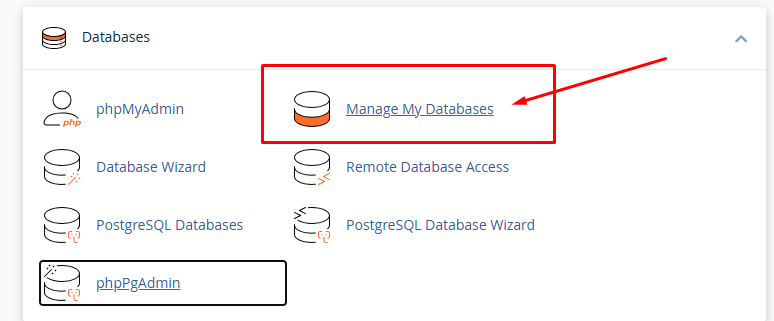
The cPanel provides different tools for managing the website. To create a MySQL database, I went to the Databases section and looked for MySQL Databases. Depending on the cPanel version, the option may also be called Manage My Databases or Database Wizard.
HawkHost provides MySQL databases through cPanel, so the database can be created directly from the hosting control panel.
Step 2: Create a New Database
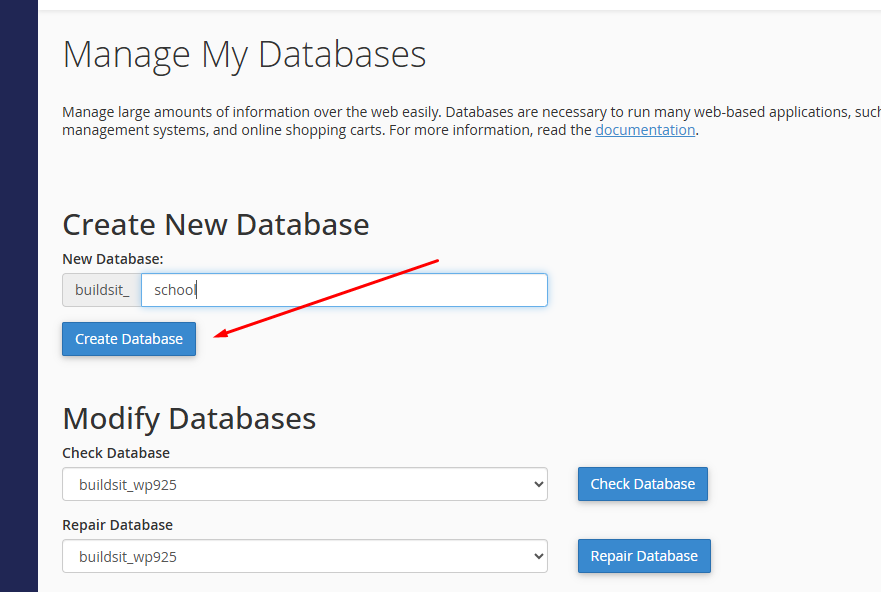
After opening the MySQL database page, I found the option to create a new database.
For this example, I used the name:
schoolI entered school in the database name box and clicked Create Database.
One important thing to notice is that HawkHost may automatically add a prefix to the database name. For example, if the hosting account username is myaccount, the final database name may look like:
myaccount_schoolTherefore, I should use the complete database name shown by cPanel later when connecting the website to MySQL.
After the database was created, it appeared in the list of current databases.
Step 3: Create a Database User
Creating the database alone is not enough. A database user is also needed so that the website can access the database.
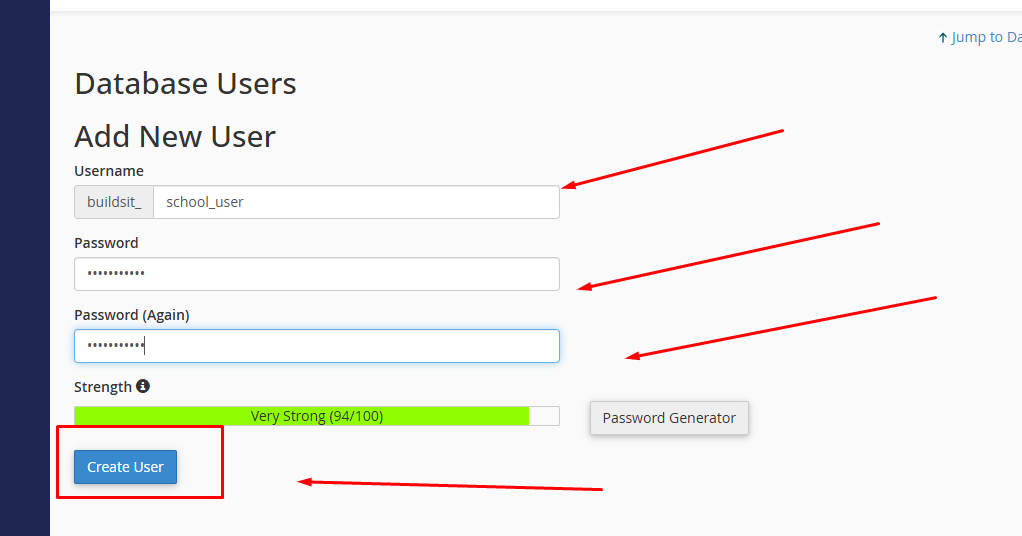
On the same MySQL database page, I went to the MySQL Users section and selected Add New User.
I created a user such as:
school_userThen I created a strong password for this user.
For example, the final username may look like:
myaccount_school_userbecause cPanel can add the account prefix automatically.
After entering the username and password, I clicked Create User.
The database username and password should be saved somewhere safe because they will be needed later when connecting PHP to the database. HawkHost’s documentation also explains that the database user is created separately from the database and then assigned to it.
Step 4: Connect the User to the Database
The next step is to give the new user access to the database.
In the Add User To Database section, I selected:
User: school_user
Database: school
Then I clicked Add.
A page showing different permissions appeared. For a simple student project, I selected ALL PRIVILEGES and clicked Make Changes.
This step is important because creating a user does not automatically give that user access to the database. The user and database need to be connected first.

Step 5: Open phpMyAdmin
After creating the database and user, I needed a tool to create tables and add information.
I returned to the main cPanel page and opened phpMyAdmin from the Databases section.
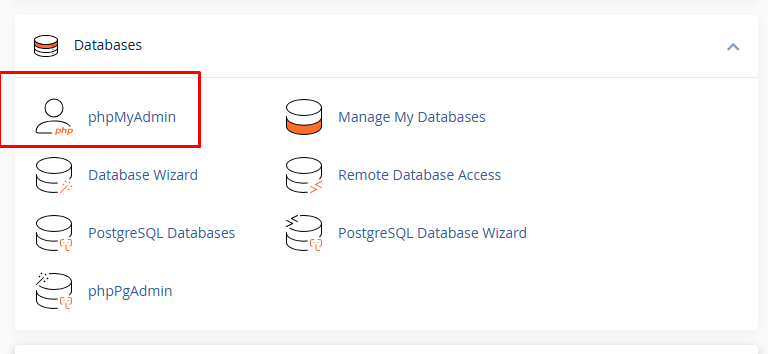
HawkHost provides phpMyAdmin through cPanel. It can be used to view tables, run SQL commands, add information, and manage an existing database.
On the left side of phpMyAdmin, I could see the database that I had created.
I clicked on the school database.

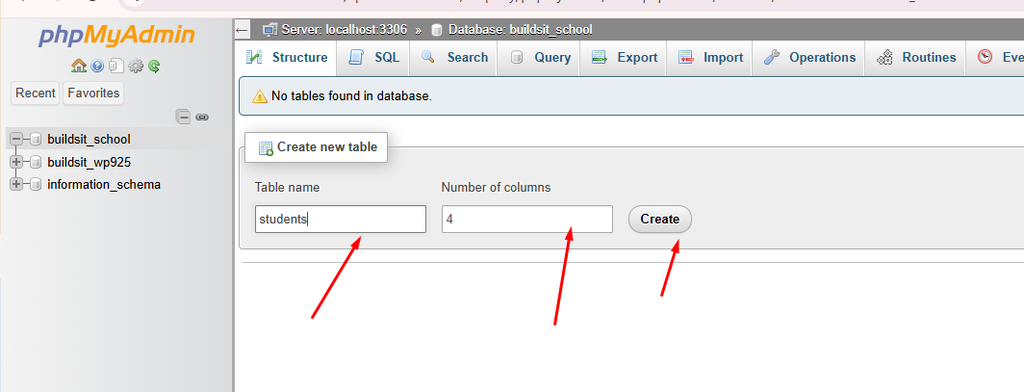
Step 6: Create a Table
After selecting the database, I opened the SQL tab. This allows me to enter SQL commands directly.
I used the following command to create a table called students:
CREATE TABLE students (
    id INT AUTO_INCREMENT PRIMARY KEY,
    name VARCHAR(100) NOT NULL,
    email VARCHAR(100) NOT NULL,
    age INT
);
Then I clicked Go to run the command.
If the command was successful, a new table called students appeared inside the school database.
The table contains four columns:
id– gives each student a different number.name– stores the student’s name.email– stores the student’s email.age– stores the student’s age.
The id column is automatically increased when a new student is added. This makes it easier to identify each record.
Step 7: Add Sample Data
After creating the table, I added some sample student information.
I opened the SQL tab again and entered:
INSERT INTO students (name, email, age)
VALUES ('John Smith', 'john@example.com', 20);
I also added two more students:
INSERT INTO students (name, email, age)
VALUES ('Mary Johnson', 'mary@example.com', 21);

INSERT INTO students (name, email, age)
VALUES ('David Brown', 'david@example.com', 19);
To check the information, I used:
SELECT * FROM students;The result should show the three students in the table.
For example:
| ID | Name | Age | |
|---|---|---|---|
| 1 | John Smith | john@example.com | 20 |
| 2 | Mary Johnson | mary@example.com | 21 |
| 3 | David Brown | david@example.com | 19 |
This confirms that the table has been created correctly and that information can be stored in the database.

Step 8: Connect PHP to the Database
The next step is to connect the website to the MySQL database.
I created a PHP file called config.php. The file contains the database connection information:
<?php

$host = "localhost";
$dbname = "myaccount_school";
$username = "myaccount_school_user";
$password = "YOUR_PASSWORD";

try {
    $pdo = new PDO(
        "mysql:host=$host;dbname=$dbname;charset=utf8mb4",
        $username,
        $password
    );

    $pdo->setAttribute(
        PDO::ATTR_ERRMODE,
        PDO::ERRMODE_EXCEPTION
    );

    echo "Database connected successfully.";

} catch (PDOException $e) {
    echo "Database connection failed.";
}

?>
The names in this example are only examples. I need to replace them with the actual database name, username, and password shown in my HawkHost cPanel.
For a normal website hosted on HawkHost, the database server is normally accessed from the same hosting environment, so localhost is commonly used as the database host. Remote database access is a separate setup and requires additional authorization.
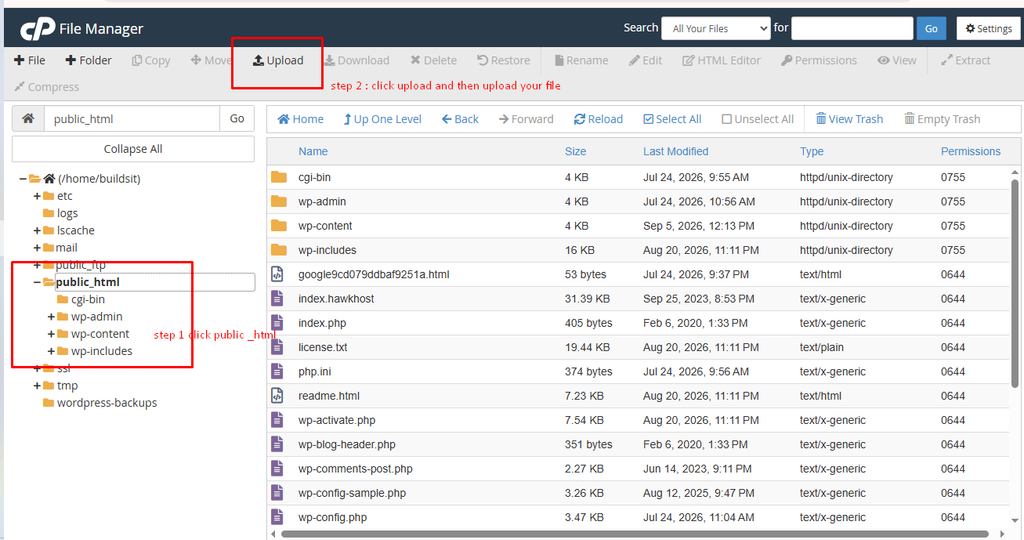
Step 9: Upload the PHP File
After creating the PHP file, I uploaded it to my website using the File Manager in cPanel.
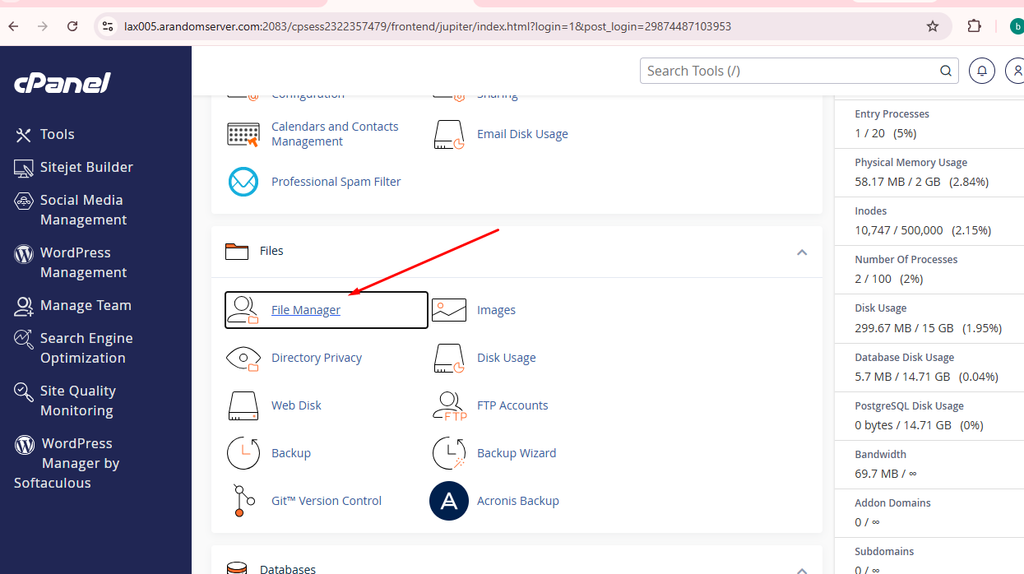
The PHP file was placed inside the website’s main folder so that it could be accessed through the website.
For example:
public_html/
    index.php
    config.php
I then opened the PHP page in a web browser.
If everything was configured correctly, the page displayed:
Database connected successfully.This message confirmed that the PHP website could communicate with the MySQL database.
Step 10: Test the Database
Finally, I tested the database to make sure everything worked correctly.
I first checked whether the PHP connection worked. Then I checked the students table in phpMyAdmin.
I also tested basic database actions such as adding, viewing, changing, and deleting information.
For example, to change John’s age, I used:
UPDATE students
SET age = 21
WHERE id = 1;
To check the result, I used:
SELECT * FROM students;The student’s age should now be 21.
I could also remove a record using:
DELETE FROM students
WHERE id = 3;
After running the command, I checked the table again to confirm that the record had been removed.
Practical Result
After completing these steps, I successfully created a MySQL database on HawkHost, created a database user, connected the user to the database, created a students table, added sample data, and connected the database to a PHP website.
The process can be summarized as:
HawkHost
   ↓
cPanel
   ↓
Create MySQL Database
   ↓
Create Database User
   ↓
Connect User to Database
   ↓
phpMyAdmin
   ↓
Create Table
   ↓
Add Data
   ↓
PHP Website
   ↓
Display / Manage Data
This practical exercise helped me understand that creating a database is only one part of building a website. The database must also be connected to the website so that the application can read and manage the stored information.
9. Testing the Database
After creating the database and connecting it to the website, we need to test everything.
First, we can check whether the website can connect to MySQL. If the connection works, we can try adding a new student.
For example, we can add:
Name: Alice
Email: alice@example.com
Age: 22
Then we can check phpMyAdmin to see whether the new information has been saved.
We can also test changing the student’s age and deleting the record. These tests help us make sure that the database and website are working correctly.
If there is a connection problem, we should check the database name, username, password, and other connection information. A small mistake in these details can prevent the website from connecting to MySQL.
10. Basic Security
When working with a database, security is also important. Database usernames and passwords should not be shared with other people or displayed on the website.
When users enter information into a website, the application should also check the information before putting it into the database. Using prepared statements is a good way to make database queries safer.
It is also a good idea to make regular backups. If something goes wrong, a backup can help us restore the information.
For a beginner project, the most important things to remember are to use a strong password, protect database information, and make backups regularly.
11. Conclusion
In conclusion, creating a MySQL database is not as difficult as it may seem. The basic idea is simple: create a database, create tables, add information, and then use SQL commands to work with that information.
MySQL is useful because it allows websites and applications to store information in an organized way. Basic commands such as CREATE DATABASE, CREATE TABLE, INSERT, SELECT, UPDATE, and DELETE are enough to start learning how databases work.
The practical example on HawkHost shows how these basic ideas can be used on a real website. We can create a database through the hosting control panel, manage it with phpMyAdmin, and connect it to a PHP website.
For beginners, learning MySQL step by step is the best approach. Once the basic concepts are understood, it becomes easier to build larger applications such as student management systems, online shops, booking websites, and many other types of websites.
1 thought on “How to Create a MySQL Database”