Your WordPress permalink is the permanent URL used to access a page, post, category, or other piece of content on your website.
For example:
https://example.com/how-to-install-wordpress/The part after the domain:
/how-to-install-wordpress/is part of the URL structure controlled by your WordPress permalink settings.
Choosing the right permalink structure is important because your URLs affect usability, organization, internal linking, and SEO.
The good news is that changing the basic permalink structure in WordPress is very easy.
However, there is an important distinction between:
- Changing the global permalink structure, and
- Changing the URL of an individual post or page.
If your website is already established and search engines have indexed your URLs, changing existing URLs requires more care.
In this guide, you’ll learn how WordPress permalinks work, which structure is usually best for a content website, how to change the settings, how to edit individual URLs, and what to do to avoid broken links.
What Is a WordPress Permalink?
A permalink is the URL used to access a specific piece of content on your WordPress website.
For example:
https://example.com/wordpress-installation-guide/Here:
https://example.comis the domain.
And:
/wordpress-installation-guide/is the permalink path.
A WordPress permalink can also contain dates, categories, post IDs, or other information depending on your chosen structure.
For example:
https://example.com/?p=123or:
https://example.com/2026/08/25/wordpress-installation-guide/or:
https://example.com/wordpress-installation-guide/These are different URL structures for WordPress content.
Why Are WordPress Permalinks Important?
Permalinks are important for several reasons.
1. They Make URLs Easier to Understand
Compare:
example.com/?p=123with:
example.com/wordpress-installation-guide/The second URL immediately tells the visitor what the page is about.
2. They Help Organize Your Website
A consistent URL structure makes it easier to understand the architecture of your website.
For example, a hosting website might have:
example.com/hawkhost-pricing/
example.com/hawkhost-login/
example.com/access-hawkhost-cpanel/
example.com/connect-domain-to-hawkhost/
This makes the content structure clear.
3. They Can Help Search Engines Understand Your Content
A descriptive URL can provide useful context about a page.
For example:
example.com/change-wordpress-permalink/is much clearer than:
example.com/?p=782However, permalink structure alone does not determine whether a page ranks well. Content quality, relevance, internal linking, technical SEO, and many other factors also matter.
What Is the Best Permalink Structure for WordPress?
For most blogs, informational websites, affiliate websites, and tutorial websites, a simple structure using the post name is a good choice.
In WordPress, this is usually:
Post name
For example:
https://example.com/how-to-change-wordpress-permalink/Instead of:
https://example.com/2026/08/25/how-to-change-wordpress-permalink/or:
https://example.com/?p=123A simple structure has several advantages:
- Shorter URLs
- Easier to read
- Easier to remember
- Easier to share
- Easier to manage
- Doesn’t lock the URL to a publication date
For a site like BuildSiteLab that focuses on evergreen hosting, WordPress, domain, and DNS tutorials, Post name is generally a sensible structure.
WordPress Permalink Structures Explained
WordPress provides several predefined permalink structures.
Go to:
WordPress Dashboard → Settings → Permalinks
You may see options such as:
Plain
https://example.com/?p=123This is the least descriptive option.
Day and name
https://example.com/2026/08/25/sample-post/This includes the publication date.
It can make sense for news-focused websites, but it isn’t necessary for many evergreen content sites.
Month and name
https://example.com/2026/08/sample-post/This is similar to Day and name but removes the day.
Numeric
https://example.com/archives/123The URL doesn’t communicate much about the content.
Post name
https://example.com/sample-post/This is often the simplest choice for blogs and informational websites.
How to Change WordPress Permalink Structure
Now let’s change the global WordPress permalink structure.
Step 1: Log in to WordPress
Go to your WordPress administration area:
https://yourdomain.com/wp-adminEnter your administrator username and password.
You’ll then arrive at the WordPress Dashboard.
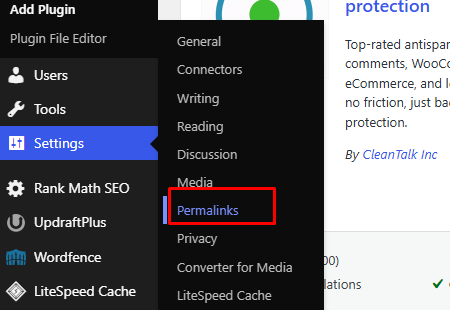
Step 2: Open Permalink Settings
From the WordPress Dashboard, go to:
Settings → Permalinks
You should see the Permalink Settings page.
📷 Screenshot suggestion
Take a screenshot of:
WordPress Dashboard → Settings → Permalinks
Step 3: Choose Your Permalink Structure
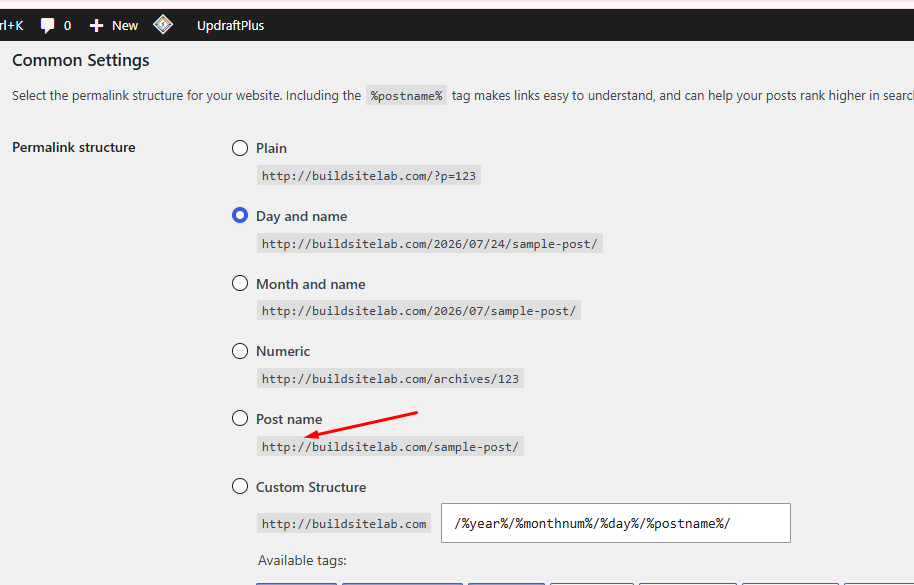
Under Common Settings, select:
Post name
Your setting should look similar to:
Common Settings

○ Plain
○ Day and name
○ Month and name
○ Numeric
● Post name
For a typical content website, this produces URLs such as:
https://example.com/wordpress-installation-guide/Step 4: Save Changes
Scroll down and click:
Save Changes
WordPress will save your new permalink structure.
In many standard WordPress installations, WordPress will also update the relevant rewrite rules automatically.
Step 5: Test Your Website
After changing the permalink settings, open an existing post.
For example:
https://example.com/sample-post/Make sure the page loads correctly.
Also test:
- Homepage
- Blog posts
- Pages
- Categories
- Internal links
- Navigation menus
If everything works correctly, your new permalink structure is active.
How to Change the Permalink of an Individual Post
Changing the global permalink structure is not the same as changing one specific URL.
Suppose your post currently uses:
https://example.com/how-to-install-wordpress-on-hosting/You might want to change it to:
https://example.com/install-wordpress-hosting/You can change the slug of that individual post.
Step 1: Open the Post
Go to:
WordPress Dashboard → Posts → All Posts
Find the post you want to edit.
Click:
Edit
Step 2: Find the URL / Slug
Depending on your WordPress version and editor interface, the URL or slug can usually be edited from the post settings.
Look for:
Permalink
or:
URL Slug
For example:
URL Slug:

how-to-install-wordpress-on-hosting
Step 3: Enter the New Slug
Change it to something shorter and more descriptive.
For example:
install-wordpress-hostingThe resulting URL becomes:
https://example.com/install-wordpress-hosting/Step 4: Update the Post
Click:
Update
Your post will now use the new URL.
But there is an important SEO issue.
If the old URL was already published and indexed, don’t simply change it and forget about the old URL.
You need to make sure visitors and search engines are properly redirected.
What Is a WordPress URL Slug?
A slug is the part of the URL that identifies a particular piece of content.
For example:
https://example.com/how-to-change-wordpress-permalink/The slug is:
how-to-change-wordpress-permalinkA good slug is usually:
- Short
- Descriptive
- Easy to read
- Relevant to the page
- Written with words separated by hyphens
For example:
wordpress-permalink-guideis preferable to something unnecessarily complicated such as:
complete-wordpress-permalink-settings-guide-for-beginners-2026unless the longer phrase is genuinely necessary.
How to Create SEO-Friendly WordPress Permalinks
A good URL doesn’t need to contain every keyword related to the article.
Instead, focus on making it clear and concise.
Good Example
example.com/change-wordpress-permalink/Less Useful Example
example.com/how-to-change-wordpress-permalink-settings-in-wordpress-for-beginners/The second URL is unnecessarily long.
Use Hyphens Between Words
Use:
wordpress-permalink-guiderather than:
wordpress_permalink_guideHyphens make URLs easier to read.
Avoid Unnecessary Words
For example:
how-to-change-wordpress-permalink/could be appropriate for a how-to article.
But if the article title is:
WordPress Permalink Guide
you could use:
wordpress-permalink-guide/Keep the URL aligned with the actual search intent and page topic.
Should You Include Dates in WordPress URLs?
For an evergreen website, you generally don’t need publication dates in the permalink.
For example:
example.com/wordpress-installation-guide/is more future-proof than:
example.com/2026/08/wordpress-installation-guide/Imagine you update the article in 2028.
The content is still useful, but the URL contains an old date.
For a website focused on evergreen tutorials, guides, and affiliate content, a simple post-name structure is often easier to maintain.
Should You Include Categories in WordPress URLs?
You could use a structure such as:
example.com/wordpress/how-to-change-permalink/However, this introduces additional complexity.
If you later change the category from:
wordpressto:
seothe URL may change too.
For many smaller websites, keeping the URL structure simple is easier:
example.com/how-to-change-wordpress-permalink/You can still organize the content using WordPress categories and internal links without putting the category into every URL.
Changing Permalinks on a New Website vs Existing Website
This distinction is extremely important.
New Website
If your website is brand new and has little or no indexed content, changing the permalink structure is usually straightforward.
You can choose your preferred structure before publishing a large amount of content.
Existing Website
If your website already has:
- Indexed pages
- Backlinks
- Internal links
- Social shares
- Visitors
- Search traffic
changing URLs requires more planning.
For example, suppose Google has indexed:
example.com/old-wordpress-url/and you change it to:
example.com/new-wordpress-url/The old URL shouldn’t simply disappear.
You should create a 301 redirect from the old URL to the new URL.
Old URL
   ↓
301 Redirect
   ↓
New URL
This helps visitors who use the old URL reach the new page and helps search engines understand that the content has permanently moved.
How to Change a WordPress Permalink Without Breaking SEO
If you’re changing an existing published URL, use this process:
Step 1
Identify the old URL.
Step 2
Create the new URL.
Step 3
Update the page or post slug.
Step 4
Create a 301 redirect.
Step 5
Update your internal links.
Step 6
Check the new URL.
Step 7
Check the old URL.
The old URL should redirect to the new URL rather than showing a 404 error.
Why 301 Redirects Matter
Imagine someone bookmarked:
example.com/old-page/You later change it to:
example.com/new-page/Without a redirect, the old bookmark may lead to:
404 Not FoundWith a 301 redirect:
old-page
   ↓
301
   ↓
new-page
the visitor is automatically sent to the new location.
This is particularly important for established websites.
Don’t Change URLs Just to Make Them Slightly Better
This is a common mistake.
Suppose you already have:
example.com/wordpress-installation-guide/and it is performing well.
You probably don’t need to change it simply because:
example.com/install-wordpress-guide/looks slightly shorter.
Changing an established URL introduces additional work and potential problems.
A better rule is:
Choose a good URL from the beginning, then keep it stable whenever possible.
Common WordPress Permalink Problems
Problem 1: Posts Show a 404 Error
You may sometimes see a 404 error after changing permalink settings.
A common first troubleshooting step is to revisit:
Settings → Permalinks
and click:
Save Changes
This can refresh WordPress’s permalink/rewrite configuration.
Problem 2: Homepage Works but Posts Don’t
If the homepage loads but individual posts return 404 errors, the issue may be related to rewrite rules or server configuration.
Check:
- Permalink settings
- Web server configuration
.htaccesswhere applicable- Hosting configuration
- Plugins that modify URLs
If you’re using shared hosting with cPanel, your hosting provider can also help investigate server-level issues.
Problem 3: Old URL Doesn’t Redirect
If you changed an existing URL but the old URL doesn’t redirect, check whether you have configured a 301 redirect.
Don’t assume WordPress will automatically handle every historical URL change exactly as you want.
Problem 4: Internal Links Still Use the Old URL
After changing a URL, search your website for the old URL.
Check:
- Navigation
- Related posts
- Blog articles
- Buttons
- Footer links
- Images linking to the old URL
Update important internal links to point directly to the new URL.
WordPress Permalink Best Practices
Here is a simple checklist you can use.
Keep URLs short
Prefer:
example.com/wordpress-permalink-guide/over an unnecessarily long URL.
Make URLs descriptive
The URL should give the visitor a reasonable idea of what the page is about.
Use lowercase
For consistency:
wordpress-permalink-guiderather than:
WordPress-Permalink-GuideUse hyphens
wordpress-permalink-guideAvoid unnecessary dates
Especially for evergreen content.
Avoid changing established URLs unnecessarily
Stable URLs are easier to manage.
Redirect changed URLs
Use a 301 redirect when an established URL is permanently changed.
WordPress Permalink vs Slug
These terms are related but aren’t exactly the same.
Permalink
The complete permanent URL.
Example:
https://example.com/wordpress-permalink-guide/Slug
The URL portion identifying the specific content.
Example:
wordpress-permalink-guideSo:
Domain + Slug = URLMore precisely, WordPress’s permalink structure determines how the slug and other URL components are arranged.
Recommended Permalink Structure for BuildSiteLab
For your website’s content strategy, I recommend keeping the main article URLs simple.
For example:
/buildsite-lab.com/Then articles can follow:
/hawkhost-pricing/
/hawkhost-login/
/access-hawkhost-cpanel/
/connect-domain-to-hawkhost/
/what-is-an-addon-domain/
/how-to-park-a-domain/
/wordpress-installation-guide/
/change-wordpress-permalink/
This structure is clean and easy to expand.
You don’t need to create:
/hosting/hawkhost/guides/wordpress/change-wordpress-permalink/for every article.
Your internal links, categories, breadcrumbs, navigation, and content relationships can communicate the topical structure without making every URL unnecessarily long.
Frequently Asked Questions
What is the best permalink structure in WordPress?
For many blogs, affiliate websites, and informational websites, Post name is a simple and practical choice.
It creates URLs such as:
example.com/wordpress-permalink-guide/Can I change my WordPress permalink after publishing?
Yes, but you should be careful with existing URLs.
If the old URL has already been indexed or linked to, set up a 301 redirect to the new URL.
Does changing permalinks affect SEO?
It can.
Changing established URLs can create broken links and 404 errors if redirects aren’t configured correctly.
The safest approach is to avoid unnecessary URL changes and use 301 redirects when a permanent URL change is necessary.
How do I change a WordPress post URL?
Open the post in the WordPress editor, find the permalink or URL slug setting, edit the slug, and update the post.
If the old URL was already published, create a 301 redirect from the old URL to the new one.
Should WordPress URLs include dates?
For evergreen content websites, dates are usually unnecessary.
A structure such as:
example.com/wordpress-installation-guide/is often easier to maintain than:
example.com/2026/08/wordpress-installation-guide/Should I put categories in WordPress URLs?
You can, but you don’t have to.
For a relatively small content website, simple post-name URLs are often easier to manage.
Categories can still be used for navigation and content organization without being included in every URL.
Why are my WordPress posts showing 404 errors?
Possible causes include permalink/rewrite configuration, server configuration, .htaccess issues, or plugins affecting URLs.
As a first step, go to:
Settings → Permalinks
and click:
Save Changes
Then test the affected URLs again.
Conclusion
Changing WordPress permalinks is technically simple, but choosing and maintaining the right URL structure requires more thought.
For a new content website, a clean Post name structure is often a good starting point:
https://example.com/article-topic/Keep your URLs:
- Short
- Descriptive
- Consistent
- Easy to read
- Stable over time
Most importantly, don’t repeatedly change established URLs just to make them slightly better.
If you need to change an existing URL, update the slug, create a 301 redirect, update internal links, and test both the old and new URLs.
For your BuildSiteLab cluster, this article should naturally connect to your WordPress installation and SEO content:
WordPress Installation Guide
          ↓
How to Change WordPress Permalink
          ↓
WordPress SEO Basics
          ↓
How to Create Categories in WordPress
          ↓
How to Create WordPress Pages
          ↓
How to Submit WordPress Sitemap
Next recommended article: How to Create Categories in WordPress or How to Install an SEO Plugin on WordPress.