Installing a WordPress theme is one of the easiest ways to change the appearance and layout of your website. A theme controls many visual aspects of a WordPress site, including its colors, typography, page layouts, menus, headers, footers, blog design, and overall style.
If you have just installed WordPress and are looking at the default website, you may be wondering how to make it look more professional. The good news is that you do not need to know how to code to install a WordPress theme.
In this guide, you will learn how to install a WordPress theme step by step, including how to install a free theme from the WordPress dashboard, upload a theme manually, install a premium theme, activate a theme, import a demo, and troubleshoot common theme installation problems.
Whether you are building a blog, business website, portfolio, affiliate website, or online store, this guide will help you choose and install the right WordPress theme.
What Is a WordPress Theme?
A WordPress theme is a collection of files that controls the visual presentation of your website.
While WordPress itself provides the core functionality of your website, the theme determines how that content is displayed to visitors.
For example, a theme can control:
- Website layout
- Header and footer
- Navigation menu
- Fonts
- Colors
- Buttons
- Blog post layout
- Sidebar
- Homepage design
- Mobile appearance
- Archive pages
- Search results
- Page templates
Changing your theme does not normally delete your WordPress posts, pages, categories, or other content. Instead, the new theme changes how that content is presented.
However, some themes include special features or page-building systems, so you should always create a backup before switching themes on an established website.
Read more :
How to Install a WordPress Plugin: A Complete Step-by-Step Guide
WordPress Installation Guide: How to Install WordPress Step by Step
Before Installing a WordPress Theme
Before installing a new theme, there are a few things you should prepare.
1. Make Sure WordPress Is Installed
You need an active WordPress website before installing a WordPress theme.
If you have just purchased hosting, you may first need to install WordPress on your server.
For example, if your website is hosted with HawkHost, you can install WordPress through the hosting control panel before choosing your theme.
2. Create a Backup
If your website is already live, create a backup before changing the theme.
Although switching themes does not normally remove your WordPress content, theme settings, widgets, custom code, and design elements may not transfer perfectly.
A backup gives you a way to restore the website if something goes wrong.
3. Choose a Reliable Theme
Do not choose a theme based only on how attractive the demo looks.
Look for a theme that is:
- Responsive
- Lightweight
- Regularly updated
- Compatible with your WordPress version
- Compatible with important plugins
- Well supported
- Optimized for performance
- Easy to customize
For a content or affiliate website, page speed and readability can be more important than having a complicated design.
Where Can You Get WordPress Themes?
There are several places where you can get WordPress themes.
Free WordPress Themes
The easiest option for beginners is the official WordPress theme directory.
You can browse thousands of free themes and install many of them directly from the WordPress dashboard.
Free themes are useful when you are starting a new website and want to keep costs low.
Premium WordPress Themes
Premium themes are sold by third-party theme developers and marketplaces.
They may provide additional features such as:
- More customization options
- Premium templates
- Advanced page layouts
- Additional support
- More typography options
- WooCommerce features
- Demo websites
- Professional design systems
However, you should always purchase themes from reputable sources.
Avoid downloading “premium” themes from unknown websites that distribute modified or pirated copies. These files can contain malicious code or vulnerabilities.
How to Install a WordPress Theme from the Dashboard
The easiest method is installing a theme directly through the WordPress dashboard.
Step 1: Log In to WordPress
Open your WordPress administrator area.
Your login URL is normally:
Enter your administrator username and password.
After logging in, you will see the WordPress dashboard.
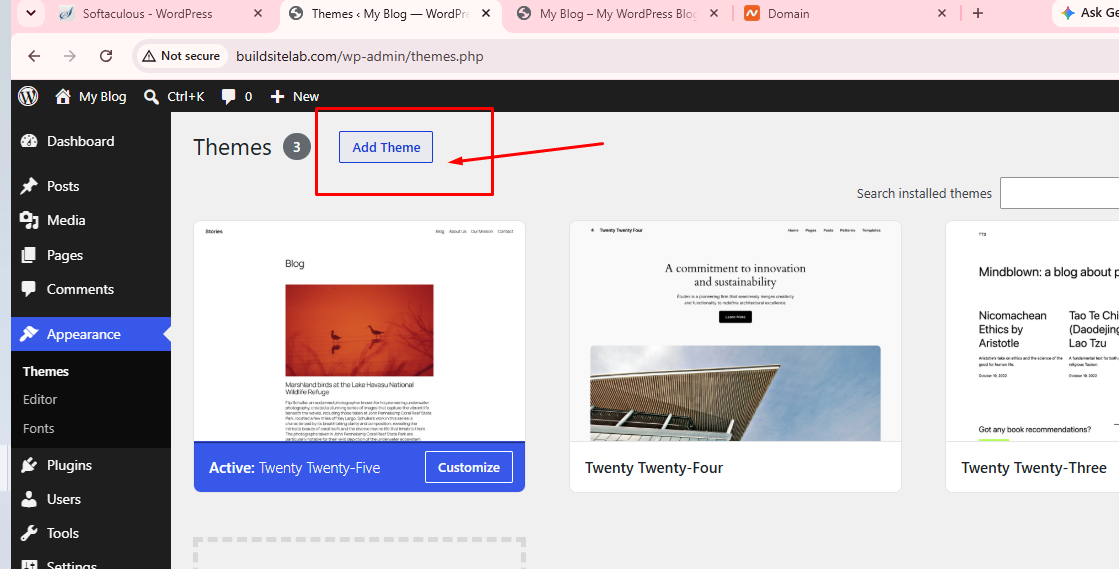
Step 2: Go to Appearance > Themes
From the WordPress dashboard, find:
Appearance → Themes
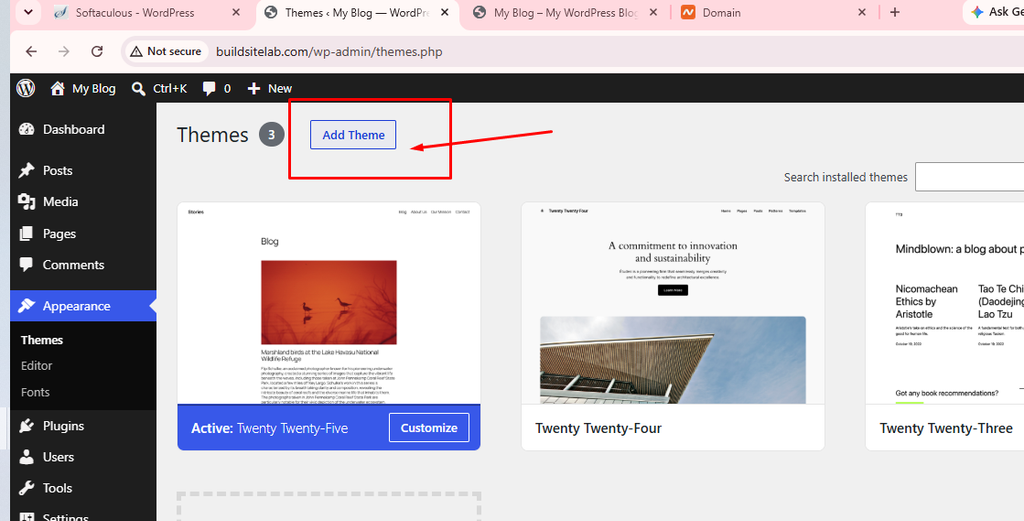
This page displays the themes currently installed on your website.
Your active theme will be identified as the current theme.
Click Add New Theme to browse available themes.
Step 3: Search for a Theme
The WordPress theme directory allows you to search for themes.
You can search by theme name or browse available categories.
For example, you might search for themes designed for:
- Blogs
- Business websites
- Portfolios
- Online stores
- News websites
- Photography
- Education
- Personal websites
Take some time to review the theme before installing it.
Look at the theme description, screenshots, features, reviews, and update information.
Step 4: Preview the Theme
Before installing a theme, you can often preview how it looks.
Click Preview to see an example of the design.
Keep in mind that the preview may contain demo content that will not automatically appear on your website.
Your website may look different after the theme is installed because your own pages, menus, widgets, images, and content will be used.
Step 5: Install the Theme
Once you have found a theme you like, click Install.
WordPress will download the theme files and install them on your website.
Installation usually takes only a few moments.
Installing a theme does not automatically make it your active theme.
After installation, you will normally see an Activate button.
Step 6: Activate the Theme
Click Activate if you want to use the new theme.
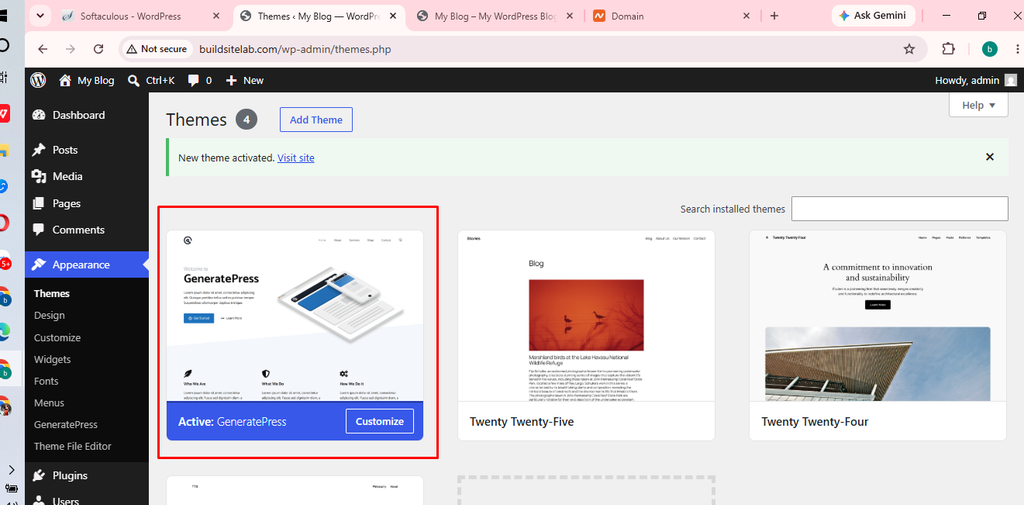
WordPress will immediately switch your website to the new theme.
Open your website in another browser tab and check the result.
Pay attention to:
- Homepage
- Navigation menu
- Header
- Footer
- Blog posts
- Images
- Sidebar
- Mobile layout
- Buttons
- Contact forms
If everything looks correct, you can continue customizing the theme.
How to Install a WordPress Theme by Uploading a ZIP File
Sometimes the theme you want is not available in the WordPress theme directory.
For example, you may have purchased a premium theme and received a ZIP file.
In this case, you can upload the theme directly through the WordPress dashboard.
Step 1: Download the Theme ZIP File
After purchasing or downloading the theme, save the ZIP file to your computer.
Do not extract the file unless the theme developer specifically instructs you to do so.
A common mistake is uploading the wrong ZIP file.
Some premium themes are delivered inside a larger ZIP package containing documentation, plugins, licenses, and the actual theme ZIP file.
If WordPress says the theme is missing a stylesheet or cannot be installed, check whether you uploaded the correct theme package.
Step 2: Open the Theme Installer
Go to:
Appearance → Themes → Add New Theme
Then select:
Upload Theme
You should see an option to upload a ZIP file.
Step 3: Upload the ZIP File
Click Choose File and select the WordPress theme ZIP file from your computer.
Then click Install Now.
WordPress will upload and extract the theme.
The installation process may take a few moments depending on the size of the theme and your hosting configuration.
Step 4: Activate the Theme
After installation is complete, WordPress will show an option to activate the theme.
Click Activate if you are ready to use it.
Your website will now use the newly uploaded theme.
How to Install a Premium WordPress Theme
The installation process for premium themes is usually similar to installing a ZIP file.
First, purchase the theme from the official developer or a reputable marketplace.
Download the theme package and identify the actual WordPress theme ZIP file.
Then go to:
Appearance → Themes → Add New Theme → Upload Theme
Upload the ZIP file and click Install Now.
After installation, activate the theme.
Some premium themes require you to enter a license key or connect your account before receiving automatic updates and premium support.
Follow the instructions provided by the theme developer.
Do not share your license key publicly.
How to Install a Theme Using the WordPress Theme Directory
For beginners, the built-in WordPress theme directory is usually the safest and simplest option.
The advantage is that you can install themes directly from the WordPress dashboard without manually downloading files.
To install one:
- Log in to WordPress.
- Go to Appearance → Themes.
- Click Add New Theme.
- Search for a theme.
- Click Install.
- Click Activate.
This method is particularly convenient when you are experimenting with different designs on a new website.
How to Customize Your WordPress Theme
Installing a theme is only the first step.
After activation, you will usually want to customize its appearance.
Depending on your theme and WordPress version, customization may be available through the Customizer, Site Editor, or theme-specific settings.
Common customization options include:
Site Logo
Upload your website logo and adjust its size and position.
Colors
Change your website’s primary colors, background colors, buttons, links, and other design elements.
Typography
Choose fonts and adjust:
- Font family
- Font size
- Font weight
- Line height
- Heading styles
Header
Customize your website’s header and navigation menu.
Footer
Add copyright information, navigation links, social links, or other useful content.
Homepage
Choose whether your homepage displays your latest blog posts or a static page.
For a business or affiliate website, a custom homepage can help visitors understand what your website offers immediately.
How to Import a WordPress Theme Demo
Some premium themes provide complete demo websites.
Instead of building every page manually, you can import a demo and replace the sample content with your own.
The exact process depends on the theme.
Some themes provide a Starter Templates, Demo Import, or similar feature.
You may need to install additional plugins before importing the demo.
Be careful when importing a complete demo on an existing website.
Demo imports can create many pages, menus, widgets, images, and other settings.
For a brand-new website, demo import can save significant time.
For an established website, test the process on a staging site whenever possible.
How to Change Your WordPress Theme
You can install multiple themes on your WordPress website, but only one theme can normally be active at a time.
To switch between installed themes:
- Log in to WordPress.
- Go to Appearance → Themes.
- Find the theme you want to use.
- Click Activate.
Your website will immediately use the new theme.
The previous theme remains installed unless you delete it.
It is a good idea to keep one default WordPress theme installed as a fallback. However, remove themes that you do not need, particularly old or unsupported themes.
What Happens When You Change a WordPress Theme?
Changing themes can affect the appearance and functionality of your website.
Your core content, such as posts and pages, normally remains in WordPress.
However, some theme-specific elements may change.
For example:
- Widgets may move.
- Menus may require reassignment.
- Homepage layouts may change.
- Custom CSS may stop working.
- Theme-specific shortcodes may no longer display correctly.
- Header and footer designs may change.
- Theme-specific settings may disappear.
This is why you should test your website carefully after switching themes.
Common WordPress Theme Installation Problems
“The Theme Is Missing the Style.css Stylesheet”
This is one of the most common errors when uploading a premium theme.
It usually means that you uploaded the wrong ZIP file.
Check the package downloaded from the theme provider.
You may need to extract the main package and find another ZIP file containing the actual WordPress theme.
Theme Upload Is Too Large
Your hosting server may have a file upload limit.
If the theme ZIP file is larger than the allowed upload size, WordPress may reject it.
You can check your hosting PHP settings or contact your hosting provider.
Another option is to upload the theme through your hosting file manager or another supported installation method.
The Website Looks Different From the Demo
This is normal.
A theme demo often contains specially designed pages, images, menus, widgets, and plugins.
Installing the theme alone does not necessarily reproduce the entire demo website.
You may need to import the demo content or build your own pages.
The Website Looks Broken After Changing Themes
First, clear your browser cache and any WordPress caching system.
Then check whether the theme requires additional plugins.
You should also check your menus, widgets, homepage settings, and theme customization options.
If the problem continues, temporarily switch back to the previous theme.
Plugins Stop Working Correctly
Some themes include features that depend on specific plugins.
If a plugin was designed specifically for the previous theme, it may not work correctly after changing themes.
Check the theme documentation and plugin compatibility information.
How Many WordPress Themes Should You Install?
There is no technical requirement to install only one theme.
However, you generally do not need dozens of themes.
A practical setup is to keep:
- One active theme
- One default WordPress theme as a fallback
- Any additional theme you are actively testing
Delete old themes that you no longer need.
This keeps your WordPress installation cleaner and reduces unnecessary maintenance.
Tips for Choosing a WordPress Theme for SEO
A theme does not automatically make your website rank higher in Google.
However, your theme can affect important technical and user-experience factors.
When choosing a theme, look for:
Fast Performance
A lightweight theme can help reduce page-loading times.
Avoid themes packed with unnecessary animations, scripts, and features you will never use.
Mobile Responsiveness
Your website should work properly on smartphones and tablets.
Clean HTML Structure
A well-developed theme should use appropriate headings and semantic HTML.
Accessibility
Good accessibility makes your website easier to use for visitors with different needs.
Regular Updates
Choose a theme that receives ongoing updates and security fixes.
Plugin Compatibility
Make sure the theme works with the plugins you actually need.
For an SEO-focused website, a simple, fast, well-maintained theme is often a better choice than an extremely complicated theme with hundreds of unnecessary features.
Frequently Asked Questions
Can I install a WordPress theme for free?
Yes. WordPress provides many free themes through its official theme directory.
You can install them directly from your WordPress dashboard.
Can I install multiple WordPress themes?
Yes. You can have multiple themes installed, but normally only one can be active at a time.
Will changing my WordPress theme delete my posts?
Changing themes normally does not delete your WordPress posts or pages.
However, theme-specific settings and design elements may not transfer to the new theme.
Always create a backup before making major changes.
Can I install a WordPress theme without coding?
Yes.
Most WordPress themes can be installed and customized without writing code.
Some advanced customization may require CSS, PHP, JavaScript, or other technical knowledge, but basic theme installation does not.
Should I install a premium WordPress theme?
It depends on your needs.
A free theme may be enough for a simple blog. A premium theme can be useful if you need advanced templates, support, WooCommerce features, or additional customization options.
How long does it take to install a WordPress theme?
The actual installation can take only a few minutes.
However, customizing the design and importing demo content can take considerably longer.
Final Thoughts
Learning how to install a WordPress theme is an essential skill for anyone building a WordPress website.
The simplest method is to open Appearance → Themes → Add New Theme, find a theme, install it, and activate it.
If you purchased a premium theme or downloaded a theme ZIP file, you can use the Upload Theme option instead.
After installation, take time to customize your logo, colors, typography, menus, header, footer, and homepage. If the theme includes demo templates, you can also import them and replace the sample content with your own.
Most importantly, choose your theme carefully. A beautiful design is useful, but performance, mobile responsiveness, security, compatibility, accessibility, and ongoing updates are equally important.
If you are building a new WordPress website, start with a lightweight and reliable theme rather than installing a theme simply because it contains hundreds of features.
Once your theme is installed and configured, you can move on to the next important steps: creating essential pages, installing necessary plugins, optimizing your website for search engines, and publishing useful content for your visitors.