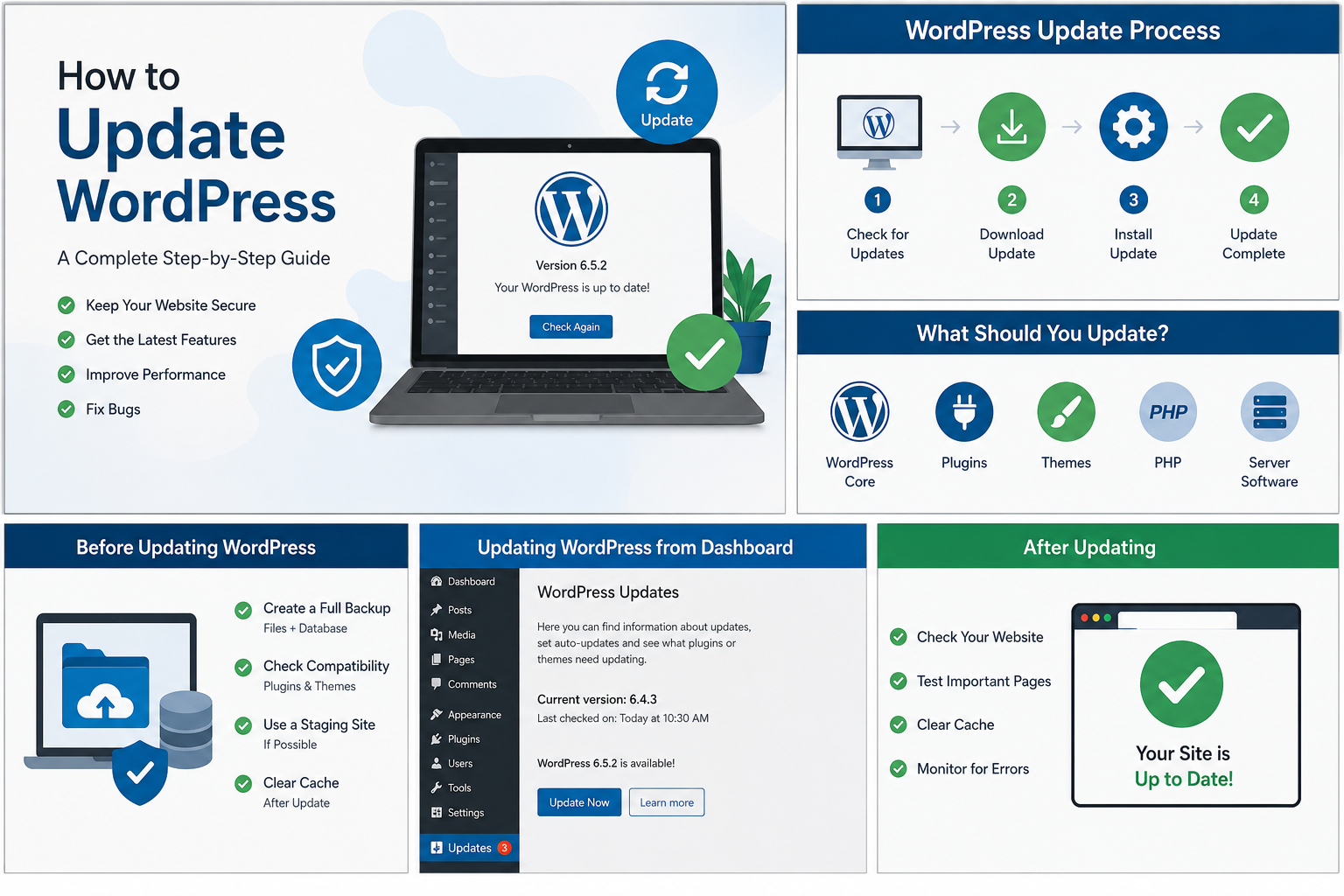
Keeping WordPress updated is one of the most important tasks for maintaining a secure, stable, and fast website. WordPress regularly releases new versions that can include security fixes, bug fixes, performance improvements, and new features.
However, many beginners are afraid to update WordPress because they worry that an update could break their website. This concern is understandable, especially if your website has many plugins, a customized theme, or important content.
The good news is that updating WordPress is usually straightforward when you follow the correct process.
In this guide, you will learn how to update WordPress safely, how to update WordPress automatically and manually, how to update themes and plugins, what to do before an update, how to fix common update problems, and what to do if your website breaks after updating.
Why Should You Update WordPress?
WordPress updates are not just about getting new features.
One of the biggest reasons to keep WordPress updated is security.
WordPress powers a large percentage of websites on the internet, which makes it an attractive target for attackers. Security vulnerabilities can sometimes be discovered in WordPress core, themes, and plugins.
When developers release security updates, they can address these vulnerabilities and improve the security of your website.
Updating WordPress can also provide:
- Security improvements
- Bug fixes
- Performance improvements
- New features
- Better compatibility
- Improved accessibility
- Improvements to the WordPress editor
- Compatibility with newer versions of PHP
- Better support for modern web standards
Running an outdated version of WordPress for a long time can leave your website exposed to known problems.
You might also like :
How to Install a WordPress Plugin: A Complete Step-by-Step Guide
WordPress Installation Guide: How to Install WordPress Step by Step
How to Install WordPress on HawkHost: A Complete Step-by-Step Guide
How to Install a WordPress Plugin: A Complete Step-by-Step Guide
What Should You Update in WordPress?
When people talk about updating WordPress, they may actually be referring to several different components.
A WordPress website normally contains:
- WordPress core
- Plugins
- Themes
- PHP
- Hosting/server software
These components are related, but they are updated separately.
For example, updating WordPress core does not automatically mean every plugin is updated.
You should regularly check all of them.
Before Updating WordPress: Create a Backup
Before performing a major update, create a backup of your website.
This is especially important if:
- Your website generates revenue.
- You have many plugins.
- You use a customized theme.
- You have custom code.
- You have an online store.
- Your website contains important content.
- You have not updated WordPress for a long time.
A complete WordPress backup should ideally include both your website files and your database.
The database contains important information such as:
- Posts
- Pages
- Comments
- User accounts
- Website settings
- Plugin data
- Theme settings
Your website files contain:
- WordPress core files
- Plugins
- Themes
- Images
- Uploaded documents
- Custom files
A backup is useful because it gives you a recovery option if an update causes an unexpected problem.
Check Your Hosting Backup Options
Many hosting providers offer backup features as part of their hosting services.
If your website is hosted on a provider such as HawkHost, check your hosting account to see what backup and restoration options are available.
However, do not assume that your hosting provider’s backup system is the only backup you need.
For important websites, maintaining an independent backup can provide additional protection.
How to Check Your WordPress Version
Before updating, you may want to check which version of WordPress your website is currently using.
Log in to your WordPress dashboard.
You may see the current WordPress version in the dashboard or under:
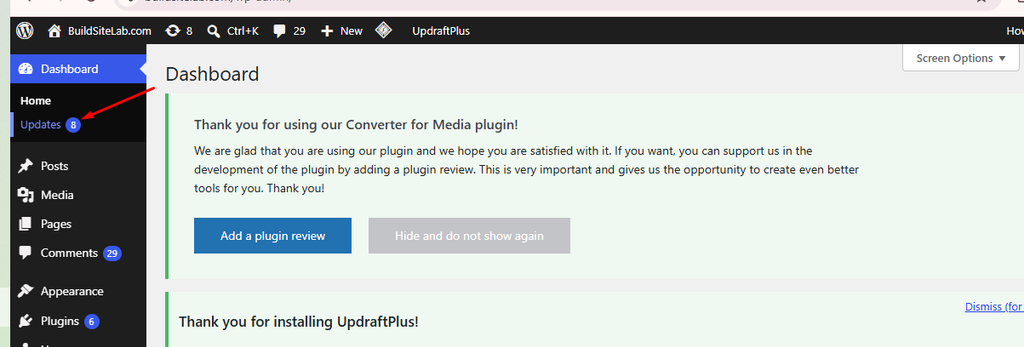
Dashboard → Updates
The Updates page shows whether a newer version of WordPress is available.
You can also find WordPress version information through the site’s administration interface.
Once you know your current version, you can determine whether an update is necessary.
How to Update WordPress Automatically
For most beginners, updating WordPress from the dashboard is the easiest method.
Step 1: Log In to Your WordPress Dashboard
Open your WordPress administration area:
Enter your username and password.
Once you are logged in, go to:
Dashboard → Updates
Step 2: Check for Updates
The Updates page shows available updates for your website.
You may see an option to update WordPress if a newer version is available.
You may also see updates for:
- Plugins
- Themes
- Translation files
Review the available updates before installing them.
Step 3: Update WordPress
If a WordPress core update is available, click the update button.
WordPress will download the latest files and install them automatically.
During the process, your website may temporarily enter maintenance mode.
Do not close the browser or interrupt the process unless there is a clear problem.
After the update finishes, WordPress should return you to the dashboard.
Step 4: Check Your Website
After updating, open your website in a new browser tab.
Check important pages such as:
- Homepage
- Blog
- Contact page
- About page
- Navigation menu
- Search function
- Login page
- Important landing pages
If you run an online store, also test the shopping cart and checkout process.
If everything works normally, your update was successful.
How to Update WordPress Plugins
WordPress plugins can add useful functionality to your website, but they also need to be updated regularly.
Go to:
Dashboard → Updates
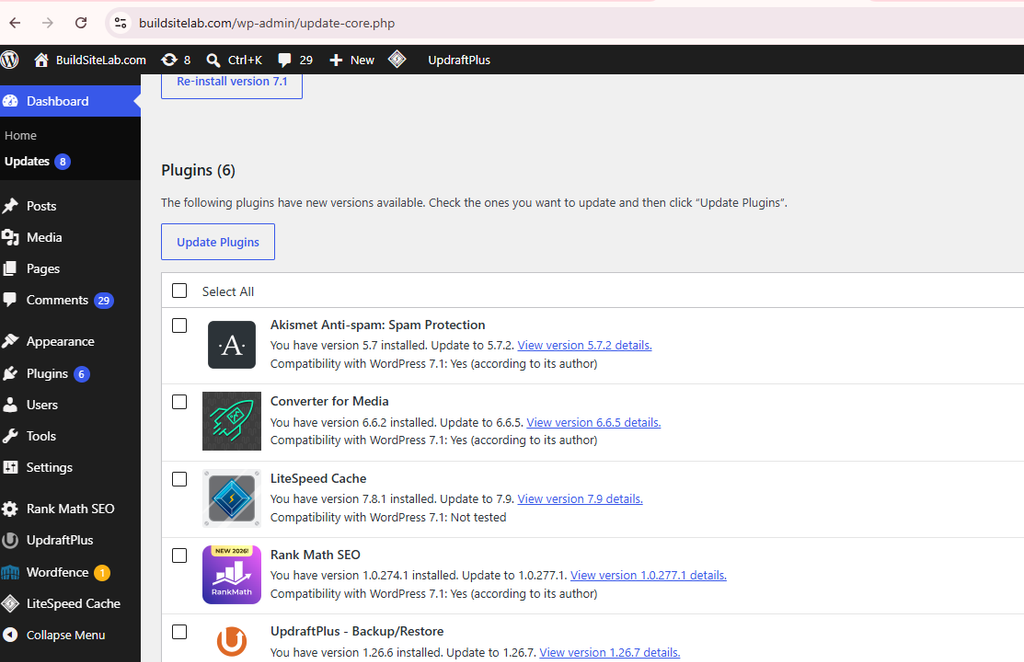
You should see a list of plugins with available updates.
Select the plugins you want to update and click Update Plugins.
You can also update individual plugins from:
Plugins → Installed Plugins
If an update is available, WordPress will display an update notification.
Click Update now.
Should You Update All Plugins at Once?
For a small website with a few well-maintained plugins, updating several plugins at once may be fine.
However, if your website is important or has many plugins, updating them one at a time can make troubleshooting easier.
For example, if your website breaks after updating five plugins simultaneously, it may be difficult to identify which plugin caused the problem.
Updating one plugin at a time allows you to test the website after each change.
How to Update a WordPress Theme
Themes should also be kept up to date.
Go to:
Dashboard → Updates
or:
Appearance → Themes
If a theme update is available, WordPress will show an update notification.
Before updating a customized theme, be careful.
If you have directly modified the theme’s files, an update may overwrite those changes.
This is one reason developers often recommend using a child theme when making custom modifications.
What Is a Child Theme?
A child theme allows you to customize certain parts of a WordPress theme without directly modifying the parent theme.
When the parent theme is updated, your customizations can remain in the child theme.
If you have made custom changes directly to the parent theme, create a backup and document your modifications before updating.
How to Enable Automatic WordPress Updates
WordPress supports automatic updates for certain components.
Automatic updates can reduce the amount of manual maintenance required.
They can be particularly useful for security-related updates.
However, automatic updates are not appropriate for every website.
Before enabling automatic updates, consider:
- How important the website is
- How many plugins you use
- Whether the site has custom code
- Whether you have reliable backups
- How frequently you can check the website
For a simple blog with a reliable theme and a small number of plugins, automatic updates can be convenient.
For a complex business website or online store, you may prefer a controlled update process.
How to Update WordPress Manually
Most users will not need to manually update WordPress.
However, manual updating can be useful if the dashboard update fails or if you need to troubleshoot a specific installation.
The general process involves:
- Creating a complete backup.
- Downloading the official WordPress package.
- Accessing your hosting account through a file manager or FTP.
- Uploading the new WordPress files.
- Replacing the appropriate core files.
- Keeping your
wp-contentdirectory and configuration file intact. - Visiting the WordPress administration area.
- Allowing WordPress to complete any required database updates.
Manual updates require more technical knowledge.
If you are not comfortable working with website files, the dashboard update method is safer and easier.
How to Update WordPress Using Your Hosting Control Panel
Some hosting providers offer WordPress management tools that allow you to update WordPress from the hosting account.
Depending on your hosting environment, you may have access to tools that can:
- Install WordPress
- Update WordPress
- Manage plugins
- Manage themes
- Create backups
- Check security
- Manage PHP versions
The exact features depend on your hosting provider and hosting plan.
If your website is hosted on HawkHost, check the current tools available in your hosting control panel before attempting a manual installation or update.
What to Do Before a Major WordPress Update
Not every update carries the same level of risk.
A small maintenance or security update is generally less concerning than a major WordPress release.
Before a major update, follow a more careful process.
1. Create a Backup
Make sure you have a recent backup.
2. Check Plugin Compatibility
Visit the plugin pages or developer websites and check whether your important plugins support the new WordPress version.
3. Check Theme Compatibility
Your theme should also be compatible with the new WordPress version.
4. Update Plugins and Themes
In some cases, updating plugins and themes before updating WordPress can improve compatibility.
However, avoid blindly updating everything on a critical production website without testing.
5. Test on a Staging Website
If your hosting provider supports staging, create a staging copy of your website.
Perform the WordPress update there first.
Test your pages and functionality.
If everything works correctly, update the production website.
This is one of the safest ways to handle major updates on important websites.
What Happens During a WordPress Update?
When you update WordPress from the dashboard, WordPress temporarily puts the website into maintenance mode.
Visitors may briefly see a maintenance message.
This is normal.
The update process replaces or modifies WordPress core files and may perform database updates.
Once the update is finished, WordPress removes maintenance mode.
Most updates are completed quickly.
However, larger websites or slow hosting environments may take longer.
Do not repeatedly click the update button if the process appears to be taking some time.
What Is WordPress Maintenance Mode?
Maintenance mode temporarily prevents normal visitors from interacting with the website while an update is being performed.
During a successful update, maintenance mode usually lasts only a short time.
If the update is interrupted, WordPress can sometimes become stuck in maintenance mode.
In that situation, visitors may continue seeing a maintenance message even though the update has already stopped.
How to Fix WordPress Stuck in Maintenance Mode
If your website remains stuck in maintenance mode after an interrupted update, you may need to remove the .maintenance file from your WordPress root directory.
You can access your website files using:
- Hosting File Manager
- FTP
- SSH, if available
Before deleting files, make sure you understand what you are changing.
If you are uncomfortable working with the file system, contact your hosting provider or WordPress developer.
What to Do If Your Website Breaks After an Update
Sometimes an update can cause compatibility problems.
You might notice:
- White screen
- PHP errors
- Broken layout
- Missing menus
- Plugin errors
- Theme problems
- Slow loading
- Login problems
- Internal server errors
Do not panic.
First, determine what changed.
If the problem appeared immediately after updating a plugin, that plugin may be responsible.
If it appeared after changing the theme, temporarily switch to a default WordPress theme.
If the problem started after a major WordPress update, check whether your plugins and theme support the new version.
Clear Your Cache
If your website uses a caching plugin, server-level caching, or a CDN, clear the cache.
Sometimes the website appears broken simply because an old cached version is being displayed.
Also test the website in a private browser window.
How to Troubleshoot a Plugin Conflict
A plugin conflict is one of the most common causes of WordPress problems after updates.
If you suspect a plugin:
- Disable the recently updated plugin.
- Check whether the website works again.
- If the website works, contact the plugin developer or check for another update.
- If necessary, find an alternative plugin.
Avoid keeping an incompatible plugin active simply because you need its functionality.
Security and stability should take priority.
How to Troubleshoot a Theme Conflict
If your website breaks after updating the theme, switch temporarily to a default WordPress theme.
If the website immediately works again, the theme may be responsible.
Check whether the theme developer has released another update.
You should also review any custom CSS, JavaScript, templates, or theme modifications you have made.
Check Your PHP Version
WordPress, themes, and plugins depend on PHP.
Using an old PHP version can create compatibility and security problems.
Your hosting provider may allow you to select a supported PHP version through the hosting control panel.
Before changing PHP versions on a production website, create a backup and check compatibility with your plugins and theme.
If you are unsure which PHP version to use, consult your hosting provider or the developers of your important plugins.
Should You Update WordPress Immediately?
In general, you should not ignore WordPress updates indefinitely.
Security updates should receive particular attention.
However, updating immediately without any preparation is not always the best approach for a critical website.
A practical approach is:
For small security or maintenance updates:
Check your backup and update promptly.
For major releases:
Check plugin and theme compatibility and test the website when possible.
For important business websites:
Use backups and staging whenever available.
The goal is not simply to update as quickly as possible. The goal is to keep your website secure while minimizing the risk of downtime.
WordPress Update Best Practices
Follow these practices to make WordPress maintenance easier.
Keep Regular Backups
Do not wait until something goes wrong before creating a backup.
Keep Plugins Updated
Outdated plugins can create security and compatibility problems.
Keep Themes Updated
Theme updates can include important security and compatibility fixes.
Remove Unused Plugins
If you no longer use a plugin, deactivate and remove it.
Avoid Pirated Themes and Plugins
Never install themes or plugins from suspicious websites simply because they are offered for free.
Test Important Updates
Use a staging website when possible.
Monitor Your Website
After updating, check your website rather than assuming everything is working correctly.
Keep a Maintenance Schedule
Set aside time regularly to review WordPress core, themes, plugins, backups, and security.
Frequently Asked Questions
How often should I update WordPress?
You should check for updates regularly rather than waiting several months.
Security updates should generally be applied promptly after confirming that your backup and website environment are ready.
Is it safe to update WordPress?
Yes, WordPress updates are generally safe when performed correctly.
However, compatibility issues can occasionally occur, particularly with outdated plugins, themes, or custom code.
Always maintain a recent backup.
Will updating WordPress delete my website?
A normal WordPress update should not delete your posts, pages, media, or other website content.
However, unexpected problems can occur, which is why backups are important.
Should I update WordPress or plugins first?
There is no single order that works for every website.
For major updates, check compatibility between WordPress, your theme, and plugins before updating.
For routine maintenance, keeping all components reasonably current is more important than following a rigid order.
Can WordPress update automatically?
Yes. WordPress supports automatic updates for certain types of updates and components.
The exact automatic-update options available can depend on your WordPress installation and hosting environment.
What if my WordPress update fails?
First, check whether the website is stuck in maintenance mode.
Then check your hosting resources, error messages, plugins, themes, and available disk space.
If you have a recent backup, restoring the website may be an option while you investigate the problem.
Final Thoughts
Learning how to update WordPress is an essential part of website maintenance.
A WordPress website is not a “set it and forget it” system. WordPress core, plugins, themes, PHP, and other server components need ongoing maintenance.
For most beginners, the easiest way to update WordPress is through:
Dashboard → Updates
Before making significant changes, create a complete backup. After updating, check your homepage, important pages, menus, forms, plugins, and other important features.
If something goes wrong, do not make multiple changes at once. Identify the most recent change, test the website, and use your backup or staging environment when necessary.
A simple maintenance routine can keep your website more secure, stable, and compatible over the long term.
Once you understand how to update WordPress safely, you will be able to maintain your website with much more confidence and avoid many of the common problems caused by outdated software.