If you have a website hosted on HawkHost, you can use a free Let’s Encrypt SSL certificate instead of purchasing a separate SSL certificate.
HawkHost currently provides free Let’s Encrypt SSL certificates on its shared, reseller, and semi-dedicated hosting services. HawkHost uses AutoSSL to issue certificates, and you can also manually start an AutoSSL run from cPanel when needed.
Once SSL is installed, your website can load using:
https://yourdomain.cominstead of:
http://yourdomain.comThis guide shows you how to install and verify a free SSL certificate on HawkHost using cPanel.
What Is SSL?
SSL stands for Secure Sockets Layer. In modern web browsers, HTTPS connections use TLS, but the term “SSL certificate” is still commonly used.
An SSL/TLS certificate allows your website to use HTTPS and encrypts the connection between the visitor’s browser and your server.
For example:
HTTP
http://example.com
becomes:
HTTPS
https://example.com
A browser will normally show a padlock or other security indicator when the HTTPS connection is properly secured.
Does HawkHost Offer Free SSL?
Yes.
HawkHost states that its shared, reseller, and semi-dedicated hosting services include free Let’s Encrypt SSL through AutoSSL. HawkHost also states that its web hosting accounts can use free Let’s Encrypt SSL certificates.
This means you generally do not need to purchase a separate SSL certificate for a normal website hosted on an eligible HawkHost plan.
HawkHost also states that free SSL certificates can be installed for domains hosted on its servers.
How HawkHost Free SSL Works
The basic process looks like this:
Your Domain
     ↓
DNS points to HawkHost
     ↓
HawkHost cPanel
     ↓
SSL/TLS Status
     ↓
Run AutoSSL
     ↓
Let's Encrypt Certificate
     ↓
HTTPS
The important part is that your domain must resolve to your HawkHost hosting account.
HawkHost specifically notes that a domain must be hosted with HawkHost for its Let’s Encrypt installation to succeed.
Before Installing SSL
Before you try to install the certificate, check these requirements.
1. Your Domain Is Added to HawkHost
The domain should already exist in your HawkHost hosting account.
If you haven’t added the domain yet, see:
How to Connect a Domain to HawkHost (Step-by-Step Guide)
2. Your DNS Points to HawkHost
Your domain’s DNS needs to resolve to your HawkHost server.
HawkHost states that AutoSSL can fail if:
- The domain’s nameservers are not pointed to HawkHost, or
- The domain’s A record does not resolve to the HawkHost hosting IP.
For beginners, using HawkHost’s nameservers is often the simplest configuration.
3. Your Website Is Accessible
Before installing SSL, try opening your website using HTTP:
http://yourdomain.comIf the domain doesn’t resolve correctly, fix the DNS/hosting connection first.
How to Install Free SSL on HawkHost
The easiest method is through cPanel → SSL/TLS Status → Run AutoSSL.
Let’s go through the process step by step.
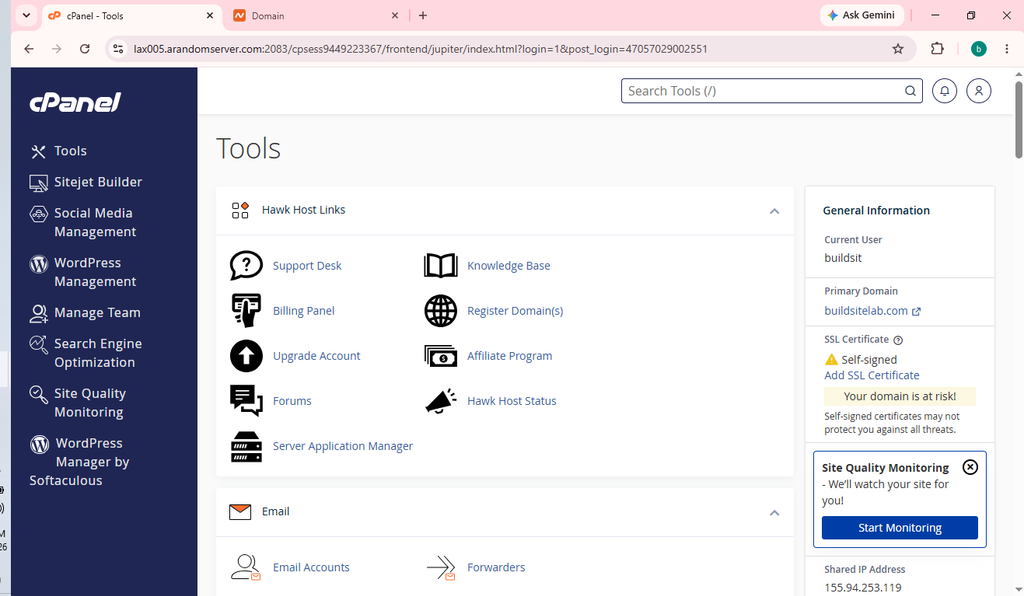
Step 1: Log In to HawkHost cPanel
First, log in to your HawkHost cPanel account.
You can access cPanel through your HawkHost Client Area.
Go to:
HawkHost Client Area → My Services → Active Hosting Service → cPanel
HawkHost also supports cPanel access through your domain when DNS is already pointed to HawkHost, including:
https://yourdomain.com:2083or:
https://yourdomain.com/cpanelHawkHost documents several current cPanel login methods.
Step 2: Find SSL/TLS Status
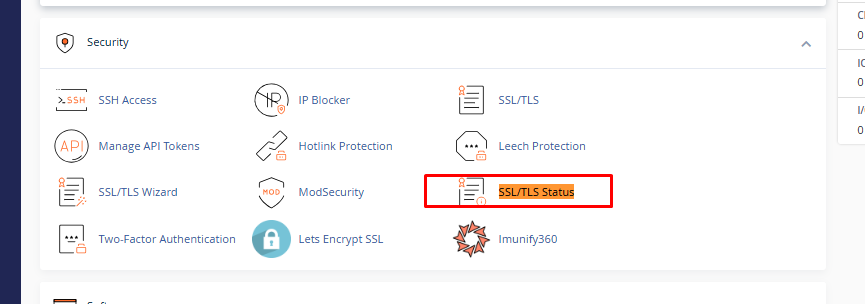
Once you’re inside cPanel, use the search box.
Search for:
SSL/TLS Status
Then click SSL/TLS Status.
HawkHost’s current instructions specifically use this cPanel interface for installing free Let’s Encrypt certificates.
Step 3: Find Your Domain
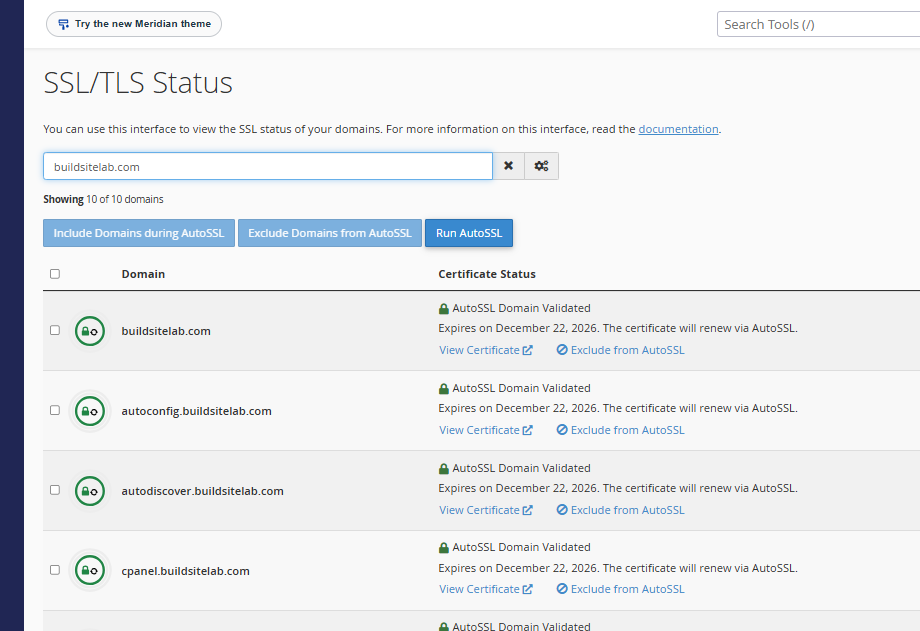
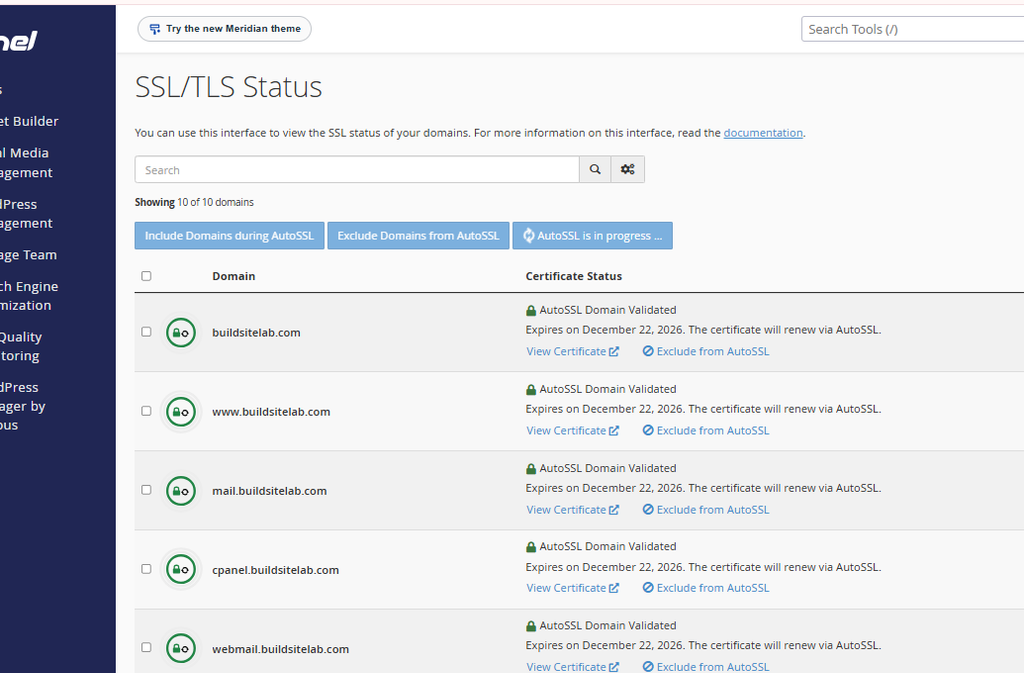
The SSL/TLS Status page displays the domains associated with your cPanel account.
Find your domain.
For example:
buildsitelab.comYou may also see related hostnames such as:
www.buildsitelab.com
mail.buildsitelab.com
The exact entries shown depend on your hosting and domain configuration.
cPanel’s SSL/TLS Status interface is designed to show whether domains are secured, unsecured, expired, or experiencing AutoSSL problems.
Step 4: Run AutoSSL
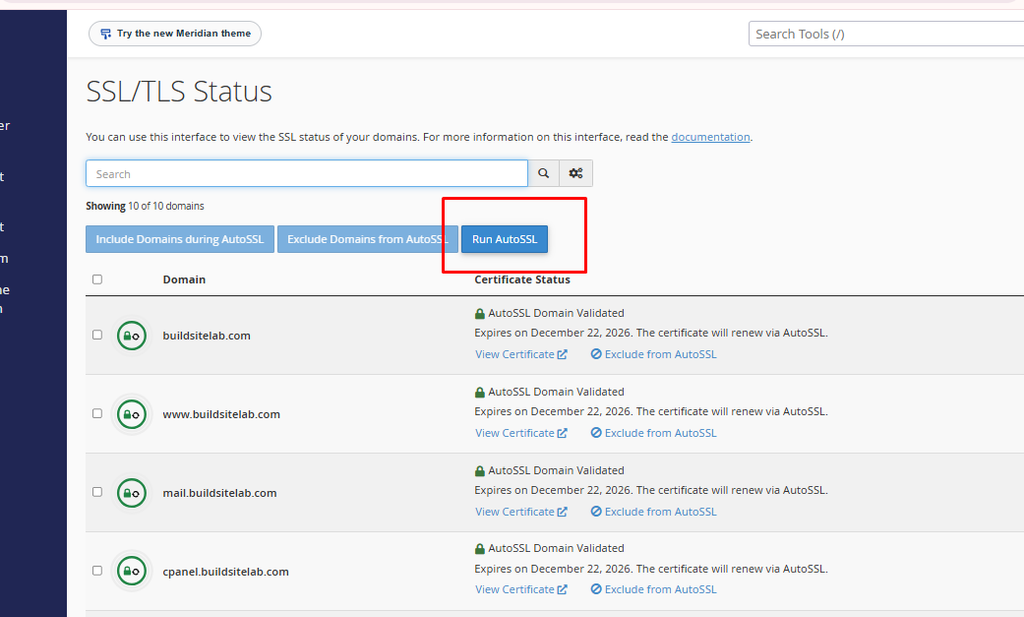
On HawkHost’s current cPanel setup, the Run AutoSSL button can be used to manually start the SSL installation process.
Click:
Run AutoSSL
HawkHost states that eligible domains will be included in AutoSSL by default, and clicking Run AutoSSL starts the certificate installation process.
Step 5: Wait for AutoSSL to Finish
After clicking Run AutoSSL, cPanel should show a status indicating that AutoSSL is processing.
HawkHost says the process can take up to 10 minutes.
You don’t normally need to keep changing settings while the process is running.
Wait for AutoSSL to complete.
Step 6: Check the SSL Status
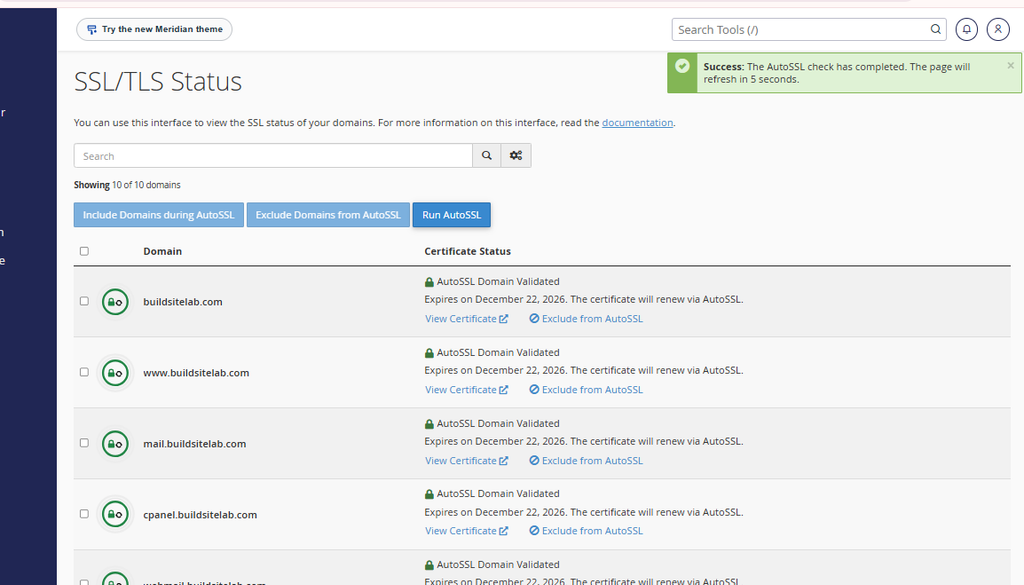
After AutoSSL finishes, return to the SSL/TLS Status page.
A successful installation should show an AutoSSL-related validated status for the domain. HawkHost’s documentation describes a successful installation as showing AutoSSL Domain Validated.
You can also open your website using HTTPS:
https://yourdomain.comIf the certificate is installed correctly, the browser should establish a secure HTTPS connection.
Step 7: Test Your Website Using HTTPS
Open your website:
https://yourdomain.comThen test:
https://www.yourdomain.comif you use the www version.
Also click several pages on your website.
For a WordPress website, check:
- Homepage
- About page
- Contact page
- Blog posts
- Images
- Menus
- Login page
If everything loads correctly over HTTPS, your SSL installation is working.
Step 8: Force Your Website to Use HTTPS
Installing an SSL certificate and redirecting visitors from HTTP to HTTPS are two related but different things.
After SSL is working, you can enable an HTTPS redirect.
HawkHost’s current documentation says cPanel’s Domains interface can be used to enable Force HTTPS Redirect.
Go to:
cPanel → Domains
Find your domain.
Then look for:
Force HTTPS Redirect
Turn it on.
This means:
http://yourdomain.comwill redirect to:
https://yourdomain.comImportant: Install SSL Before Forcing HTTPS
Do not enable an HTTPS redirect before the certificate is working.
The correct order is:
1. Connect domain
        ↓
2. Verify DNS
        ↓
3. Install SSL with AutoSSL
        ↓
4. Test https://
        ↓
5. Enable Force HTTPS Redirect
HawkHost specifically cautions that an SSL certificate should be installed before enabling HTTPS redirects.
How to Check Whether SSL Is Installed
There are several ways to check.
Method 1: Open Your Website
Open:
https://yourdomain.comIf the page loads normally without a certificate warning, the certificate is likely working.
Method 2: Check SSL/TLS Status
Go back to:
cPanel → SSL/TLS Status
Your domain should show an active/AutoSSL certificate status.
cPanel’s current SSL/TLS Status interface allows you to filter domains by statuses such as Active, Expired, Expiring Soon, Unsecured, and Has AutoSSL Problems.
Method 3: View the Certificate in cPanel
HawkHost notes that AutoSSL certificates can be viewed through:
cPanel → SSL/TLS → Manage SSL Sites
rather than looking for them under an old standalone Let’s Encrypt interface.
Do HawkHost SSL Certificates Renew Automatically?
Yes, AutoSSL is designed to handle certificate issuance and renewal automatically.
HawkHost states that its servers have AutoSSL enabled and will attempt to automatically install SSL certificates on eligible domains.
cPanel’s documentation also explains that AutoSSL handles certificate renewal and attempts renewal as certificates approach expiration.
Therefore, you normally don’t need to manually purchase or reinstall a new Let’s Encrypt certificate every few months.
What If HawkHost SSL Installation Fails?
If AutoSSL doesn’t issue a certificate, don’t immediately try to purchase an SSL certificate.
First check your domain configuration.
Problem 1: DNS Is Not Pointing to HawkHost
This is one of the first things to check.
HawkHost states that SSL installation can fail if:
- Your domain’s nameservers aren’t pointed to HawkHost, or
- Your A record doesn’t resolve to your HawkHost hosting IP.
What to do
Check your DNS configuration.
If you recently changed nameservers, wait for the DNS changes to propagate.
Then run AutoSSL again.
Problem 2: The Domain Was Recently Added
If you just added a domain to HawkHost, the SSL certificate may not appear immediately.
Check:
cPanel → SSL/TLS Status
If the domain is not yet validated, wait and try AutoSSL again.
Problem 3: CAA Record Is Blocking Let’s Encrypt
A CAA record controls which certificate authorities are allowed to issue certificates for your domain.
cPanel notes that conflicting CAA records can prevent the desired certificate authority from issuing a certificate.
HawkHost also specifically lists CAA DNS records as a possible cause of Let’s Encrypt installation failures.
If you use a custom CAA record, check that it does not prevent Let’s Encrypt from issuing the certificate.
Problem 4: SSL Works for One Version of Your Domain but Not Another
For example:
https://yourdomain.comworks, but:
https://www.yourdomain.comdoesn’t.
Check the SSL/TLS Status page and make sure the relevant domain/hostname is covered.
Also check your DNS records for both versions.
Problem 5: Your Website Shows Mixed Content
After installing SSL, your website may load over HTTPS while some images, scripts, CSS files, or other resources still use HTTP.
For example:
https://yourdomain.combut an image loads from:
http://yourdomain.com/image.jpgThis can cause a mixed content warning.
For WordPress, check your site URLs and plugin/theme settings.
You may also need to update old HTTP URLs in your database if your website was originally built using HTTP.
Should You Buy a Paid SSL Certificate?
For a normal WordPress website, blog, affiliate website, or small business website, a free Let’s Encrypt certificate may be sufficient.
HawkHost states that most of its hosting plans include free SSL through Let’s Encrypt AutoSSL. HawkHost notes that third-party certificates may be relevant when a site specifically requires an OV or EV certificate.
The important distinction is:
| SSL Type | Typical Use |
|---|---|
| Let’s Encrypt DV | Normal websites, blogs, WordPress |
| Paid DV | Alternative paid certificate |
| OV | Organization validation requirements |
| EV | Higher-level organizational validation requirements |
For a typical BuildSiteLab-style WordPress affiliate site, the free Let’s Encrypt DV certificate is the relevant type to consider.
Free SSL vs Paid SSL
| Feature | Free Let’s Encrypt SSL | Paid SSL |
|---|---|---|
| HTTPS | Yes | Yes |
| Encryption | Yes | Yes |
| Domain Validation | Yes | Yes |
| Automatic renewal | Through AutoSSL | Depends on provider |
| Cost | Free | Paid |
| OV/EV options | No | Available depending on certificate |
| Suitable for WordPress | Yes | Yes |
The certificate type you need depends on your website and any organizational validation requirements, rather than simply whether a certificate is free or paid.
Do You Need SSL for WordPress?
For a WordPress website, HTTPS should be part of your basic site setup.
Your WordPress site should ideally use:
https://yourdomain.comrather than:
http://yourdomain.comAfter installing SSL, also check your WordPress settings.
Go to:
WordPress Dashboard → Settings → General
Check:
WordPress Address (URL)
and:
Site Address (URL)
They should normally use:
https://rather than:
http://Important: Don’t change these URLs blindly if your HTTPS installation isn’t working yet. Confirm the certificate first.
Recommended HawkHost SSL Workflow for WordPress
For a new WordPress site, I recommend following this order:
Buy HawkHost Hosting
        ↓
Connect Domain
        ↓
Point DNS to HawkHost
        ↓
Wait for DNS
        ↓
Install Free SSL
        ↓
Test HTTPS
        ↓
Force HTTPS Redirect
        ↓
Install WordPress
        ↓
Check WordPress URLs
This avoids trying to solve several DNS, SSL, and WordPress configuration issues at the same time.
Frequently Asked Questions
Is SSL free on HawkHost?
Yes. HawkHost states that shared, reseller, and semi-dedicated hosting services include free Let’s Encrypt SSL through AutoSSL.
How do I install free SSL on HawkHost?
Log in to cPanel, open SSL/TLS Status, and click Run AutoSSL. Wait for the process to finish and then check your domain using HTTPS.
How long does HawkHost SSL installation take?
HawkHost says the AutoSSL installation process can take up to approximately 10 minutes.
Does HawkHost automatically renew Let’s Encrypt SSL?
AutoSSL handles certificate renewal automatically. HawkHost’s hosting documentation states that AutoSSL is enabled and handles SSL installation and renewal.
Why is my HawkHost SSL not working?
Start by checking whether your domain’s DNS points to HawkHost. Also check for CAA records that may prevent Let’s Encrypt from issuing the certificate.
Do I need to buy an SSL certificate from another company?
Not necessarily. HawkHost provides free Let’s Encrypt SSL on eligible hosting plans. A third-party certificate may be relevant if you specifically require a certificate type such as OV or EV.
Can I install SSL before connecting my domain?
The domain needs to resolve to your HawkHost hosting account for the Let’s Encrypt installation to succeed.
Conclusion
Installing a free SSL certificate on HawkHost is mainly a matter of making sure your domain points to HawkHost and then running AutoSSL.
The complete process is:
Domain connected
      ↓
DNS points to HawkHost
      ↓
cPanel
      ↓
SSL/TLS Status
      ↓
Run AutoSSL
      ↓
Wait for validation
      ↓
Test https://yourdomain.com
      ↓
Enable Force HTTPS Redirect
For most normal websites, you don’t need to purchase a separate SSL certificate. HawkHost provides free Let’s Encrypt certificates through AutoSSL on eligible hosting plans.