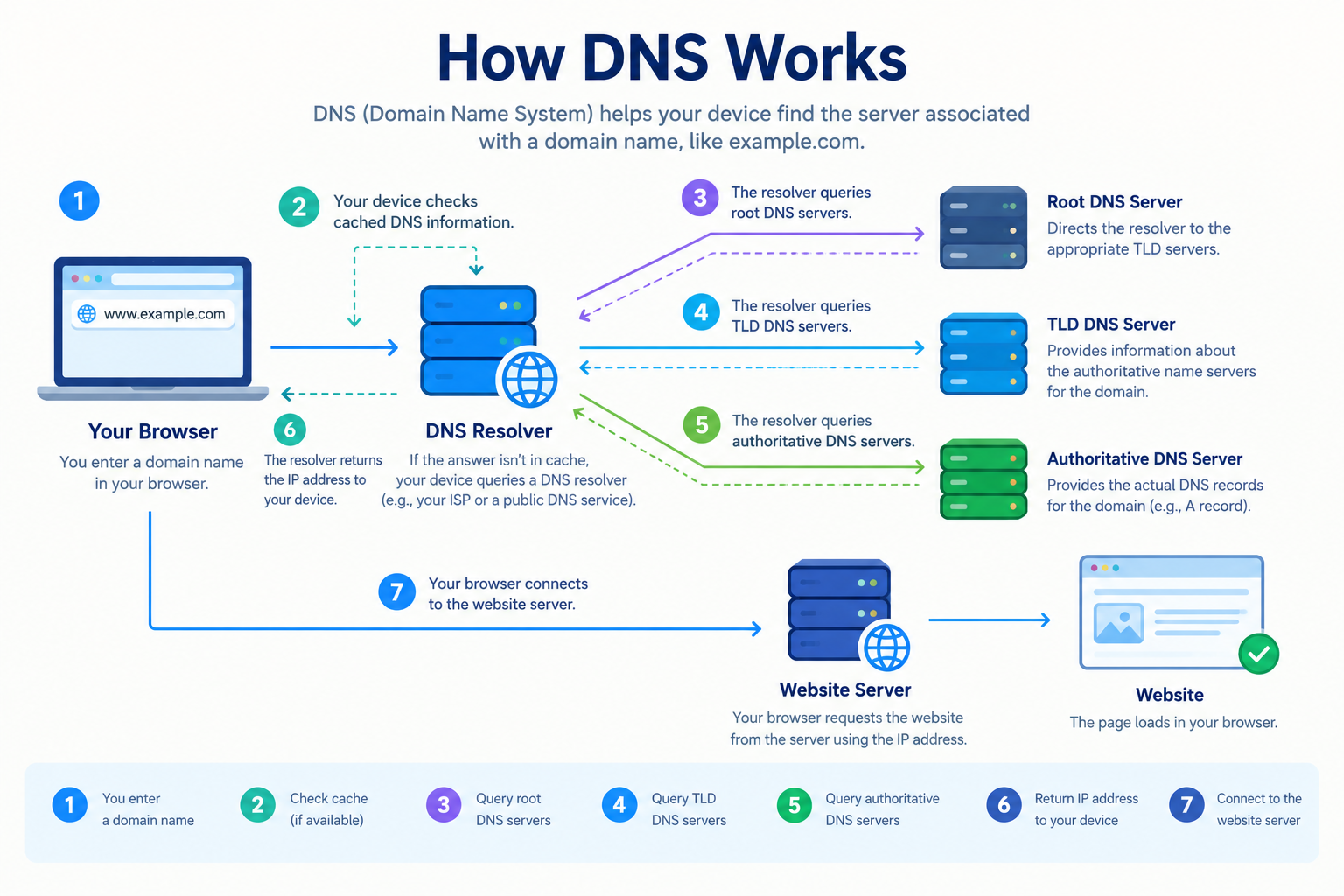
DNS is one of the most important parts of how the internet works. Every time you enter a website address into your browser, DNS helps your device find the server associated with that domain name.
If you are new to website hosting, domains, or WordPress, understanding DNS can help you connect a domain to your hosting account, troubleshoot website connection problems, and manage your website more confidently.
In this beginner’s guide, you will learn what DNS is, how it works, the most common DNS record types, and how DNS relates to your domain name and web hosting.
What Is DNS?
DNS stands for Domain Name System. It is a system that translates human-readable domain names, such as example.com, into IP addresses that computers use to identify servers on a network.
People find domain names easier to remember than numerical IP addresses. Instead of entering a server’s IP address into a browser, you can type a domain name to visit a website.
For example, when someone enters example.com into a browser, DNS helps the browser find the appropriate IP address for that domain.
You can think of DNS as the internet’s address directory. It helps connect a domain name to the server or service associated with it.
DNS does not store your website’s pages, images, or WordPress files. Those files are typically stored on a web hosting server. DNS helps your browser locate the relevant server.
How Does DNS Work?
DNS works through a series of lookups that help resolve a domain name to the information needed to connect to a website.
When you enter a domain name into your browser, the following process may occur.
Step 1: You Enter a Domain Name
Suppose you type example.com into your browser.
Your device needs to determine which IP address is associated with the domain before it can connect to the website’s server.
Step 2: Your Device Checks Cached DNS Information
Your device or browser may already have DNS information stored from a previous visit.
If a valid cached result is available, the device may use it instead of performing a new lookup.
DNS caching helps reduce lookup time and unnecessary requests.
Step 3: A DNS Resolver Looks for the Answer
If the answer is not available in the relevant cache, your device may query a DNS resolver, often provided by your internet service provider or a public DNS service.
The resolver checks its cache and, if necessary, performs additional queries to find the required DNS information.
Step 4: DNS Servers Help Locate the Domain’s Records
A DNS resolver may contact several types of DNS servers:
- Root DNS servers: Direct the resolver toward the appropriate top-level domain servers.
- TLD DNS servers: Provide information about the authoritative name servers for a domain under a top-level domain such as
.com. - Authoritative DNS servers: Provide the DNS records configured for the domain.
The resolver follows the necessary referrals until it obtains the answer it needs.
Step 5: Your Browser Connects to the Website
Once the resolver obtains the required IP address, it returns the result to your device.
Your browser can then connect to the server associated with that address and request the website.
If the website is configured correctly and the server is available, the page should load.

What Is a DNS Record?
A DNS record is a setting that tells DNS resolvers how a domain or hostname should be handled.
Different record types serve different purposes. Some point a domain to an IP address, while others specify email servers or provide information used to verify domain ownership.
When you manage a domain through a hosting provider or DNS service, you may need to add, edit, or delete DNS records.
Here are the most common DNS record types beginners should understand.
Common Types of DNS Records
1. A Record
An A record maps a hostname to an IPv4 address.
For example:
example.com → 192.0.2.1
The IP address above is an example address, not a real hosting destination.
An A record is commonly used to point a domain or subdomain to a web server.
If you want your domain to load a website hosted on a particular server, you may need to configure an A record with the correct IPv4 address provided by your hosting company.
2. AAAA Record
An AAAA record maps a hostname to an IPv6 address.
IPv6 is a newer internet addressing system designed to provide a much larger address space than IPv4.
You only need to configure an AAAA record when you have the correct IPv6 address and your hosting environment supports it.
3. CNAME Record
A CNAME record makes one hostname an alias of another hostname.
For example:
www.example.com → example.com
This means DNS follows the target hostname to resolve the destination. A CNAME record does not directly store an IP address.
CNAME records are commonly used for subdomains such as www or for services that provide a specific target hostname.
However, DNS rules restrict using a standard CNAME record at the zone apex, which is the main domain itself, such as example.com. Some DNS providers offer special features to handle this situation.
4. MX Record
An MX record specifies which mail servers receive email for a domain.
If you use a professional email address such as hello@example.com, the domain’s MX records help direct incoming email to the appropriate mail service.
Changing MX records incorrectly can interrupt email delivery. Before editing them, confirm which email service you use and follow its configuration instructions.
5. TXT Record
A TXT record stores text information associated with a domain.
TXT records are often used for:
- Verifying domain ownership.
- Configuring SPF email authentication.
- Publishing DKIM-related information.
- Publishing DMARC policies.
Some services ask you to add a specific TXT record to prove that you control a domain.
When adding a TXT record, copy the host or name and value exactly as instructed by the service.
6. NS Record
NS stands for Name Server.
NS records identify the authoritative name servers responsible for a DNS zone.
When you change your domain’s nameservers, you change which DNS service is responsible for managing its DNS records.
This is different from changing an A record. Nameserver changes can affect the entire set of DNS records for a domain, so make sure the new DNS provider has the required records before switching.
7. SRV Record
An SRV record provides information about the host and port used by certain services.
Some applications and communication services use SRV records to locate the appropriate service endpoint.
Most beginners setting up a simple WordPress website will not need to create SRV records manually.
8. CAA Record
A CAA record specifies which certificate authorities are permitted to issue TLS certificates for a domain.
CAA records can help control certificate issuance, but an incorrect configuration may prevent a certificate authority from issuing a certificate.
If you manage CAA records, make sure they match your intended certificate provider’s requirements.
What Is the Difference Between DNS, a Domain Name, and Web Hosting?
These three terms are related, but they refer to different things.
| Term | What It Means |
|---|---|
| Domain name | The human-readable address people use to access your website |
| DNS | The system that provides information used to locate services associated with a domain |
| Web hosting | The service that stores and serves your website’s files and application |
| IP address | A numerical address used to identify a device or server on a network |
| Nameservers | Servers that provide authoritative DNS information for a domain |
For example, suppose you purchase example.com from a domain registrar and host your WordPress website with HawkHost.
Your domain registrar manages the domain registration. Your DNS provider manages the domain’s DNS records. HawkHost stores your website files if you host the website there.
These services can be provided by the same company or by different companies.
Changing your DNS settings does not automatically transfer your website files from one hosting provider to another.
Related guide: How to Connect a Domain to HawkHost.
What Is the Difference Between DNS and Nameservers?
DNS is the overall system used to look up information about domain names.
Nameservers are servers that provide DNS information for a domain or DNS zone.
When you update an A record, you change a particular DNS record.
When you change a domain’s nameservers, you change which authoritative DNS servers are responsible for the domain.
For example, if your domain currently uses the nameservers of one provider and you switch to the nameservers supplied by HawkHost, you must make sure the required DNS records exist in the new DNS zone.
Otherwise, your website, email, or other domain services may stop working correctly.
Related guide: How to Change Nameservers in HawkHost.
Where Can You Manage DNS Records?
The location where you manage DNS depends on which nameservers your domain uses.
Option 1: Manage DNS at Your Domain Registrar
If your domain uses your registrar’s nameservers, you will usually manage its DNS records through the registrar’s DNS management panel.
You can typically add or edit records such as A, CNAME, MX, and TXT records there.
Option 2: Manage DNS Through Your Hosting Provider
If your domain uses the authoritative nameservers provided by your hosting company, you may be able to manage DNS through that provider’s control panel.
For example, some cPanel hosting environments include a Zone Editor that lets you manage supported DNS records.
If your domain is hosted with HawkHost, log in to the relevant account and check which DNS management tools are available. The exact interface may vary by service and configuration.
Option 3: Use a Separate DNS Provider
You can also use a dedicated DNS provider while keeping your domain registration and web hosting with different companies.
In this arrangement, the domain’s nameservers point to the separate DNS provider, and you manage the DNS records there.
The important rule is to edit records at the provider responsible for your domain’s authoritative DNS. Changing records in an inactive DNS panel may have no effect on the live website.
How to Check Your DNS Records
You can check DNS records using online DNS lookup tools or command-line utilities.
Method 1: Use an Online DNS Lookup Tool
A DNS lookup website can show records associated with a domain.
Depending on the tool, you may be able to check:
- A and AAAA records.
- CNAME records.
- MX records.
- TXT records.
- NS records.
Enter your domain name, choose the record type, and review the returned results.
Remember that different resolvers may temporarily show different results while DNS changes are being distributed or cached.
Method 2: Use the nslookup Command
On Windows, open Command Prompt and run:
nslookup example.comThis command requests DNS information for the domain.
To check a specific record type, you can use:
nslookup -type=MX example.comFor nameservers, run:
nslookup -type=NS example.comReplace example.com with your actual domain name.
Method 3: Use the dig Command
On systems where the dig utility is installed, you can run:
dig example.com ATo check MX records:
dig example.com MXTo check nameservers:
dig example.com NSThese commands can help you verify whether the expected records are being returned by the DNS resolver you queried.
Related guide: How to Check DNS Records.
What Is DNS Propagation?
DNS propagation is the term commonly used to describe the period during which DNS changes become visible through different resolvers and caches.
When you change an A record or update nameservers, the new information may not appear everywhere immediately.
The time required depends on factors such as record TTL values, resolver caching, and the type of DNS change.
A DNS record’s TTL, or time to live, tells resolvers how long they may cache that record before checking again.
How Long Does DNS Propagation Take?
Some DNS changes become visible quickly, while others may take longer to appear consistently across different networks.
There is no single guaranteed propagation time for every DNS change.
If your website does not load immediately after a change, verify that the record was saved correctly and check the result using more than one DNS resolver.
Also confirm that the destination server is configured correctly. A DNS lookup can succeed even when the website itself is unavailable.
Common DNS Problems and How to Fix Them
DNS issues can prevent a website or email service from working as expected. Here are some common problems and their possible solutions.
Problem 1: Your Domain Does Not Point to the Correct Server
An A record may contain an incorrect IP address, or a CNAME record may point to the wrong hostname.
How to fix it:
- Confirm the correct destination with your hosting provider.
- Open the DNS management panel used by your domain.
- Review the relevant A or CNAME record.
- Correct the record if necessary.
- Check the result after saving the change.
Do not copy an example IP address from a tutorial into your live DNS settings.
Problem 2: Your Website Is Not Working After Changing Nameservers
Changing nameservers can move DNS management to a different provider.
If the new DNS zone is missing important records, the website or email may stop working.
How to fix it:
- Confirm which nameservers are currently assigned to your domain.
- Check whether the new DNS provider has the required records.
- Verify the website’s A or CNAME records.
- Verify the MX and other email-related records if you use domain email.
- Allow time for cached DNS information to expire.
Before changing nameservers, record your existing DNS settings so you can recreate the necessary records if needed.
Problem 3: Your Website Works for Some Visitors but Not Others
This can happen while different resolvers have different cached information.
It can also be caused by local DNS caching or other network issues.
How to fix it:
- Check the domain using more than one DNS lookup service.
- Compare the returned records.
- Confirm that the records are correct at the authoritative DNS provider.
- Clear your local DNS cache if appropriate.
- Check again after the relevant cache period.
Do not assume every inconsistent result is caused by propagation; verify the underlying DNS records first.
Problem 4: Your Email Stops Working After a DNS Change
Incorrect MX records can prevent incoming email from reaching the intended mail service. Changes to TXT records can also affect email authentication.
How to fix it:
- Confirm which provider handles your email.
- Check the MX records required by that provider.
- Review relevant SPF, DKIM, and DMARC records.
- Restore or correct records that were accidentally changed.
If you use hosting email, confirm the correct settings with your hosting provider before editing email-related DNS records.
Problem 5: Your DNS Changes Do Not Appear
You may have edited DNS records at a provider that is not authoritative for your domain.
How to fix it:
- Check the domain’s current nameservers.
- Identify the provider responsible for authoritative DNS.
- Sign in to that provider’s DNS management panel.
- Verify or edit the record there.
- Query the authoritative nameserver or use a DNS lookup tool to confirm the result.
DNS Best Practices for Beginners
Following a few simple practices can help prevent common DNS mistakes.
1. Know Where Your DNS Is Managed
Keep track of your domain registrar, authoritative nameservers, DNS provider, and hosting provider. They may be different companies.
2. Save Existing Records Before Making Changes
Take screenshots or export your current DNS records before editing nameservers or important records.
This is especially important if your domain handles both a website and email.
3. Change Only the Records You Need
Avoid deleting records simply because you do not recognize them. Some records may support email, verification, or third-party services.
4. Use the Correct Destination Values
Always obtain the correct IP address, target hostname, or verification value from the service you are configuring.
5. Understand TTL Before Troubleshooting
Cached records may remain visible until their TTL expires. Consider the existing TTL when diagnosing DNS changes.
6. Keep Website and Email Requirements in Mind
A domain can use one set of DNS records for its website and another for email. Changing the website’s A record does not automatically mean that email records should also change.
Frequently Asked Questions About DNS
What Does DNS Stand For?
DNS stands for Domain Name System. It helps translate domain names into information that computers use to locate services on a network.
Do I Need DNS to Run a Website?
A publicly accessible website normally relies on DNS so visitors can use its domain name to locate the appropriate server. Other connection methods exist, but DNS is the standard approach for most websites.
Is DNS the Same as Web Hosting?
No. DNS helps direct visitors to the appropriate service, while web hosting stores and serves your website’s files and application.
What Is the Difference Between an A Record and a CNAME Record?
An A record maps a hostname to an IPv4 address. A CNAME record aliases one hostname to another hostname.
Can I Change DNS Without Changing My Hosting Provider?
Yes. You can change DNS records or use a different DNS provider without moving your website files to another hosting company. However, the records must point to the correct destination.
Will Changing Nameservers Delete My Website?
Changing nameservers does not itself delete your website files. However, if the new DNS provider does not have the correct records, visitors may be unable to reach the website or email services.
Why Is My Domain Not Working After a DNS Change?
Possible causes include incorrect records, missing DNS entries, cached information, or a server that is not configured correctly. Check the authoritative DNS records and confirm that the destination service is working.
How Can I Learn More About DNS Records?
Start by learning the purpose of A, CNAME, MX, TXT, and NS records. Then practice checking DNS records for a domain you control before making changes to a live website.
Final Thoughts
DNS is a fundamental part of how websites and other internet services work. It connects human-readable domain names with the information needed to locate the appropriate servers.
For website owners, understanding DNS makes it easier to connect a domain to hosting, configure email, troubleshoot connection problems, and manage domain settings.
You do not need to understand every technical detail to manage a basic website. Start with the difference between domains, DNS, and hosting, then learn how to check and update common DNS records safely.
If you are setting up a website with HawkHost, continue with our guides on connecting a domain to HawkHost and changing HawkHost nameservers to learn how these concepts apply in practice.