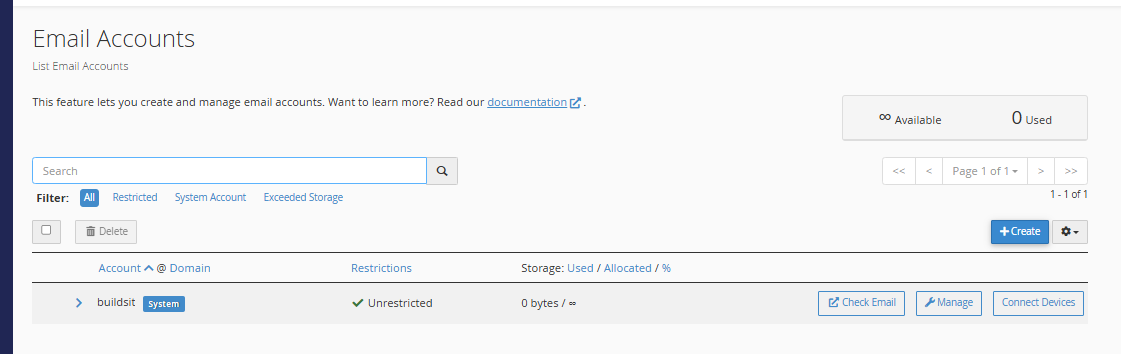
If you have a domain hosted with HawkHost, you can create professional email addresses such as hello@yourdomain.com, support@yourdomain.com, or contact@yourdomain.com directly from cPanel.
You do not need to use Gmail or another third-party email service just to create a basic email account for your domain. HawkHost provides email functionality with its supported hosting plans, including POP3, SMTP, and IMAP access.
In this guide, you’ll learn how to create an email account in HawkHost using cPanel, how to access the mailbox through Webmail, and where to find the settings needed for Outlook, Apple Mail, or your phone.
What Is a Custom Domain Email?
A custom domain email uses your own domain name instead of a free email provider.
For example:
hello@buildsitelab.comcontact@buildsitelab.comsupport@buildsitelab.comadmin@buildsitelab.com
A custom email address can be useful if you are running a website, business, online store, or affiliate site.
Instead of communicating from:
buildsitelab@gmail.com
you can use:
hello@buildsitelab.com
What You Need Before Creating an Email Account
Before you create an email account in HawkHost, you should have:
- An active HawkHost hosting account
- A domain added to your hosting account
- Access to cPanel
- A domain that is correctly connected to the hosting account
If your domain has not been connected to HawkHost yet, see our guide:
How to Connect a Domain to HawkHost (Step-by-Step Guide)
You can access cPanel through the HawkHost Client Area or, when your DNS is already pointed to HawkHost, through URLs such as https://yourdomain.com/cpanel or https://yourdomain.com:2083.
How to Create an Email Account in HawkHost
The process is straightforward:
HawkHost Client Area → cPanel → Email Accounts → Create → Enter Email Details → Create
Let’s go through each step.
Step 1: Log In to HawkHost cPanel
First, log in to your HawkHost account and open cPanel.
You can access cPanel through the HawkHost Client Area:
- Log in to your HawkHost Client Area.
- Go to My Services.
- Select your active hosting service.
- Find One Click Login.
- Click the cPanel option.
HawkHost also supports direct cPanel access when your domain’s DNS is pointed to the hosting account.
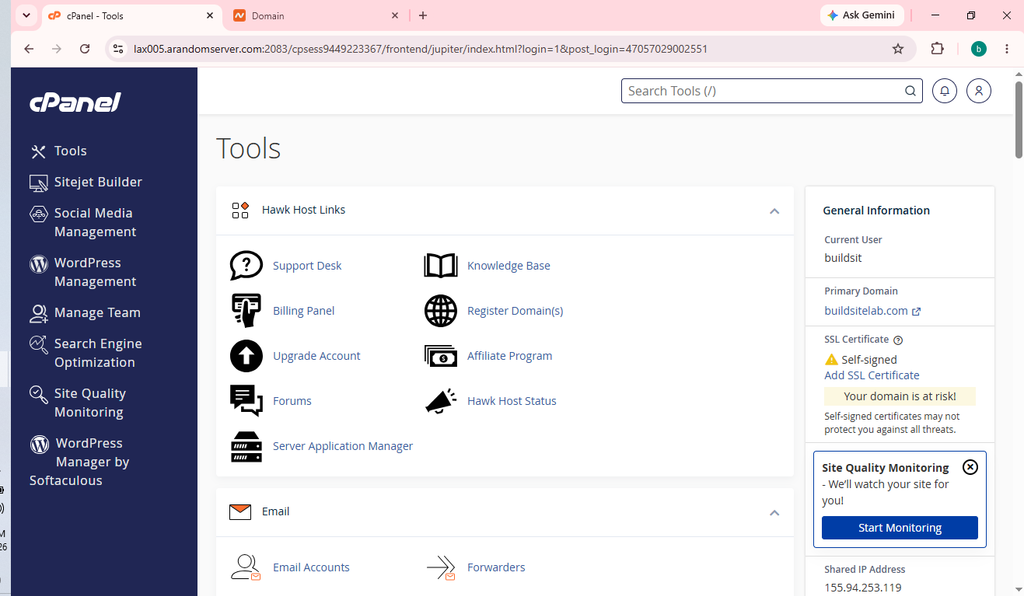
Step 2: Find Email Accounts
Once you are inside cPanel, use the search box at the top.
Type:
Email Accounts
Then click Email Accounts.
This is the cPanel section where you can create and manage email addresses associated with your domain.
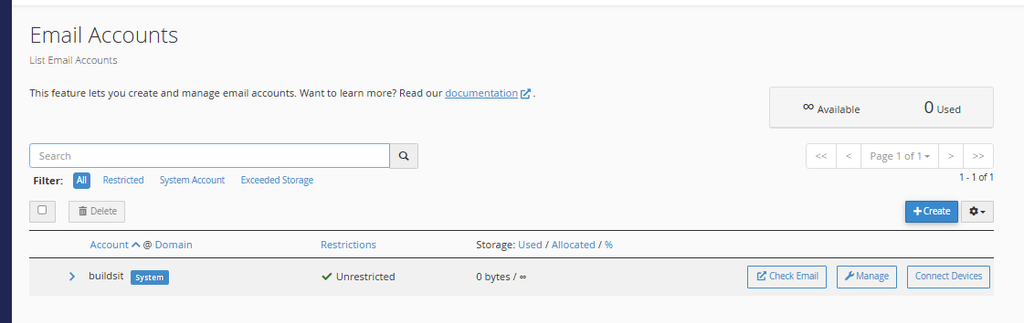
HawkHost’s current instructions use the Email Accounts interface for creating and managing mailboxes.
Step 3: Click Create
On the Email Accounts page, look for the Create button.
Click:
Create
You should now see the form for creating a new email account.
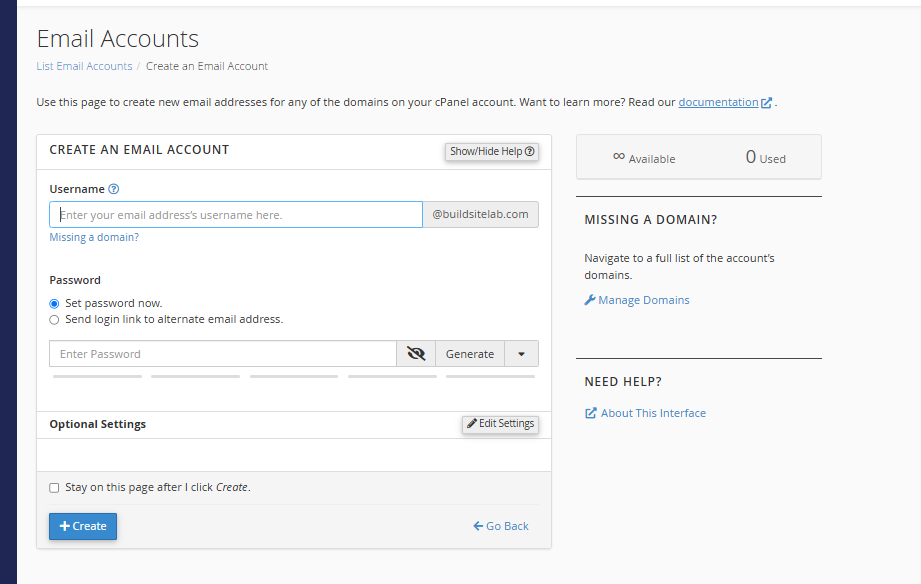
Step 4: Choose Your Domain
If you have more than one domain hosted under your HawkHost account, you may need to select the domain that you want to use for the email address.
For example, suppose your domain is:
buildsitelab.com
You might create:
hello@buildsitelab.com
The domain portion of the address should match the website/domain where you want the mailbox created.
Step 5: Enter the Email Username
Now enter the username you want to use.
For example:
hello
The complete email address will then be:
Other examples include:
| Username | Email Address |
|---|---|
| hello | hello@yourdomain.com |
| contact | contact@yourdomain.com |
| support | support@yourdomain.com |
| admin | admin@yourdomain.com |
| info | info@yourdomain.com |
For a small website, you don’t necessarily need to create many different mailboxes. Start with the addresses you actually need.
Step 6: Create a Strong Password
Next, create a password for the email account.
Do not use an easy password such as:
12345678
or:
password123
Instead, use a unique and strong password containing a mixture of letters, numbers, and symbols.
Keep in mind that your email password is separate from your HawkHost Client Area password.
You will use the email password when logging into Webmail or configuring an email application.
Step 7: Set the Storage Quota
Depending on the current HawkHost/cPanel interface and hosting plan, you may see a storage quota option when creating the mailbox.
Choose an appropriate amount of storage if the interface asks you to configure one.
For current Cloud Web Hosting plans, HawkHost lists no individual mailbox storage limit for the listed Cloud plans, while some legacy and other hosting plans have specific mailbox limits.
Because hosting plans can change, check your current HawkHost plan if mailbox storage is important to you.
Step 8: Click Create
After entering the email information, click:
Create
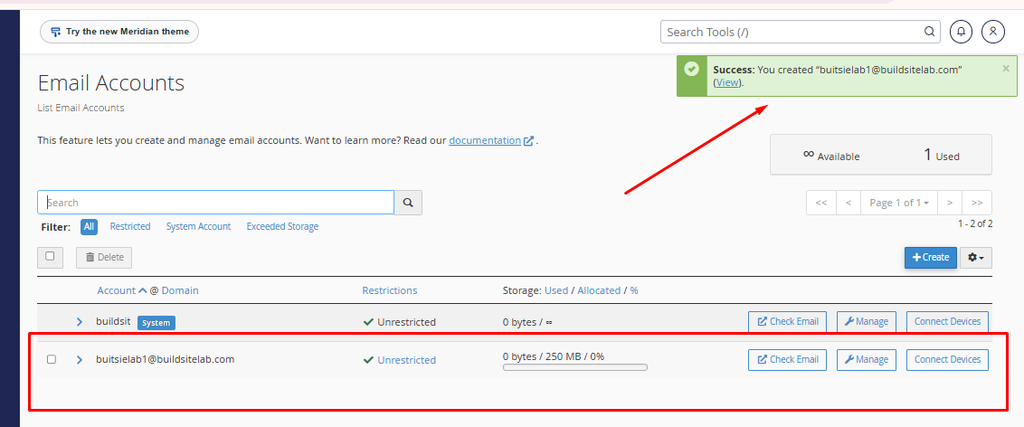
Your new email account should now appear in the Email Accounts list.
For example:
hello@buildsitelab.com
You have now created a custom email mailbox on your HawkHost hosting account.
HawkHost’s current cPanel instructions describe the creation process as entering the email username, password, and storage quota, then clicking Create.
How to Access Your HawkHost Email
Creating the email account does not mean you have to configure Outlook or Gmail immediately.
The easiest way to test your new mailbox is through Webmail.
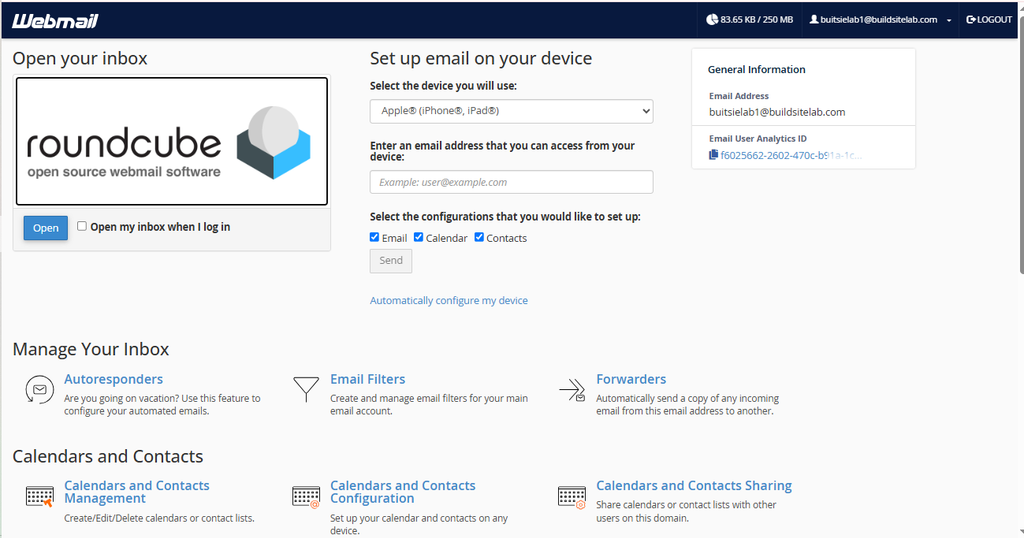
HawkHost provides Webmail access through the browser, with Roundcube as the default/recommended Webmail application.
There are two simple ways to access it.
Method 1: Access Webmail Directly
Open your browser and go to:
https://yourdomain.com/webmailFor example:
https://buildsitelab.com/webmailYou can also use:
https://yourdomain.com:2096Then enter:
Email: hello@yourdomain.com
Password: The password you created for this email account.
HawkHost documents both of these direct Webmail URLs.
Method 2: Access Webmail Through cPanel
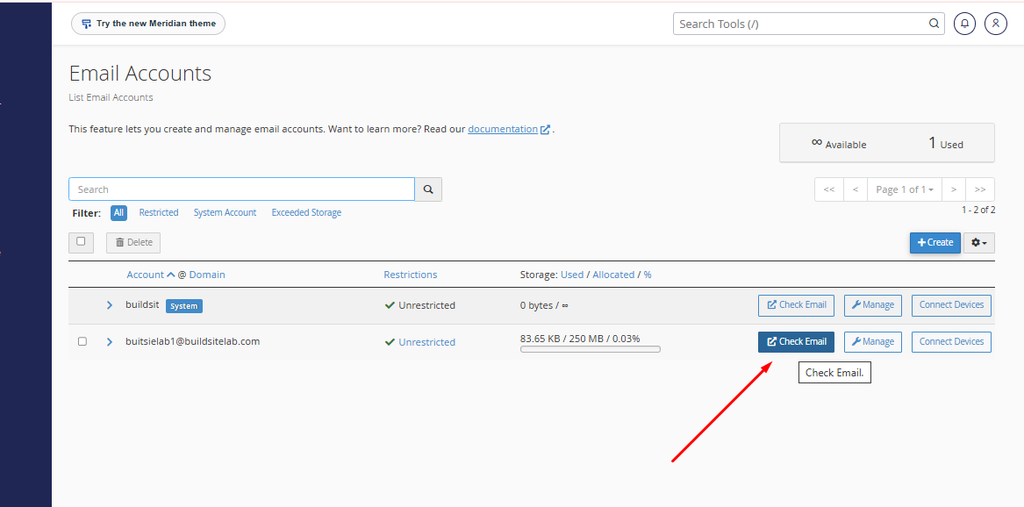
You can also access the mailbox from cPanel.
Go to:
cPanel → Email Accounts
Find your email address.
Then click:
Check Email
HawkHost’s current documentation directs users from Email Accounts to Check Email, where they can open Roundcube.
How to Use Roundcube Webmail
After clicking Check Email, you can open Roundcube.
From Roundcube, you can:
- Read incoming emails
- Send emails
- Reply to messages
- Forward messages
- Delete emails
- Create folders
- Manage contacts
- Search your mailbox
This is useful if you don’t want to install an email application.
You can simply log in through your web browser.
How to Set Up HawkHost Email on Your Phone or Computer
You can also use your HawkHost email with an email application such as:
- Outlook
- Apple Mail
- Other desktop email clients
- Mobile email applications
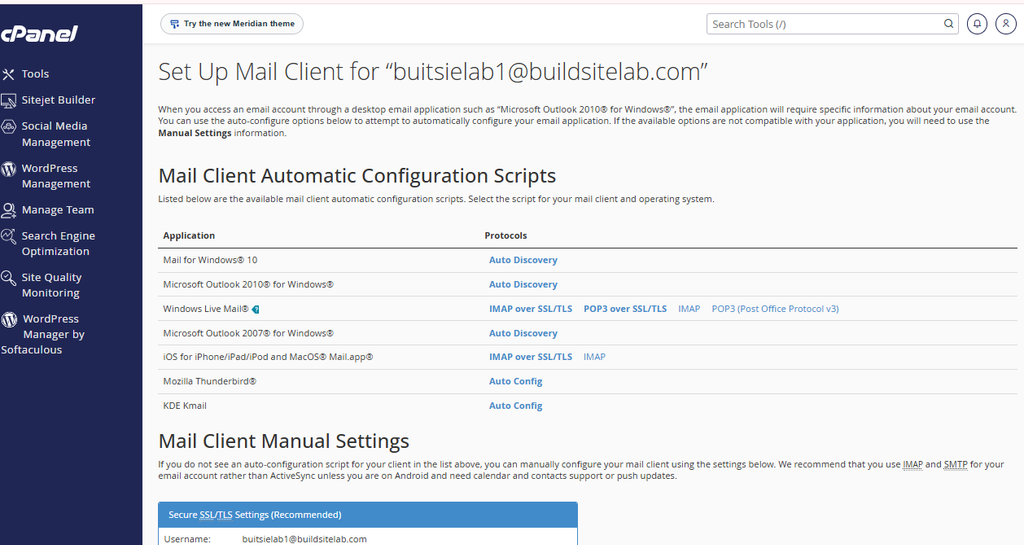
From cPanel, go to:
Email Accounts → Connect Devices
HawkHost says this page displays the incoming and outgoing server information and port numbers needed to configure an email client. It can also provide automatic configuration scripts or send the settings to another email address.
What Are IMAP, POP3, and SMTP?
When setting up your HawkHost email on a phone or computer, you may see three terms:
IMAP
IMAP keeps your mailbox synchronized with the email server.
For example, if you read an email on your phone, that message can also appear as read when you access Webmail from your computer.
For most people who use multiple devices, IMAP is the more convenient choice.
POP3
POP3 downloads email from the server to your email application.
It is useful for certain setups but works differently from IMAP, particularly when you access the same mailbox from multiple devices.
SMTP
SMTP is used for sending outgoing email.
You need the SMTP information when configuring your HawkHost email in an email application.
For the exact server names, ports, and security settings, use the Connect Devices section in your HawkHost cPanel because those settings can depend on your hosting configuration.
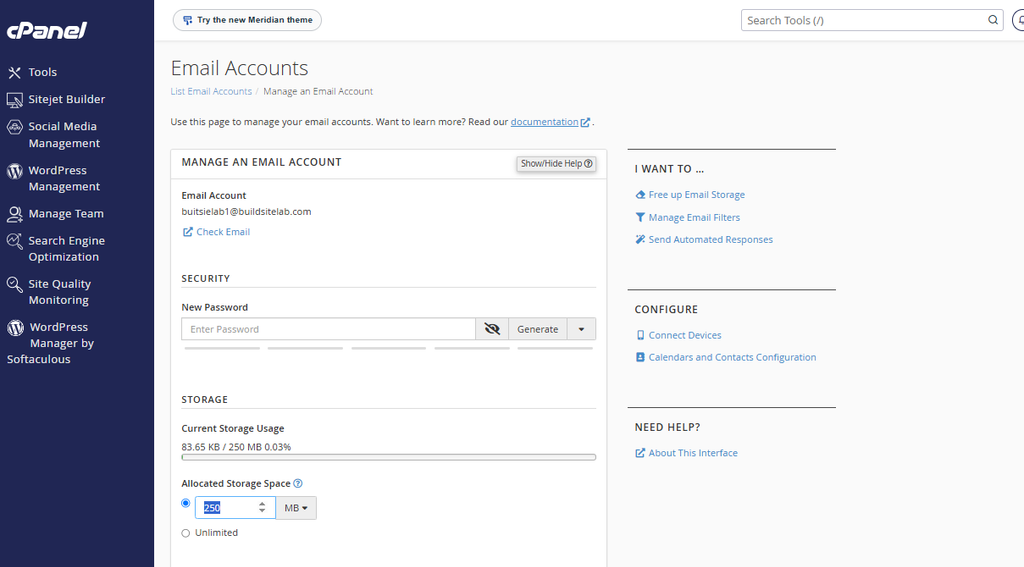
How to Change the Email Account Password
If you forget the password for your mailbox, you don’t need to delete the email account and create a new one.
You can reset the password through cPanel.
Go to:
cPanel → Email Accounts
Find the email address and click:
Manage
Then locate the security/password section and enter a new password.
Finally, save the changes using Update Email Settings.
What Email Addresses Should You Create?
You don’t need to create an email address for every possible purpose.
For a small website, you could start with:
hello@yourdomain.com
General communication.
contact@yourdomain.com
Contact forms and general inquiries.
support@yourdomain.com
Customer or technical support.
admin@yourdomain.com
Administrative communication.
For an affiliate website such as BuildSiteLab, something like:
hello@buildsitelab.com
or:
contact@buildsitelab.com
may be sufficient when you’re starting.
Common Problems When Creating a HawkHost Email Account
1. Email Accounts Is Missing
Make sure you are logged into the correct cPanel account and that your hosting plan supports email.
HawkHost states that shared, cloud web hosting, semi-dedicated, and reseller hosting plans include email functionality.
2. Your Domain Does Not Appear
If your domain isn’t available when creating the mailbox, check whether it has actually been added to the hosting account.
You may need to add the domain through cPanel’s Domains interface first.
Remember that adding a domain to cPanel does not register the domain with a registrar.
3. You Cannot Access Webmail
Check that you’re using the complete email address:
hello@yourdomain.comrather than only:
helloAlso make sure you’re using the mailbox password rather than your HawkHost Client Area password.
You can try:
https://yourdomain.com/webmailor:
https://yourdomain.com:20964. Emails Are Going to Spam
Email delivery depends on multiple factors, including domain authentication and the receiving mail provider.
If you experience delivery problems, check your domain’s email authentication settings, including SPF, DKIM, and DMARC.
Don’t assume that simply creating a mailbox guarantees that every message will reach the recipient’s inbox.
HawkHost Email Sending Limits
If you plan to send a large number of emails, check your hosting plan’s outgoing email limits.
HawkHost currently lists different hourly outgoing limits by plan. For example, its current documentation lists 500 emails/hour for Starter Cloud Web Hosting, 1,000 for Launch, and 2,000 for Plus. These limits apply to the entire cPanel account rather than each individual mailbox.
For normal website communication, contact forms, and personal business email, these limits may not be relevant. However, HawkHost is not intended to be used for spam or unsolicited bulk email.
HawkHost Email vs Gmail
| Feature | HawkHost Email | Gmail |
|---|---|---|
| Custom domain | Yes | Requires additional setup/service |
| Example | hello@yourdomain.com | yourname@gmail.com |
| Webmail | Yes | Yes |
| IMAP | Yes | Yes |
| SMTP | Yes | Yes |
| Domain branding | Yes | No with standard Gmail address |
| Access through browser | Yes | Yes |
If your primary goal is simply to create an email address using your own domain, the HawkHost mailbox is a convenient option when your hosting plan includes email.
Frequently Asked Questions
Can I create multiple email addresses in HawkHost?
Yes. HawkHost states that its supported shared, cloud web hosting, semi-dedicated, and reseller plans include email addresses.
The exact limits and storage depend on the hosting plan.
Can I access HawkHost email without Outlook?
Yes. You can use HawkHost Webmail directly from your browser.
Use:
https://yourdomain.com/webmailor access the mailbox through cPanel → Email Accounts → Check Email.
Can I use my HawkHost email on my phone?
Yes. HawkHost provides email client configuration information through Email Accounts → Connect Devices.
Can I use my HawkHost email with Gmail?
Yes, but additional configuration is required. HawkHost has a separate guide for configuring Gmail’s Send mail as feature with a custom domain email.
What is the easiest way to test my new email?
After creating the mailbox, open Webmail and send a test message to another email address.
Then reply to that message to confirm both sending and receiving work correctly.
Final Thoughts
Creating a professional email address in HawkHost is a simple process:
HawkHost Client Area
        ↓
cPanel
        ↓
Email Accounts
        ↓
Create
        ↓
Choose Domain
        ↓
Enter Username + Password
        ↓
Create Email Account
        ↓
Check Email / Roundcube
Once the mailbox has been created, you can use HawkHost Webmail or configure the account in an email application using the server information provided under Connect Devices.
If you’re building a WordPress website on HawkHost, creating a custom domain email is also useful for contact forms, website administration, and professional communication.
1 thought on “How to Create an Email Account in HawkHost”