If you have created a professional email address with your HawkHost hosting account, such as hello@yourdomain.com, you can access your mailbox directly from your web browser using HawkHost Webmail.
You don’t need to install Outlook or another email application just to read and send your emails.
HawkHost provides Webmail access through Roundcube, which allows you to manage your mailbox from a browser. You can access Webmail directly using your domain or through cPanel.
In this guide, I’ll show you several ways to access HawkHost Webmail, how to log in, how to use Roundcube, and what to check if Webmail isn’t working.
What Is HawkHost Webmail?
HawkHost Webmail is a browser-based interface for accessing an email account associated with your domain.
For example, if your website is:
buildsitelab.com
you might have an email address such as:
hello@buildsitelab.com
Instead of configuring this email in Outlook or your phone, you can open Webmail in your browser and log in directly.
The basic process is:
Your Domain
     ↓
HawkHost Webmail
     ↓
Roundcube
     ↓
Read / Send Email
This is particularly convenient when you’re using a computer that doesn’t have your email account configured.
What You Need Before Accessing Webmail
Before trying to log in, make sure you have:
- An active HawkHost hosting account
- A domain connected to your hosting account
- A mail account created in cPanel
- The complete email address
- The email account password
For example:
Email: hello@yourdomain.com
Password: your-email-password
Important: Your email password is not necessarily the same as your HawkHost Client Area password.
If you haven’t created an email account yet, see:
How to Create an Email Account in HawkHost
Method 1: Access HawkHost Webmail Using Your Domain
This is usually the easiest method.
Open your browser and enter:
https://yourdomain.com/webmailFor example:
https://buildsitelab.com/webmailThen press Enter.
HawkHost documents /webmail as one of the supported ways to access Webmail.

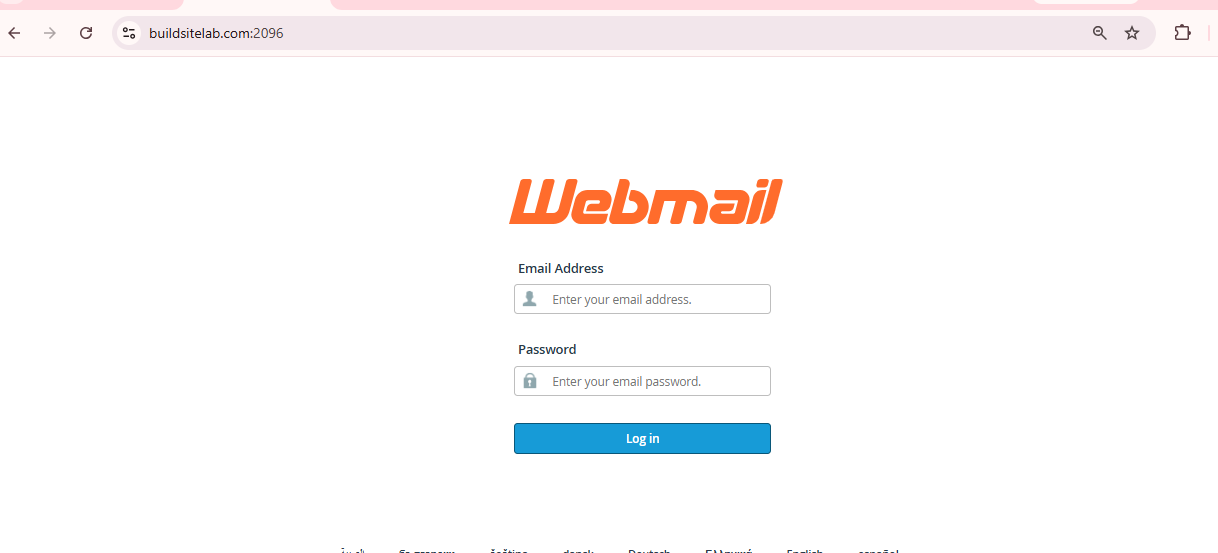
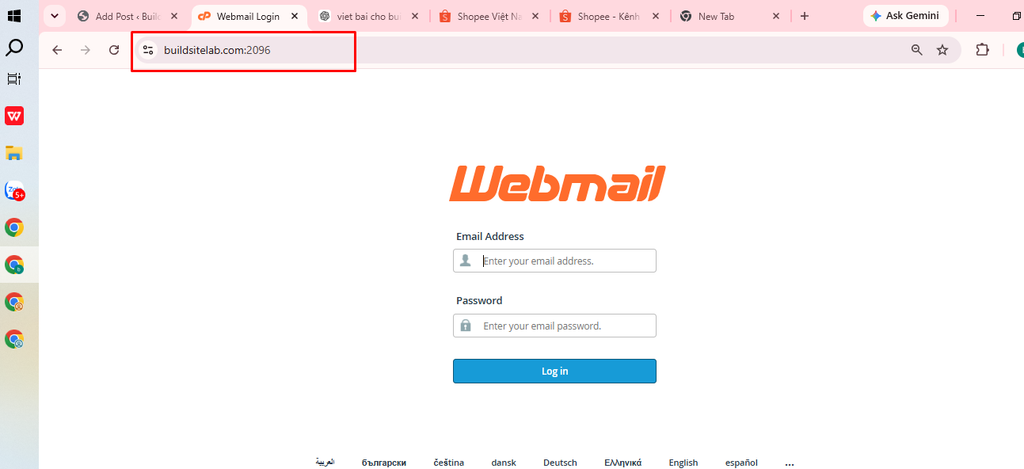
Method 2: Access Webmail Using Port 2096
You can also access Webmail using the secure Webmail port.
Enter:
https://yourdomain.com:2096For example:
https://buildsitelab.com:2096This should take you to the Webmail login page.
HawkHost currently documents both https://yourdomain.com/webmail and port 2096 for Webmail access.
Method 3: Access Webmail Through HawkHost cPanel
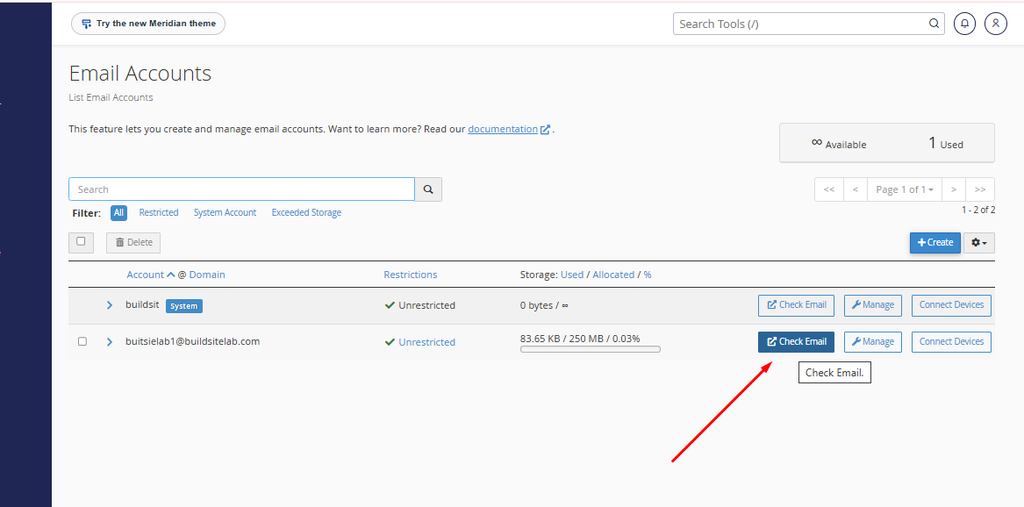
You can also access your mailbox from cPanel.
First, log in to HawkHost cPanel.
Then go to:
Email Accounts
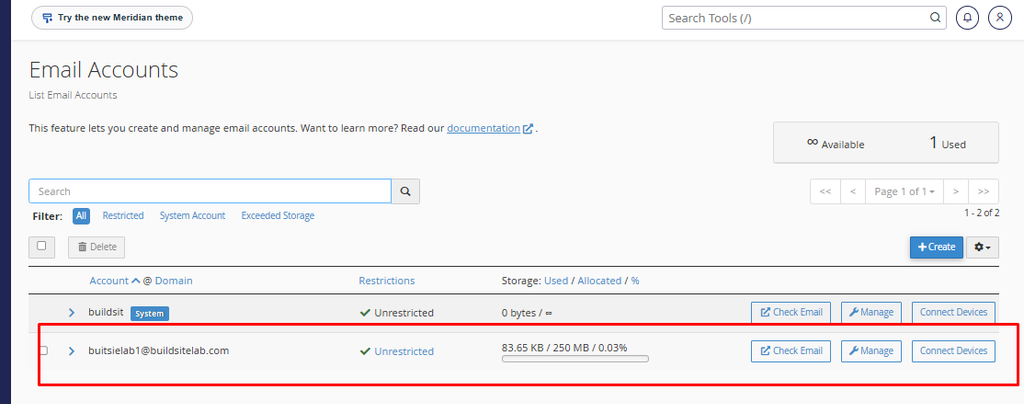
You should see the email accounts associated with your hosting account.
Find the email address you want to access.
Then click:
Check Email
This opens the Webmail interface for that mailbox. HawkHost’s documentation specifically describes using Email Accounts → Check Email to access Webmail.
Step 4: Enter Your Email Address
After opening Webmail, you should see a login screen.
Enter your complete email address.
For example:
hello@buildsitelab.comDo not enter only:
helloYour Webmail username is normally the full email address.
Step 5: Enter Your Email Password
Enter the password that you created when setting up the email account.
For example:
Email:
hello@buildsitelab.com

Password:
Your email account password
Then click Log In.
If the password doesn’t work, make sure you’re using the password for the email mailbox, not the password for your HawkHost Client Area.
Step 6: Open Roundcube
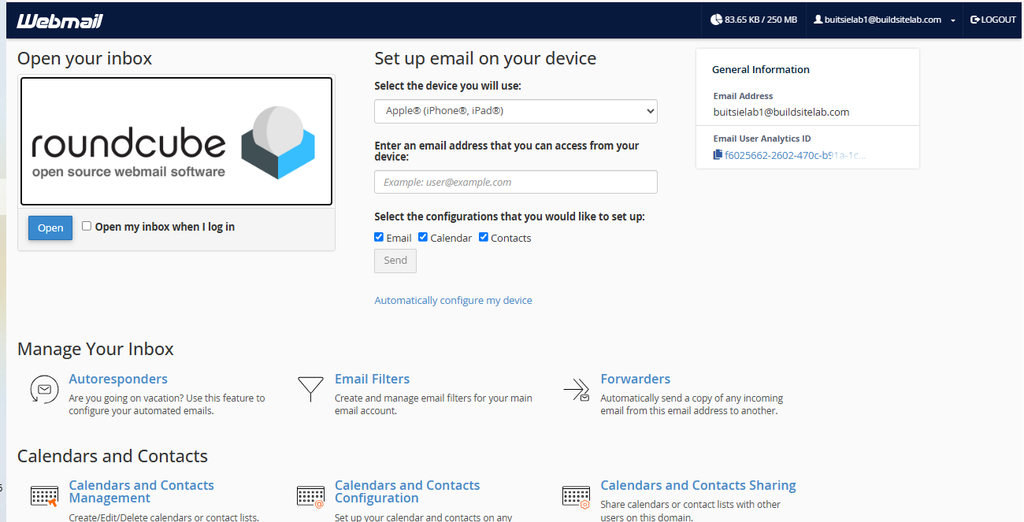
After successfully logging in, HawkHost Webmail opens the available Webmail interface.
HawkHost currently recommends Roundcube as its Webmail application.
Roundcube provides a familiar email interface where you can manage your messages directly from your browser.
What Can You Do in HawkHost Webmail?
Once you’re inside Roundcube, you can perform common email tasks.
Read Emails
Your incoming messages appear in the inbox.
You can click an email to open and read it.
Send an Email
Click Compose to create a new message.
Enter:
- Recipient
- Subject
- Message
- Attachments, if needed
Then click Send.
For example:
To: customer@example.com
Subject: Thanks for contacting us

Hi,

Thank you for contacting us.

Best regards,
BuildSiteLab
Reply to an Email
Open the message you want to answer.
Click Reply.
Write your response and click Send.
Forward an Email
If you need to send an existing message to someone else, click Forward.
You can add your own message before sending it.
Delete Emails
Select the message and click Delete.
Depending on your Roundcube configuration, deleted messages may be moved to the Trash folder rather than permanently removed immediately.
Create Email Folders
You can create folders to organize your messages.
For example:
Inbox
├── Customers
├── Orders
├── Affiliate
└── Important
This can be useful when your mailbox starts receiving a large number of emails.
How to Access Webmail on a Different Computer
One of the biggest advantages of Webmail is that you don’t need to configure the computer first.
For example, if you’re traveling and using another computer, you can open:
https://yourdomain.com/webmailThen log in with your email address and mailbox password.
When finished, remember to log out if you’re using a public or shared computer.
How to Change Your HawkHost Email Password
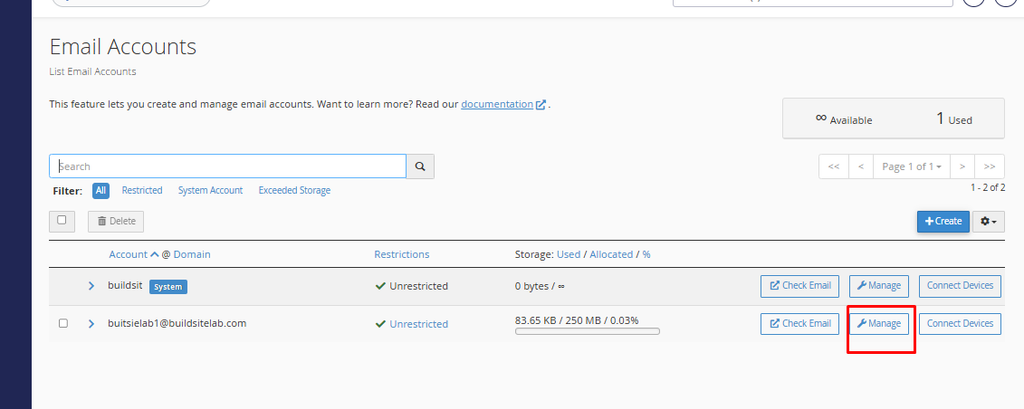
If you forgot your mailbox password, you can reset it through cPanel.
Go to:
cPanel → Email Accounts
Find your email address and click:
Manage
Then change the mailbox password and save the new settings.
After changing the password, use the new password when logging into Webmail.
HawkHost Webmail Login Not Working?
If you can’t access Webmail, don’t immediately assume that your email account is broken.
Check the following items.
1. Check the Webmail Address
Try:
https://yourdomain.com/webmailIf that doesn’t work, try:
https://yourdomain.com:2096HawkHost lists both methods in its current Webmail documentation.
2. Check Your Email Address
Make sure you’re entering the complete email address.
Correct:
hello@yourdomain.comIncorrect:
hello3. Check Your Email Password
Remember that your mailbox password is separate from your HawkHost Client Area password.
If you aren’t sure about the mailbox password, reset it through:
cPanel → Email Accounts → Manage
4. Check Whether the Email Account Exists
Log in to cPanel and open:
Email Accounts
Make sure the mailbox you’re trying to access is listed there.
For example:
hello@yourdomain.com
If the account doesn’t exist, you’ll need to create it first.
Webmail Shows a Security or SSL Warning
If you see an SSL or certificate warning, don’t simply ignore it.
First check that:
- Your domain is pointing to the correct hosting server.
- DNS changes have completed.
- You’re using
https://. - Your domain has a valid SSL certificate.
If you recently changed your nameservers or DNS records, some changes may take time to propagate.
For a newly connected domain, you can read:
How to Connect a Domain to HawkHost
and:
How to Change HawkHost Nameservers
Webmail Works but You Cannot Send Email
If you can log in to Webmail but outgoing email isn’t working, check the recipient address and try sending a simple test email.
If you are configuring the account in an email application rather than using Webmail, check the server settings under:
cPanel → Email Accounts → Connect Devices
HawkHost provides the incoming and outgoing server information and ports in this section.
For troubleshooting, avoid guessing the SMTP port or server name. Use the values displayed for your specific HawkHost account.
Webmail vs Email Apps
You have several ways to use your HawkHost email.
| Method | Best For |
|---|---|
| HawkHost Webmail | Quick browser access |
| Roundcube | Everyday browser-based email |
| Outlook | Desktop email management |
| Apple Mail | Mac/iPhone users |
| Mobile email app | Email on your phone |
If you only occasionally need to check your website email, Webmail is usually the simplest option.
If you manage email every day across multiple devices, configuring IMAP in an email application may be more convenient.
How to Find HawkHost Email Settings
If you want to configure your email in Outlook, Apple Mail, or another email application, don’t guess the server settings.
Go to:
cPanel → Email Accounts → Connect Devices
You should find the relevant configuration information for your mailbox.
The settings can include:
- Incoming server
- IMAP port
- POP3 port
- SMTP server
- SMTP port
- SSL/TLS information
- Username

How to Log Out of HawkHost Webmail
When you’re finished using Webmail, especially on a shared computer, log out of your account.
In Roundcube, use the Logout option.
This prevents another person using the same computer from opening your mailbox.
Frequently Asked Questions
How do I access HawkHost Webmail?
Open:
https://yourdomain.com/webmailThen log in with your complete email address and mailbox password. You can also use port 2096 or open Email Accounts → Check Email from cPanel.
What is the HawkHost Webmail URL?
The simplest URL is:
https://yourdomain.com/webmailYou can also use:
https://yourdomain.com:2096What is Roundcube?
Roundcube is the browser-based Webmail application used to access and manage your email messages.
Can I access HawkHost Webmail from my phone?
Yes. You can open your domain’s /webmail address from a mobile browser and log in.
For regular mobile use, you can also configure the mailbox in a compatible email application using the settings provided by cPanel.
Is HawkHost Webmail the same as cPanel?
No.
cPanel is the hosting control panel used to manage your hosting account.
Webmail is used to read and send email.
You can access Webmail from cPanel, but they serve different purposes.
Can I use HawkHost email without Webmail?
Yes. Webmail is only one way to access your mailbox.
You can also configure your email account in applications such as Outlook or Apple Mail using the appropriate IMAP/SMTP settings.
Final Thoughts
Accessing HawkHost Webmail is simple once your domain email account has been created.
The quickest method is:
https://yourdomain.com/webmail
        ↓
Enter email address
        ↓
Enter email password
        ↓
Log In
        ↓
Roundcube
        ↓
Read / Send Email
You can also access the mailbox through cPanel → Email Accounts → Check Email.