Creating a database in HawkHost cPanel is an important step when setting up a website, installing WordPress manually, or building a PHP application.
A database stores information such as WordPress posts, pages, user accounts, website settings, and plugin data. To let your website access this information, you generally need to create a database, create a database user, and assign the appropriate permissions.
HawkHost provides database management tools through cPanel, making it possible to complete these steps without using the command line.
In this guide, you will learn how to create a MySQL database in HawkHost cPanel, add a database user, assign privileges, find your connection details, and troubleshoot common database errors.
What Is a Database in Web Hosting?
A database is an organized collection of information that an application can store, retrieve, and update.
For example, a WordPress website uses its database to store:
- Posts and pages
- Comments
- User accounts and roles
- Website settings
- Plugin and theme settings
- Other application data
When someone visits a WordPress page, WordPress retrieves the relevant information from its database and combines it with the theme and other website files to display the page.
A typical WordPress installation therefore needs both website files and a database.
What Do You Need Before Creating a Database?
Before getting started, make sure you have:
- An active HawkHost hosting account with cPanel access
- Your cPanel login details
- A name for your new database
- A strong password for the database user
- Access to the website or application that will use the database
You do not need to install a separate database server for a typical shared hosting setup. HawkHost provides MySQL database functionality through its hosting environment.
If you are setting up WordPress for the first time, you may not need to create a database manually. An installer such as Softaculous may handle database creation during installation.
How to Create a Database in HawkHost cPanel
The recommended approach for a first database is to use the Database Wizard if it is available in your cPanel account.
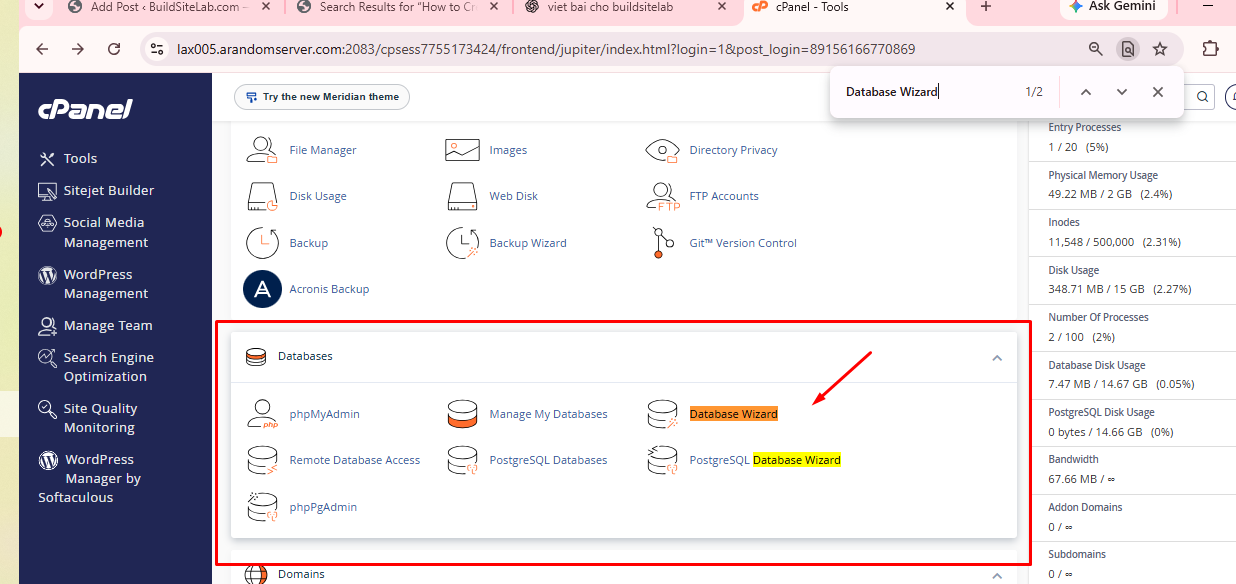
Step 1: Log In to HawkHost cPanel
First, log in to your HawkHost Client Area.
Open your active hosting service and use the cPanel login option. Alternatively, if your domain’s DNS is already pointed to HawkHost, you may be able to access cPanel through your domain.
For more details, read our guide toHow to Access HawkHost cPanel (Step-by-Step Guide)
Once cPanel opens, you can access the database tools from the dashboard.
Step 2: Open Database Wizard
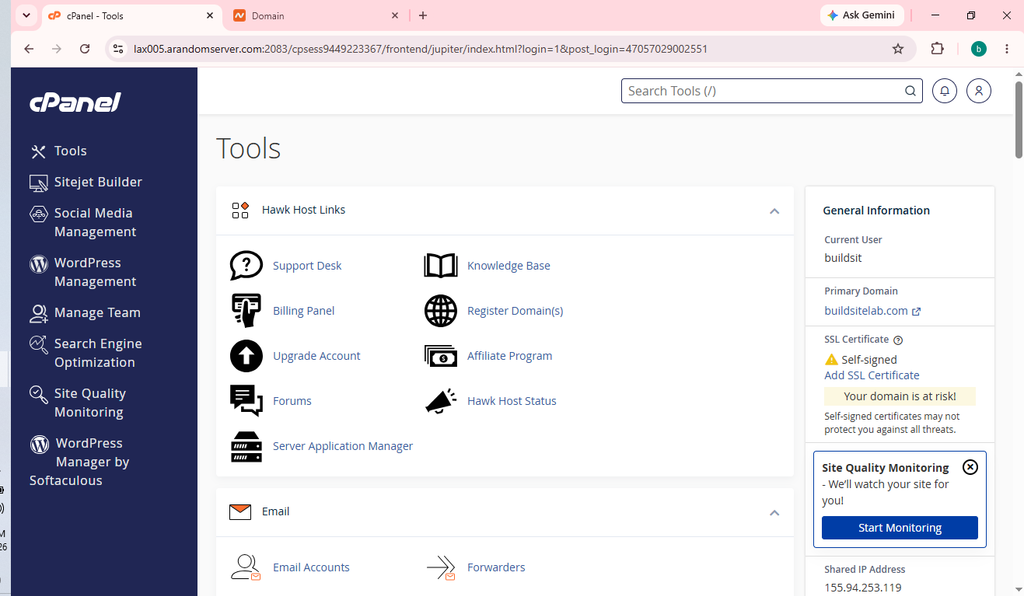
Use the search bar in cPanel and search for:
Database Wizard
Depending on your cPanel version, the tool may be called MySQL Database Wizard or Database Wizard.
Click the matching option to open it.
If you cannot find the wizard, search for MySQL Databases or Manage My Databases instead. These interfaces can also be used to create and manage databases and database users.
Step 3: Enter a Database Name
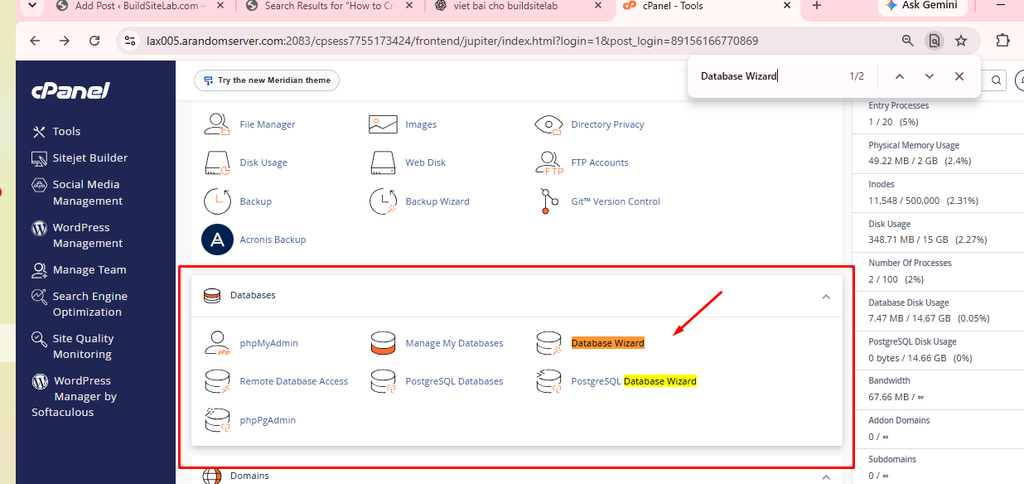
The wizard will ask you to enter a name for your new database.
For example, you could enter:
mywebsite
Your actual database name may include a prefix based on your cPanel username. The final name could look like this:
account_mywebsite
This is only an example. Use the exact name displayed in your cPanel account.
Choose a short, descriptive name that helps you identify the website or application associated with the database.
For example:
blogstoreclientappprojectdata
Avoid using spaces or unnecessary special characters.
Click Next Step to continue.
Step 4: Create a Database User
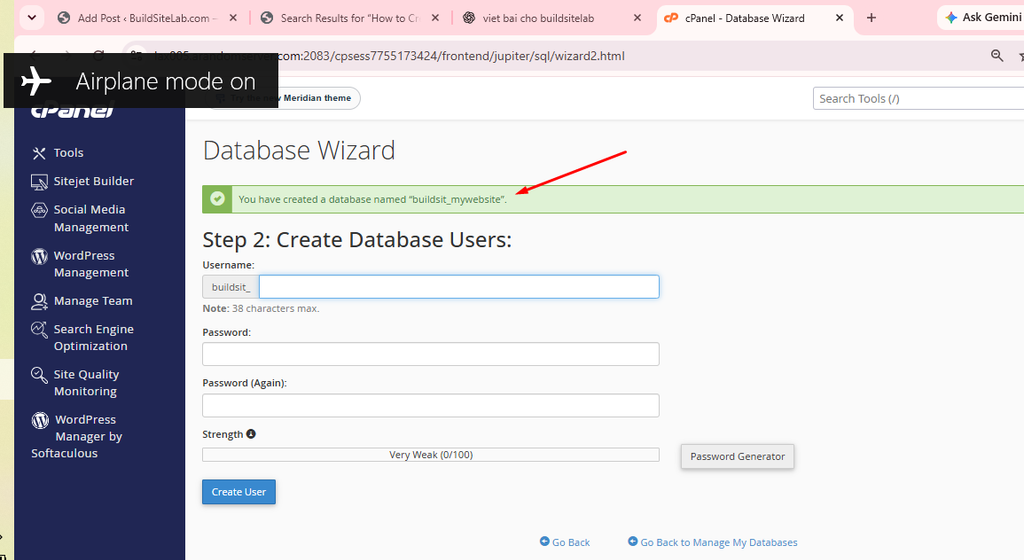
After creating the database, the wizard will ask you to create a database user.
A database user is an account that an application uses to connect to the database and perform permitted operations.
Enter a username, such as:
bloguser
Then create a strong, unique password.
Use the password generator if it is available, and store the password securely. Do not use your cPanel password as the database password.
Like database names, database usernames may include a cPanel account prefix.
For example:
account_bloguser
The exact username is the one displayed by cPanel after creation.
Click Create User or the corresponding button to continue.
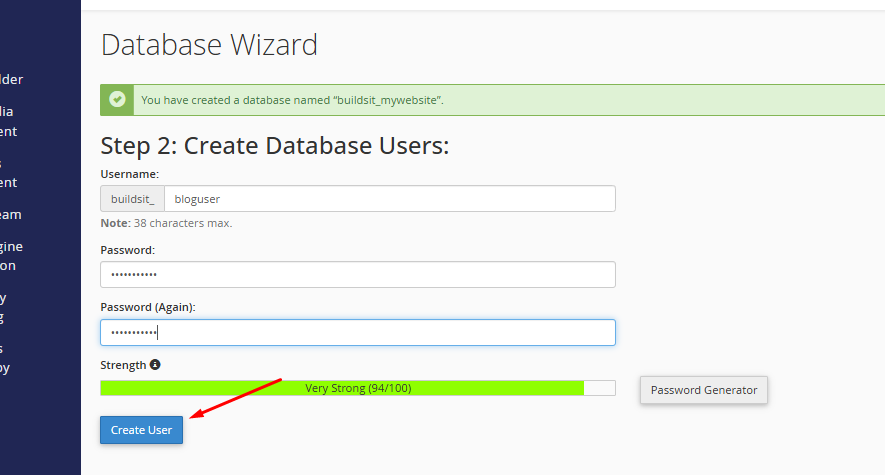
Step 5: Assign Database Privileges
The wizard will ask which permissions the new user should have.
For a typical WordPress installation, the database user generally needs sufficient privileges to create, read, update, and delete the application’s data and manage its tables.
If this database is dedicated to a WordPress installation, selecting ALL PRIVILEGES for its dedicated database user is a common setup.
Only grant these privileges to the intended user and database. Avoid giving unnecessary access to unrelated databases.
Select the appropriate permissions and click Next Step.
The wizard normally connects the newly created user to the database as part of the process.

Step 6: Confirm That the Database Was Created
After completing the wizard, cPanel should display a confirmation message.
Your database and database user should now be available in the account’s database management interface.
Keep a secure record of the following information:
- Database name
- Database username
- Database password
- Database hostname
You will need these details when configuring WordPress or another application.

How to Create a Database Using MySQL Databases
If the Database Wizard is unavailable, you can create a database through the MySQL Databases or Manage My Databases interface.
The labels may differ depending on your cPanel version.
Step 1: Open MySQL Databases
Log in to cPanel and search for:
MySQL Databases
Open the interface. If your version uses the newer label Manage My Databases, open that option instead.
Step 2: Create a New Database
Find the section labeled Create New Database or the equivalent database creation field.
Enter your chosen database name and click Create Database.
cPanel may automatically add your account prefix to the name.
Return to the database management page and confirm that the database appears in the list of current databases.
Step 3: Create a Database User
Find the MySQL Users section and locate the option to add a new user.
Enter a username and generate a strong password.
Click Create User.
Step 4: Add the User to the Database
In the Add User To Database section:
- Select the database user.
- Select the database you created.
- Click Add.
- Choose the required privileges.
- Click Make Changes or the equivalent confirmation button.
This step is essential. Creating a database and creating a user separately does not necessarily grant the user access to that database.
Once the user has been added and the privileges saved, you can use the database credentials to configure your application.
Important: Do not use phpMyAdmin as a substitute for cPanel’s database creation tools. HawkHost and cPanel recommend creating databases and database users through the dedicated cPanel interface so that account management, backups, and restorations work correctly.
How to Find Your Database Name and Username
After creating a database, you may need to retrieve its exact name or username.
- Log in to cPanel.
- Open MySQL Databases or Manage My Databases.
- Locate the Current Databases section.
- Find your database name and its associated user.
Remember that the final name may contain a prefix.
For example, if you entered mywebsite but cPanel displays account_mywebsite, use the complete name shown by cPanel in your application’s configuration.
Do not remove the prefix just because it was not part of the name you originally entered.
What Is the MySQL Hostname in HawkHost?
For applications running on the same server as your HawkHost database, the MySQL hostname is generally:
localhost
This is the hostname commonly used for a WordPress installation hosted on the same HawkHost account.
For example, a WordPress configuration may contain:
define( 'DB_NAME', 'account_mywebsite' );
define( 'DB_USER', 'account_bloguser' );
define( 'DB_PASSWORD', 'your-strong-password' );
define( 'DB_HOST', 'localhost' );
These are example values, not your actual credentials.
Use the exact database name, username, and password from your account. Never publish your real database password in an article, screenshot, public support forum, or source-code repository.
For remote database connections, the hostname and access requirements may be different. Check HawkHost’s documentation before configuring an external application.
How to Connect the Database to WordPress
If you are installing WordPress manually, you will need to provide the database details during setup or configure them in the wp-config.php file.
The key settings are:
DB_NAME: Your complete database nameDB_USER: Your complete database usernameDB_PASSWORD: The database user’s passwordDB_HOST: Usuallylocalhostfor a WordPress installation on the same HawkHost server
For an existing WordPress website, do not change these values unless you understand how the website connects to its database.
Incorrect database details can cause a database connection error and make your website unavailable.
If you are installing WordPress through Softaculous, the installer may create and configure the database automatically. In that case, manual database creation is usually unnecessary unless you have a specific reason to manage it yourself.
Related guide:How to Install WordPress on HawkHost: A Complete Step-by-Step Guide.
How to Access Your Database Using phpMyAdmin
Once your database has been created, you can use phpMyAdmin to inspect and manage its contents.
Step 1: Open phpMyAdmin
Log in to cPanel and search for:
phpMyAdmin
Click the option to open the database management interface.
Step 2: Select Your Database
Your available databases should appear in the left-hand navigation panel.
Click the database you want to inspect.
You may see tables with names such as wp_posts, wp_options, or similar names, depending on your WordPress table prefix.
Step 3: Browse the Database Tables
You can use phpMyAdmin to browse tables, run SQL queries, and import or export database data.
Be careful when modifying or deleting records. Changes to the wrong table can break a website or remove important information.
Before making major database changes, create a backup.
For more information, read our guide to How to Backup Your Website in HawkHost (Step-by-Step Guide) and HawkHost’s documentation on Accessing phpMyAdmin.
Common Database Creation Problems and Solutions
1. The Database Wizard Is Missing
Your cPanel interface may use a different name, or the feature may not be enabled for your account.
Search for MySQL Databases or Manage My Databases.
If none of the database management tools appear, contact HawkHost support.
2. The Database Name Includes a Prefix
This is normal in many cPanel environments.
Use the complete database name displayed in cPanel, including the account prefix and underscore.
3. The Database User Cannot Access the Database
The database user may not have been added to the database, or the necessary privileges may not have been granted.
Open the database management interface and confirm that the correct user is associated with the intended database.
Check the privileges and save any necessary changes.
4. WordPress Shows “Error Establishing a Database Connection”
This error often indicates that WordPress cannot connect to the database using its current configuration.
Check the following:
- The database name is correct.
- The database username is correct.
- The password matches the database user.
- The user has access to the database.
- The database hostname is correct.
- The database and hosting service are operating normally.
If all settings appear correct and the error persists, contact HawkHost support for assistance.
5. You Cannot Find the Database in phpMyAdmin
First, check whether the database appears in MySQL Databases or Manage My Databases in cPanel.
If it exists in cPanel but is not visible in phpMyAdmin, confirm that you are accessing the correct hosting account and ask HawkHost support to investigate if needed.
6. You Need to Connect From Another Server
HawkHost generally restricts MySQL connections to the local server by default.
Remote access requires additional authorization. According to HawkHost’s documentation, you may need the support team to whitelist the connecting IP address through the server firewall and then authorize the host in cPanel’s Remote MySQL interface.
Do not expose your database to remote connections unless you need them. Restrict access to the specific host or IP address that requires it.
See HawkHost’s guide: How to Create a MySQL Database
Database Security Best Practices
Follow these recommendations to protect your database and website:
- Use a strong password. Generate a unique password for every database user.
- Limit privileges appropriately. Grant access only to the databases and operations the application needs.
- Protect configuration files. Never share your actual database password publicly.
- Back up regularly. Keep a recoverable copy of your website files and database.
- Be careful in phpMyAdmin. Avoid running unfamiliar SQL commands or deleting tables without a backup.
- Avoid unnecessary remote access. Keep database connections local unless external access is required.
- Remove unused database users carefully. Confirm that no active application still depends on the account before deleting it.
Frequently Asked Questions
Does HawkHost support MySQL databases?
HawkHost documents MySQL database creation and user management through cPanel for its shared, reseller, and semi-dedicated hosting environments. Check your current hosting service and cPanel interface for the features available to your account.
Should I create the database before installing WordPress?
Not always. If you use an installer such as Softaculous, it may create and configure the database automatically. Manual database creation is useful when installing WordPress yourself or configuring a custom application.
Can one database have multiple users?
Yes. You can associate database users with a database and assign appropriate privileges through cPanel. The correct setup depends on the applications and access requirements.
Can I create a database through phpMyAdmin?
Use cPanel’s Database Wizard or MySQL Databases interface to create databases and users. Use phpMyAdmin primarily to manage existing database contents, run queries, and import or export data.
What should I use as the database hostname?
For an application running on the same server as your HawkHost database, the hostname is generally localhost. Remote connections require different configuration and authorization.
Can I delete a database if I no longer need it?
Yes, but be careful. Deleting a database can permanently remove website content, settings, and other application data. Before deleting one, confirm that no active website depends on it and create a backup if the data might be needed later.
Final Thoughts
Creating a database in HawkHost cPanel involves more than entering a database name. You also need a database user, the appropriate privileges, and the correct connection details for your application.
For a first database, use Database Wizard if it is available. Otherwise, create the database and user through MySQL Databases or Manage My Databases.
Once everything is configured, keep your credentials secure, test the application connection, and maintain regular backups
1 thought on “How to Create a Database in HawkHost cPanel”