How to Redirect a Domain
There are many situations where you may need to redirect one domain or URL to another. Perhaps you have moved your website to a new domain, purchased an additional domain for your brand, changed your website structure, or simply want visitors to use the HTTPS version of your website.
For example, you may have an old domain:
oldexample.comand want visitors to automatically reach:
newexample.comThe basic process looks like this:
oldexample.com
       ↓
   Redirect
       ↓
newexample.com
A domain redirect automatically sends visitors from one URL or domain to another. The most common type for permanent changes is a 301 redirect, while a 302 redirect is generally used for temporary situations.
In this guide, you’ll learn what a domain redirect is, when you should use one, the difference between 301 and 302 redirects, how to redirect a domain using HawkHost cPanel, how to use .htaccess, and how redirects can affect SEO.
If you’re also learning about domain parking, see How to Park a Domain because parking and redirecting solve different problems.
What Is a Domain Redirect?
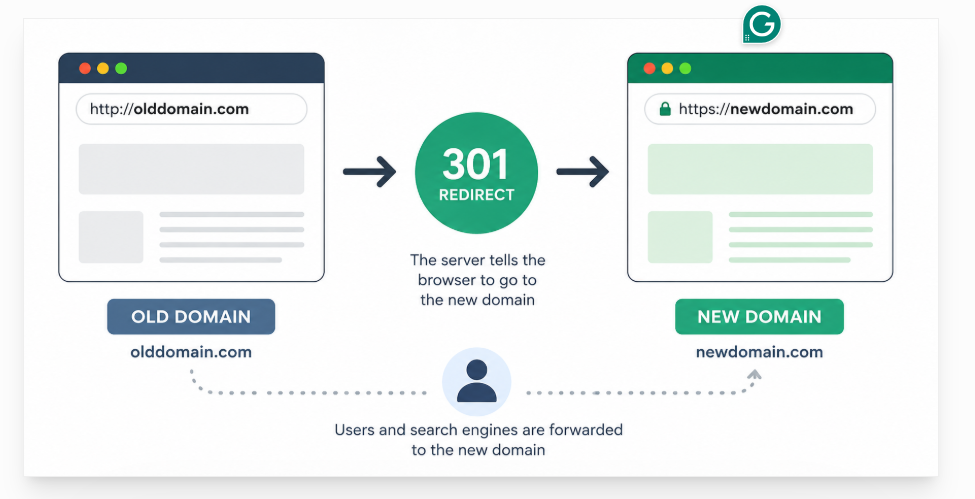
A domain redirect automatically sends visitors from one URL to another URL.
For example:
oldsite.com
     ↓
301 Redirect
     ↓
newsite.com
When someone enters:
oldsite.comtheir browser is directed to:
newsite.comA redirect isn’t limited to moving an entire domain. You can redirect:
- One domain to another domain
- One URL to another URL
- An old website to a new website
- HTTP to HTTPS
- One page to another page
- One version of a domain to another version
For example:
http://example.com
        ↓
https://example.com
Or:
example.com/old-page/
        ↓
example.com/new-page/
These are all common uses of redirects.
Why Would You Redirect a Domain?
There are several practical reasons to redirect a domain.
1. Moving to a New Domain
One of the most common situations is changing the domain of an existing website.
For example:
oldbrand.com
       ↓
newbrand.com
Instead of leaving visitors who use the old domain with an error page, you can redirect the old domain to the new one.
If the change is permanent, a 301 redirect is generally the appropriate type.
2. Redirecting an Old Domain
You may continue owning an old domain even after moving your website elsewhere.
For example:
oldwebsite.com
       ↓
newwebsite.com
A redirect allows people who still use bookmarks, old links, or search results to reach the new website.
3. Protecting Brand Variations
A business may own several domain extensions:
example.com
example.net
example.org
Instead of maintaining three separate websites, you might redirect the additional domains to your preferred domain:
example.net
      ↓
example.com
example.org
↓
example.comThis is different from using aliases or parked domains, because a redirect actually sends the visitor to another URL.
4. Changing Website Structure
You don’t always need to redirect an entire domain.
Suppose you previously had:
example.com/old-page/but the new URL is:
example.com/new-page/You can redirect the old URL to the new URL:
example.com/old-page/
          ↓
example.com/new-page/
This is particularly useful when reorganizing an existing website.
5. Redirecting HTTP to HTTPS
Another common redirect is:
http://example.com
        ↓
https://example.com
This ensures visitors are sent to the HTTPS version of the website.
For a modern website, maintaining a consistent HTTPS version is an important part of a clean technical setup.
301 vs. 302 Redirect: What’s the Difference?
Understanding the difference between 301 and 302 redirects is essential.
What Is a 301 Redirect?
A 301 redirect indicates that a URL has moved permanently.
For example:
oldsite.com
     ↓
    301
     ↓
newsite.com
You would typically consider a 301 redirect when:
- Moving to a new domain
- Permanently changing a URL
- Moving a website from HTTP to HTTPS
- Replacing an old page with a new page
- Permanently restructuring a website
The important word is permanent.
What Is a 302 Redirect?
A 302 redirect is generally used when the redirect is temporary.
For example:
example.com
     ↓
    302
     ↓
temporary-page.com
You might use a temporary redirect when testing a change or temporarily sending visitors somewhere else.
The key distinction is:
| 301 Redirect | 302 Redirect |
|---|---|
| Permanent | Temporary |
| Used for long-term changes | Used for temporary changes |
| Common for domain migration | Common for temporary redirects |
| Appropriate for permanent URL changes | Not normally used as a replacement for a permanent 301 |
This distinction is also important when you’re considering SEO and website migration.
Domain Redirect vs. Domain Parking
If you’re building a domain cluster, this distinction is especially important.
A redirect sends the visitor from one URL to another.
For example:
oldsite.com
     ↓
newsite.com
After the redirect, the visitor ends up on:
newsite.comWith a parked domain or alias, the additional domain can instead be associated with an existing website, depending on the hosting configuration.
For example:
example.com
example.net
     ↓
Same Website
The two approaches therefore have different purposes.
| Redirect | Parking / Alias |
|---|---|
| Sends visitors to another URL | Associates another domain with a website |
| URL generally changes | Additional domain may remain visible |
| Uses 301 or 302 | Usually involves alias/parked-domain configuration |
| Useful for domain migration | Useful when multiple domains need to access the same website |
This is why your How to Park a Domain article and this article should remain separate. The parking article focuses on associating an additional domain with an existing website, while this article focuses on actually redirecting visitors from one URL/domain to another.
Domain Redirect vs. Addon Domain
An addon domain serves yet another purpose.
Suppose you have:
example.com
     ↓
Website A
and want to create:
secondsite.com
     ↓
Website B
That’s an addon domain scenario.
A redirect would instead look like:
oldsite.com
     ↓
newsite.com
The key question is:
Do you want another website, or do you simply want visitors to be sent somewhere else?
Choose a redirect when:
You want one URL/domain to send visitors to another URL/domain.
Choose an addon domain when:
You want to host an independent website.
For more information, link this section to:
What Is an Addon Domain?
and:
How to Create an Addon Domain in HawkHost.
How to Redirect a Domain in HawkHost
Now let’s move to the practical part.
If you’re using HawkHost, you can typically manage redirects through cPanel. However, cPanel interfaces can vary depending on the version and hosting configuration.
For that reason, your article should use screenshots from the HawkHost account you’re actually using, rather than relying on screenshots from an unrelated cPanel tutorial.
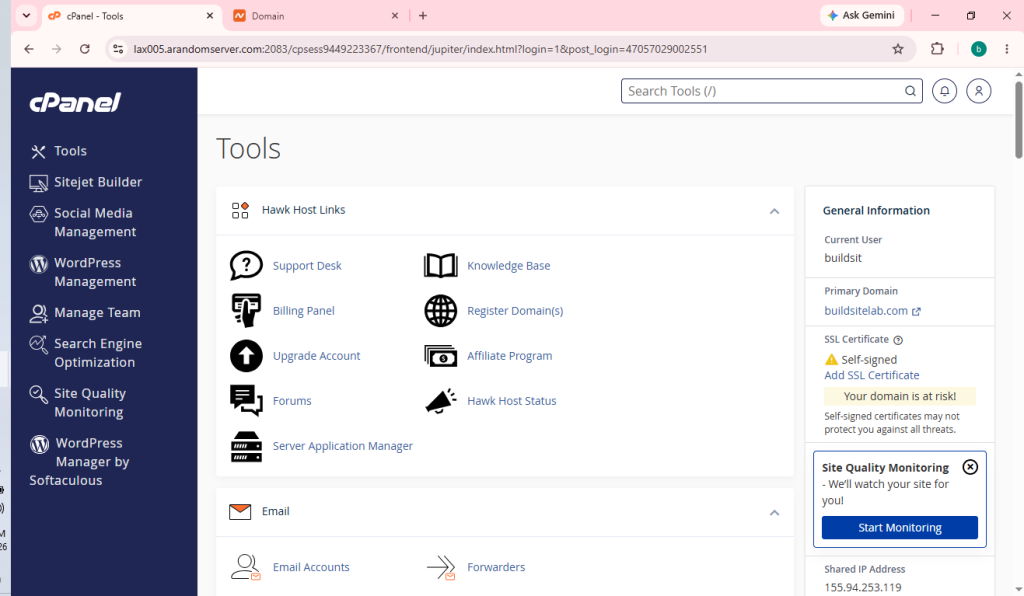
Step 1: Log in to HawkHost
First, log in to your HawkHost Client Area.
A typical path is:
HawkHost Client Area
        ↓
    My Services
        ↓
      cPanel
Once you’re inside cPanel, you can manage your domains and other hosting settings.
You can link this section to:
How to Log in to HawkHost
Step 2: Open Domains in cPanel
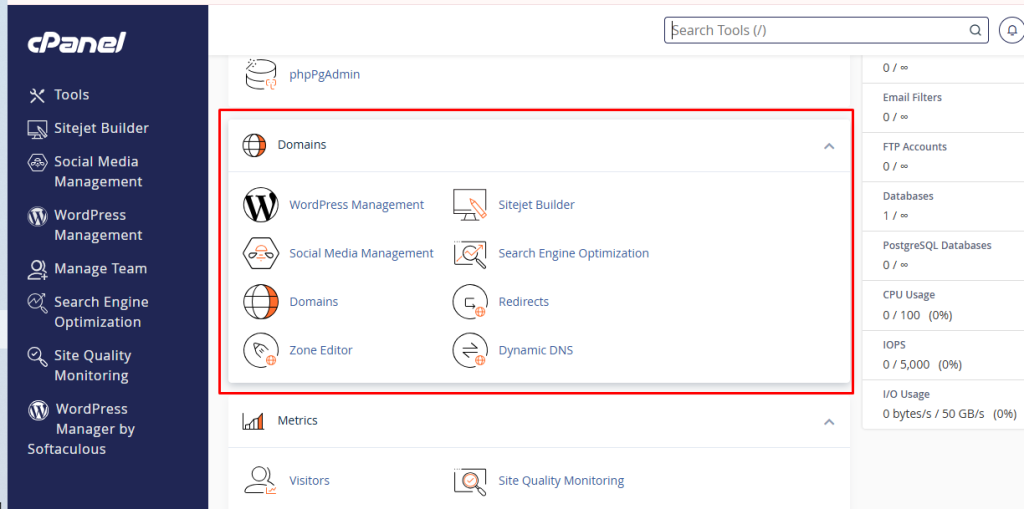
Once you’re inside cPanel, locate the Domains section.
Depending on the version of cPanel you’re using, the exact layout may differ.
Look for the domain management tools.
Step 3: Open Redirects
Next, locate the Redirects option.
Depending on your account’s interface, you may see this directly in cPanel.
For example:
cPanel
   ↓
Domains
   ↓
Redirects
If the Redirects interface isn’t available in the place shown in an older tutorial, don’t assume your account is broken. cPanel features and layouts can vary depending on the hosting configuration.
Screenshot: cPanel Redirects interface.
Suggested file name:
hawkhost-cpanel-redirects.webp
This is an excellent place to use a real HawkHost screenshot because readers can visually follow exactly what you’re doing.
Step 4: Choose the Redirect Type
You’ll need to decide whether you’re creating a permanent or temporary redirect.
For a permanent move, choose:
301 — Permanent
For a temporary redirect, choose:
302 — Temporary
For example, if you have permanently moved:
oldexample.comto:
newexample.comyou would normally choose:
301 PermanentDon’t choose 302 simply because it sounds like another option. Your choice should reflect whether the change is actually permanent or temporary.
Step 5: Select the Domain
Next, select the domain that you want to redirect.
For example:
oldexample.comThis is the source domain.
The source is where the visitor starts.
The destination is where the visitor should end up.
Conceptually:
SOURCE
oldexample.com
      ↓
   Redirect
      ↓
DESTINATION
newexample.com
Step 6: Enter the Destination URL
Now enter the destination.
For example:
https://newexample.comYou can also redirect to a specific page.
For example:
https://newexample.com/about/So the configuration could be:
oldexample.com
       ↓
301 Redirect
       ↓
https://newexample.com/about/
Be careful when entering the destination URL.
Check:
- HTTPS
- Domain spelling
- Path
- Trailing slash where appropriate
- Whether the destination actually exists
Step 7: Create the Redirect
Before saving the redirect, review the settings.
Check:
- Redirect type
- Source domain
- Destination URL
For example:
Type:
301 Permanent

Source:
oldexample.com

Destination:
https://newexample.com
If everything is correct, create the redirect.
These practical screenshots are particularly valuable for your BuildSiteLab article because they demonstrate a real hosting workflow rather than generic theory.
How to Redirect a Domain Using .htaccess
Another method is to configure redirects using .htaccess.
This can be useful for websites running on Apache where .htaccess rules are supported.
For example, a 301 redirect can be configured with rules such as:
RewriteEngine On

RewriteCond %{HTTP_HOST} ^oldexample\.com$ [OR]
RewriteCond %{HTTP_HOST} ^www\.oldexample\.com$

RewriteRule ^(.*)$ https://newexample.com/$1 [R=301,L]
The basic purpose of each part is:
RewriteEngine Onenables rewrite functionality.HTTP_HOSTidentifies the old domain.R=301tells the server to issue a permanent redirect.$1preserves the path after the domain.
For example:
oldexample.com/aboutcan become:
newexample.com/aboutThis approach is powerful, but it requires more care than using a graphical cPanel interface.
Important Warning
Incorrect .htaccess rules can cause problems such as:
- Redirect loops
- 500 Internal Server Errors
- Pages becoming inaccessible
- Unexpected redirects
If your audience consists mainly of beginners, the cPanel Redirects method should be your primary tutorial, while .htaccess can be presented as an alternative method.
How to Redirect a Domain Without Hosting
You don’t necessarily need hosting on the source domain to redirect it.
Some domain registrars and DNS providers offer URL forwarding or domain forwarding.
The basic structure is:
oldexample.com
       ↓
Domain Registrar
       ↓
URL Forwarding
       ↓
newexample.com
For example, if you own a domain but don’t have a hosting account for it, your registrar may provide a forwarding feature.
However, the availability and implementation of domain forwarding depend on the registrar or DNS provider.
This is useful to cover because it allows your article to target the broader keyword:
how to redirect a domain without hosting
rather than limiting the article exclusively to HawkHost.
How to Redirect HTTP to HTTPS
One of the most common redirects is:
http://example.com
        ↓
https://example.com
The purpose is to make visitors use the HTTPS version of your website.
For example:
http://example.com/aboutshould eventually become:
https://example.com/aboutBefore setting this up, make sure your SSL certificate is correctly configured.
You can link this section to:
How to Install Free SSL on HawkHost
The important thing is to avoid creating a redirect loop between HTTP and HTTPS.
How to Redirect www to Non-www
You may also want to choose between these versions:
www.example.comand:
example.comFor example:
www.example.com
       ↓
example.com
Or you could choose the opposite:
example.com
       ↓
www.example.com
There isn’t a universal requirement that every website must use one particular version.
The important thing is to choose your preferred version and configure the website consistently.
Your internal links, canonical URLs, redirects, and WordPress settings should all support the same preferred version.
How to Redirect One Page to Another
You don’t always need to redirect an entire domain.
Sometimes only one URL needs to change.
For example:
example.com/old-page/
          ↓
example.com/new-page/
This is useful when:
- A page URL changes
- You delete an old page
- You merge two articles
- You reorganize website content
- You change your URL structure
With .htaccess, a simple redirect can look like:
Redirect 301 /old-page/ https://example.com/new-page/For SEO, redirecting the old URL to the most relevant new URL is generally preferable to simply sending every old page to the homepage when an equivalent page exists.
How to Test a Domain Redirect
After creating the redirect, don’t assume it works just because cPanel says the rule was created.
Test it yourself.
Test 1: Open the Old Domain
Visit:
oldexample.comDoes it redirect?
Test 2: Check the Destination
Make sure you end up at:
newexample.comrather than another unexpected URL.
Test 3: Test HTTPS
Try:
https://oldexample.comand make sure the redirect behaves correctly.
Test 4: Test URL Paths
If you’re redirecting an entire domain, test an internal URL too.
For example:
oldsite.com/aboutshould ideally go to the appropriate destination:
newsite.com/aboutwhen the corresponding page exists.
Test 5: Check the Redirect Status
You can also use an HTTP status or redirect-chain checker to verify that the server returns the expected redirect status.
For a permanent migration, you generally want to see:
301Common Domain Redirect Problems
Redirects are simple when configured correctly, but several problems occur frequently.
Problem 1: Redirect Loop
A redirect loop happens when URLs continuously redirect to each other.
For example:
A
↓
B
↓
A
↓
B
The browser can eventually show a “too many redirects” error.
Check your redirect rules and make sure the source and destination don’t redirect back to each other.
Problem 2: Redirect Doesn’t Work
If the redirect isn’t working, check:
- DNS
- Domain configuration
- cPanel redirect settings
.htaccess- Server configuration
Also make sure you’re testing the correct domain and URL.
Problem 3: HTTPS Redirect Loop
You may encounter a loop involving HTTPS when several systems are trying to control the redirect simultaneously.
Potential causes include:
- SSL configuration
- Reverse proxy
- CDN
- WordPress URL settings
- Server redirect rules
For example:
HTTP
 ↓
HTTPS
 ↓
HTTP
 ↓
HTTPS
This can create an endless cycle.
All layers should agree on the preferred protocol.
Problem 4: 404 After Redirect
A redirect can also lead to a 404 error if the destination URL doesn’t exist.
For example:
oldsite.com/old-page
        ↓
newsite.com/old-page
If newsite.com/old-page doesn’t exist, the visitor may end up on a 404 page.
When migrating content, make sure old URLs point to appropriate new URLs.
Problem 5: Too Many Redirects
A redirect chain can become unnecessarily complicated:
HTTP
 ↓
HTTPS
 ↓
WWW
 ↓
Non-WWW
 ↓
Another URL
The more redirects that occur before the final page, the more complicated the setup becomes.
Whenever possible, keep the redirect path simple.
For example:
oldsite.com
      ↓
newsite.com
is preferable to:
oldsite.com
      ↓
temporarysite.com
      ↓
www.temporarysite.com
      ↓
newsite.com
Domain Redirect and SEO
This section is especially important for a website like BuildSiteLab because readers searching for domain redirects may be dealing with website migrations.
If you’re permanently moving a website, a 301 redirect is generally the appropriate type of redirect.
For example:
oldsite.com/page-a
        ↓
       301
        ↓
newsite.com/page-a
When a corresponding page exists, it’s better to redirect users to the relevant new page rather than automatically sending every old URL to the homepage.
For example:
oldsite.com/page-a
        ↓
newsite.com/page-a
is usually a more logical migration structure than:
oldsite.com/page-a
        ↓
newsite.com
when /page-a has a direct replacement.
The source material also recommends avoiding long redirect chains such as:
A → B → C → Dand, where possible, redirecting directly:
A → DIt also recommends avoiding redirects to unrelated content.
301 Redirect Best Practices for Website Migration
If you’re moving an entire website to a new domain, don’t create just one redirect and assume the migration is complete.
For example, imagine your old site has:
oldsite.com/
oldsite.com/about/
oldsite.com/services/
oldsite.com/blog/
The new site might have:
newsite.com/
newsite.com/about/
newsite.com/services/
newsite.com/blog/
Where appropriate, create direct mappings:
oldsite.com/about/
       ↓
newsite.com/about/
oldsite.com/services/
↓
newsite.com/services/oldsite.com/blog/
↓
newsite.com/blog/This provides a clearer migration structure than sending every old URL to the homepage.
When Should You Use a 302 Instead?
A 302 makes more sense when the redirect is genuinely temporary.
For example, you might temporarily send visitors to a different page while testing something.
The important thing is not to use 302 simply because you’re unsure whether to choose 301.
Ask:
Is this change permanent?
If yes, a 301 is generally the better fit.
If no, and the original URL is expected to return, a temporary redirect may be appropriate.
Frequently Asked Questions
What is a domain redirect?
A domain redirect automatically sends visitors from one domain or URL to another.
For example:
oldsite.com
     ↓
newsite.com
What is a 301 redirect?
A 301 redirect indicates that a URL has permanently moved to another location.
It is commonly used for permanent domain migrations and URL changes.
What is the difference between 301 and 302?
A 301 is intended for a permanent redirect, while a 302 is generally used for a temporary redirect.
Can I redirect one domain to another?
Yes. A domain can be redirected to another domain when your hosting provider, registrar, or DNS/forwarding service supports the required configuration.
For example:
olddomain.com
      ↓
newdomain.com
Can I redirect a domain in HawkHost?
If your HawkHost hosting account provides the appropriate cPanel redirect functionality, you can configure redirects through cPanel.
The exact interface may vary depending on the current cPanel and hosting configuration.
Can I redirect a domain without hosting?
Yes, potentially.
If your domain registrar or DNS provider offers URL forwarding/domain forwarding, you may be able to redirect a domain without hosting the source domain on a separate web hosting account.
Does a domain redirect affect SEO?
It can.
For permanent website or URL changes, a correctly configured 301 redirect is commonly used to help search engines understand that a URL has moved.
You should also avoid unnecessary redirect chains and redirect users to the most relevant destination.
How long does a domain redirect take?
Once the redirect is correctly configured on the server, it can work quickly.
However, if you’ve also changed DNS or nameservers, DNS propagation can affect how quickly the new configuration becomes visible.
Can I redirect one page to another?
Yes.
For example:
example.com/old-page/
       ↓
example.com/new-page/
This is useful when changing URLs, consolidating content, or restructuring a website.
Conclusion
A domain redirect is one of the most useful tools for managing an existing website.
The basic concept is simple:
Old Domain
    ↓
301 Redirect
    ↓
New Domain
If you’re permanently moving a domain or URL, a 301 redirect is generally the appropriate choice. If the change is temporary, a 302 redirect may be more suitable.
If you’re using HawkHost, you can manage redirects through cPanel when the relevant functionality is available. For more advanced configurations, .htaccess can also be used, although beginners should be careful because incorrect rewrite rules can cause redirect loops or server errors.
The most important thing is to decide what you actually want to accomplish before configuring the redirect.
- Want another domain to access the same website? → Consider a domain alias/parking setup.
- Want visitors to permanently move to another domain? → Use a 301 redirect.
- Want a temporary destination? → Consider a 302 redirect.
- Want a completely separate website? → Use an addon domain.
- Want a separate section under your existing domain? → Consider a subdomain.
For the next step in your HawkHost cluster, continue with:
How to Create an Addon Domain in HawkHost
You can also connect this article to How to Park a Domain, How to Connect a Domain to HawkHost, How to Change Nameservers in HawkHost, How to Access HawkHost cPanel, and How to Install Free SSL on HawkHost. The uploaded outline specifically places these articles together within the domain/HawkHost cluster.