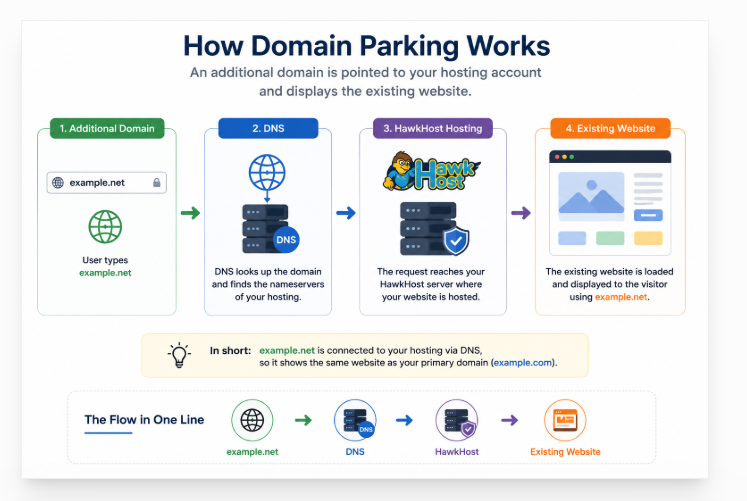
How to Park a Domain
Have you registered a domain that you don’t want to use for a separate website? You may be able to associate it with an existing website using a domain alias or parked domain configuration.
Domain parking can refer to different things depending on the context. In a hosting environment, it commonly means associating an additional domain with an existing website or hosting account. In other contexts, domain parking can mean holding an unused domain or displaying a monetized parking page.
For example, you may already have:
example.combut also own:
example.netYou might want the second domain to be associated with your existing website rather than creating another website from scratch.
This is where domain parking can be useful.
In a hosting environment, parking a domain generally means associating an additional domain with an existing website or hosting setup. Depending on how you configure it, the additional domain may display the same website, act as an alias, or be redirected to your primary domain.
However, domain parking is often confused with addon domains, subdomains, and URL redirects. These are not the same thing.
In this guide, you’ll learn what domain parking means, when you should use it, how it differs from other domain configurations, and how to set up an additional domain using HawkHost and cPanel.

What Does It Mean to Park a Domain?
Domain parking is the practice of associating a domain with a website, hosting account, or parking service without necessarily creating a separate website for that domain.
For example, suppose your main website is:
example.comYou also own:
example.netInstead of creating another website for example.net, you could configure the additional domain to work with your existing website.
The exact meaning of “parked domain” depends on the hosting provider and context, so the term should not be confused with a 301 redirect or an addon domain.
A simplified structure looks like this:
example.com
     │
     │
     ▼
Existing Website
     ▲
     │
     │
example.net
The exact behavior depends on how the domain, DNS, hosting configuration, and website itself are set up.
This is important because parking a domain does not always mean the browser will automatically redirect to your primary domain.
You need to distinguish between:
- A domain alias/parked domain
- A 301 redirect
- An addon domain
- A completely unused registered domain
These configurations have different purposes.
Two Different Meanings of “Domain Parking”
Before continuing, there is an important terminology issue.
The phrase domain parking can refer to two different concepts.
1. Parking a domain on hosting
This is the topic of this article.
You have an additional domain and associate it with an existing hosting account or website.
For example:
example.com
example.net
     ↓
Same hosting / website
2. Commercial domain parking
Some companies use “domain parking” to describe keeping a domain registered and displaying advertising or other monetized content on it.
That is a different concept.
For BuildSiteLab, this article should focus on the hosting/cPanel meaning, because it fits naturally into your domains and HawkHost content cluster.
How Does Domain Parking Work?
How does domain parking work? In a typical hosting setup, parking a domain name involves connecting the additional domain to your DNS and hosting configuration and associating it with an existing website.
A simplified domain parking process looks like this:
Additional Domain
       ↓
      DNS
       ↓
    Hosting
       ↓
Domain Configuration
       ↓
Existing Website
For example:
example.com
    ↓
Main Website

example.net
    ↓
DNS / Hosting
    ↓
Same Website
The domain itself is registered with a domain registrar, while your website may be hosted by a company such as HawkHost.
This means there are several components involved:
Domain registrar
Where you registered the domain.
DNS
Determines where the domain points.
Hosting account
Provides the server where the website is hosted.
cPanel
Provides tools for managing domains and other hosting features.
The configuration needs to be correct across these components for the additional domain to work properly.
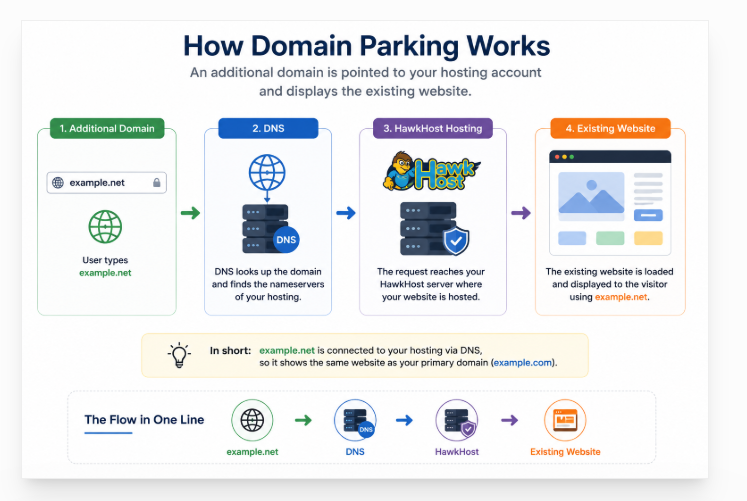
How to Park a Domain Name
Parking a domain name usually involves connecting an additional domain to an existing hosting account or website rather than creating a completely separate website. The exact setup depends on your hosting provider and what you want the domain to do.
In a typical hosting setup, the process looks like this:
- Register the domain – Make sure the domain name is registered and active.
- Choose your hosting configuration – Decide whether you want the domain to work as an alias of an existing website or serve a separate website.
- Point the domain to your hosting account – Configure the domain’s nameservers or DNS records so it points to the correct hosting environment.
- Add the domain as an alias – In your hosting control panel, add the domain and associate it with the existing website if you want both domains to use the same site.
- Verify DNS and SSL – Check that the domain resolves correctly and that HTTPS works with a valid SSL certificate.
The exact steps depend on your hosting provider and control panel. If you’re using HawkHost, the next section walks you through how to park a domain on HawkHost using cPanel, including domain configuration, DNS, and SSL considerations.
When Should You Park a Domain?
Domain parking can be useful in several situations.
1. You Own Multiple Domain Extensions
Suppose your main brand uses:
yourbrand.comYou may also register:
yourbrand.net
yourbrand.org
You might want to keep these domains under your control and associate them with the main website.
This can help prevent other people from registering the same brand name using those extensions.
2. You Want an Alternative Domain
You may have two domains that represent the same website.
For example:
example.com
example.net
If your hosting configuration supports aliases, the additional domain can be associated with the existing website.
This can be useful when you want visitors to be able to access the same website through more than one domain.
3. You Want to Protect Your Brand
Businesses sometimes register additional domains related to their brand.
For example:
brand.com
brand.net
brand.org
You may not need to build a website on every domain.
Instead, you can keep the domains registered and configure the ones you need according to your website strategy.
4. You Are Not Ready to Build a Website
You may have purchased a domain because you want to use it in the future.
You don’t necessarily need to create a website immediately.
You can simply keep the domain registered until you’re ready.
If you do want it to display your existing website, then a domain alias/parking configuration may be appropriate.
5. You Want Multiple Domains Associated With One Website
For example:
example.com
example.net
example.co
       ↓
Same Website
This is one of the situations where domain aliases can be useful.
However, if your actual goal is to make example.net automatically send visitors to example.com, a 301 redirect may be a better solution.
Parked Domain vs Addon Domain
This is one of the most important distinctions for beginners.
A parked domain or alias is generally associated with an existing website.
An addon domain is used when you want another independent website.
Consider this example.
Parked Domain
example.com
example.net
     ↓
Same Website
Both domains are associated with the same website.
Addon Domain
example.com
     ↓
Website A

secondsite.com
     ↓
Website B
Here, secondsite.com is intended to operate as a separate website.
Comparison
| Feature | Parked Domain / Alias | Addon Domain |
|---|---|---|
| Purpose | Associate another domain with an existing site | Create another website |
| Separate website | No | Yes |
| Separate document root | Generally no | Yes |
| Separate WordPress installation | Usually no | Yes |
| Requires another registered domain | Yes | Yes |
| Typical use | Domain variations / aliases | Independent websites |
If you want to learn more about the concept of addon domains:
And when you’re ready to create one:
→ How to Create an Addon Domain in HawkHost
Parked Domain vs Redirect
A parked domain and a redirect are also different.
Suppose you have:
example.netand want to associate it with:
example.comThere are two possible approaches.
Domain Alias / Parking
The additional domain is configured to be associated with the same website.
Conceptually:
example.net
      ↓
Same Website
Depending on the website and hosting configuration, the alternate domain may remain visible in the browser.
301 Redirect
A redirect tells the browser to go somewhere else:
example.net
      ↓
301 Redirect
      ↓
example.com
The visitor ultimately sees:
example.comin the browser.
Comparison
| Parking / Alias | Redirect |
|---|---|
| Associates another domain with a website | Sends visitors to another URL |
| Can serve the same website | Visitor ends up at another URL |
| Managed through domain/hosting configuration | Can use 301 or 302 redirects |
| Useful for domain aliases | Useful when consolidating domains |
If your goal is simply:
“I want this other domain to take visitors to my main domain.”
then a redirect may be clearer.
If your goal is:
“I want this domain associated with the same website.”
then an alias/parking configuration may be appropriate.
Parked Domain vs Subdomain
A parked domain is also different from a subdomain.
For example:
example.netis a separate registered domain.
But:
blog.example.comis a subdomain of:
example.comComparison
| Parked Domain | Subdomain |
|---|---|
example.net | blog.example.com |
| Separate registered domain | Created under existing domain |
| Requires domain registration | Usually no separate registration |
| Can be associated with existing website | Can host a separate section/application |
| Often used for alternate domains | Often used for blogs, apps, docs, support |
For more information:
What Do You Need Before Parking a Domain?
Before you start, make sure you have the following.
Checklist
- ✅ The additional domain is registered.
- ✅ You can manage the domain’s DNS.
- ✅ You have access to your hosting account.
- ✅ You know which website should receive the domain.
- ✅ Your hosting account supports the required domain configuration.
- ✅ You know which nameservers or DNS records your hosting uses.
For example, you might have:
Domain Registrar:
Namecheap

Hosting:
HawkHost
That’s completely possible.
The domain doesn’t have to be registered with the same company that hosts your website.
What matters is that the DNS is configured correctly.
If your domain is not connected to HawkHost yet, see:
→ How to Connect a Domain to HawkHost
How to Park a Domain on HawkHost
Now let’s look at the practical side.
If you’re using HawkHost, domain management is handled through your hosting account and cPanel.
Important: cPanel interfaces can change over time. Depending on the current configuration, you may see terminology such as Domains or Aliases rather than a dedicated button labeled “Parked Domains.” Use the current interface shown in your HawkHost account.
Step 1: Log in to HawkHost
Start by logging in to your HawkHost Client Area.
After signing in, locate your hosting service.
You can then access cPanel from the hosting service management area.
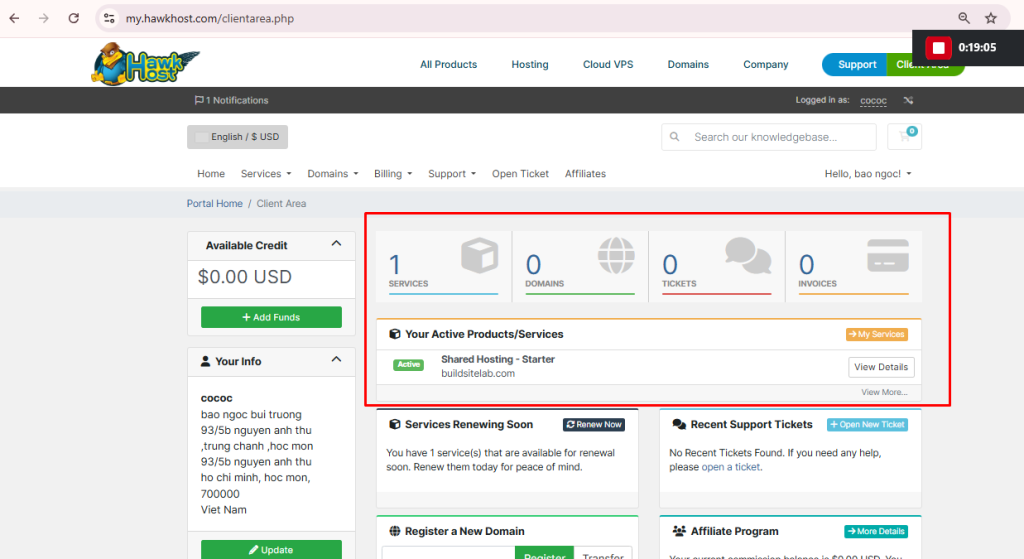
If you need help accessing your account:
Step 2: Open cPanel
Once you enter cPanel, you’ll see the main hosting control panel.
cPanel contains tools for:
- Domains
- File Manager
- Databases
- SSL
- FTP
- Backups
- Security
- Software installation
For domain parking, locate the Domains section.
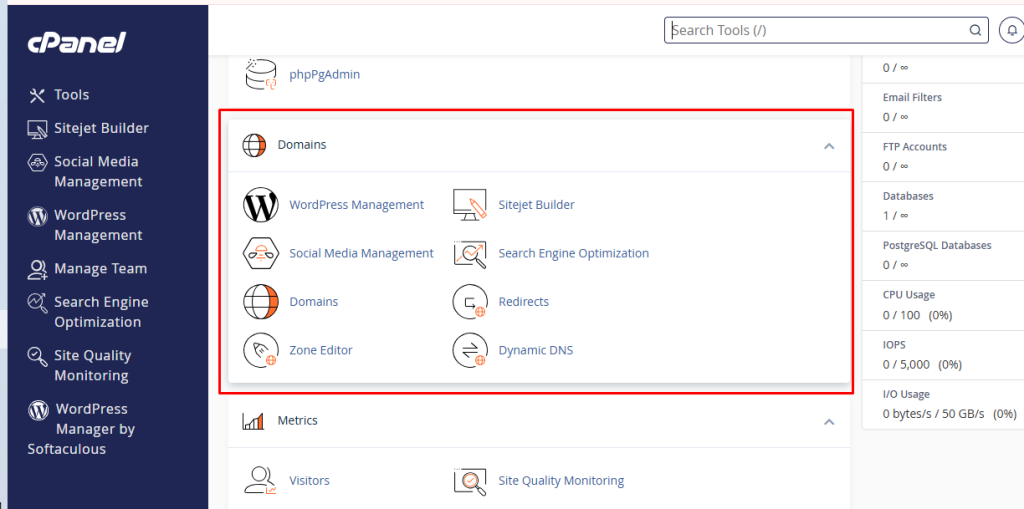
Step 3: Open Domain Management
Click the domain management option.
Depending on your current cPanel interface, you may see all domain-related tools under Domains.
Older tutorials may refer to Aliases or Parked Domains.
Don’t worry if your interface doesn’t use exactly the same terminology.
The important thing is to find the option that allows you to associate an additional domain with an existing website.
Step 4: Add the Additional Domain
Enter the domain you want to use.
For example:
example.netBefore saving, double-check the spelling.
A typo in a domain name can result in DNS and configuration problems later.
At this point, pay attention to whether cPanel is asking you to create a separate document root.
If you want the domain to function as an alias of your existing website, you generally don’t want to accidentally create a completely independent website configuration.
The intended structure should be similar to:
example.com
      ↑
      │
example.net
rather than:
example.com
     ↓
Website A

example.net
     ↓
Website B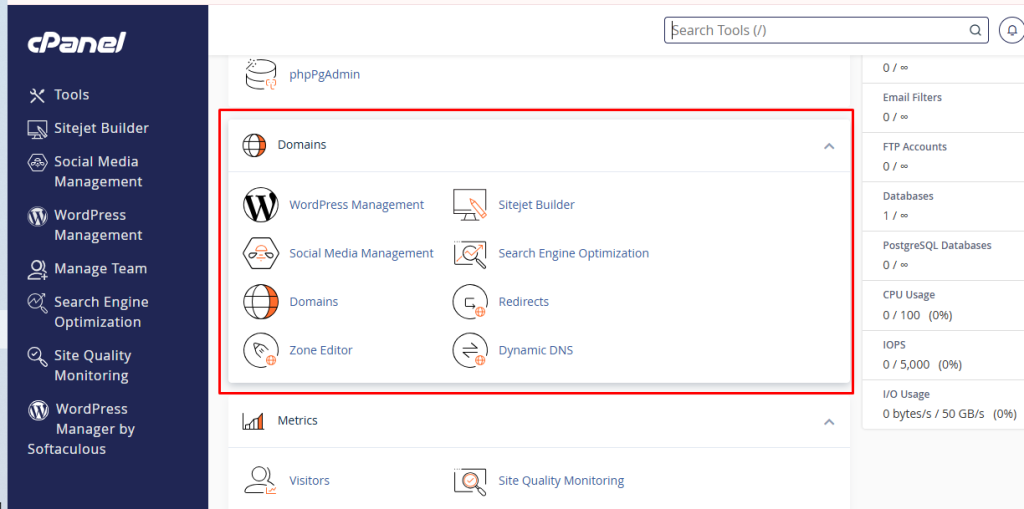
Step 5: Configure the Domain as an Alias
If the current cPanel interface provides an alias option or an option to share the existing website configuration, select the appropriate setting.
The terminology can vary, so focus on the result you want.
You want:
Additional Domain
       ↓
Existing Website
not:
Additional Domain
       ↓
New Independent Website
This distinction is particularly important if you’re already hosting multiple websites on the same HawkHost account.
Tip: Before clicking Create or Save, check whether cPanel is asking you to specify a new document root. If it is, make sure that configuration matches your intended setup.
Step 6: Configure DNS
Adding the domain in cPanel is only part of the process.
Your domain also needs to point to the correct hosting environment.
For example:
example.net
     ↓
DNS
     ↓
HawkHost
     ↓
Existing Website
If the domain was registered somewhere else, such as Namecheap or GoDaddy, you’ll need to configure DNS at that provider.
If you’re using HawkHost nameservers, use the nameservers assigned to your actual hosting account.
Do not copy nameservers from a random tutorial.
Your hosting account may use different nameservers from another HawkHost customer.
For detailed instructions:
→ How to Change Nameservers in HawkHost
Step 7: Wait for DNS Changes
If you changed nameservers or DNS records, the changes may not become visible everywhere immediately.
DNS propagation depends on factors such as:
- DNS provider
- TTL
- Resolver cache
- Nameserver changes
- Local browser or operating-system cache
Some changes can become visible quickly, while others may take longer.
Therefore, don’t assume that something is broken simply because the domain doesn’t work immediately after a DNS change.
How to Check If Your Parked Domain Works
Once you’ve completed the configuration, test the additional domain.
Test 1: Open the Domain
Enter the domain in your browser:
https://example.netCheck whether the intended website loads.
Test 2: Check HTTPS
Make sure the domain works over:
https://rather than only:
http://If you receive an SSL warning, you’ll need to investigate the SSL configuration.
Test 3: Check the Website Content
Don’t only test the homepage.
Try:
- Homepage
- About page
- Contact page
- Images
- CSS
- Other important pages
If the alternate domain displays the expected website, your configuration is likely working as intended.
Test 4: Check DNS
If the domain doesn’t work, check its DNS configuration.
This can help determine whether the problem is:
DNSor:
Hosting configurationScreenshot 4: Additional domain successfully loading the website.
Suggested file name:parked-domain-working.webp
Alt text:Parked domain successfully displaying the existing website
How Long Does Domain Parking Take?
There isn’t one fixed time that applies to every domain.
If you’re only changing a hosting configuration and the DNS is already correct, the result may become available relatively quickly.
However, if you’ve changed nameservers or DNS records, you need to allow time for DNS changes to propagate.
Instead of saying:
“Domain parking always takes 24 hours.”
a better explanation is:
DNS changes can take time to propagate, although many changes become visible much sooner.
If your domain still doesn’t work after making the configuration, check the nameservers, DNS records, and hosting configuration.
Common Domain Parking Problems
Problem 1: The Domain Doesn’t Open
If:
example.netdoesn’t load, check:
- Nameservers
- DNS records
- Domain status
- cPanel configuration
- Hosting account
If you recently changed DNS, allow time for propagation.
Problem 2: The Wrong Website Appears
If the additional domain displays another website, check the domain configuration in cPanel.
You may have accidentally created an independent domain configuration rather than associating the domain with the intended website.
Also check the DNS destination.
Problem 3: SSL Warning
You may see an SSL warning when visiting:
https://example.netThis can happen if the SSL certificate doesn’t cover the additional domain or the domain hasn’t been configured correctly yet.
Check the SSL/TLS settings in cPanel.
For your HawkHost cluster:
→ How to Install Free SSL on HawkHost
Problem 4: Domain Redirects Unexpectedly
Suppose you expected:
example.netto display the same website, but it automatically changes to:
example.comCheck:
- 301 redirects
.htaccess- WordPress URL settings
- cPanel domain configuration
- Plugins that manage redirects
A redirect may be intentional, but if you expected the alternate domain to remain active, investigate the configuration.
Problem 5: Default Page Appears
If you see a hosting default page instead of your website, the domain may not be pointing to the correct website or server.
Check both DNS and your cPanel domain configuration.
Should You Park or Redirect Your Domain?
This is probably the most useful decision section for beginners.
Ask yourself what you actually want the additional domain to do.
Choose a Domain Alias / Parking Configuration If:
You want the additional domain associated with the existing website.
For example:
example.com
example.net
     ↓
Same Website
Choose a 301 Redirect If:
You want visitors to end up permanently at another domain.
For example:
oldsite.com
     ↓
301 Redirect
     ↓
newsite.com
This is often appropriate when you’re moving a website from an old domain to a new preferred domain.
Choose an Addon Domain If:
You want a completely separate website.
For example:
example.com
     ↓
Website A

secondsite.com
     ↓
Website B
This is where an addon domain becomes useful.
Domain Parking and SEO
If you’re using domain parking for a website, you should also think about SEO.
Suppose these two URLs both serve the same website:
example.com
example.net
You should have a clear reason for making the same content accessible through both domains.
If your actual objective is to consolidate an old or alternative domain into your main domain, a 301 redirect may provide a cleaner setup.
For example:
example.net
     ↓
301
     ↓
example.com
This makes the preferred domain clear.
If you intentionally use an alias configuration, make sure your website’s URL, canonical settings, redirects, and other SEO signals are configured consistently.
For WordPress websites, this is especially important because WordPress has a defined site URL that can influence how pages and links behave.
The key lesson is simple:
Don’t park multiple domains simply because you can. Decide first what role each domain is supposed to play.
Can You Park Multiple Domains?
In many hosting environments, you can associate multiple domains with one website, subject to the limits and configuration of your hosting account.
For example:
example.com
example.net
example.org
example.co
       ↓
Existing Website
However, whether you should do this is a separate question.
If all four domains are simply alternate versions of the same website, think carefully about redirects, canonical URLs, branding, and SEO before exposing the same content through multiple domains.
Sometimes the cleaner setup is:
example.net
example.org
example.co
       ↓
301 Redirect
       ↓
example.com
rather than having multiple domains actively serve the same content.
Frequently Asked Questions
What is a parked domain?
A parked domain generally refers to an additional domain associated with an existing website or hosting configuration without creating a completely separate website.
In cPanel, this functionality may be represented using terminology such as Aliases, depending on the interface.
Is a parked domain the same as an addon domain?
No.
A parked domain/alias is generally associated with an existing website, while an addon domain is used to host another independent website.
Parked:
example.net
     ↓
Same Website

Addon:
secondsite.com
     ↓
Separate Website
Do I need hosting to park a domain?
It depends on what you mean by “park.”
You can register and hold a domain without hosting it.
However, if you want to associate the domain with an existing website through your hosting account, you need an appropriate hosting and DNS configuration.
Can I park a domain on HawkHost?
If your HawkHost hosting plan and current cPanel configuration support the required domain alias functionality, you can manage the additional domain through cPanel.
The exact menu names may change, so use the current Domains tools shown in your account.
Can I park a domain purchased from Namecheap?
Yes. The domain registrar and hosting provider do not have to be the same company.
For example:
Domain:
Namecheap

Hosting:
HawkHost
You simply need to configure the domain’s DNS correctly.
→ How to Connect a Domain to HawkHost
Does a parked domain need SSL?
If visitors will access the domain using HTTPS, the domain needs appropriate SSL coverage.
For example:
https://example.netshould have a valid certificate covering example.net.
Can I park multiple domains on one hosting account?
This depends on your hosting account and its domain limits.
If your account supports multiple domain aliases, you may be able to associate several additional domains with one website.
However, consider whether redirects or aliases make more sense for your specific SEO and branding strategy.
What is the difference between domain parking and a 301 redirect?
With a domain alias/parking configuration, the additional domain is associated with the website.
With a 301 redirect:
example.net
     ↓
301
     ↓
example.com
the visitor is sent to the destination domain.
The correct choice depends on your intended result.
What Should You Do Next?
If you’re building a website and working through domain management step by step, the next article depends on what you’re trying to accomplish.
Start with:
→ What Is a Domain?
Then learn how different domain structures work:
If you want to use an additional domain with your existing website, this article explains the concept of domain parking.
If you want to create a completely separate website on HawkHost:
→ How to Create an Addon Domain in HawkHost
If you want to create a subdomain:
→ How to Create a Subdomain in HawkHost
If your domain isn’t connected to HawkHost:
→ How to Connect a Domain to HawkHost
And if you need to point your domain to HawkHost:
→ How to Change Nameservers in HawkHost
Final Thoughts
Parking a domain can be useful when you own an additional domain and want to associate it with an existing website rather than building another website from scratch.
The most important thing is understanding the difference between the available configurations.
Additional Domain
       │
       ├── Alias / Parking
       │       ↓
       │   Existing Website
       │
       ├── 301 Redirect
       │       ↓
       │   Another Domain
       │
       └── Addon Domain
               ↓
        Separate Website
If you want the additional domain to work with the existing website, an alias or parking configuration may be appropriate.
If you want visitors to be permanently sent to your preferred domain, a 301 redirect may be better.
And if you want to build an entirely different website, use an addon domain or another appropriate hosting configuration.
For HawkHost users, the practical setup is managed through the hosting account and cPanel, while DNS determines how the additional domain reaches the hosting environment.
Before making changes, decide exactly what you want the domain to do. That one decision will help you choose between parking, redirecting, or creating an addon domain and prevent many of the common configuration problems beginners encounter.
Next:
→ How to Create an Addon Domain in HawkHost
→ How to Change Nameservers in HawkHost