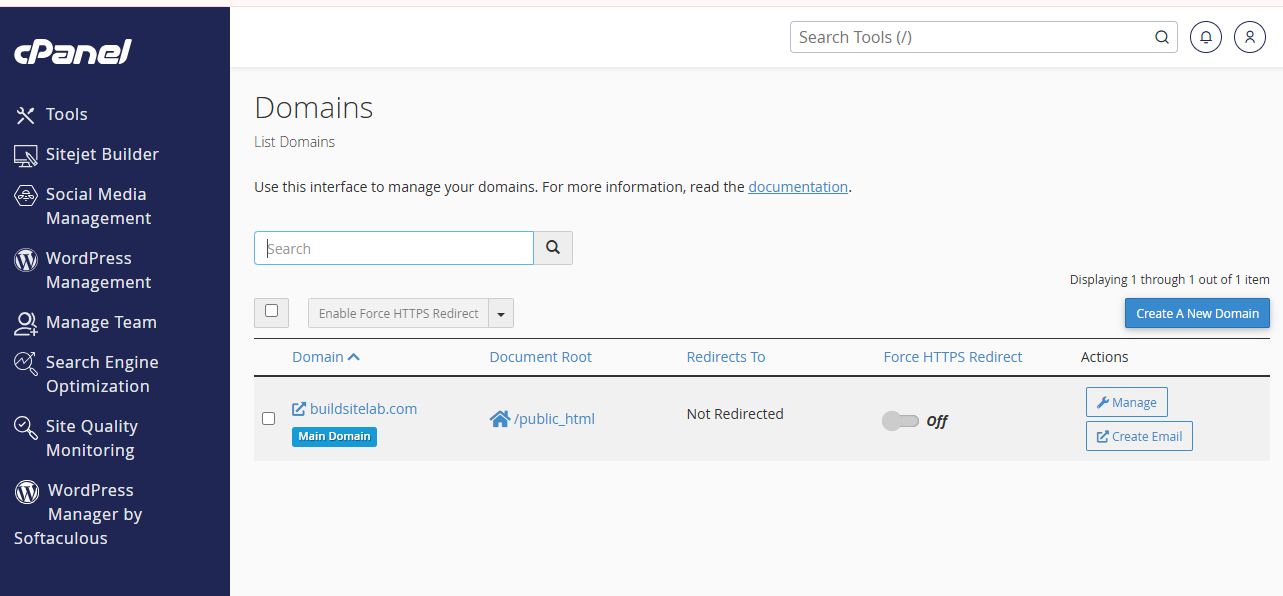
If you already have a website such as example.com but want to create a separate section for your blog, documentation, support center, or testing environment, you don’t necessarily need to purchase another domain.
Instead, you can create a subdomain.
For example, you could have:
example.com
blog.example.com
docs.example.com
support.example.com
A subdomain uses your existing domain and can point to its own folder or website on your HawkHost hosting account.
In this guide, I’ll show you how to create a subdomain in HawkHost using cPanel, including how to choose the document root, check that the subdomain is working, install WordPress on it, and troubleshoot common problems.
If you’re new to HawkHost, don’t worry. You don’t need advanced DNS or server knowledge to follow the basic process.
Quick answer: Log in to HawkHost → open cPanel → go to Domains → create your subdomain → choose the document root → create it → test the new subdomain.
What Is a Subdomain?
A subdomain is an additional section of your existing domain that appears before the main domain name.
For example:
blog.example.comHere:
- blog = subdomain
- example = main domain
- .com = domain extension
Some common examples include:
blog.example.com
shop.example.com
support.example.com
docs.example.com
members.example.com
A subdomain is not a completely new domain.
If you already own:
example.comyou don’t need to purchase:
blog.example.comas another domain.
You create the subdomain underneath your existing domain.
How Does a Subdomain Work?
When someone visits a subdomain, DNS and your hosting configuration determine where that request should go.
A simplified structure looks like this:
example.com
      ↓
     DNS
      ↓
Subdomain
      ↓
Document Root
      ↓
Website Files
For example:
blog.example.com
       ↓
/home/username/blog/
       ↓
WordPress Website
The document root is the directory where the website files for that subdomain are stored.
This is important because you can use a separate folder for your subdomain rather than mixing its files with the main website.
Subdomain vs Addon Domain
This is one of the most common points of confusion for beginners.
An addon domain and a subdomain can both be used to host websites, but they represent different structures.
| Feature | Subdomain | Addon Domain |
|---|---|---|
| Example | blog.example.com | secondsite.com |
| Uses existing domain | Yes | No |
| Requires another domain registration | No | Yes |
| Separate website possible | Yes | Yes |
| Belongs to main domain | Yes | No |
| Common use | Blog, docs, support, testing | Separate website |
| Example structure | blog.example.com | anotherwebsite.com |
For example, if your main website is:
buildsitelab.comthen:
blog.buildsitelab.comis a subdomain.
But:
anotherwebsite.comis a completely separate domain that could be hosted as an addon domain.
Related: → What Is an Addon Domain?
Related: → How to Create an Addon Domain in HawkHost
When Should You Use a Subdomain?
A subdomain can be useful for several different purposes.
1. Blog
You could create:
blog.example.comif you want your blog to operate separately from the main website.
2. Documentation
A documentation section could use:
docs.example.comThis is common for software products, hosting companies, and online services.
3. Support Center
For customer support content:
support.example.comcan provide a dedicated location for help articles and tutorials.
4. Members Area
A membership website could use:
members.example.comfor logged-in users.
5. Testing Environment
Developers sometimes use:
staging.example.comfor testing changes before publishing them on the main website.
6. Separate Application
You could also use:
app.example.comfor a web application that operates separately from the main website.
The important point is that you should create a subdomain because it serves a specific structural purpose—not simply because cPanel allows you to create one.
What You Need Before Creating a Subdomain
Before you begin, make sure you have:
- ✅ An active HawkHost hosting account
- ✅ A domain connected to HawkHost
- ✅ Access to your HawkHost Client Area
- ✅ Access to cPanel
- ✅ A clear purpose for the subdomain
Most importantly, your main domain should already be correctly connected to your HawkHost hosting account.
If your domain isn’t connected yet, complete that step first.
Related Guide: → How to Connect a Domain to HawkHost
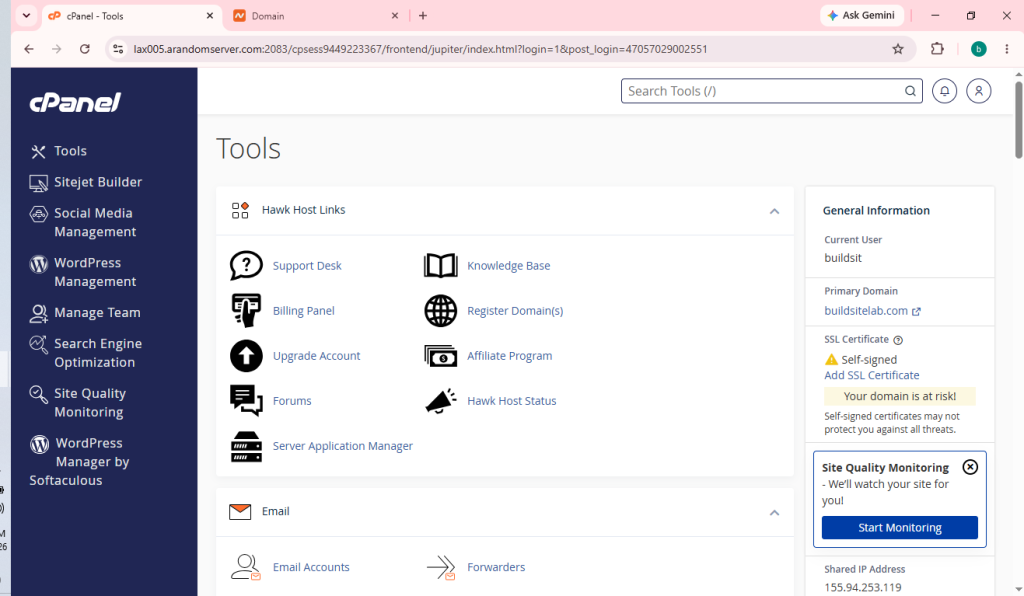
Step 1: Log in to HawkHost
First, log in to your HawkHost Client Area.
After signing in:
- Open My Services.
- Select your HawkHost hosting account.
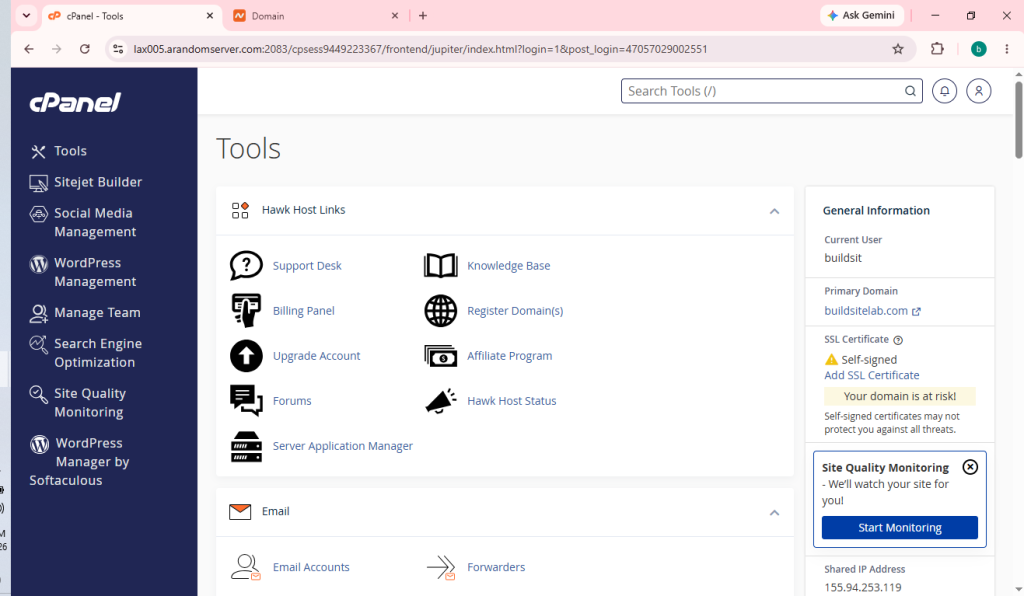
- Open cPanel.
For beginners, accessing cPanel through the HawkHost Client Area is usually the easiest method.
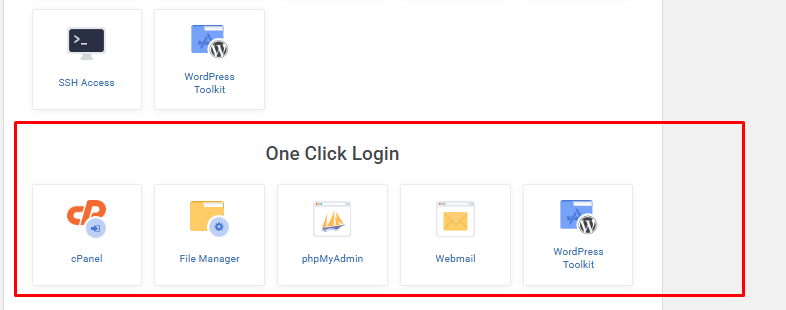
Related Guide: → How to Access HawkHost cPanel
Step 2: Open Domains in cPanel
Once you’re inside cPanel, look for the Domains section.
Depending on the version of cPanel and your HawkHost configuration, the interface may look slightly different.
Look for the option used to create or manage domains.
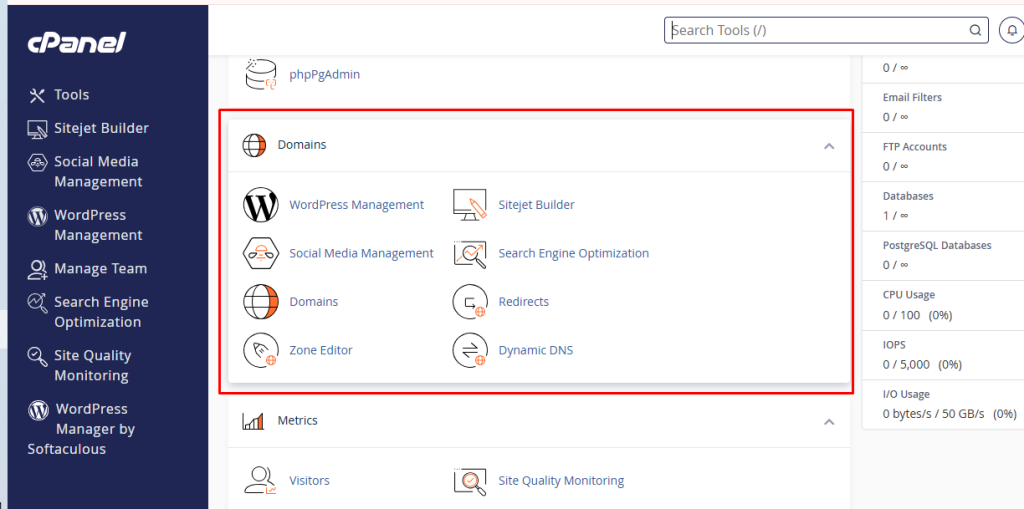
Important: cPanel’s interface can change over time. For your BuildSiteLab article, it’s better to use screenshots from your own current HawkHost account rather than screenshots copied from older tutorials.
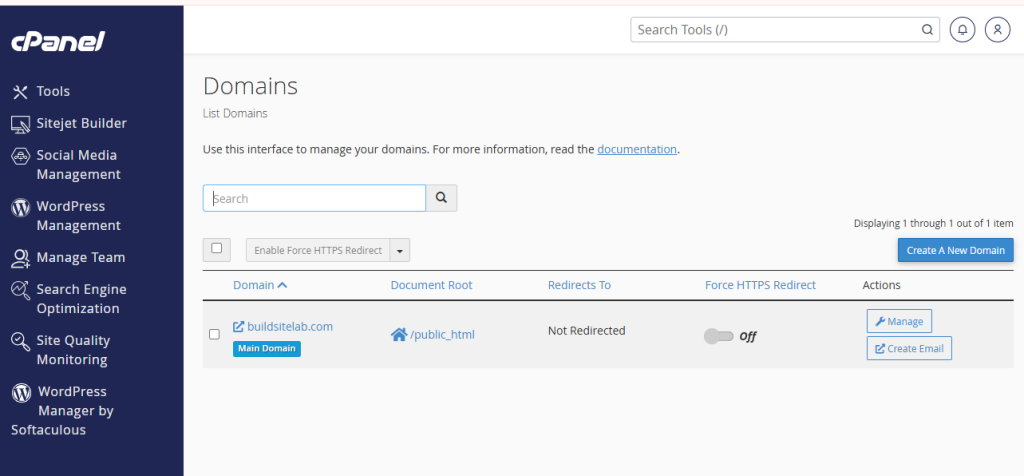
Step 3: Create Your Subdomain
Let’s say your existing domain is:
example.comand you want to create:
blog.example.comIn the domain creation interface, enter the subdomain you want to use.
For this example, enter:
blogThe system will associate it with your main domain:
blog.example.comMake sure you choose the correct parent domain if you have multiple domains hosted under the same HawkHost account.
Step 4: Choose the Document Root
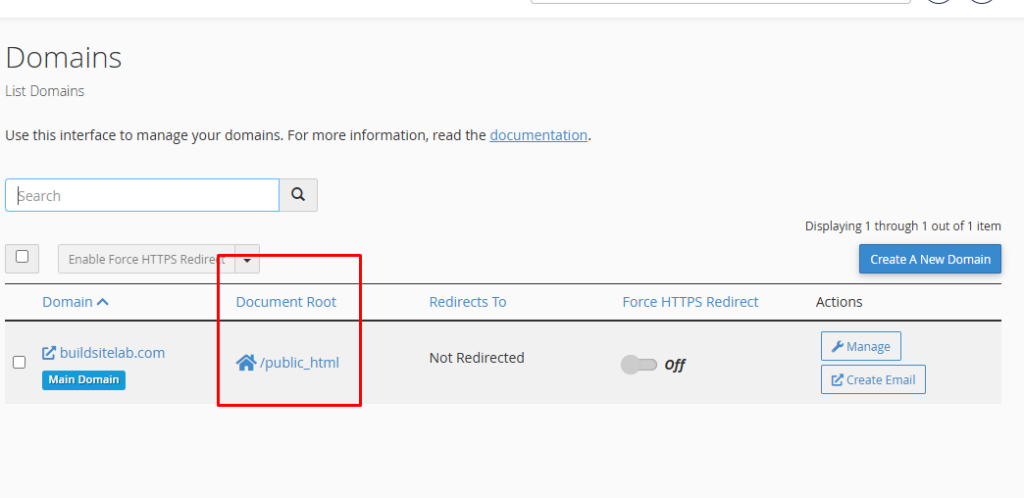
The Document Root is one of the most important settings.
It determines where the files for your subdomain will be stored.
For example:
blog.example.com
        ↓
/home/username/blog/
If you’re creating a separate WordPress website for the subdomain, WordPress files will be installed inside this directory.
The structure could eventually look like:
blog.example.com
        ↓
/home/username/blog/
        ↓
wp-admin
wp-content
wp-includes
Using a dedicated document root makes your websites easier to manage.
You don’t want files from your main website and your subdomain mixed together unless you have a specific reason to do so.
A Simple Rule for Beginners
If you’re creating a completely separate website on the subdomain, use a dedicated document root for it.
For example:
example.com
    ↓
/home/username/public_html/

blog.example.com
    ↓
/home/username/blog/
This keeps the two websites organized.
Step 5: Create the Subdomain
Before submitting the form, check:
- Subdomain name
- Main domain
- Document Root
Once everything looks correct, click the button to create the subdomain.
Depending on the current cPanel interface, the button may be labeled Create, Submit, or something similar.
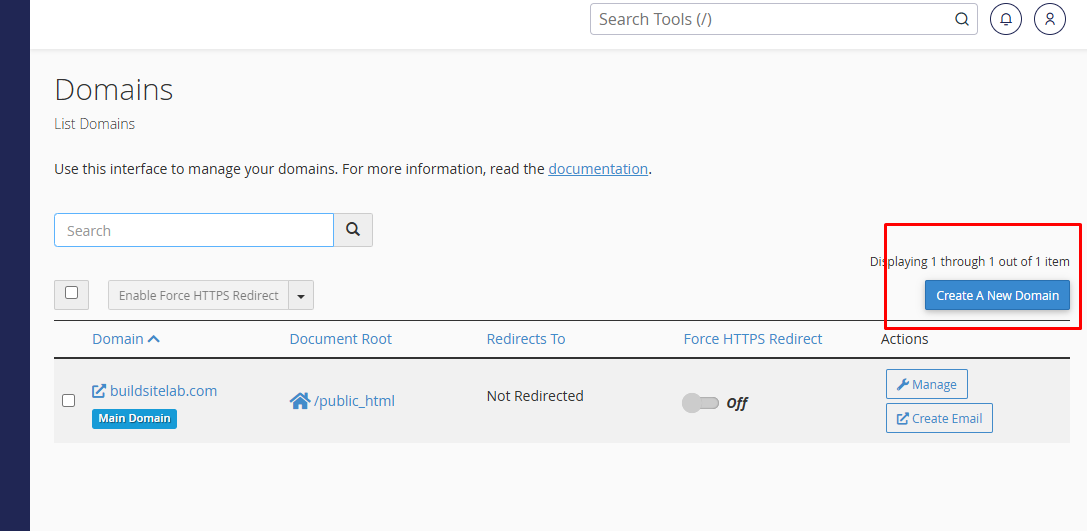
If the process is successful, cPanel should confirm that the subdomain has been created.
Step 6: Check Your New Subdomain
Now open your new subdomain in a browser.
For example:
https://blog.example.comIf the DNS and hosting configuration are correct, the subdomain should resolve to the document root you selected.
If you haven’t installed a website yet, you may see a default page or an empty directory rather than your finished website.
That’s normal.
The important thing at this stage is confirming that the subdomain points to the correct hosting location.
If you’ve just created the subdomain or recently changed DNS settings, you may need to wait for DNS updates to take effect.
How to Install WordPress on a HawkHost Subdomain
One of the most useful things you can do with a subdomain is install a separate WordPress website.
For example:
example.com
    ↓
Main Website

blog.example.com
    ↓
Blog Website
You can have separate WordPress installations for each.
For example:
example.com
    ↓
WordPress A

blog.example.com
    ↓
WordPress B
The two websites can have their own:
- Themes
- Plugins
- Content
- Database
- WordPress settings
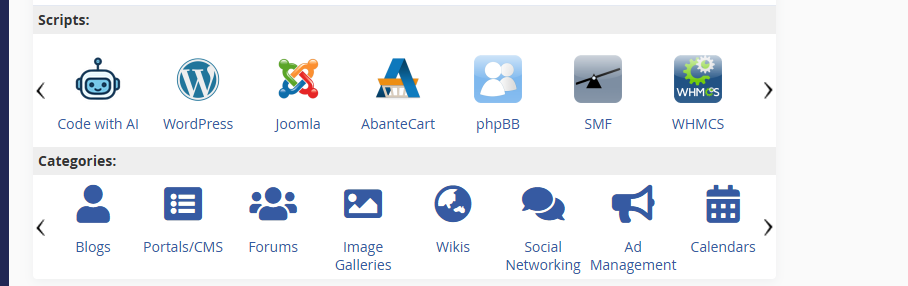
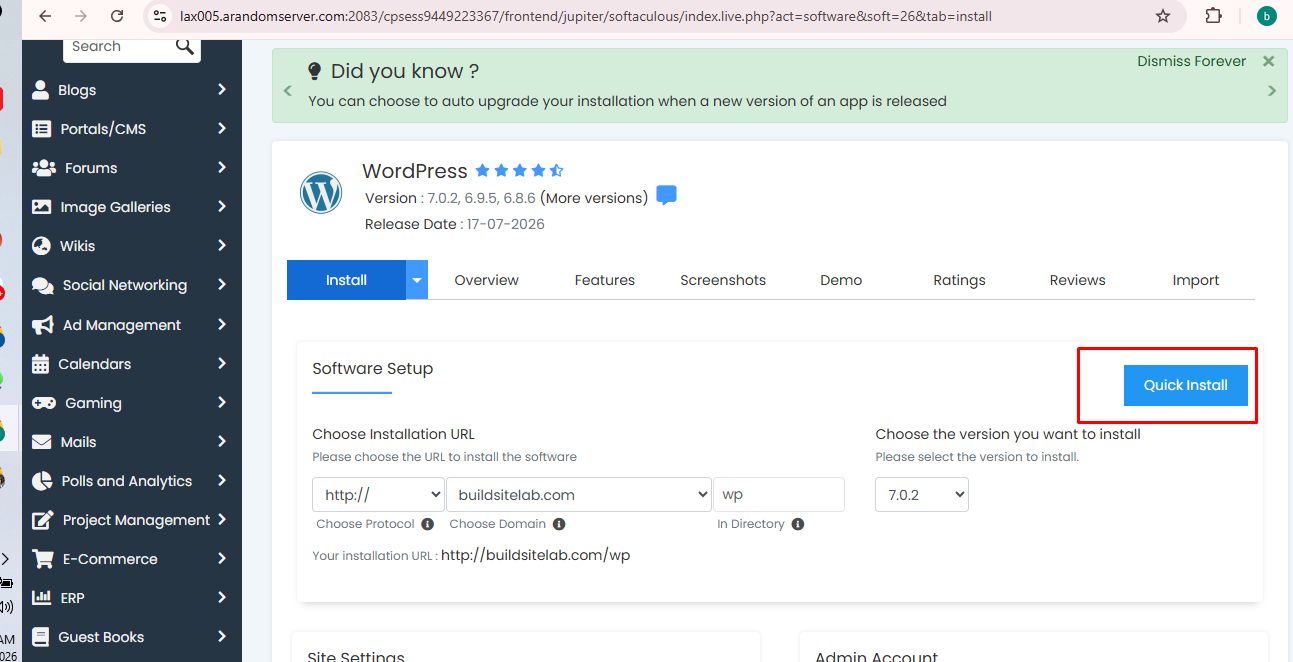
After creating the subdomain, open the WordPress installer available through your HawkHost cPanel.
Select your new subdomain as the installation domain.
Make sure the installation directory matches the document root you configured earlier.
Related Guide: → How to Install WordPress on HawkHost
A Practical Example
Imagine you have a website called:
example.comYou want to organize several parts of your website.
You could create:
example.com
│
├── blog.example.com
├── docs.example.com
├── support.example.com
└── staging.example.com
Each subdomain can have a specific purpose.
For example:
blog.example.com
Your articles and blog content.
docs.example.com
Documentation and tutorials.
support.example.com
Customer support resources.
staging.example.com
A private testing environment.
This structure can make sense for larger projects where different parts of the website need to be managed separately.
Do You Need to Change Nameservers for a Subdomain?
Usually, you don’t need to change nameservers separately for every subdomain.
If your main domain is already using HawkHost’s nameservers, DNS for the subdomain can generally be managed through the existing DNS configuration.
For example:
example.com
      ↓
HawkHost Nameservers
      ↓
DNS
      ↓
blog.example.com
However, the exact setup depends on where your DNS is managed.
If your domain uses a third-party DNS provider such as Cloudflare, you may need to create or modify the DNS record for the subdomain there.
For example, the subdomain might require an appropriate A or CNAME record depending on your setup.
Related Guide: → How to Change Nameservers in HawkHost
How to Create Multiple Subdomains
You can create multiple subdomains for the same domain, subject to your hosting plan and configuration.
For example:
example.com

├── blog.example.com
├── shop.example.com
├── docs.example.com
├── support.example.com
└── staging.example.com
Each can serve a different purpose.
However, creating dozens of subdomains just because you can isn’t necessarily a good idea.
Every additional website or application can increase your hosting resource usage and maintenance requirements.
Before creating a new subdomain, ask:
Does this need to be a separate site or application?
If not, a normal folder such as:
example.com/blog/may be simpler.
Subdomain vs Folder: Which Should You Use?
You can structure content in two different ways:
blog.example.comor:
example.com/blog/These are not exactly the same.
A subdomain can be useful when the section functions more like a separate website, application, or service.
A folder is often simpler when the content is simply another section of the main website.
For example:
| Your Goal | Possible Choice |
| Blog closely integrated with main site | example.com/blog/ |
| Separate documentation system | docs.example.com |
| Customer support center | support.example.com |
| Testing environment | staging.example.com |
| Separate web application | app.example.com |
| Completely separate brand | New domain |
There isn’t one solution that’s always better.
The right choice depends on how you want to structure and manage your website.
Common Problems When Creating a Subdomain
Problem 1: The Subdomain Doesn’t Open
If:
blog.example.comdoesn’t open, check:
- Main domain configuration
- DNS records
- Subdomain configuration
- Document Root
- Hosting account status
If you recently created the subdomain, give DNS changes some time to update.
Problem 2: DNS_PROBE_FINISHED_NXDOMAIN
If your browser shows:
DNS_PROBE_FINISHED_NXDOMAINthe DNS system may not currently have a valid record for the subdomain.
Check where your DNS is managed.
If you’re using a third-party DNS provider, make sure the subdomain record exists there.
If you recently changed DNS settings, wait for the changes to propagate.
Problem 3: 404 Not Found
If the subdomain opens but displays a 404 Not Found error, check the document root.
Make sure:
- The document root is correct.
- Website files exist in that directory.
- WordPress was installed in the correct location.
- Your site’s configuration is correct.
If you’re using WordPress, also check whether the site’s URL and rewrite configuration are correct.
Problem 4: The Subdomain Shows the Wrong Website
If visiting:
blog.example.comshows another website, check the document root first.
The subdomain may be pointing to the wrong directory.
Also verify:
- Domain configuration
- DNS records
- Document Root
- Website files
A correctly configured subdomain should point to the intended website directory.
Problem 5: SSL Doesn’t Work
If:
http://blog.example.comworks but:
https://blog.example.comdoesn’t, the SSL certificate may not yet be configured for the subdomain.
First make sure the subdomain correctly points to your HawkHost account.
Then check your SSL configuration.
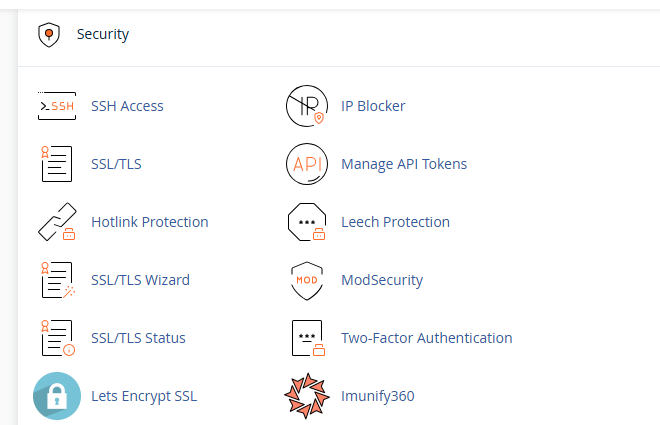
Related Guide: → How to Install Free SSL on HawkHost
Should You Use a Subdomain or a New Domain?
A simple way to decide is to look at the purpose of the website.
| Your Goal | Better Option |
| Blog closely connected to main website | Subdomain or folder |
| Documentation | Subdomain |
| Support center | Subdomain |
| Testing environment | Subdomain |
| Separate web application | Subdomain |
| Completely separate website | New domain |
| New affiliate website | New domain |
| Different brand | New domain |
For example:
Main brand:
example.com

Documentation:
docs.example.com

Support:
support.example.com

Separate brand:
anotherbrand.com
The last example is a completely separate domain rather than a subdomain.
If you’re building an entirely independent website, an addon domain or another hosting setup may make more sense.
Related Guide: → How to Create an Addon Domain in HawkHost
Frequently Asked Questions
What Is a Subdomain?
A subdomain is an additional part of an existing domain that appears before the main domain name.
For example:
blog.example.comHere, blog is the subdomain.
Is a Subdomain Free?
You don’t normally need to purchase a separate domain registration for a subdomain.
A subdomain is created under a domain you already own.
However, whether you can create a particular number of subdomains depends on your hosting and DNS configuration.
Can I Create a Subdomain on HawkHost?
Yes, you can create subdomains through your HawkHost hosting environment using cPanel, provided your hosting configuration supports them.
The exact cPanel interface may vary depending on the current setup.
Do I Need to Buy a New Domain for a Subdomain?
No.
If you already own:
example.comyou can create:
blog.example.comwithout purchasing another domain.
Can I Install WordPress on a Subdomain?
Yes.
You can install a separate WordPress installation on a subdomain.
For example:
example.comcould run one WordPress installation while:
blog.example.comruns another.
Each installation can have separate content, themes, plugins, and databases.
How Many Subdomains Can I Create?
The number depends on your hosting plan and current configuration.
If you plan to create many subdomains, check your hosting account’s current limits and available resources.
What’s the Difference Between a Subdomain and an Addon Domain?
A subdomain is created under an existing domain:
blog.example.comAn addon domain uses a separate registered domain:
anotherwebsite.comA subdomain is usually associated with the main domain, while an addon domain is generally used for a completely separate domain and website.
How Long Does a New Subdomain Take to Work?
If your DNS is already configured correctly, a newly created subdomain may start working quickly.
However, DNS changes can take time to propagate.
If you’ve recently changed DNS records or nameservers, you may need to wait before the subdomain becomes accessible everywhere.
Final Thoughts
Creating a subdomain in HawkHost is a straightforward process once you understand how the domain, DNS, and document root work together.
The basic process is:
Main Domain
     ↓
HawkHost
     ↓
cPanel
     ↓
Create Subdomain
     ↓
Choose Document Root
     ↓
Install Website
A subdomain is useful when you want to create a separate section, application, documentation area, support center, or testing environment under an existing domain.
For example:
example.com
blog.example.com
docs.example.com
support.example.com
You don’t need to purchase a new domain for each of these.
However, if you’re building a completely independent website or a new brand, a separate domain may be a better choice.
Once your subdomain is working, you can install WordPress, configure SSL, upload files, and build the website just like you would with your main domain.
What to Do Next
If your subdomain is now working, the next step depends on what you’re building.
For a WordPress site:
→ How to Install WordPress on HawkHost
For HTTPS:
→ How to Install Free SSL on HawkHost
For a completely separate website:
→ How to Create an Addon Domain in HawkHost
If you haven’t connected your main domain to HawkHost yet:
→ How to Connect a Domain to HawkHost
And if you’re still getting familiar with the hosting environment:
→ How to Access HawkHost cPanel
These guides form part of the HawkHost tutorial series on BuildSiteLab, covering the process from purchasing hosting and connecting a domain to creating websites and managing them through cPanel.