If your website is growing, you may eventually need to check how much storage your hosting account is using.
Large image files, website backups, email messages, databases, cache files, and old website files can gradually consume your available disk space. When storage becomes limited, it can also make it harder to upload new files or maintain your website.
Fortunately, if you use HawkHost hosting with cPanel, you can check your disk usage directly from the cPanel dashboard.
In this guide, you’ll learn how to check disk usage in HawkHost cPanel, how to identify which folders are taking up the most space, and what you can do when your account is getting close to its storage limit.
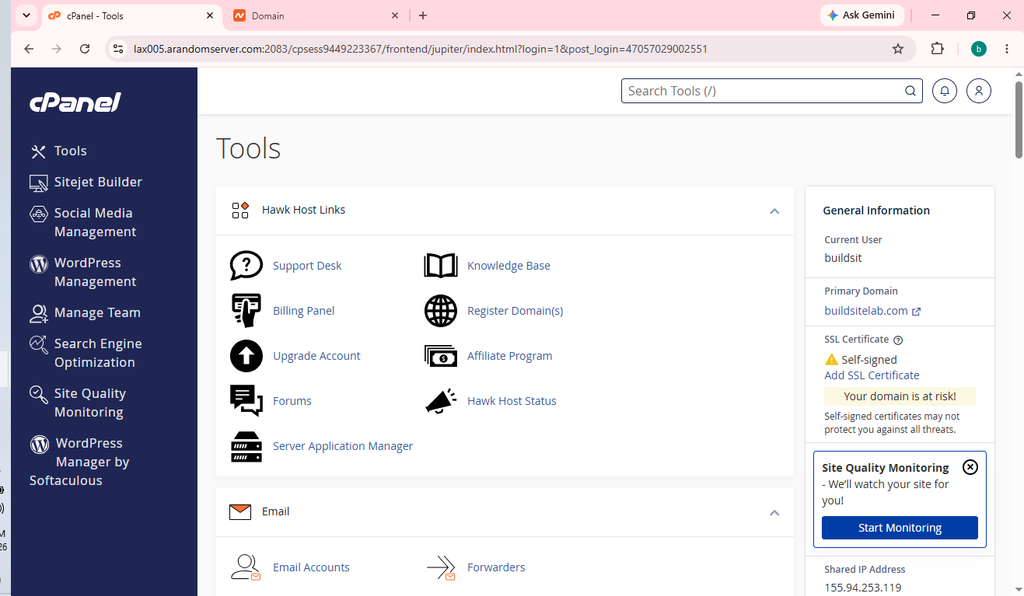
Quick answer: Log in to your HawkHost cPanel account and look at the Statistics section on the right side of the dashboard. You can also open Disk Usage in cPanel for a more detailed breakdown of storage usage. HawkHost specifically documents Disk Usage/Statistics as places where you can check your current disk usage.
What Is Disk Usage?
Disk usage is the amount of storage currently occupied by your hosting account.
Think of it like the storage on your computer.
If your hosting account has 40 GB of available storage and your websites, databases, emails, and other files use 10 GB, you have approximately 30 GB remaining.
Your hosting storage can include more than just the files inside your WordPress website.
For example:
- WordPress files
- Images and media
- Themes
- Plugins
- Databases
- Email messages
- Website backups
- Log files
- Cache files
- Other files stored in your hosting account
This is why your website may appear relatively small while your overall cPanel disk usage is much higher.
Why Should You Check Your HawkHost Disk Usage?
Checking disk usage regularly can help you identify storage problems before they become serious.
1. Your website is growing
A WordPress website can accumulate thousands of images, plugins, themes, backups, and other files over time.
2. You cannot upload new files
If your hosting account is close to its storage limit, you may encounter problems when uploading images, backups, or other files.
3. Your backups are taking up too much space
Multiple full backups can consume a significant amount of storage.
This is especially important if you create manual backups in cPanel and leave old backup archives on the same hosting account.
4. Email is using storage
Email messages and attachments can also contribute to your account’s disk usage.
5. You want to find unnecessary files
Disk Usage can help you determine which directories deserve further investigation.
How to Check Disk Usage in HawkHost cPanel
The easiest way is to start from your HawkHost cPanel dashboard.
Step 1: Log In to HawkHost cPanel
First, log in to your HawkHost account and open cPanel.
If you have not used cPanel before, see our guide:
read more :How to Access HawkHost cPanel (Step-by-Step Guide)
HawkHost currently provides several ways to access cPanel, including through the HawkHost Client Area using the One Click Login option. You can also access cPanel through your domain when DNS is pointing to HawkHost.
Once cPanel opens, you should see the main dashboard.
Step 2: Check the Statistics Section
Look at the Statistics section on the right side of the cPanel interface.
Depending on the current cPanel interface and HawkHost configuration, you may see information such as:
- Disk Usage
- Bandwidth
- MySQL databases
- Email accounts
- Files
- Domains
- Inodes
- Other account resources
The exact appearance can change depending on the cPanel theme and hosting configuration.
HawkHost confirms that disk usage can be viewed from the Statistics section in cPanel.
Example
You might see something similar to:
Disk Usage: 8.42 GBThis gives you a quick overview of how much storage your account is currently using.
How to Get a Detailed Disk Usage Breakdown
The Statistics section is useful for a quick overview, but cPanel also provides a dedicated Disk Usage tool.
Step 3: Open Disk Usage
From your cPanel dashboard:
- Look for the Files section.
- Find Disk Usage.
- Click Disk Usage.
If you cannot immediately find it, use the cPanel search box and search for:
Disk UsageThe Disk Usage page provides a more detailed view of how storage is being used throughout your account.
Understanding the Disk Usage Page
The Disk Usage page can help you determine which directories are consuming the most storage.
You may see directories such as:
/home/username/
├── public_html
├── mail
├── public_ftp
├── logs
└── other folders
The exact folders displayed will depend on your hosting account.
The most important directories for a typical WordPress user are often:
public_html
This is commonly where your website files are stored.
It may contain:
- WordPress core files
- Themes
- Plugins
- Uploads
- Cache files
- Other website files
mail
This directory can contain email data.
If you use domain-based email through your hosting account, old messages and large attachments can contribute to storage usage.
Backup directories
If you create manual backups, you may have large .zip, .tar, or .gz files stored on the account.
These can consume a considerable amount of disk space.
How to Find Which Folder Uses the Most Space
Suppose your account is using 15 GB and you don’t know why.
Don’t immediately start deleting files.
Instead, use the Disk Usage interface to identify the larger directories first.
For example:
Directory                 Size

public_html               8.2 GB
mail                      4.1 GB
backup                    2.0 GB
other                     0.7 GB
In this example, public_html is the largest directory, so you would investigate the website files first.
If mail is unusually large, you would investigate email storage instead.
If a backup directory contains several large archives, you would review those backups.
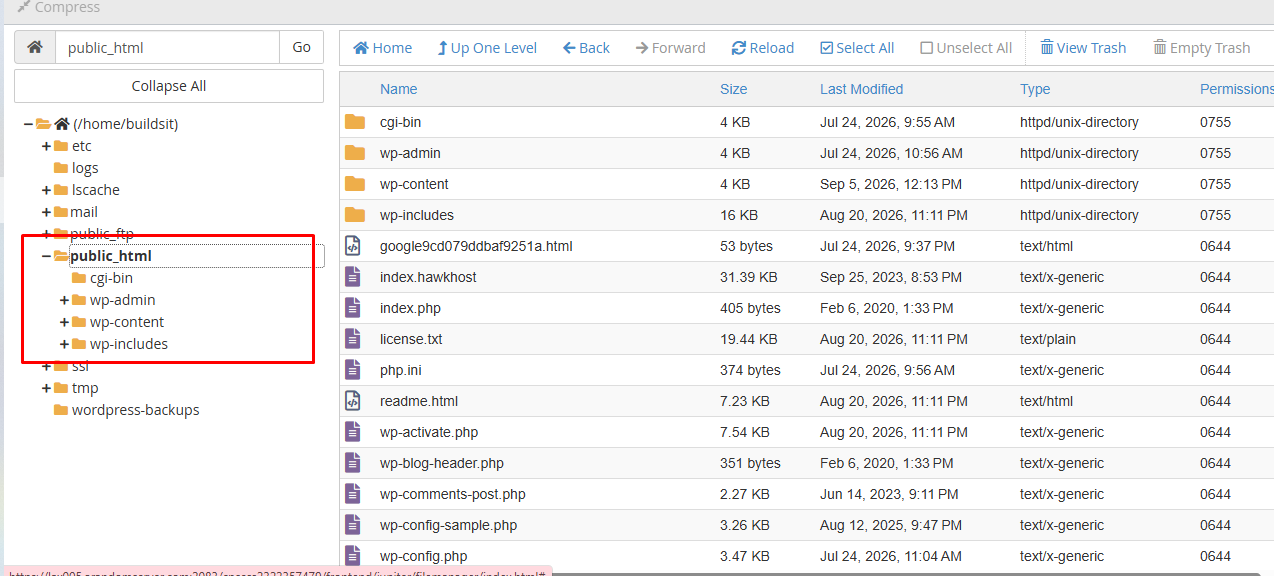
How to Check WordPress Files Using cPanel File Manager
If public_html is using a lot of storage, the next step is to investigate your website files.
Open:
cPanel → File Manager → public_html

For a typical WordPress installation, you will see folders such as:
wp-admin
wp-content
wp-includes
The most interesting folder for storage investigation is usually:
wp-contentInside it, you may find:
wp-content/
├── plugins/
├── themes/
├── uploads/
└── cache/
Check the WordPress Uploads Folder
One of the most common places for a WordPress website to accumulate large amounts of data is:
/wp-content/uploads/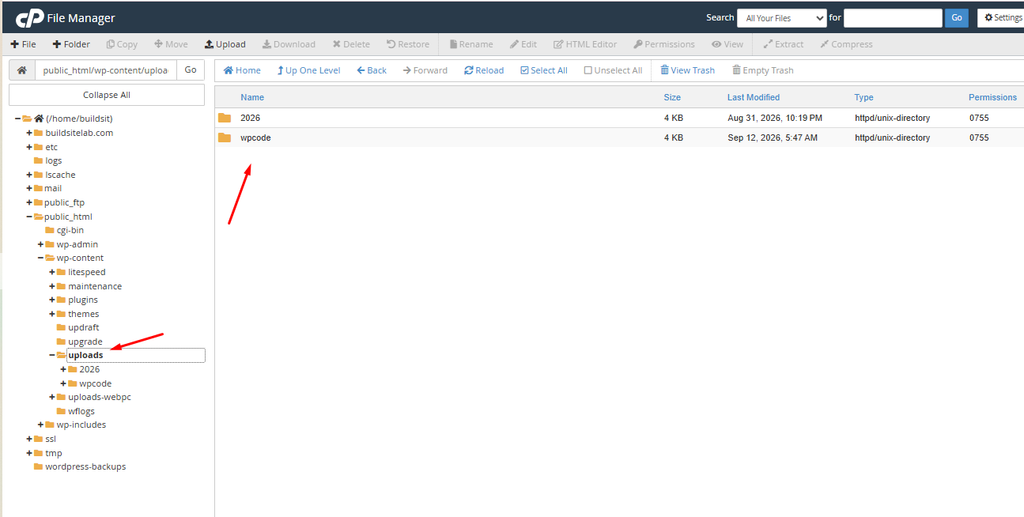
This is where WordPress normally stores uploaded media such as:
- Images
- PDFs
- Videos
- Documents
- Other media files
A website with many years of uploaded images can therefore use a significant amount of storage.
Before deleting anything, make sure the files are not being used by your website.
Do not randomly delete files from the WordPress uploads directory.
Deleting an image from the server can cause that image to disappear from pages or posts where it is used.
Check WordPress Plugins and Themes
Plugins and themes can also occupy storage.
You may find:
wp-content/plugins/
wp-content/themes/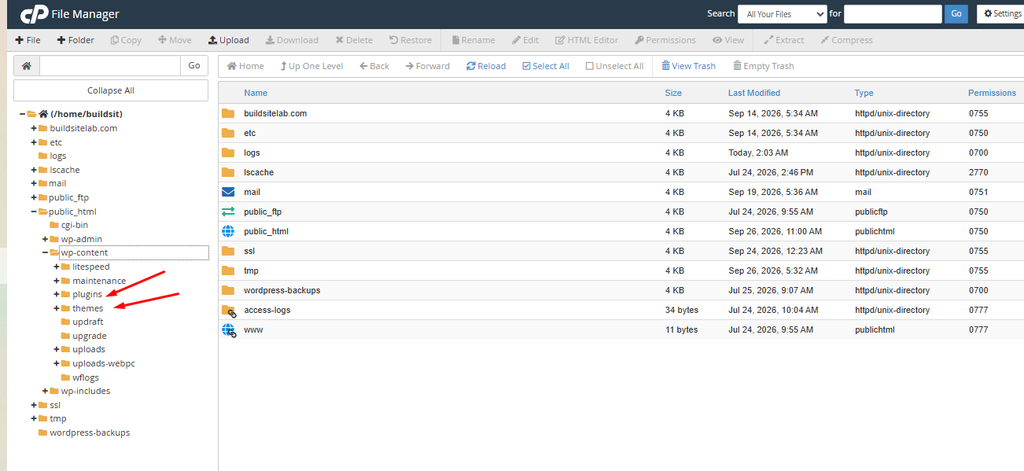
Old themes that are no longer used can sometimes be removed.
However, don’t delete a plugin folder simply because it looks unfamiliar.
Some plugins may store additional data or files that your website depends on.
For WordPress, it is generally safer to:
- Identify the plugin from the WordPress dashboard.
- Confirm it is no longer needed.
- Deactivate it.
- Remove it through WordPress or another appropriate method.
Check for Large Backup Files
Backups deserve special attention.
For example, you might find files such as:
website-backup-2026-08-01.zip
website-backup-2026-08-15.zip
website-backup-2026-09-01.zip
A single backup can be hundreds of megabytes or more, depending on your website.
Several backups can therefore consume a significant portion of your hosting storage.
HawkHost also provides backup-related tools, including daily backups and WordPress backup functionality, depending on the hosting setup.
Important
Don’t assume every backup file is safe to delete.
Before deleting an old backup, make sure you have another usable copy of your website.
A good practice is to keep important backups outside your hosting account as well.
Check Email Storage
If your website uses email accounts such as:
hello@yourdomain.com
support@yourdomain.com
info@yourdomain.com
email messages can also contribute to disk usage.
Large attachments and old messages can accumulate over time.
HawkHost’s current documentation shows that email storage limits vary by hosting plan, with several current Cloud Web Hosting plans listing no individual mailbox storage limit. That does not mean your overall hosting account has unlimited storage; the account’s total available disk space still matters.
If email is consuming a large amount of space, review old messages and large attachments before considering deletion.
Disk Usage vs. Inodes: What’s the Difference?
When checking your cPanel account, you may see both Disk Usage and Inodes.
They are not the same thing.
Disk Usage
Measures how much storage your files and other account data occupy.
For example:
Disk Usage: 12 GBInodes
An inode generally represents a file or directory stored on your account.
A website can therefore have a large number of files without necessarily using huge amounts of storage.
For example:
Website A:
5 GB
20,000 files

Website B:
2 GB
450,000 files
Website B uses less disk space but may be much closer to an inode limit.
HawkHost currently lists inode limits for its Cloud Web Hosting plans ranging from 500,000 to 5 million depending on the plan.
So if your account is experiencing resource issues, don’t look at disk space alone.
How Much Disk Space Does HawkHost Provide?
Your available storage depends on the hosting plan.
For example, HawkHost’s current Cloud Web Hosting resource table lists:
| Cloud Hosting Plan | Disk Space |
|---|---|
| Starter | 15 GB |
| Launch | 40 GB |
| Plus | 55 GB |
| Turbo | 70 GB |
| Ultra | 100 GB |
| Max | 130 GB |
These figures are from HawkHost’s current resource and process limits documentation and can change as plans are updated.
If you’re checking an older HawkHost account, your plan may have different limits.
What to Do If Your Disk Usage Is Too High
If your account is approaching its storage limit, don’t immediately upgrade your hosting plan.
First, find out what is consuming the space.
Use this process:
Check Disk Usage
       ↓
Find the largest directory
       ↓
Investigate the files
       ↓
Remove unnecessary data
       ↓
Check Disk Usage again
Here are several areas worth checking.
1. Remove Unused Backups
Review old backup archives.
Keep the backups you actually need and move important long-term backups to external storage when possible.
2. Remove Unused WordPress Themes
If your WordPress installation contains old themes that you no longer use, review them from:
WordPress Dashboard → Appearance → Themes

Keep your active theme and any theme you intentionally keep for another reason.
3. Remove Unused Plugins
Review:
WordPress Dashboard → Plugins → Installed Plugins
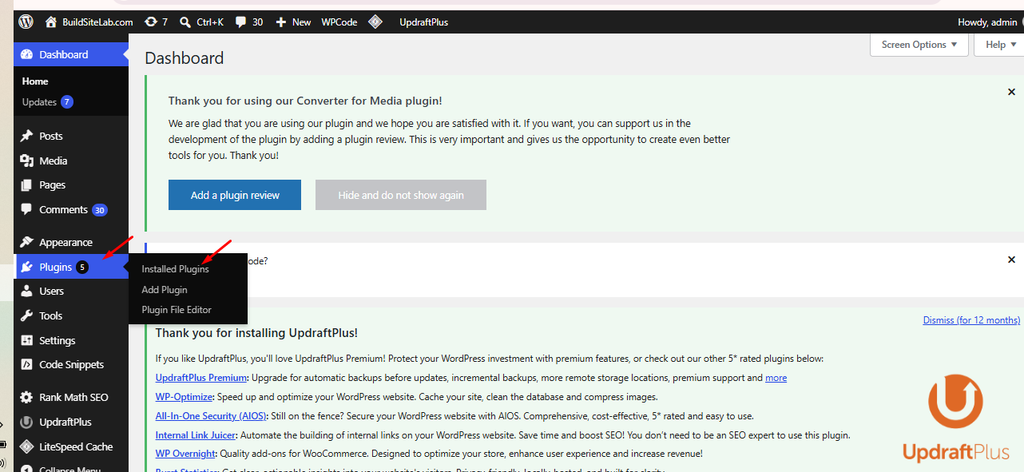
Remove plugins that you have confirmed are no longer needed.
Avoid deleting plugin folders manually unless you understand exactly what they contain.
4. Review Large Media Files
Look through:
wp-content/uploads/Large videos, original image files, PDFs, and duplicated media can add up quickly.
5. Review Email
If email storage is large, clean up unnecessary messages and attachments.
You can also download important messages before deleting them.
Should You Delete Files Directly From cPanel?
Sometimes, but you should be careful.
cPanel File Manager gives you direct access to your hosting files.
That makes it useful for maintenance, but it also means deleting the wrong file can break your website.
Before deleting anything:
- Confirm what the file is.
- Make sure it is no longer needed.
- Create a backup if the file is important.
- Avoid deleting WordPress core files.
- Be careful with
.htaccess. - Don’t delete database files unless you know exactly what you’re doing.
If you’re unfamiliar with File Manager, see:
REad more : How to Use File Manager in cPanel
What If Disk Usage Doesn’t Go Down After Deleting Files?
Sometimes you may delete files but the displayed usage does not immediately appear to change.
Possible reasons include:
- cPanel statistics have not refreshed yet.
- You deleted files from one location but other copies remain.
- Email storage is still consuming space.
- Backups are stored elsewhere.
- Cache or other data is still present.
Give the system some time and check the Disk Usage page again.
If the usage remains unexpectedly high, investigate the largest directories rather than repeatedly deleting random files.
Disk Usage and Website Performance
High disk usage does not automatically mean that your website will become slow.
Disk space and performance are different resources.
For example:
Disk Usage → How much storage your account uses

CPU → How much processing power your website uses

RAM → Memory usage

Disk I/O → How quickly data is read/written

Inodes → Number of files/directories
A website can use 90% of its available storage without necessarily using 90% of its CPU.
However, running extremely close to hosting limits can make website management more difficult, particularly when you need to create backups or upload new files.
How Often Should You Check Disk Usage?
For a small website, checking once every few months may be enough.
For a growing WordPress website, checking monthly is a good habit.
You should check more frequently if you:
- Upload many images.
- Run an online store.
- Receive a large amount of email.
- Create frequent backups.
- Host multiple websites.
- Add many domains.
- Store large files.
A simple monthly check can help you identify unusual storage growth before it becomes a problem.
A Simple Disk Usage Maintenance Routine
You can use this checklist:
Every month
- Check cPanel Disk Usage.
- Check
public_html. - Review
wp-content/uploads. - Review old backups.
- Review unused themes and plugins.
- Check email storage.
- Check inode usage if available.
Every few months
- Review large media files.
- Remove unnecessary archives.
- Check whether old websites or domains are still needed.
- Review unused hosting files.
HawkHost Disk Usage Checklist
Before deleting anything, go through this checklist:
☐ Check total disk usage
☐ Find the largest directories
☐ Check public_html
☐ Check wp-content/uploads
☐ Check backup files
☐ Check email storage
☐ Check databases
☐ Check unused files
☐ Check inode usage
☐ Make a backup before deleting important data
☐ Recheck disk usage afterward
This approach is safer than simply deleting files until the number goes down.
Frequently Asked Questions
How do I check disk usage in HawkHost?
Log in to HawkHost cPanel and check the Statistics section on the right side of the dashboard. For more detail, open the Disk Usage tool in cPanel.
What is using most of my HawkHost storage?
Common sources include website files, WordPress uploads, backups, databases, and email data. Use cPanel’s Disk Usage interface to identify which directories are consuming the most space.
Does WordPress use disk space?
Yes. WordPress core files, plugins, themes, media uploads, databases, and other website data all require storage.
Do emails count toward hosting disk usage?
Email data stored on your HawkHost account can contribute to overall account storage usage. The exact mailbox limits depend on your hosting plan.
What is the difference between disk space and inodes?
Disk space measures the amount of storage used, while inodes relate to the number of files and directories stored on your account.
Can I delete files from cPanel?
Yes, but you should only delete files after confirming that they are unnecessary. Deleting important WordPress or configuration files can break your website.
What should I do if my HawkHost disk space is almost full?
First identify what is consuming the storage. Review backups, media files, email, old website files, and other large directories. Remove unnecessary data or consider a plan with more storage if you genuinely need additional capacity.
Conclusion
Checking disk usage is a simple but useful part of managing a HawkHost website.
From cPanel, you can quickly check your overall storage from the Statistics section and use Disk Usage for a more detailed breakdown.
If your storage is getting high, don’t immediately delete files. First determine whether the space is being used by WordPress media, backups, email, databases, or other website files.
Once you know what’s consuming the storage, you can safely clean up unnecessary data and keep your hosting account easier to manage.
If you’re building a WordPress website on HawkHost, you may also want to read:
- How to Access HawkHost cPanel (Step-by-Step Guide)
- How to Use File Manager in cPanel
- How to Install WordPress on HawkHost: A Complete Step-by-Step Guide
- How to Backup Your Website in HawkHost (Step-by-Step Guide)
- How to Create an Email Account in HawkHost
- How to Install Free SSL on HawkHost (Let’s Encrypt Step-by-Step)
- How to Connect a Domain to HawkHost (Step-by-Step Guide)
1 thought on “How to Check Disk Usage in HawkHost cPanel”